AI agent for hr generalists
Employee Offboarding Evidence Agent
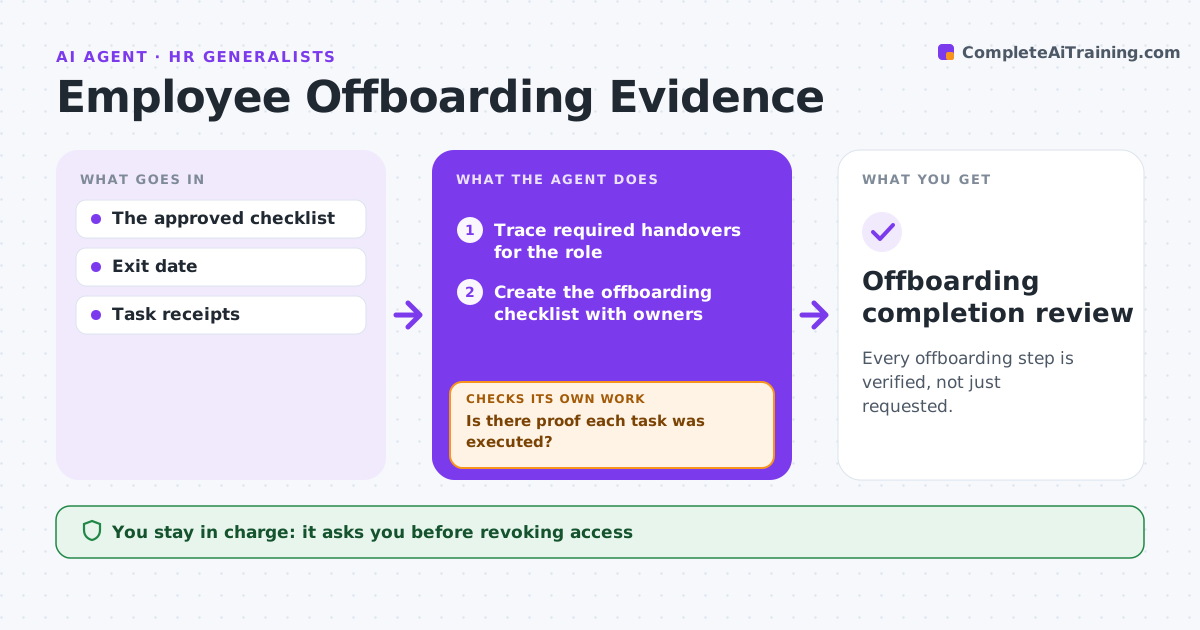
Every offboarding step is verified, not just requested.
What it does
Offboarding tasks often get closed when someone asked for them, not when they were done. Access stays active, laptops are never returned and knowledge is not handed over. When an exit date is set, this agent traces every required handover for that role, then looks up evidence that each task was actually executed, such as a directory change log or an equipment return scan. A ticket that only requests the change is not enough. Tasks without proof stay pending, and the agent drafts follow-ups to the task owners. HR operations approves closure. Edge case: IT closes the access ticket, but the directory still shows the account active in one system, so the agent keeps the task open and follows up.
How it works
Follow the arrows from top to bottom. The orange dashed arrow is the loop: when a check fails, the agent goes back and tries again.
Read the steps as a list
- Exit date set
- Trace required handovers for the role
- Create the offboarding checklist with owners
- Look up execution receipts for each task
- Is there proof each task was executed?If not: keep the task pending and draft a follow-up to its owner. Back to step 4.
- Prepare the completion review
- HR ops approves closureThe agent waits here for your OK.
- Offboarding completion review
How it decides
It checks unverified tasks and updates when execution receipts arrive.
- Proof means an execution receipt, not a request ticket.
- Access tasks are checked against the live directory, not the ticket status.
- Tasks still pending two days after the exit date are escalated to HR ops.
Make it yours
Every agent is a starting point. You choose these settings for your own situation.
- Offboarding task list per role and location
- Accepted proof per task (default system logs and return scans)
- Follow-up interval for pending tasks (default 1 business day)
- Who approves closure (default HR operations)
What keeps you in control
It always asks you first
- Revoking access
- Payroll changes
- Employee messages
Hard limits
- No access changes itself.
It stops when
- Done: all verified.
Set it up
We guide you through the set-up, step by step
Members get the full set-up guide for this agent. No technical skills needed: you copy, paste and upload.
- One set of instructions to paste into your AI, with the clicks for ChatGPT, Claude, Microsoft 365 Copilot, Gemini and Grok
- The agent then walks you through connecting your own data, one source at a time
- A downloadable copy with the flow chart, the rules and the full guide