AI app for it and development · no coding needed
Screenshot text index and stewardship console
Reduce time spent hunting for information trapped in screenshots while keeping captured data under the owner's control.
Made for: Teams and individuals who accumulate screenshots and need to find and reuse what is inside them
What it does for you
The problem
Screenshots pile up as unsearchable images, so the information inside them is effectively lost and cannot be found, reused or governed.
What it gives you
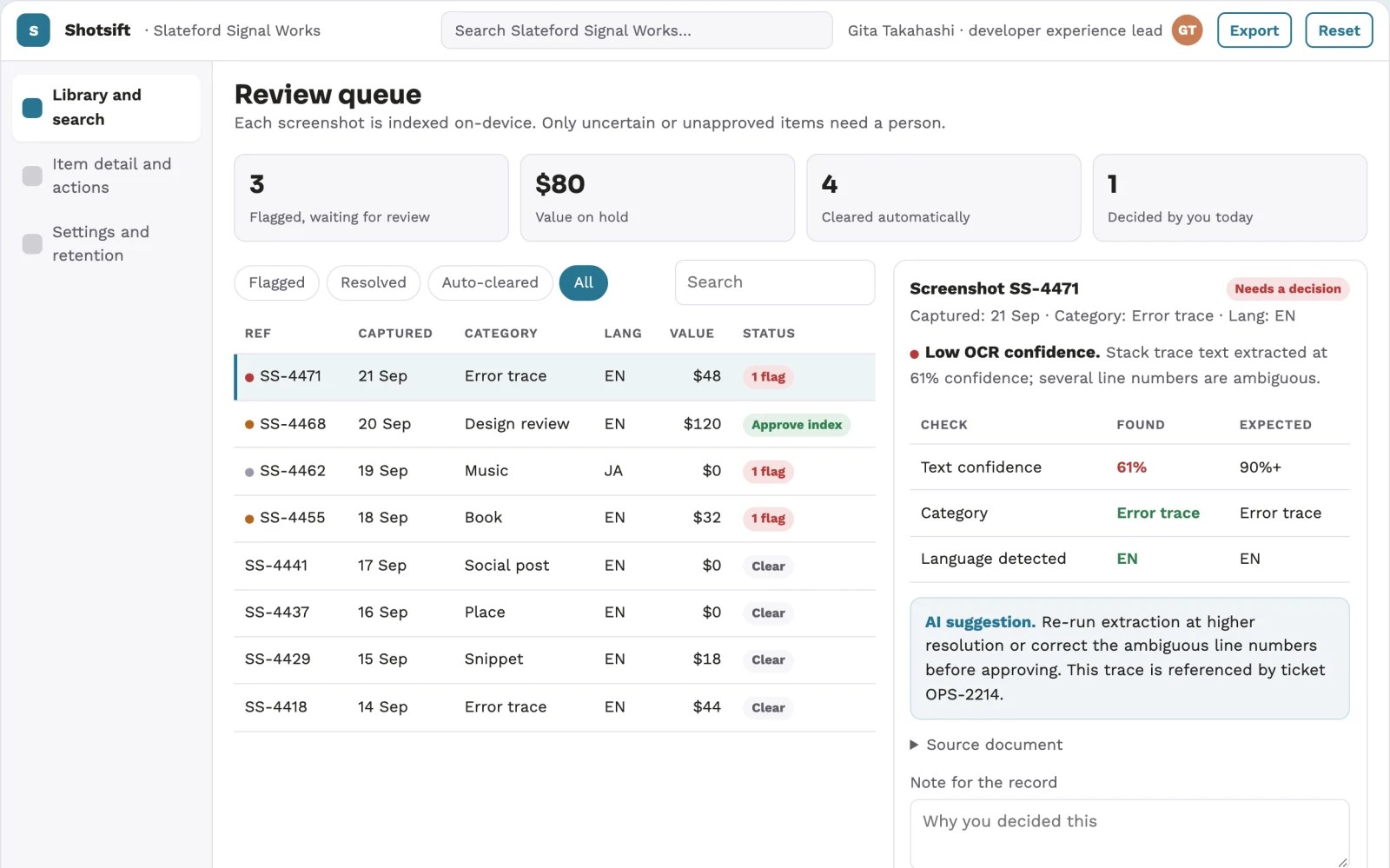
A searchable, categorized, locally processed index with source references and review states
What you give it
Screenshot imagesclipboard historysaved snippetswatched foldersmobile captures
Build your own version of Camp 2.0, BiBimba and more
One app with what these 3 AI tools do, yours to keep and change: Camp 2.0, BiBimba, Mirowl.
Everything these tools do, in one app
- Text extraction from screenshots Pulls text out of screenshot images so it can be searched or reused.Found in Camp 2.0, BiBimba, Mirowl
- Search across screenshots Lets you find a screenshot by searching for words that appear inside it.Found in BiBimba, Mirowl
- On-device processing Runs the extraction and AI work locally on your machine instead of sending data to a server.Found in BiBimba, Mirowl
- Automatic content categorization Identifies what kind of content a screenshot holds and files it into the right category.Found in Camp 2.0
- Summary cards Turns each screenshot into a tidy card that shows its key details at a glance.Found in Camp 2.0
- Multi-type content detection Recognizes many kinds of captured content such as places, music, books, and social posts.Found in Camp 2.0
- Unified clipboard search Searches clipboard history, saved snippets, and screenshot text together in one box.Found in BiBimba
- On-device text actions Offers translate, summarize, and rewrite actions on captured text without network calls.Found in BiBimba
- Keyboard-first operation Lets you open history, paste, and run actions entirely from the keyboard.Found in BiBimba
- Retention limits Lets you set how many items and how old items can be before they are removed.Found in BiBimba
- Multi-language OCR Reads text in multiple languages and detects the language automatically.Found in BiBimba
- Menu-bar app Runs from the menu bar with very low idle resource use.Found in Mirowl
- Folder watching and indexing Watches folders and indexes images incrementally to keep memory use low.Found in Mirowl
- Cloud visual scene analysis Optionally analyzes images in the cloud to search by visual descriptions beyond text.Found in Mirowl
- In-app renaming and tagging Lets you rename and tag items inside the app while keeping original filenames on disk.Found in Mirowl
- Flexible folder indexing Lets you point the tool at any folder, not just the desktop.Found in Mirowl
- Mobile capture integration Works with mobile devices to capture screenshots without manual input.Found in Camp 2.0
How it works, step by step
- Extract text from screenshot images
- Search across screenshots by words inside them
- Run extraction and AI work on-device
- Categorize screenshot content automatically
- Generate summary cards for each screenshot
- Detect multiple content types such as places, music, books and social posts
- Search clipboard history, saved snippets and screenshot text in one box
- Offer on-device translate, summarize and rewrite actions
- Operate keyboard-first for history, paste and actions
- Set retention limits by item count and age
- Read text in multiple languages with automatic language detection
- Run as a low-resource menu-bar app
- Watch folders and index images incrementally
- Optionally analyze images in the cloud for visual scene search
- Rename and tag items in-app while keeping original filenames on disk
- Point indexing at any folder, not just the desktop
- Capture screenshots from mobile devices without manual input
- Compare the reviewed index against the recorded baseline and value assumptions
- Capture corrections and named-owner approval before consequential use
- Export a versioned searchable, categorized, locally processed index with source references and unresolved questions
Jobs this app suits
Our AI checked this app against 500 jobs; these get the most out of it. Each job links to its learning path.
Build it yourself with your AI system
Build this app yourself, no coding needed
Start with a quick version you can try in a few minutes. Like it? Then build the full app by copying and pasting our step-by-step instructions: everything is prepared for you.
Sign in to see how to build it yourself
Build a quick version to try, or get the full app pack for Screenshot text index and stewardship console with the step-by-step building instructions. You don't need any technical skills: you copy, paste and answer a few questions. Both are included in the membership.
4 Have it built for you days to a few weeks
Rather not do it yourself, or want it fully tailored to your data, your way of working and your brand? Nexibeo builds Screenshot text index and stewardship console with you.
What's in the app pack
Included in the Complete AI Training membership.
- The building instructions your AI follows, step by step
- The questions your AI will ask you about your business before it starts
- A clickable demo you can open in your browser, to see how it should work
- A detailed blueprint of the screens, the information it keeps and the checks it runs
Become a member to get the app packAlready a member? Sign in
The files, for the technically curious
- START-HERE.mdHow to build it with your own AI (read first)3 KB
- README.mdOverview and links4 KB
- questions.mdQuestions to answer before you build2 KB
- prompt-cloudflare.mdThe full build prompt, hosted on Cloudflare26 KB
- prompt-vps.mdThe same build on your own server (Docker)26 KB
- spec.jsonData model, API, AI pipeline, acceptance criteria12 KB
- demo/index.htmlThe working demo on sample data196 KB
Questions
Do I need to know how to code?
No. You copy and paste the prompts on this page into ChatGPT or Claude, and the AI does the building. When it asks you something, you answer in your own words.
What does it cost?
The quick version, the app pack and the step-by-step instructions are for members: you pay the membership price, not a price per app (see the plans). Building the full app uses your own ChatGPT or Claude subscription. Putting it online is often cheap or no cost at the start, and your AI tells you before anything costs money.
How long does it take?
The quick version: about two minutes. The real app: an afternoon for a first version you can use, longer if you want every feature.
Can I change it to fit my business?
Yes. Tell your AI what to change in plain words, like “add a column for the price” or “use our logo and colours”. Or have Nexibeo build and customise it for you.
More detailsHow the AI works, safeguards and what to build first
Reduce time spent hunting for information trapped in screenshots while keeping captured data under the owner's control. For teams and individuals who accumulate screenshots and need to find and reuse what is inside them, convert screenshot images, clipboard history, saved snippets and watched folders into a searchable, categorized, locally processed index with review states and retention rules. The benefit is a testable hypothesis, measured through time to find a known item and share of screenshots that are correctly categorized and retrievable; do not assume that AI output alone produces business value.
Confirm the buyer's problem and scope, collect screenshot images, clipboard history, saved snippets, watched folders and mobile captures, then follow this sequence: 1. Extract text from screenshot images. 2. Search across screenshots by words inside them. 3. Run extraction and AI work on-device. 4. Categorize screenshot content automatically. 5. Generate summary cards for each screenshot. 6. Detect multiple content types such as places, music, books and social posts. 7. Search clipboard history, saved snippets and screenshot text in one box. 8. Offer on-device translate, summarize and rewrite actions. 9. Operate keyboard-first for history, paste and actions. 10. Set retention limits by item count and age. 11. Read text in multiple languages with automatic language detection. 12. Run as a low-resource menu-bar app. 13. Watch folders and index images incrementally. 14. Optionally analyze images in the cloud for visual scene search. 15. Rename and tag items in-app while keeping original filenames on disk. 16. Point indexing at any folder, not just the desktop. 17. Capture screenshots from mobile devices without manual input. Resolve uncertain cases with qualified reviewers, approve a searchable, categorized, locally processed index, and measure time to find a known item and share of screenshots that are correctly categorized and retrievable against a documented baseline.
How the AI works
Use AI to interpret permitted inputs, suggest structured mappings and generate candidate outputs for the three stated task modules. Use deterministic code for arithmetic, schema validation, hard constraints and reproducible tests. Review source-linked explanations and uncertainty before accepting results. On-device processing is the default; cloud visual scene analysis is optional and off unless enabled. Final categorization, retention and data-handling decisions remain with the owner. A model suggestion is never a verified fact, professional decision or authorization to act.
Safeguards
Preserve owner voice, source attribution, quotation accuracy and usage permissions. Owners approve substantive changes and publication scope. One operating system, one watched folder and one mobile capture path; on-device processing is the default and cloud visual scene analysis is off unless enabled. Keep all consequential actions under authorized human control and do not fabricate missing inputs, permissions, professional judgments or market evidence.
What to build first
Pilot scope: One operating system, one watched folder and one mobile capture path; on-device processing is the default and cloud visual scene analysis is off unless enabled. Implement one approved input format, a bounded representative case set and the first two task modules: extract text from screenshot images; search across screenshots by words inside them. Support the third module with operator review: run extraction and AI work on-device. Include source references, corrections, basic organization access, approval states, export and value measurement. Use managed operator assistance for unresolved exceptions. The cost estimate covers this narrow prototype, not unrestricted multi-tenant scale, complex production integrations, specialist certification or physical operations.
What it can connect to
Owner-authorized screenshot folders, clipboard managers, mobile capture apps and permitted cloud storage. Start with file exchange and validate destination specifications before promising direct publishing. Start with authorized file exchange. Validate current provider access, usage rights and schema behavior before promising a connector.
The screens in detail
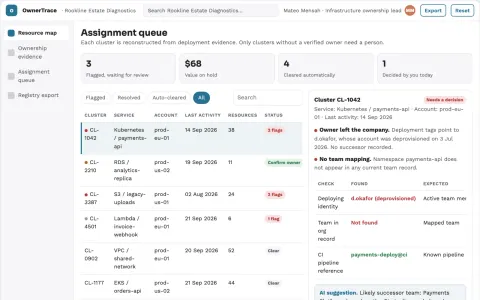
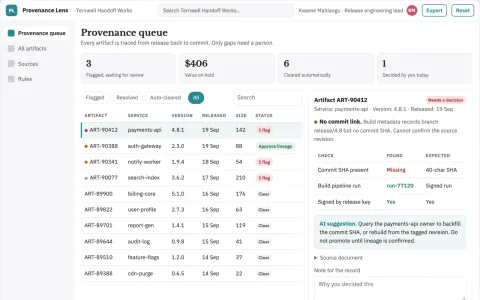
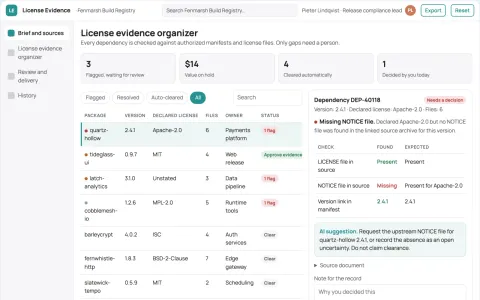
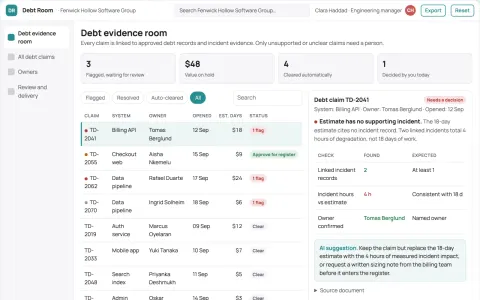
Primary screens: Library and search, Item detail and actions, Settings and retention. Use a searchable list or grid of screenshot cards, a large central preview with extracted text beside it, and a right-hand panel for category, tags, source folder and review state. Let users compare the original image with extracted text and correct it. Display indexed, needs review and approved states. Provide a keyboard command palette for history, paste and actions. Make the task-specific outcome a searchable, categorized, locally processed index visible beside its evidence, review state and value baseline.