AI agent for risk managers
Operational Loss Event Analysis Agent
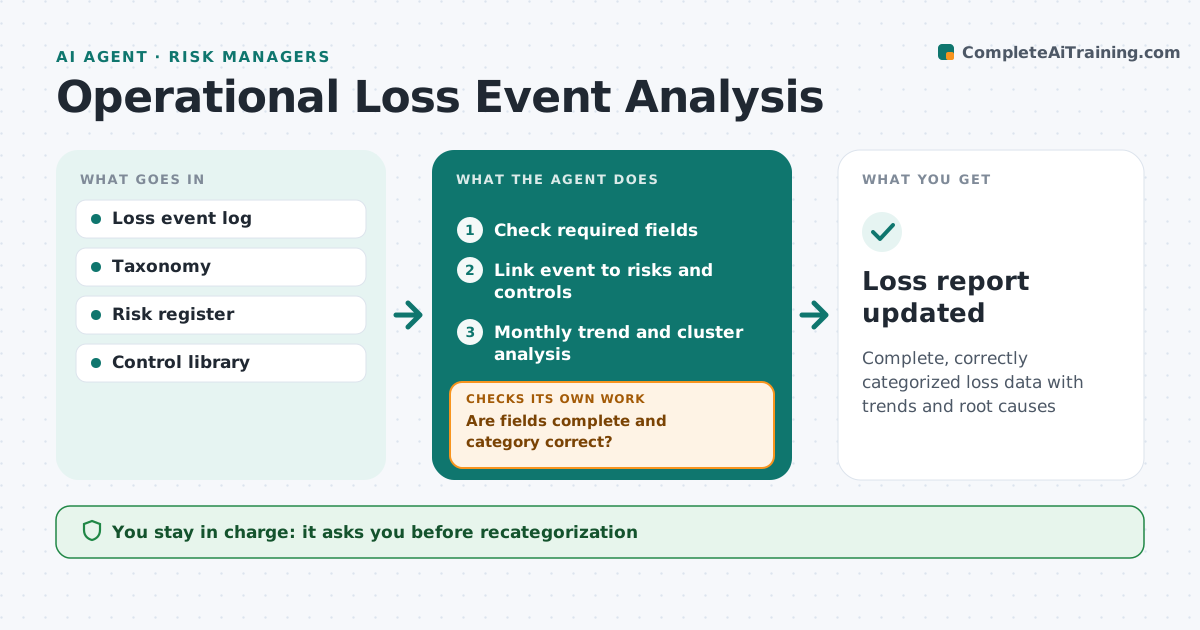
Complete, correctly categorized loss data with trends and root causes
What it does
Organizations log losses and near misses, but entries are often incomplete or put in the wrong category, which makes trends useless. This agent reviews each new loss event and checks required fields such as amount, cause, category and dates. It compares the category with the taxonomy and suggests a correction where the cause points elsewhere. If anything is missing or doubtful, it asks the reporter to complete or confirm it, then checks again. It links each event to risks and controls in the register. Monthly it analyzes trends by category, business unit and cause, including near misses, and when three events share a cause it drafts a root cause review request. Gross and net loss are kept separately. The risk manager approves recategorizations and reviews. Edge case: a recovery arrives months later, so the agent updates net loss and keeps gross loss.
How it works
Follow the arrows from top to bottom. The orange dashed arrow is the loop: when a check fails, the agent goes back and tries again.
Read the steps as a list
- New loss event logged
- Check required fields
- Are fields complete and category correct?If not: ask the reporter to complete or confirm category. Back to step 2.
- Link event to risks and controls
- Monthly trend and cluster analysis
- Draft root cause review requests
- Risk manager approves reviewsThe agent waits here for your OK.
- Loss report updated
How it decides
It validates each event's fields and category, and flags clusters by shared cause.
- Three events with the same cause trigger review
- Gross and net loss kept separately
- Near misses included in trends
Make it yours
Every agent is a starting point. You choose these settings for your own situation.
- Taxonomy
- Required fields
- Cluster rule
- Report timing
What keeps you in control
It always asks you first
- Recategorization
- Root cause reviews
Hard limits
- Does not judge individuals
- Legal hold events handled by legal
It stops when
- Done: monthly report
- Stop: event under legal hold
Set it up
We guide you through the set-up, step by step
Members get the full set-up guide for this agent. No technical skills needed: you copy, paste and upload.
- One set of instructions to paste into your AI, with the clicks for ChatGPT, Claude, Microsoft 365 Copilot, Gemini and Grok
- The agent then walks you through connecting your own data, one source at a time
- A downloadable copy with the flow chart, the rules and the full guide