AI agent for dispatchers
Overdue Unit Check-in Agent
No unit goes unaccounted for longer than the agreed window
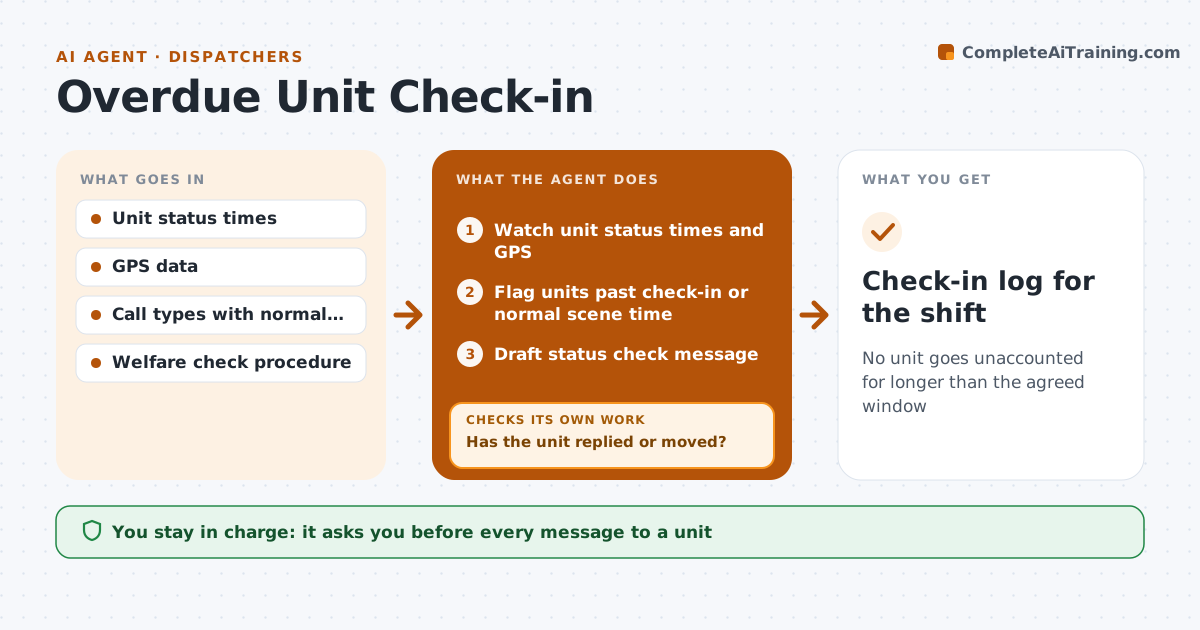
What it does
Field crews and drivers are expected to check in or update their status at set times, and a missed check-in can mean someone needs help. Throughout the shift, this agent watches unit status times and GPS positions. It flags any unit past its check-in time, not moving for too long, or on scene longer than 150 percent of normal for that call type. Units in known poor-signal areas get a longer window. For each flagged unit it drafts a status check message, which the dispatcher sends. It then watches for a reply or movement. If none comes, it raises the alert level and drafts the next step from the written welfare check procedure. The dispatcher sends every message and decides on every escalation. Edge case: a unit that goes quiet in a known dead zone is not escalated until the longer window passes.
How it works
Follow the arrows from top to bottom. The orange dashed arrow is the loop: when a check fails, the agent goes back and tries again.
Read the steps as a list
- Shift starts
- Watch unit status times and GPS
- Flag units past check-in or normal scene time
- Draft status check message
- Dispatcher sends the messageThe agent waits here for your OK.
- Watch for reply or movement
- Has the unit replied or moved?If not: raise the alert level and draft the next welfare check step. Back to step 4.
- Check-in log for the shift
How it decides
A unit is overdue when it passes its check-in time or 150 percent of the normal on-scene time for its call type.
- 150 percent of normal scene time triggers a check
- Poor-signal areas get a longer window
- Escalation follows the written welfare procedure
Make it yours
Every agent is a starting point. You choose these settings for your own situation.
- Check-in intervals by unit type
- Overdue percentage (default 150 percent)
- Poor-signal zones
- Escalation steps
What keeps you in control
It always asks you first
- Every message to a unit
- Any escalation to supervisors or emergency backup
Hard limits
- Never sends messages itself
- Never dispatches backup itself
It stops when
- Done: unit accounted for
- Stop: supervisor takes over the welfare check
Set it up
We guide you through the set-up, step by step
Members get the full set-up guide for this agent. No technical skills needed: you copy, paste and upload.
- One set of instructions to paste into your AI, with the clicks for ChatGPT, Claude, Microsoft 365 Copilot, Gemini and Grok
- The agent then walks you through connecting your own data, one source at a time
- A downloadable copy with the flow chart, the rules and the full guide