AI agent for user support specialists
Support Self-Service Journey Agent
Every help article's steps actually work in the current product.
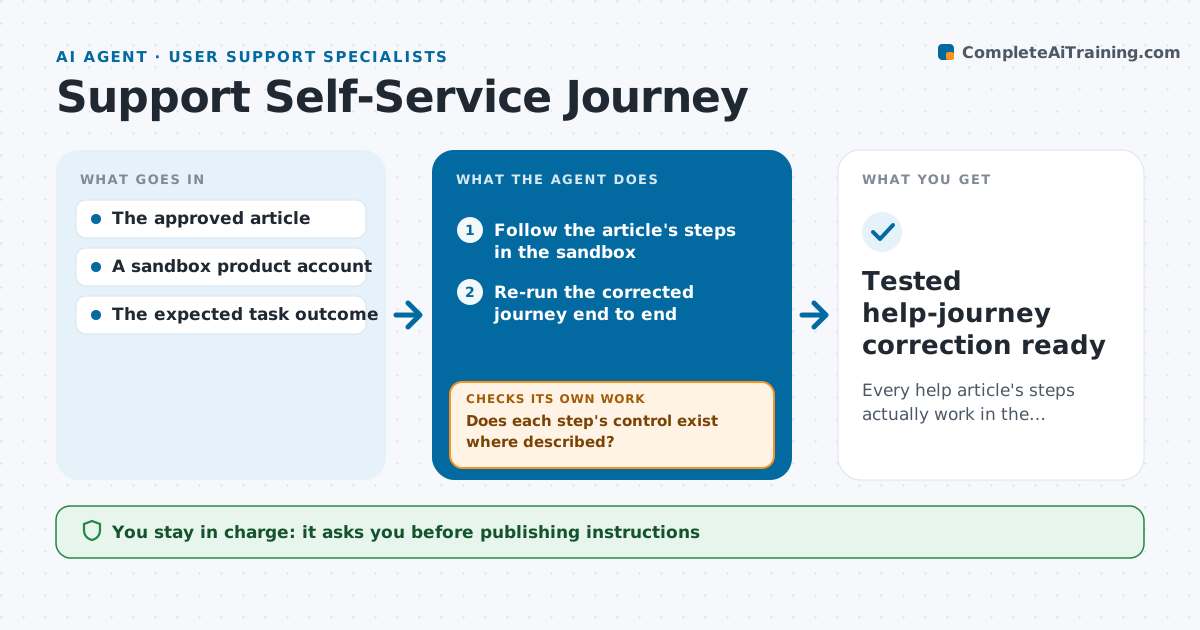
What it does
Help articles describe click paths that stop working when the product changes, and customers get stuck halfway. This agent follows each documented step in a sandbox copy of the product after every release or weekly. It compares what it sees on screen with what the article says. When a control has moved or a screen has changed, it locates the new path and drafts a corrected step. It then re-runs the whole corrected journey to confirm the user can reach the expected outcome, and revises the draft if not. The help-center editor approves publishing. Edge case: a feature that exists only on higher plans is tested with a matching sandbox account, so a missing button is not mistaken for a moved one.
How it works
Follow the arrows from top to bottom. The orange dashed arrow is the loop: when a check fails, the agent goes back and tries again.
Read the steps as a list
- Product release or weekly check
- Follow the article's steps in the sandbox
- Does each step's control exist where described?If not: locate the moved control and draft a corrected step. Back to step 2.
- Re-run the corrected journey end to end
- Is the expected outcome reached?If not: revise the draft. Back to step 2.
- Help-center editor approves publishingThe agent waits here for your OK.
- Tested help-journey correction ready
How it decides
It chooses the next UI action from the article and the actual screen; when a control is missing, it checks the product version and searches the screen for the moved control before drafting a correction.
- Next action: follow the article step and compare with the observed screen.
- Correction: draft a new step only after finding the control's new location.
- Publish-ready: only when the corrected journey reaches the expected outcome end to end.
- Plan features: test with a sandbox account on the matching plan.
Make it yours
Every agent is a starting point. You choose these settings for your own situation.
- Articles checked (default the 100 most viewed, plus any linked to the release notes)
- Schedule (default after each release and weekly)
- Sandbox accounts used per plan level
- Screenshot updates (default included in the draft)
- Who approves publishing (default the help-center editor)
What keeps you in control
It always asks you first
- Publishing instructions
- Any action on customer accounts
Hard limits
- Sandbox only.
It stops when
- Done: journey passes.
- Needs a human: the feature was removed.
Set it up
We guide you through the set-up, step by step
Members get the full set-up guide for this agent. No technical skills needed: you copy, paste and upload.
- One set of instructions to paste into your AI, with the clicks for ChatGPT, Claude, Microsoft 365 Copilot, Gemini and Grok
- The agent then walks you through connecting your own data, one source at a time
- A downloadable copy with the flow chart, the rules and the full guide