AI tool
Koi
Koi is a Mac app that combines dictation, an AI assistant, and a meeting recorder. It is for Mac users who want to type by voice, get screen-aware help, and capture call notes without a bot joining.
About Koi
Koi is a Mac application that combines dictation, an AI assistant, and a meeting notetaker into a single tool. It operates via three keyboard shortcuts and sits on the edge of the screen. The app was launched recently and is built by Irakli and Nata Baramia.
Review

Koi bundles three separate utilities that many professionals already pay for individually. It runs natively on macOS and uses keyboard shortcuts to trigger dictation, screen-aware AI help, or call recording. The following sections break down what the app actually does, how it's priced, and where it falls short.
Key Features
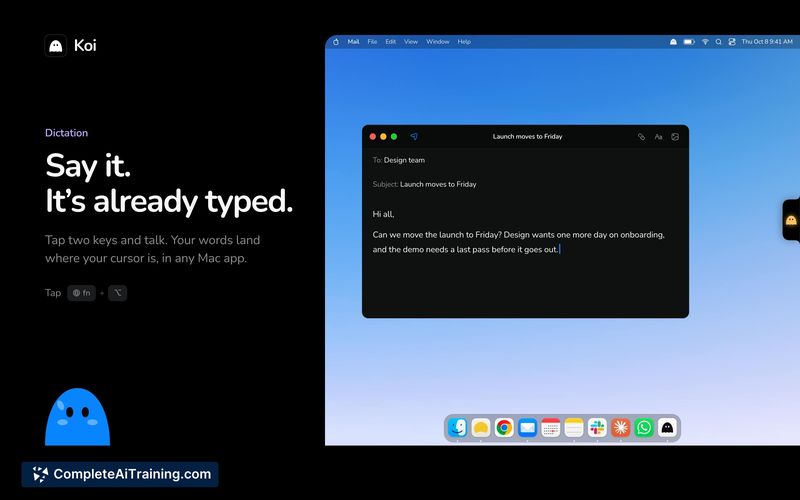
- Dictation (Fn + ⌥): Converts speech to text directly into any app. This runs locally on the Mac, works offline, and has no usage limits.
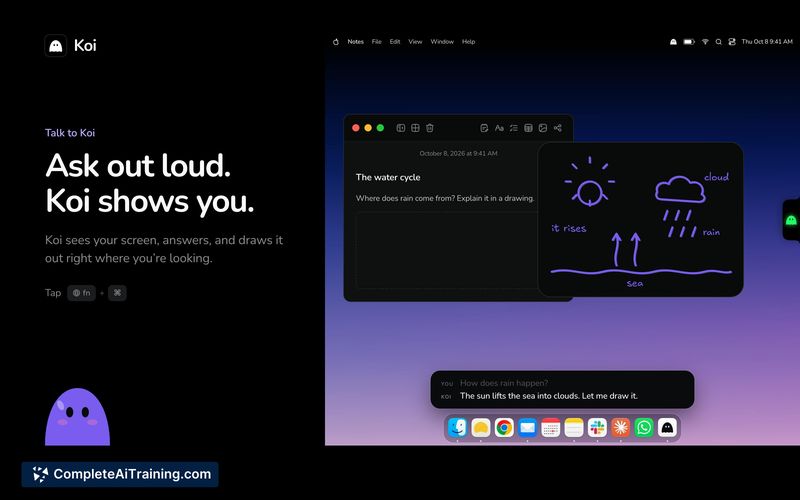
- AI Assistant (Fn + ⌘): Responds to voice commands while viewing your screen. It can point to buttons, draw things out, and rewrite selected text in place. Voice and screen data are sent to the AI provider.
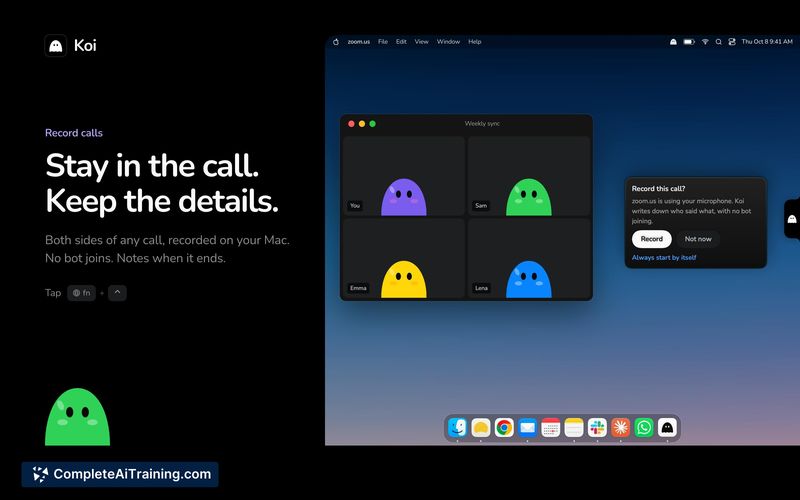
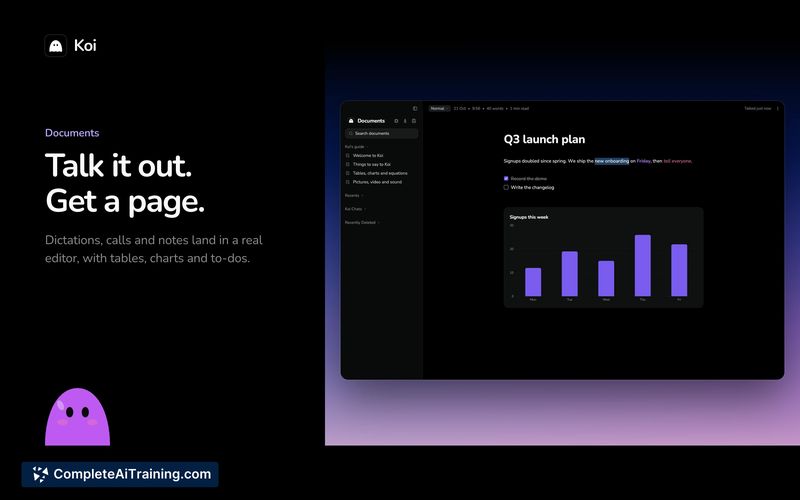
- Call Recording (Fn + ⌃): Records any call without a bot joining the meeting. After the call, the app generates notes and to-dos from the recording.
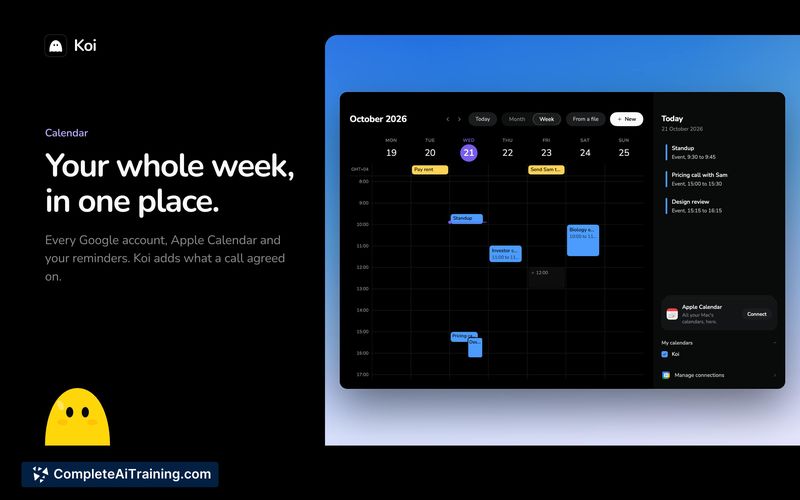
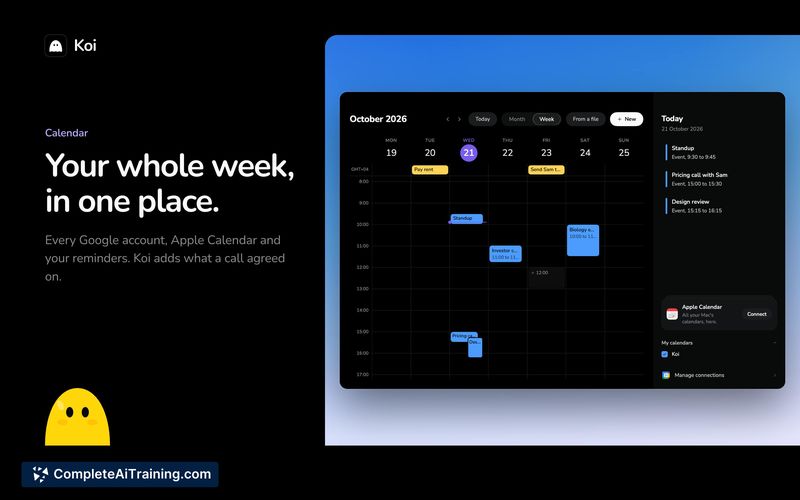
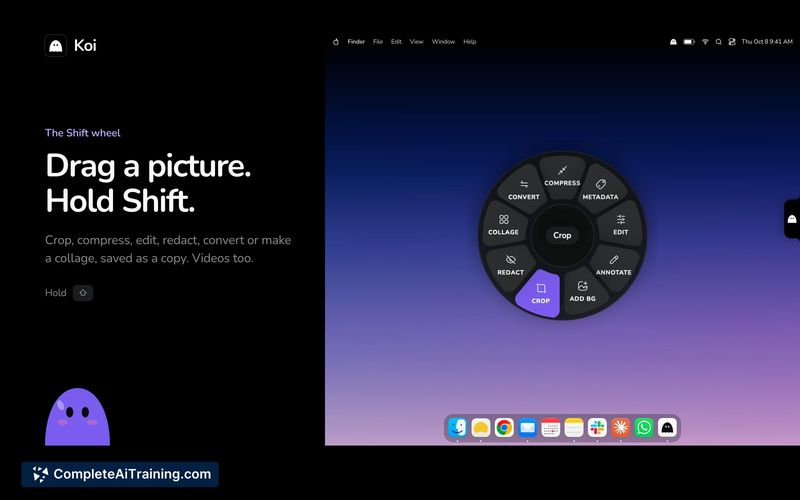
- Pages & Built-in Tools: All outputs land as pages on the Mac. The app also includes a calendar, an expense tracker, and the Shift wheel for quick image cropping or compression by dragging a picture and holding Shift.
Pricing and Value
Koi offers a 3-day free trial that requires a credit card. During the early launch period, a Lifetime deal is available starting at $59. Dictation and call recording are unlimited. The AI assistant feature (Fn + ⌘) has a usage allowance, though the exact limit isn't specified on the product page. Ongoing pricing after the early Lifetime deal ends is not yet defined.
Pros
- Dictation processes speech on-device, so it functions without an internet connection and has no recurring usage caps.
- Call recording doesn't require a meeting bot, which avoids notifying other participants through a third-party participant entry.
- Screen-aware AI can manipulate interface elements and rewrite text in place, rather than just producing chat responses in a separate window.
- The Shift wheel condenses image cropping and compression into a single drag-and-hold gesture.
- A one-time Lifetime purchase option removes the need for a monthly subscription if bought during the early phase.
Cons
- The app is Mac-only, so teams or individuals on Windows or Linux cannot use it.
- The AI assistant sends voice and screen data to an external provider, which may conflict with strict data handling policies in some workplaces.
- Koi is not well suited for users who need an AI assistant with a predictable, fixed monthly cost, since the allowance limits and post-launch pricing remain unannounced.
Koi fits a specific workflow for Mac users who currently switch between a dictation tool, a meeting recorder, and a screen-aware assistant. The offline dictation and bot-free call recording address two common friction points. Anyone who requires cross-platform support or has tight restrictions on sending screen data externally should hold off until those constraints are addressed.