AI agent for office managers
Access Badge and Key Audit Agent
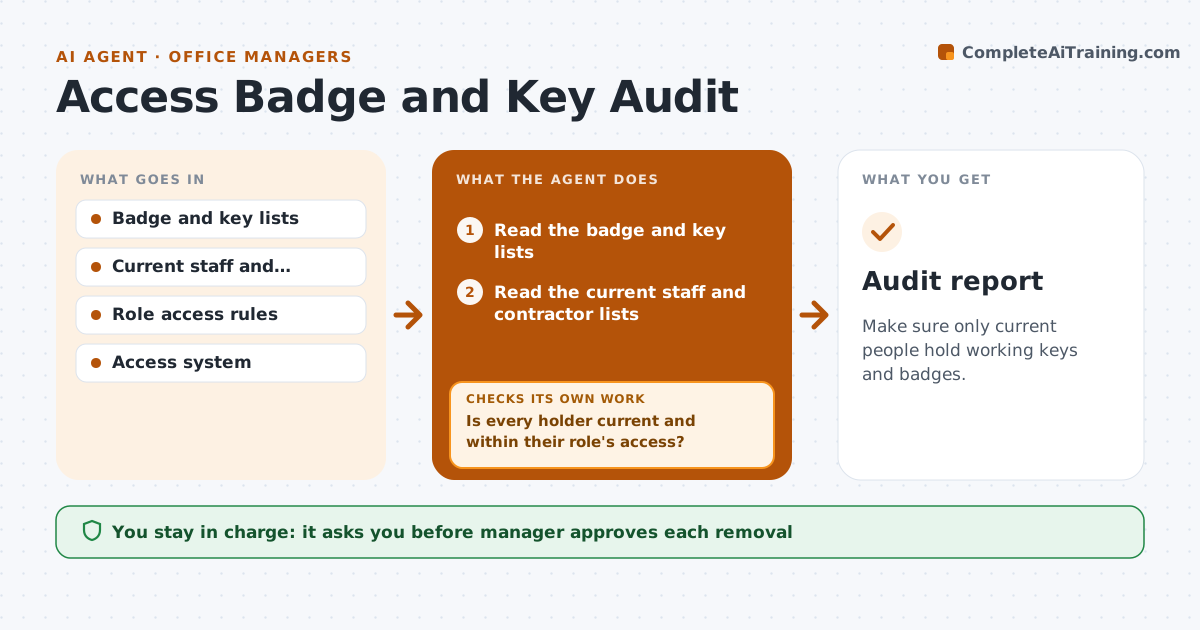
Make sure only current people hold working keys and badges.
What it does
When someone leaves, the badge or key often stays active. This agent compares the badge and key lists with the current staff list from HR. It flags people who have left but still hold access and anyone with access beyond their role. It sends return requests and tracks them. After the manager approves, access is removed, and the agent checks the access system again to confirm the badges no longer work. Each flagged holder gets a clear request that says what to return and by when. Managers see one list, not a string of emails. Edge case: contractors with end dates are checked against their contract dates rather than the staff list.
How it works
Follow the arrows from top to bottom. The orange dashed arrow is the loop: when a check fails, the agent goes back and tries again.
Read the steps as a list
- Monthly review or a departure is recorded
- Read the badge and key lists
- Read the current staff and contractor lists
- Match holders to people and roles
- Is every holder current and within their role's access?If not: List the extras with the reason. Back to step 2.
- Send return requests to the people or their managers
- Manager approves removalsThe agent waits here for your OK.
- Remove or ask the access team to remove the access
- Read the access system again
- Do the removed badges and keys fail in the system?If not: Report to security and try again. Back to step 7.
- Audit report
How it decides
It flags any holder not on the current lists or holding more access than the role allows, then confirms removal in the system.
- Flag leavers still active after 2 days
- Flag contractors past their end date
- Flag access beyond role rules
- Report physical keys not returned after 14 days
Make it yours
Every agent is a starting point. You choose these settings for your own situation.
- Review frequency (default monthly)
- Days after departure to flag (default 2)
- Contractor end date rule
- Who removes access
What keeps you in control
It always asks you first
- Manager approves each removal
Hard limits
- Never remove access without approval
- Never leave an active badge unreported
It stops when
- Done: every extra is removed and confirmed
- Stop: a badge cannot be removed in the system and security is called
Set it up
We guide you through the set-up, step by step
Members get the full set-up guide for this agent. No technical skills needed: you copy, paste and upload.
- One set of instructions to paste into your AI, with the clicks for ChatGPT, Claude, Microsoft 365 Copilot, Gemini and Grok
- The agent then walks you through connecting your own data, one source at a time
- A downloadable copy with the flow chart, the rules and the full guide