AI agent for elected officials
Budget Line Item Tracker Agent
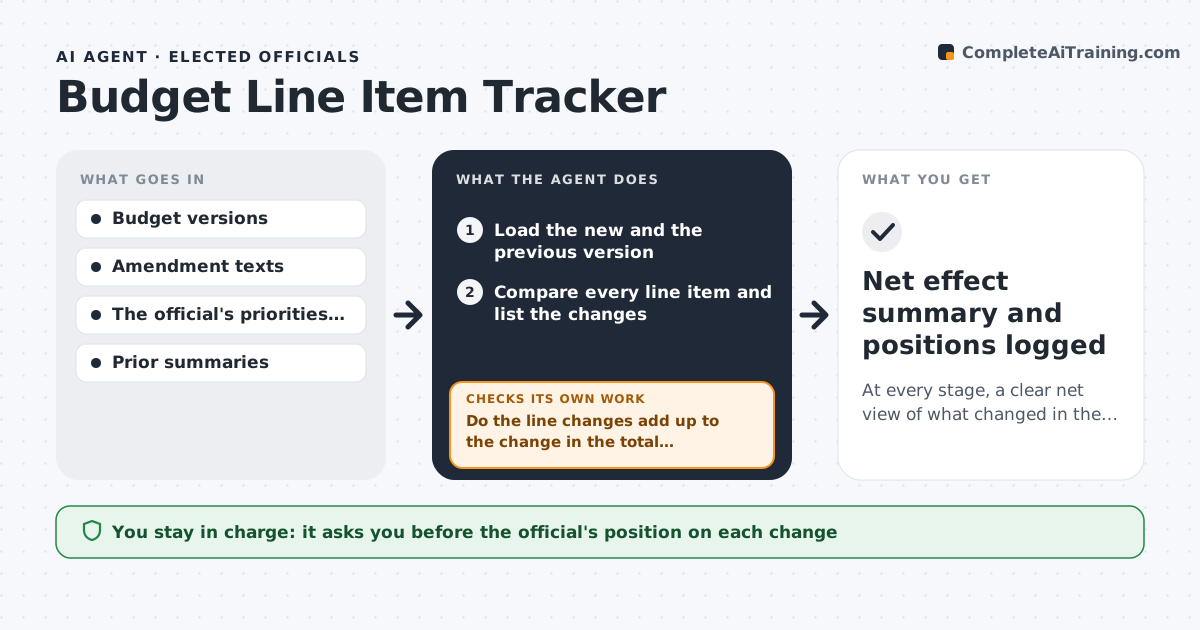
At every stage, a clear net view of what changed in the budget and how it affects the official's priorities
What it does
During a budget process, a proposal goes through committee, amendments and a final version, and each stage changes line items. Staff may see each amendment alone but not the net effect on a priority such as road repair or school funding. This agent reads each budget version and compares line items with the one before it. It totals the net effect of the amendments by department and program, then checks the results against the official's priorities and earlier commitments. It flags surprises, such as a cut hidden in a transfer or a one-time item turned into a recurring one, and rechecks with every new amendment. It writes a plain summary of what changed and why it matters. The official approves each position. Edge case: a transfer between two lines nets to zero overall but removes funds from a priority program.
How it works
Follow the arrows from top to bottom. The orange dashed arrow is the loop: when a check fails, the agent goes back and tries again.
Read the steps as a list
- A new budget version or amendment is posted
- Load the new and the previous version
- Compare every line item and list the changes
- Total the net effect by department and program
- Do the line changes add up to the change in the total budget?If not: find the line or transfer that is missing and recompute. Back to step 3.
- Check the changes against the official's priorities and commitments
- Flag surprises: hidden cuts, transfers, one-time to recurring
- Write a plain summary with the dollar effect
- Official approves each positionThe agent waits here for your OK.
- Does a later amendment reverse or change a flagged item?If not: rerun the comparison on the new version and update the summary. Back to step 2.
- Net effect summary and positions logged
How it decides
It compares each line across versions, adds the net changes, and flags any change to a priority line above a set amount or share.
- Flag changes to a priority line above $50,000 or 5%
- Treat transfers as changes to both lines
- Flag one-time items that become recurring
- Rerun at every new version
Make it yours
Every agent is a starting point. You choose these settings for your own situation.
- Priority lines and thresholds (default $50,000 or 5%)
- Departments tracked
- Summary format
- Versions compared
What keeps you in control
It always asks you first
- The official's position on each change
Hard limits
- Never takes a public position
- Cites the line and page for each figure
- Does not hide offsetting changes
It stops when
- Done: final budget compared and positions logged
- Stop: a budget version is missing
Set it up
We guide you through the set-up, step by step
Members get the full set-up guide for this agent. No technical skills needed: you copy, paste and upload.
- One set of instructions to paste into your AI, with the clicks for ChatGPT, Claude, Microsoft 365 Copilot, Gemini and Grok
- The agent then walks you through connecting your own data, one source at a time
- A downloadable copy with the flow chart, the rules and the full guide