AI agent for civil servants
Condition of Approval Compliance Monitoring Agent
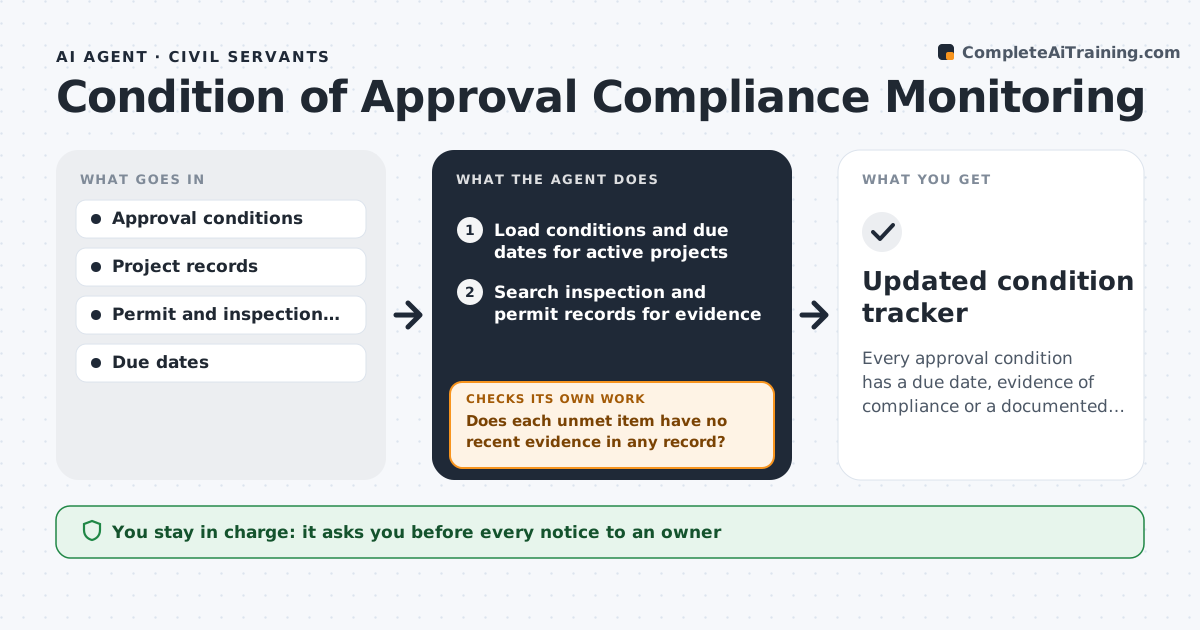
Every approval condition has a due date, evidence of compliance or a documented notice
What it does
When a project is approved, it comes with a list of conditions such as landscaping, traffic fixes or affordable units, and few are followed up. This agent lists the conditions for each approved project with due dates and triggers, for example before a permit or before occupancy. It tracks the dates and reads inspection and permit records for evidence that each condition has been met. When no evidence appears by the due date, it flags the condition as unmet. It checks the record again before any notice so that a recent inspection is not missed. It drafts a notice to the owner with the condition, the date and the next steps. The planner approves each notice. Edge case: a condition tied to occupancy is checked before a certificate of occupancy is issued, not after.
How it works
Follow the arrows from top to bottom. The orange dashed arrow is the loop: when a check fails, the agent goes back and tries again.
Read the steps as a list
- Weekly review or permit stage reached
- Load conditions and due dates for active projects
- Search inspection and permit records for evidence
- Mark each condition as met, pending or unmet
- Does each unmet item have no recent evidence in any record?If not: update the status from the new record and recheck. Back to step 3.
- Check upcoming permit stages for conditions that must be met first
- Draft notices to owners for unmet conditions
- Planner approves each noticeThe agent waits here for your OK.
- Send notices and log the response date
- Did the owner respond or fix the condition by the new deadline?If not: escalate to the code compliance supervisor with the history. Back to step 6.
- Updated condition tracker
How it decides
A condition is met when an inspection, permit or document shows it. It is unmet when its due date has passed without evidence.
- Mark a condition unmet the day after its due date with no evidence
- Hold any permit stage with an unmet prior condition
- Allow 14 days for the owner to respond
- Escalate after a second missed deadline
Make it yours
Every agent is a starting point. You choose these settings for your own situation.
- Response period (default 14 days)
- Permit stages to check
- Condition categories
- Escalation rules
What keeps you in control
It always asks you first
- Every notice to an owner
Hard limits
- Never issues fines or stop-work orders
- Never sends a notice without approval
It stops when
- Done: all conditions are met or have an approved notice
- Stop: project conditions are not on file
Set it up
We guide you through the set-up, step by step
Members get the full set-up guide for this agent. No technical skills needed: you copy, paste and upload.
- One set of instructions to paste into your AI, with the clicks for ChatGPT, Claude, Microsoft 365 Copilot, Gemini and Grok
- The agent then walks you through connecting your own data, one source at a time
- A downloadable copy with the flow chart, the rules and the full guide