AI agent for frontend developers
Email Rendering Repair Agent
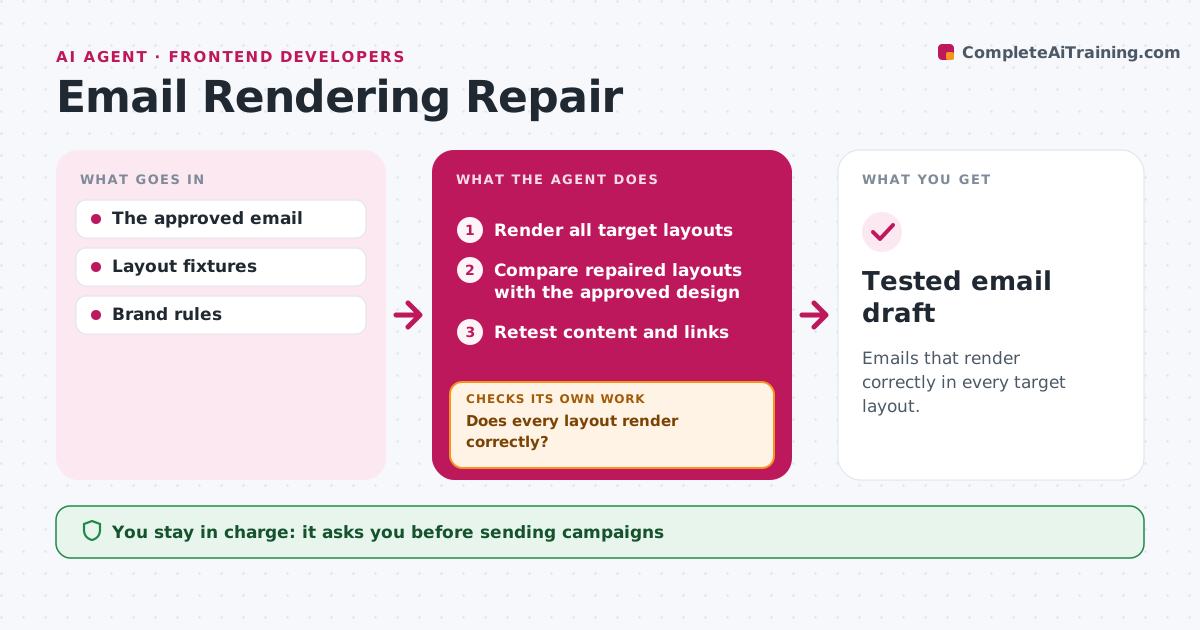
Emails that render correctly in every target layout.
What it does
Approved emails often render badly in some email clients or on some screen sizes. This agent renders the email in every target layout, such as major desktop clients, webmail and phones. It finds the specific defect, like a broken column or a clipped button, and picks a narrow markup repair for it. It then retests all layouts, because a fix for mobile can break desktop. It also checks content and links. If a repair causes a new problem, it narrows the fix. The email lead approves before anything is sent, and the agent never changes the offer. Edge case: a width fix for mobile breaks the desktop columns, so the agent uses a media query.
How it works
Follow the arrows from top to bottom. The orange dashed arrow is the loop: when a check fails, the agent goes back and tries again.
Read the steps as a list
- Email approved for sending
- Render all target layouts
- Does every layout render correctly?If not: apply a narrow markup repair. Back to step 2.
- Compare repaired layouts with the approved design
- Retest content and links
- Do all links and content match the approved version?If not: fix the link or text and retest. Back to step 5.
- Email lead approves sendingThe agent waits here for your OK.
- Tested email draft
How it decides
It fixes the specific rendering defect and retests every layout.
- Repair only the specific defect found.
- Retest every layout after any change.
- Never change the offer or wording beyond the approved version.
Make it yours
Every agent is a starting point. You choose these settings for your own situation.
- Target clients and screen sizes to test
- Which defects are acceptable (for example minor spacing)
- Link and tracking checks to run
- Who approves sending
What keeps you in control
It always asks you first
- Sending campaigns
- Offer changes
Hard limits
- No sending.
It stops when
- Done: all layouts pass.
Set it up
We guide you through the set-up, step by step
Members get the full set-up guide for this agent. No technical skills needed: you copy, paste and upload.
- One set of instructions to paste into your AI, with the clicks for ChatGPT, Claude, Microsoft 365 Copilot, Gemini and Grok
- The agent then walks you through connecting your own data, one source at a time
- A downloadable copy with the flow chart, the rules and the full guide