AI agent for event planners
Event Budget Tracking Agent
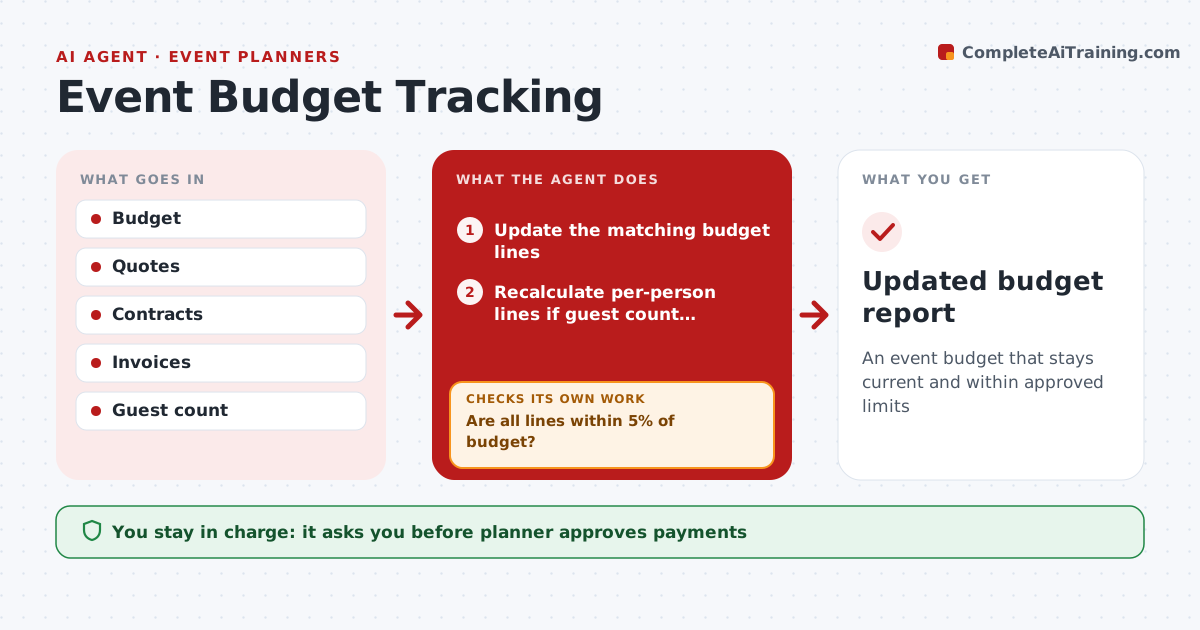
An event budget that stays current and within approved limits
What it does
Event costs move constantly as guest counts change, quotes are revised and the client adds requests. This agent keeps the working budget and reads each new quote, contract and invoice to update the matching line. It compares every line with the approved budget. A line more than 5% over gets a note with the cause and options, such as a different menu format or fewer AV extras; over 10% needs client approval. Before any payment, it checks the invoice against the signed contract for rates, quantities and fees, and holds mismatches for the vendor to correct. The planner approves payments. Edge case: a change in guest count triggers a recalculation of every per-person cost line, not just catering.
How it works
Follow the arrows from top to bottom. The orange dashed arrow is the loop: when a check fails, the agent goes back and tries again.
Read the steps as a list
- New quote, contract or invoice arrives
- Update the matching budget lines
- Recalculate per-person lines if guest count changed
- Compare each line with the approved budget
- Are all lines within 5% of budget?If not: note the cause, suggest options and get client approval above 10%. Back to step 2.
- Check invoices against signed contracts
- Do rates, quantities and fees match the contract?If not: hold the invoice and draft a correction request to the vendor. Back to step 6.
- Planner approves payments and client approves overrunsThe agent waits here for your OK.
- Updated budget report
How it decides
Lines over 5% need a note, and over 10% need client approval.
- Over 5%: note
- Over 10%: client approval
- Invoices must match contracts
Make it yours
Every agent is a starting point. You choose these settings for your own situation.
- Overrun thresholds
- Budget categories
- Report frequency
- Approvers
What keeps you in control
It always asks you first
- Planner approves payments
- Client approves overruns
Hard limits
- Never pays vendors
- Never commits client funds
It stops when
- Done: event closed
- Stop: event canceled
Set it up
We guide you through the set-up, step by step
Members get the full set-up guide for this agent. No technical skills needed: you copy, paste and upload.
- One set of instructions to paste into your AI, with the clicks for ChatGPT, Claude, Microsoft 365 Copilot, Gemini and Grok
- The agent then walks you through connecting your own data, one source at a time
- A downloadable copy with the flow chart, the rules and the full guide