AI agent for network administrators
Maintenance Window Coordination Agent
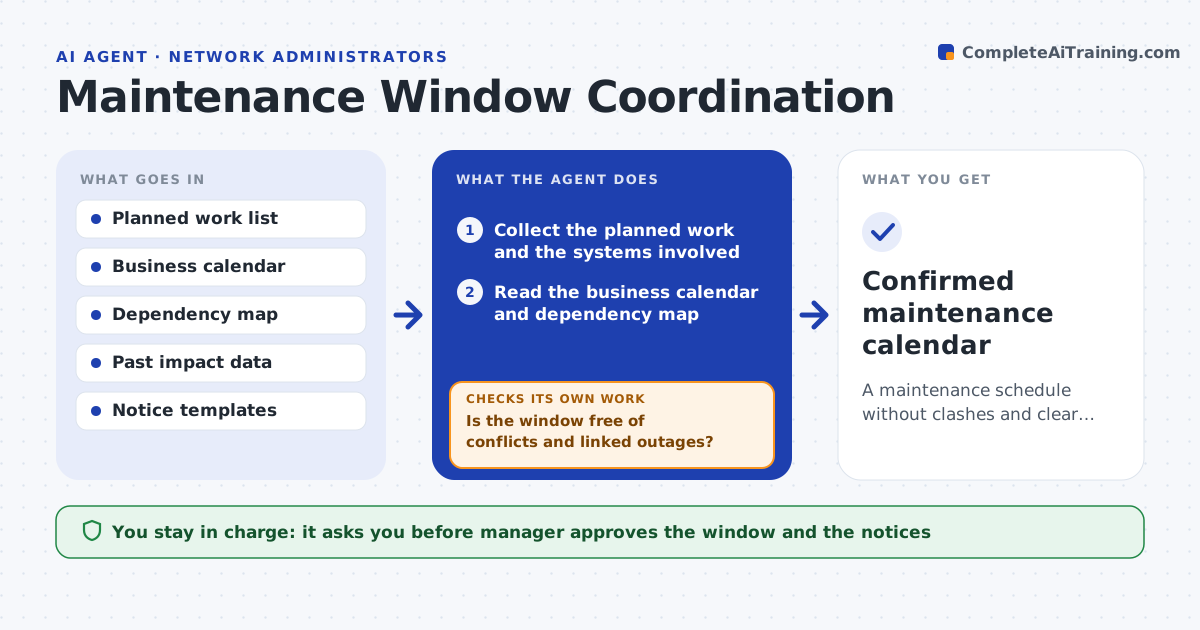
A maintenance schedule without clashes and clear notice to everyone affected
What it does
Maintenance work clashes with business events and other changes. This agent collects the planned work, then checks the business calendar for events such as month-end close or a product launch. It also checks system dependencies so that two linked systems are not taken down at once. It finds conflicts, proposes a window with the least impact and drafts notices for the people affected. It rechecks after each reschedule so a move does not create a new clash. The manager approves the window and the notices. Edge case: month-end falls on the proposed night, so the agent offers the next quiet window and says why.
How it works
Follow the arrows from top to bottom. The orange dashed arrow is the loop: when a check fails, the agent goes back and tries again.
Read the steps as a list
- Maintenance work is planned
- Collect the planned work and the systems involved
- Read the business calendar and dependency map
- Find conflicts with events and other maintenance
- Propose the lowest impact window
- Is the window free of conflicts and linked outages?If not: propose the next best window and test it. Back to step 3.
- Draft notices for the people and teams affected
- Manager approves the window and the noticesThe agent waits here for your OK.
- Send notices and add the work to the calendar
- After any reschedule, is the new window still clear?If not: repeat the conflict check and update the notices. Back to step 3.
- Confirmed maintenance calendar
How it decides
A window is acceptable when it has no business event, no linked system down at the same time and enough notice. The lowest impact option wins.
- Avoid windows with business events
- Never schedule linked systems in the same window
- Give notice at least the set number of days before
- Prefer the lowest usage period
Make it yours
Every agent is a starting point. You choose these settings for your own situation.
- Notice period (default: 5 days)
- Freeze periods
- Preferred maintenance hours
- Who receives notices
What keeps you in control
It always asks you first
- Manager approves the window and the notices
Hard limits
- Never sends notices without approval
- Never schedules over a freeze period
It stops when
- Done: the window is approved and notices are sent
- Stop: no conflict-free window exists in the planning period
Set it up
We guide you through the set-up, step by step
Members get the full set-up guide for this agent. No technical skills needed: you copy, paste and upload.
- One set of instructions to paste into your AI, with the clicks for ChatGPT, Claude, Microsoft 365 Copilot, Gemini and Grok
- The agent then walks you through connecting your own data, one source at a time
- A downloadable copy with the flow chart, the rules and the full guide