AI agent for security engineers
Log Anomaly Investigation Agent
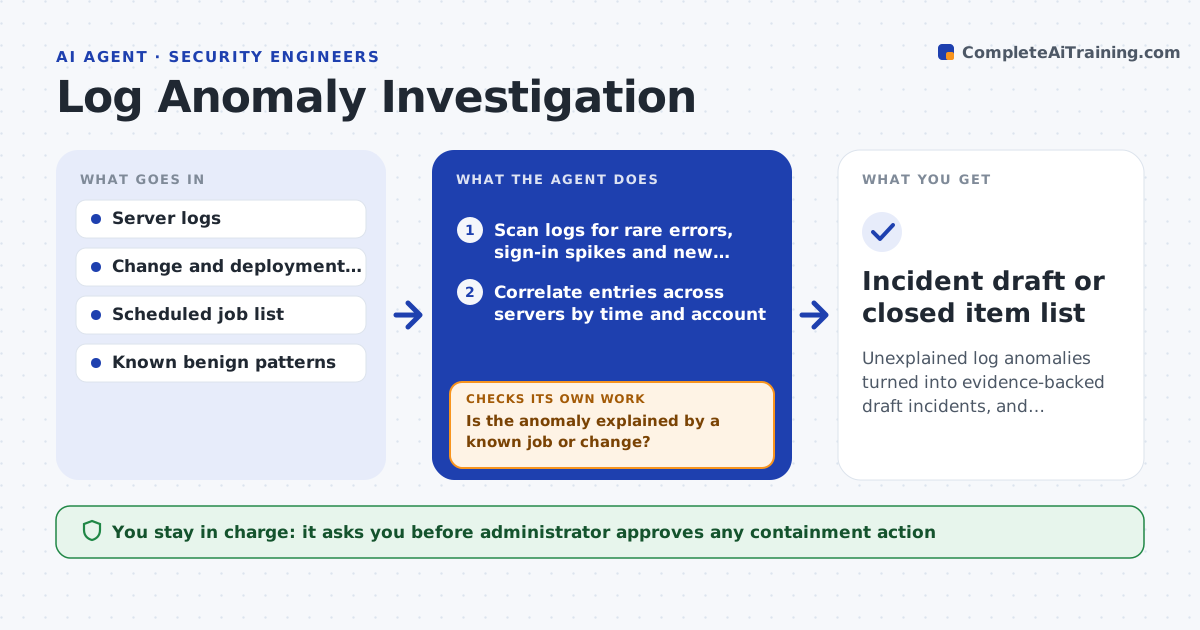
Unexplained log anomalies turned into evidence-backed draft incidents, and explained ones closed
What it does
Unusual log entries are noticed late and investigated by hand. This agent scans logs for rare errors, sign-in spikes and new processes. It correlates entries across servers and tests simple explanations first, such as a scheduled job, a deployment or a known vendor update. Items that have an explanation are dropped with the reason recorded. Unexplained items become a draft incident with the evidence timeline. If new data arrives, it rechecks the item. The administrator approves any containment action. Edge case: sign-ins spike at midnight on one server, but a backup job explains it, so the agent closes it and notes the schedule.
How it works
Follow the arrows from top to bottom. The orange dashed arrow is the loop: when a check fails, the agent goes back and tries again.
Read the steps as a list
- Log scan runs
- Scan logs for rare errors, sign-in spikes and new processes
- Correlate entries across servers by time and account
- Check the change calendar and scheduled jobs
- Is the anomaly explained by a known job or change?If not: search related logs for another explanation. Back to step 3.
- Drop explained items and record the reason
- Build an evidence timeline for each unexplained item
- Open a draft incident
- Administrator approves any containment actionThe agent waits here for your OK.
- After any action, do the symptoms stop?If not: review the new logs and update the incident. Back to step 3.
- Incident draft or closed item list
How it decides
An anomaly is explained when a scheduled job, change or known pattern matches its time and source. Otherwise it becomes a draft incident.
- Compare each anomaly with scheduled jobs and changes before raising it
- Raise an item that touches several servers first
- Treat a new process on a server as unexplained until matched
- Keep the evidence and timestamps for every item
Make it yours
Every agent is a starting point. You choose these settings for your own situation.
- Scan frequency (default: hourly)
- Known benign patterns
- Spike threshold
- Incident severity rules
What keeps you in control
It always asks you first
- Administrator approves any containment action
Hard limits
- Never contains or shuts down systems itself
- Never deletes logs
It stops when
- Done: every anomaly is explained or in an incident
- Stop: logs are missing for the period
Set it up
We guide you through the set-up, step by step
Members get the full set-up guide for this agent. No technical skills needed: you copy, paste and upload.
- One set of instructions to paste into your AI, with the clicks for ChatGPT, Claude, Microsoft 365 Copilot, Gemini and Grok
- The agent then walks you through connecting your own data, one source at a time
- A downloadable copy with the flow chart, the rules and the full guide