AI agent for court reporters
Personal Data Redaction Agent
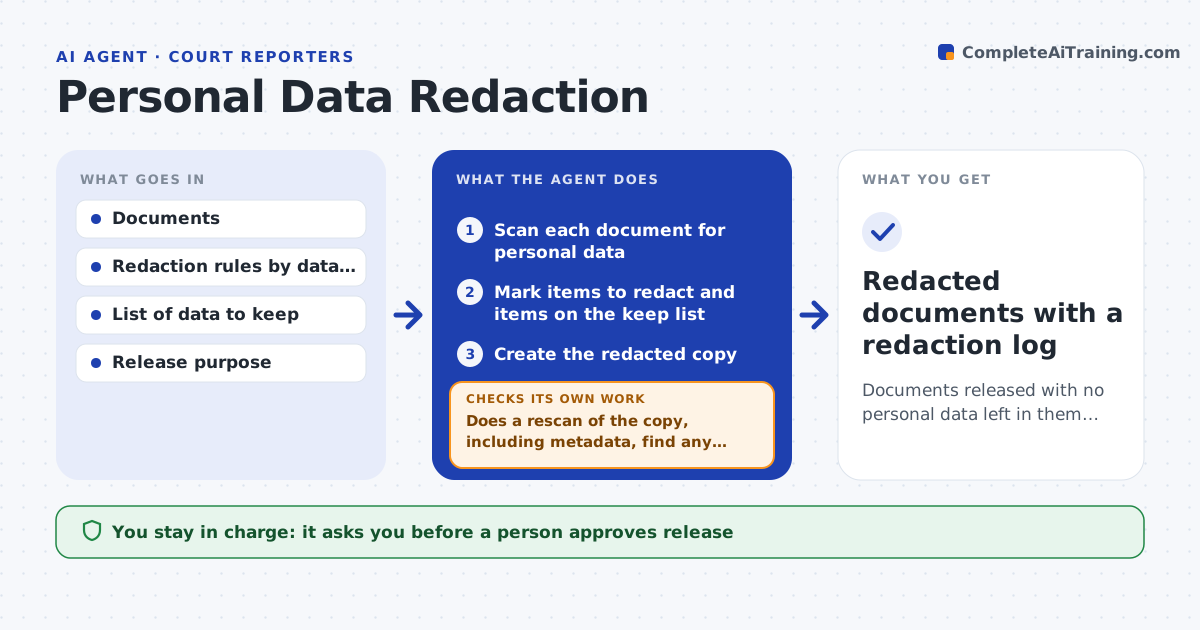
Documents released with no personal data left in them, verified by a rescan
What it does
Redaction is manual, and missed items can cause a data breach. This agent finds personal data in documents, such as names, addresses, ID numbers and account numbers, and redacts it. It then scans the redacted copy again for leftovers, including data in metadata, hidden text and image captions, and loops until none remain. It records what was redacted for each document. A person approves release. It never touches the original files, so you can always go back to check what was removed. Edge case: a name appears in the file properties of a PDF, so the agent removes the metadata and checks the copy again.
How it works
Follow the arrows from top to bottom. The orange dashed arrow is the loop: when a check fails, the agent goes back and tries again.
Read the steps as a list
- Documents are ready for release
- Scan each document for personal data
- Mark items to redact and items on the keep list
- Create the redacted copy
- Does a rescan of the copy, including metadata, find any personal data?If not: redact the leftovers and rescan. Back to step 2.
- Compare page counts and a sample of text with the original
- Is the copy intact apart from the redactions?If not: repair the copy and rescan. Back to step 4.
- A person approves releaseThe agent waits here for your OK.
- Redacted documents with a redaction log
How it decides
Everything matching a personal data rule is redacted unless it is on the keep list. The copy passes only when a full rescan finds none.
- Redact by data type rules
- Scan metadata and hidden layers
- Loop until the rescan finds nothing
- Keep an audit log of redactions
Make it yours
Every agent is a starting point. You choose these settings for your own situation.
- Data types to redact
- Keep list
- Metadata handling
- Reviewer for approval
What keeps you in control
It always asks you first
- A person approves release
Hard limits
- Never releases documents itself
- Never keeps unredacted copies in the release folder
It stops when
- Done: the rescan is clean and release is approved
- Stop: documents cannot be read, for example poor scans
Set it up
We guide you through the set-up, step by step
Members get the full set-up guide for this agent. No technical skills needed: you copy, paste and upload.
- One set of instructions to paste into your AI, with the clicks for ChatGPT, Claude, Microsoft 365 Copilot, Gemini and Grok
- The agent then walks you through connecting your own data, one source at a time
- A downloadable copy with the flow chart, the rules and the full guide