AI agent for construction contractors
Prevailing Wage and Labor Burden Check Agent
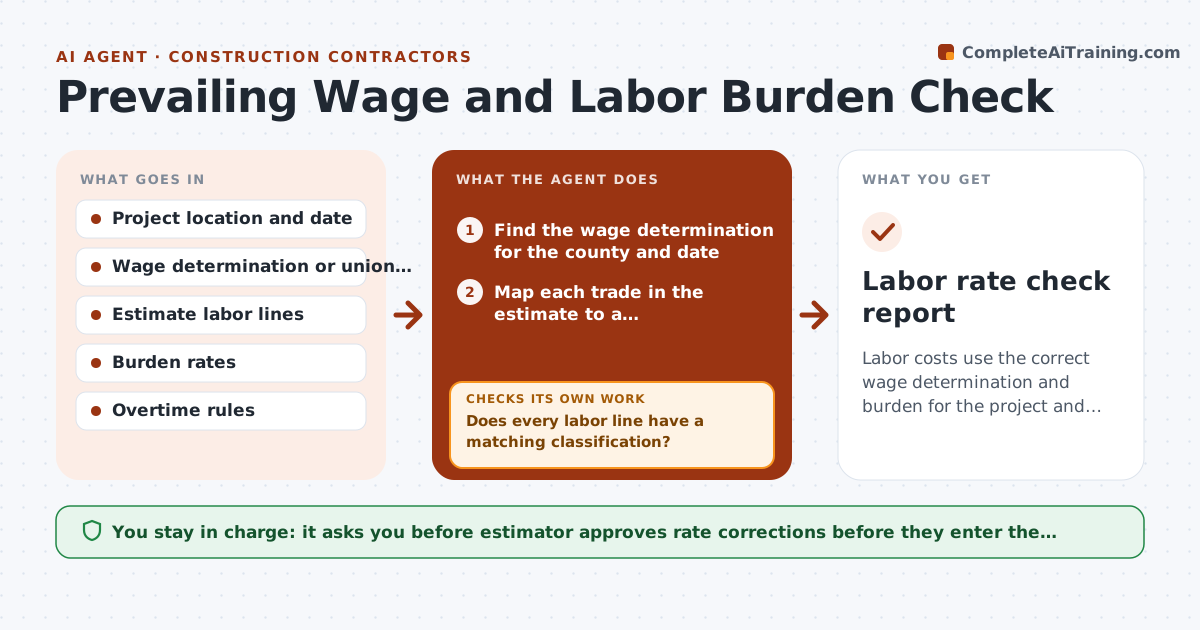
Labor costs use the correct wage determination and burden for the project and date.
What it does
You use last year's rates on a public job and discover at award that the wage determination changed. This agent starts from the source. It finds the applicable wage determination or union agreement for the project's county and date, maps trades in your estimate to the correct classification, and applies burden and overtime rules, such as payroll taxes, insurance and fringes. It recomputes labor in the estimate and compares the result with your entered rates. It flags differences and checks the new totals before sending the correction list. You approve the corrections. Edge case: a crew mix using a lower classification than the work requires is flagged, because it is a compliance risk.
How it works
Follow the arrows from top to bottom. The orange dashed arrow is the loop: when a check fails, the agent goes back and tries again.
Read the steps as a list
- Public or union bid in preparation
- Find the wage determination for the county and date
- Map each trade in the estimate to a classification
- Does every labor line have a matching classification?If not: Ask the estimator to confirm the work type for unmatched lines. Back to step 3.
- Apply burden, fringes and overtime rules
- Recompute labor cost per line and total
- Compare with the entered rates
- Do recomputed totals tie out to the estimate summary?If not: Find and fix the arithmetic or mapping error. Back to step 6.
- Estimator approves correctionsThe agent waits here for your OK.
- Labor rate check report
How it decides
It maps each labor line to the classification of the work, then calculates the full rate with burden, and flags any difference above a set amount.
- Use the determination in force on the bid date
- Flag rate differences above $0.50 an hour
- Apply overtime per the agreement
- Use the higher classification when work overlaps
Make it yours
Every agent is a starting point. You choose these settings for your own situation.
- Wage source and date
- Burden rates
- Rate difference threshold
- Overtime rules
What keeps you in control
It always asks you first
- Estimator approves rate corrections before they enter the estimate
Hard limits
- Never alter estimates itself
- Never advise on legal compliance
It stops when
- Done: corrections approved
- Stop: no determination found for the location
Set it up
We guide you through the set-up, step by step
Members get the full set-up guide for this agent. No technical skills needed: you copy, paste and upload.
- One set of instructions to paste into your AI, with the clicks for ChatGPT, Claude, Microsoft 365 Copilot, Gemini and Grok
- The agent then walks you through connecting your own data, one source at a time
- A downloadable copy with the flow chart, the rules and the full guide