AI agent for robotics engineers
Robot Fleet Update Rollout Agent
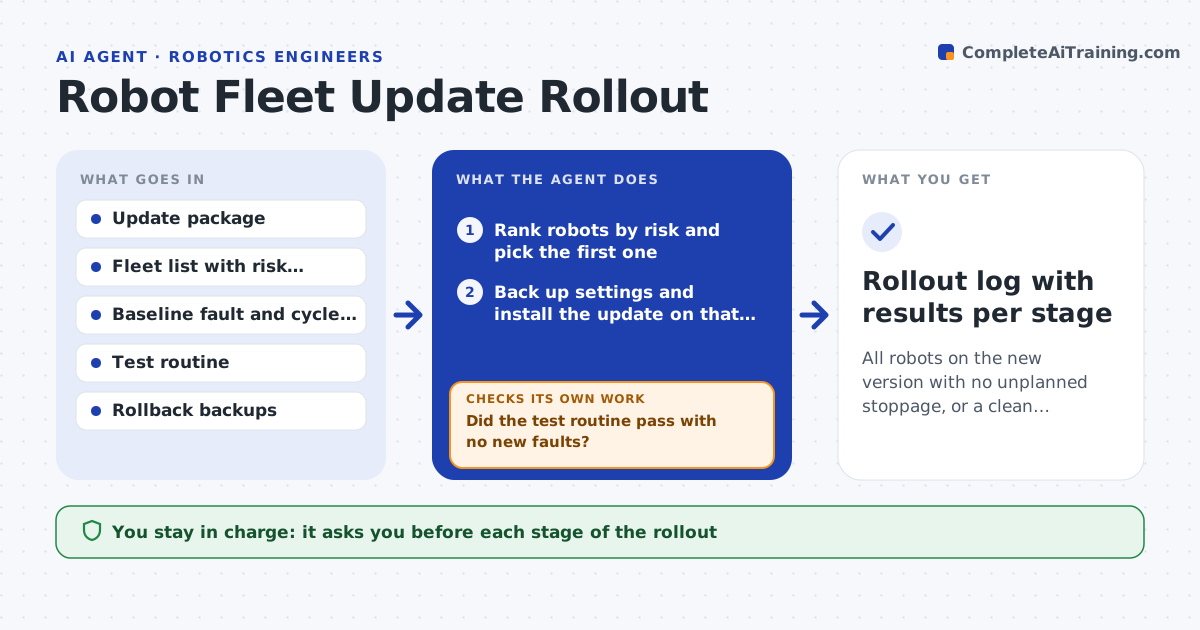
All robots on the new version with no unplanned stoppage, or a clean rollback with the cause recorded
What it does
Updating all robots at once can stop a line, but updating them one by one by hand is slow, so updates get postponed. This agent plans a staged rollout for a new software version. It picks one low-risk robot first, takes a backup of its settings, installs the update and runs a standard test routine. It then watches faults, cycle time and error counts for a set period and compares them with the baseline. If the numbers are clean, it proposes the next stage, for example two more robots, and waits for approval. If faults rise, it rolls the robot back to the backed-up version and checks that the old behavior returns. It never moves to the next stage without the engineer's go. Edge case: the update passes tests but doubles gripper wear warnings.
How it works
Follow the arrows from top to bottom. The orange dashed arrow is the loop: when a check fails, the agent goes back and tries again.
Read the steps as a list
- New software version is approved
- Rank robots by risk and pick the first one
- Back up settings and install the update on that robot
- Run the standard test routine
- Did the test routine pass with no new faults?If not: roll the robot back to the backup and log the failure. Back to step 3.
- Watch faults and cycle time for the set period and compare with baseline
- Are faults and cycle time within limits?If not: roll back, confirm old behavior returns and report the cause. Back to step 4.
- Engineer approves the next stageThe agent waits here for your OK.
- Repeat install, test and watch on the next group
- Rollout log with results per stage
How it decides
It advances only when the watch period shows faults and cycle time within limits of the baseline.
- Start with the robot that has the least production impact
- Roll back if faults rise more than 20 percent over baseline
- Wait at least one full shift before approving the next stage
- Never update robots that are mid-job
Make it yours
Every agent is a starting point. You choose these settings for your own situation.
- Watch period per stage (default one shift)
- Fault increase that triggers rollback (default 20 percent)
- Stage sizes
- Which robots go first
What keeps you in control
It always asks you first
- Each stage of the rollout
- Any rollback of a robot in production
Hard limits
- Never installs on a robot without a fresh backup
- Never skips a stage
It stops when
- Done: all robots updated and stable
- Stop: a rollback fails to restore normal behavior
Set it up
We guide you through the set-up, step by step
Members get the full set-up guide for this agent. No technical skills needed: you copy, paste and upload.
- One set of instructions to paste into your AI, with the clicks for ChatGPT, Claude, Microsoft 365 Copilot, Gemini and Grok
- The agent then walks you through connecting your own data, one source at a time
- A downloadable copy with the flow chart, the rules and the full guide