AI agent for robotics engineers
Robot Safety Zone Validation Agent
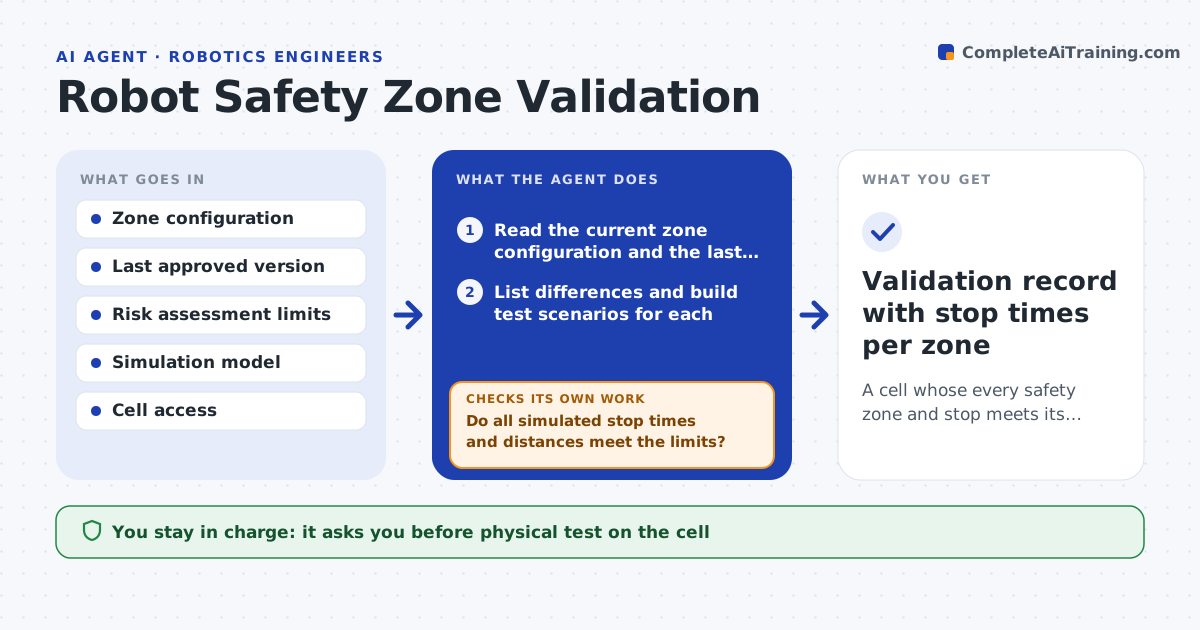
A cell whose every safety zone and stop meets its stop-time and distance limits after each change
What it does
A robot cell is safe only if its zones, light curtains and emergency stops still work after every program or layout change, yet checks happen rarely. This agent reads the current zone configuration and compares it with the last approved version. It builds test scenarios from the differences, such as a person entering a zone at different speeds, and runs them first in simulation and then on the cell when the safety officer allows it. For each scenario it measures stop time and stopping distance against the limits from the risk assessment. Failures are flagged with the exact setting. After a fix, it reruns every failed scenario and a sample of passing ones. The safety officer approves before the cell returns to production. Edge case: a new tool makes the arm longer, so a zone that was safe now falls short.
How it works
Follow the arrows from top to bottom. The orange dashed arrow is the loop: when a check fails, the agent goes back and tries again.
Read the steps as a list
- Configuration or tool change is logged on the cell
- Read the current zone configuration and the last approved one
- List differences and build test scenarios for each
- Run the scenarios in simulation and record stop times
- Do all simulated stop times and distances meet the limits?If not: flag the failing zone and setting and draft a correction. Back to step 3.
- Safety officer allows the physical test on the cellThe agent waits here for your OK.
- Run the physical scenarios and record measured stops
- Do measured stops match simulation and meet the limits?If not: adjust the model or settings, then rerun the failed scenarios. Back to step 3.
- Rerun a sample of earlier passing scenarios for side effects
- Safety officer approves return to productionThe agent waits here for your OK.
- Validation record with stop times per zone
How it decides
A scenario passes only if stop time and distance are within limits with margin. Any change in tools or layout forces a full rerun.
- Require a margin of 10 percent below the stop-time limit
- Rerun all scenarios if a tool or payload changed
- Never allow a physical test until simulation passes
- Keep the cell locked out until approval
Make it yours
Every agent is a starting point. You choose these settings for your own situation.
- Stop-time margin (default 10 percent)
- Which cells it covers
- Schedule for routine checks
- Who signs off
What keeps you in control
It always asks you first
- Physical test on the cell
- Return to production
- Any change to safety settings
Hard limits
- Never changes safety settings on the live controller
- Never runs a physical test without the safety officer's go-ahead
It stops when
- Done: all scenarios pass and the officer signs off
- Stop: any physical stop exceeds the limit
Set it up
We guide you through the set-up, step by step
Members get the full set-up guide for this agent. No technical skills needed: you copy, paste and upload.
- One set of instructions to paste into your AI, with the clicks for ChatGPT, Claude, Microsoft 365 Copilot, Gemini and Grok
- The agent then walks you through connecting your own data, one source at a time
- A downloadable copy with the flow chart, the rules and the full guide