
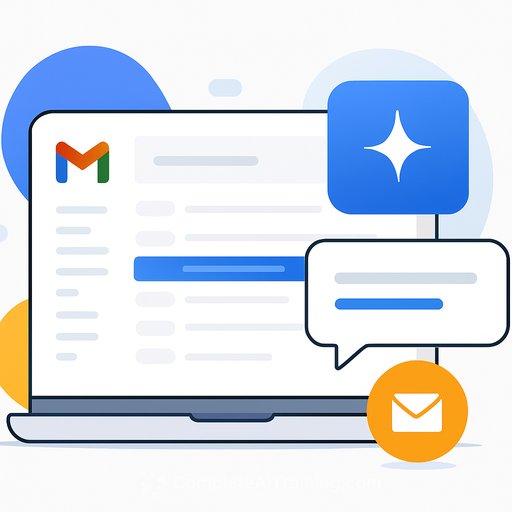
Gmail adds Gemini AI Overview: faster answers from your inbox
Google is rolling out Gemini-powered AI Overview inside Gmail. Instead of digging through long threads, you type what you need in the search bar and get a concise overview pulled from your inbox-nothing else.
If you write for a living, this means less hunting and more typing. Briefs, edits, deadlines, and approvals surface in seconds, so you can spend your focus on the draft, not the search.
What AI Overview does in Gmail
You describe what you're looking for in plain language. Gmail returns a short summary based solely on emails in your account-no web results, no external docs. It's the same idea you've seen in the Google Search app, now pointed at your own inbox.
Why this matters to writers
- Pull the latest client feedback without rereading the entire thread.
- Confirm deadlines, deliverables, and links in a few lines.
- Surface source emails, quotes, and attachments for a piece you're drafting.
- Spot approvals or blockers before you open your writing app.
Prompt examples you can try
- "Summarize the latest feedback from Client X on the product launch article."
- "What deadlines did we agree on for the fintech case study last week?"
- "List all attachments and links related to the Q2 newsletter brief."
- "What are the key edits requested on the SaaS pricing guide this month?"
- "Show the main points from the interview confirmation emails with [Name]."
Simple workflow ideas
- Daily triage: Ask for today's deadlines, pending approvals, and meeting links before you open your notes.
- Draft prep: Pull the brief, client voice notes, and reference emails into one overview.
- Light fact check: Ask for numbers or claims mentioned in your inbox, then verify in the original email before publishing.
- Follow-ups: Identify threads waiting on a reply so nothing stalls your delivery.
Tips for better results
- Be specific: name the client, project, or keyword.
- Add a timeframe: "this week," "last month," or a date range.
- Mention formats: "key dates," "bullet points," or "attachments."
- Refine: if the first overview misses something, add one detail and ask again.
What to keep in mind
- Inbox-only: AI Overview uses information from Gmail, not the web or other apps.
- Verify sensitive details: scan the source email before quoting numbers or names.
- Availability can roll out in stages. For status updates, check the Google Workspace Updates.
Next steps for writers
Test it on one project today. Ask for the brief, the latest edits, and the deadline. If it saves you five minutes per task, your week looks different.
Want to build a tighter AI stack for your writing workflow? Explore curated tools and training built for content pros:
Your membership also unlocks: