AI agent for civil engineers
Design Review QA/QC Comment Tracking Agent
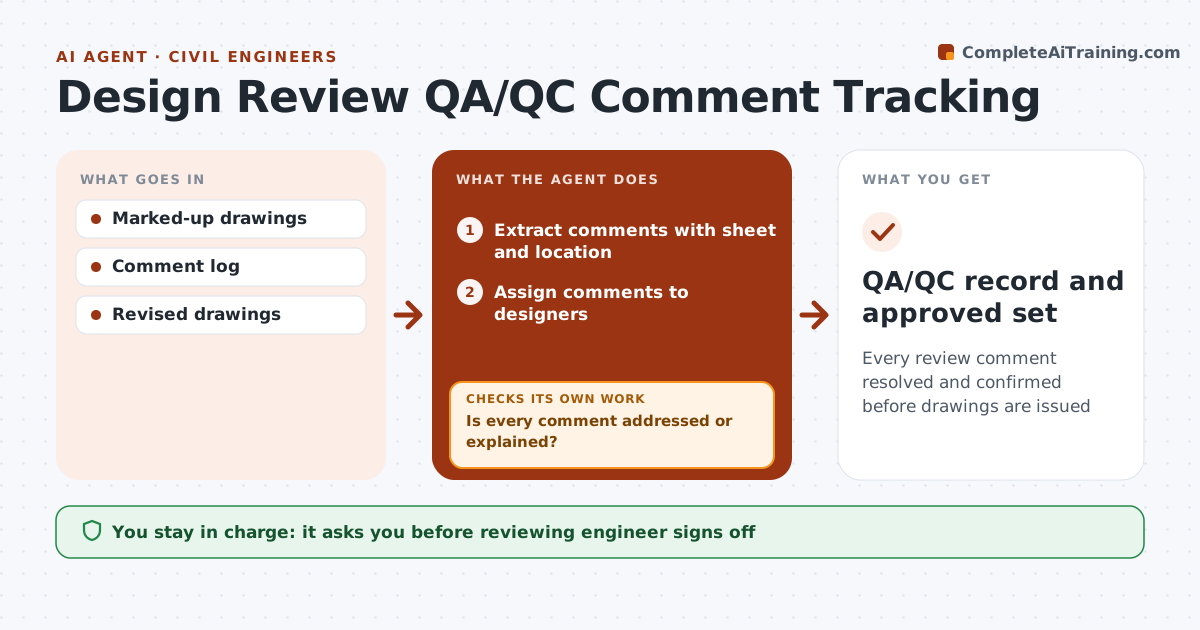
Every review comment resolved and confirmed before drawings are issued
What it does
Before drawings are issued, senior engineers review them and leave many comments that are easy to lose between sets. This agent extracts comments from markups with sheet and location, assigns each to a designer and tracks responses. When the revised set comes in, it compares the sheets with each comment to confirm it was addressed. Comments not addressed are reopened and the designer is notified. A 'no change' answer needs a reason before closing. It also runs basic checks on every set, such as the sheet index, title blocks and cross-references. The reviewing engineer signs off. Edge case: a cross-reference that points to a deleted detail is caught even if no reviewer commented on it.
How it works
Follow the arrows from top to bottom. The orange dashed arrow is the loop: when a check fails, the agent goes back and tries again.
Read the steps as a list
- Markup set returned
- Extract comments with sheet and location
- Assign comments to designers
- Compare revised sheets with comments
- Is every comment addressed or explained?If not: reopen the comment and notify the designer. Back to step 3.
- Run sheet index and cross-reference checks
- Reviewing engineer signs offThe agent waits here for your OK.
- QA/QC record and approved set
How it decides
A comment is closed only when the revised sheet shows the change or the designer gives a reason.
- 'No change' needs a reason
- Cross-references checked every set
- Comments tracked by sheet location
Make it yours
Every agent is a starting point. You choose these settings for your own situation.
- Comment categories
- Checks to run
- Sign-off rules
- Log format
What keeps you in control
It always asks you first
- Reviewing engineer signs off
Hard limits
- Never seals drawings
- Never changes drawings
It stops when
- Done: all comments closed
- Stop: project on hold
Set it up
We guide you through the set-up, step by step
Members get the full set-up guide for this agent. No technical skills needed: you copy, paste and upload.
- One set of instructions to paste into your AI, with the clicks for ChatGPT, Claude, Microsoft 365 Copilot, Gemini and Grok
- The agent then walks you through connecting your own data, one source at a time
- A downloadable copy with the flow chart, the rules and the full guide