AI agent for technical writers
Documentation Screenshot Refresh Agent
Replace outdated screenshots in user guides after each release
What it does
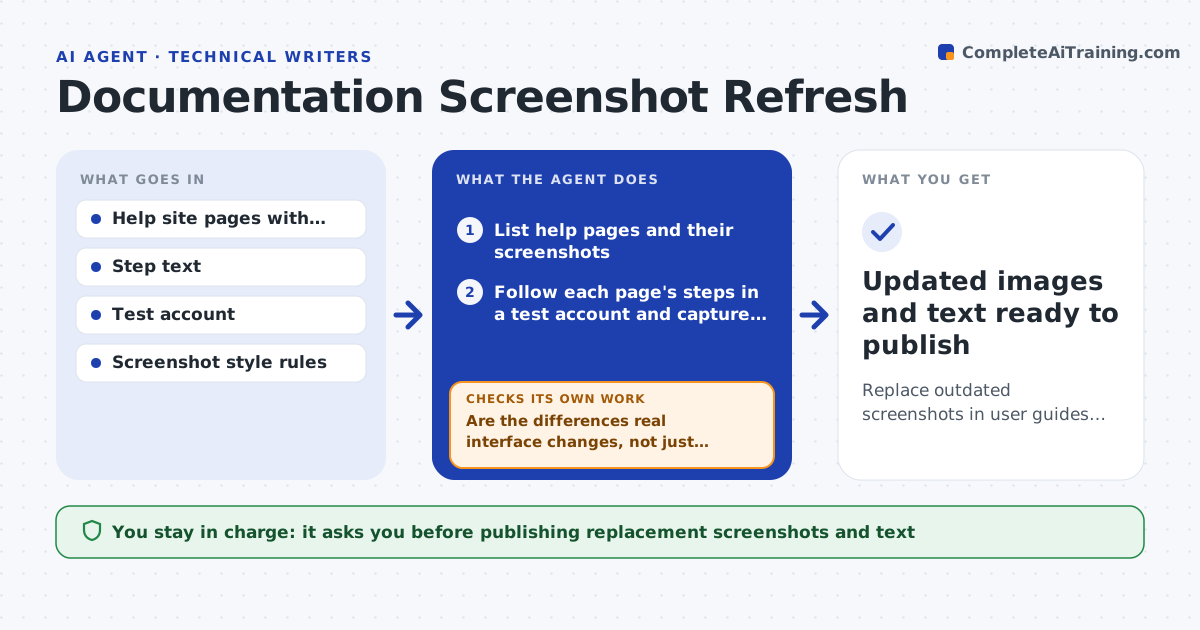
One button moves and dozens of screenshots across the help site are wrong. Finding which ones is tedious. After each release, this agent opens the product in a test account, follows the steps written next to each screenshot, and captures the same screen. It compares the new capture with the published image and flags those where layout, labels or buttons changed. For flagged images it prepares the replacement, applies the guide's crop and highlight style, and checks that the step text still matches the screen. If the step text mentions a label that no longer exists, it drafts a text fix too. Images showing test data are checked for anything that looks like real customer data before use. The writer approves replacements. Edge case: screens that differ only by date or test data values are not flagged.
How it works
Follow the arrows from top to bottom. The orange dashed arrow is the loop: when a check fails, the agent goes back and tries again.
Read the steps as a list
- Release available in test environment
- List help pages and their screenshots
- Follow each page's steps in a test account and capture screens
- Compare new captures with published images
- Are the differences real interface changes, not just test data?If not: ignore the image and log it as unchanged. Back to step 4.
- Prepare replacement images with crop and highlight style
- Does the step text still match the labels on screen?If not: draft a text fix alongside the image. Back to step 6.
- Writer approves the replacements and text fixesThe agent waits here for your OK.
- Updated images and text ready to publish
How it decides
An image is flagged when labels, buttons or layout differ from the new capture; differences only in dates, names or numbers in test data are ignored.
- Ignore differences in dates, counts and test names
- Flag any changed label, button or menu position
- Use only the dedicated test account for captures
- Hold any image showing data that looks like a real email or name
Make it yours
Every agent is a starting point. You choose these settings for your own situation.
- Pages in scope (default all user guide pages)
- Screenshot style: crop width and highlight color (default guide style)
- Sensitivity of image comparison (default ignore dates and numbers)
- Release trigger source (default release calendar)
What keeps you in control
It always asks you first
- Publishing replacement screenshots and text
Hard limits
- Captures only in the test environment
- Never publishes on its own
It stops when
- Done: all flagged images replaced or approved as is
- Stop: test account login fails
Set it up
We guide you through the set-up, step by step
Members get the full set-up guide for this agent. No technical skills needed: you copy, paste and upload.
- One set of instructions to paste into your AI, with the clicks for ChatGPT, Claude, Microsoft 365 Copilot, Gemini and Grok
- The agent then walks you through connecting your own data, one source at a time
- A downloadable copy with the flow chart, the rules and the full guide