AI agent for 3d artists
Game Engine Asset Import Validation Agent
Assets that import cleanly the first time into the engine
What it does
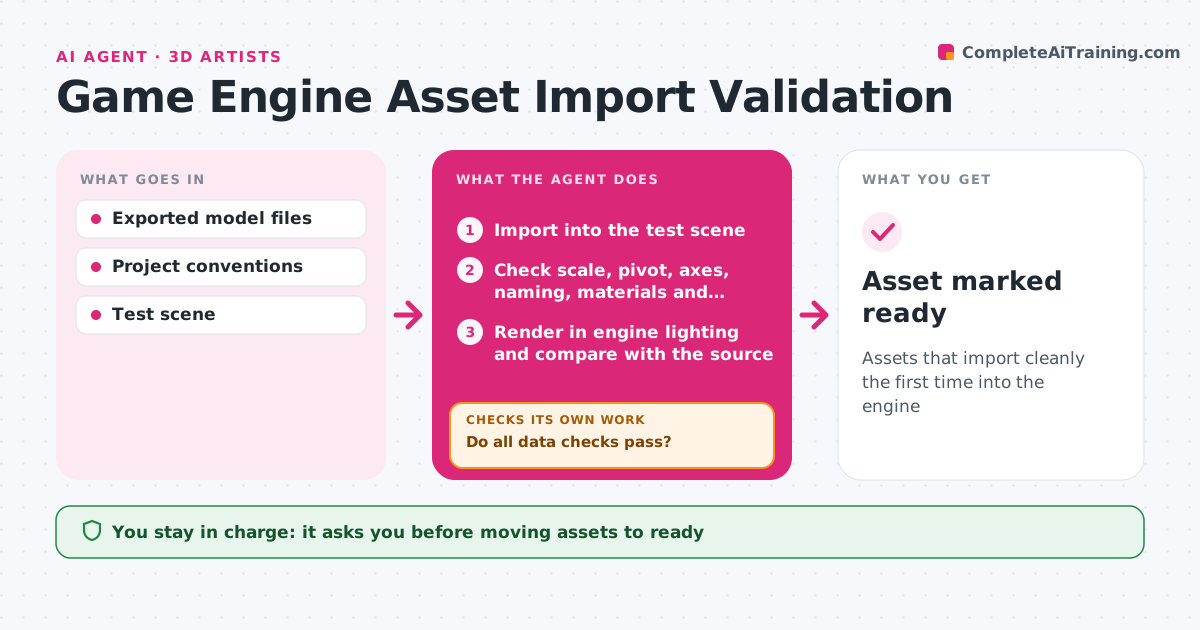
Assets that import at the wrong scale or with broken materials cost the team hours of back-and-forth. When an artist exports a model, this agent imports it into a test scene and checks scale against the project reference, pivot location, axis direction, naming convention, material slots, texture paths, collision meshes and level-of-detail setup. Each failed check is listed with the fix. After the artist re-exports, it runs the checks again. It also renders the asset in engine lighting and compares it with the source render, to catch problems the data checks miss. Assets that pass are moved to the ready folder after the lead approves. Edge case: black spots from bad normals pass the data checks but are caught by the render comparison.
How it works
Follow the arrows from top to bottom. The orange dashed arrow is the loop: when a check fails, the agent goes back and tries again.
Read the steps as a list
- Asset exported
- Import into the test scene
- Check scale, pivot, axes, naming, materials and collisions
- Do all data checks pass?If not: list each failure with its fix and wait for a re-export. Back to step 2.
- Render in engine lighting and compare with the source
- Does the render match the source with no artifacts?If not: point to the faces or maps at fault and wait for a re-export. Back to step 2.
- Prepare the pass report for the lead
- Lead approves moving to the ready folderThe agent waits here for your OK.
- Asset marked ready
How it decides
An asset passes only if every convention check and the render comparison pass.
- Scale within 1% of reference
- Names must follow the project pattern
- Render differences over the threshold fail
Make it yours
Every agent is a starting point. You choose these settings for your own situation.
- Project conventions
- Render difference threshold
- Folders watched
- Who approves
What keeps you in control
It always asks you first
- Moving assets to ready
Hard limits
- Never edits source files
- Never pushes to the main branch
It stops when
- Done: asset ready
- Stop: file corrupted, ask artist
Set it up
We guide you through the set-up, step by step
Members get the full set-up guide for this agent. No technical skills needed: you copy, paste and upload.
- One set of instructions to paste into your AI, with the clicks for ChatGPT, Claude, Microsoft 365 Copilot, Gemini and Grok
- The agent then walks you through connecting your own data, one source at a time
- A downloadable copy with the flow chart, the rules and the full guide