AI agent for home inspectors
Insurance Inspection Form Agent
A correct insurer form with every field traced to the report or photos.
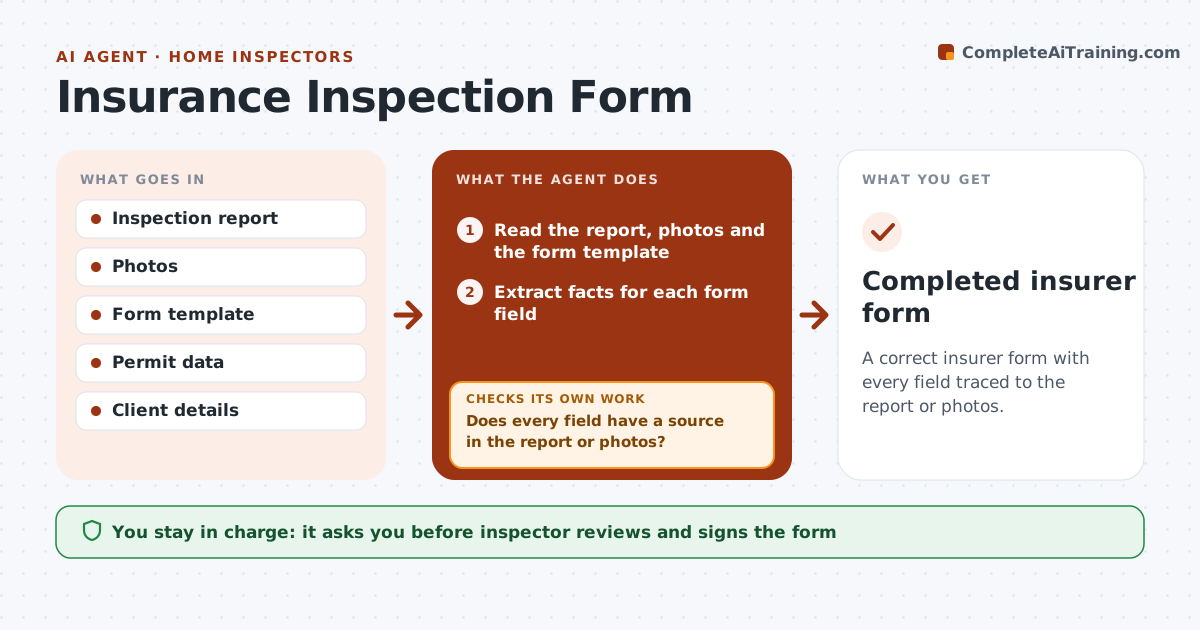
What it does
After a home inspection, you retype roof age, wiring type and plumbing materials into a four-point or wind mitigation form, and a typo leads to a rejected policy. This agent extracts those facts from your report and photos and fills the required insurer form. It checks every field against the report, requests missing photos or details, and rechecks after you add them. It flags conflicts, such as a roof age in the report that differs from the permit date. You approve the signed form. Edge case: a field the report does not cover, such as the roof deck attachment, is left blank and listed for you, never guessed.
How it works
Follow the arrows from top to bottom. The orange dashed arrow is the loop: when a check fails, the agent goes back and tries again.
Read the steps as a list
- Insurance form requested
- Read the report, photos and the form template
- Extract facts for each form field
- Fill the form and mark the source of each field
- Does every field have a source in the report or photos?If not: List missing fields and request photos or notes from the inspector. Back to step 3.
- Compare fields against permit data and the report for conflicts
- Are there conflicts between sources?If not: Flag each conflict and ask the inspector which source is right. Back to step 3.
- Prepare the final form with a field source list
- Inspector reviews and signs the formThe agent waits here for your OK.
- Completed insurer form
How it decides
It fills a field only when the report or a photo supports it, and leaves others blank with a request.
- Never fill a field without a source
- Prefer photos over memory for ages and materials
- Flag differences between permit and report
- Leave inapplicable fields blank with a note
Make it yours
Every agent is a starting point. You choose these settings for your own situation.
- Forms supported
- Source priority
- Photo requirements
- Conflict rules
What keeps you in control
It always asks you first
- Inspector reviews and signs the form
Hard limits
- Never sign or submit forms itself
- Never guess a field value
It stops when
- Done: form signed
- Stop: required photos cannot be obtained
Set it up
We guide you through the set-up, step by step
Members get the full set-up guide for this agent. No technical skills needed: you copy, paste and upload.
- One set of instructions to paste into your AI, with the clicks for ChatGPT, Claude, Microsoft 365 Copilot, Gemini and Grok
- The agent then walks you through connecting your own data, one source at a time
- A downloadable copy with the flow chart, the rules and the full guide