AI agent for property managers
Property Inspection Follow-up Agent
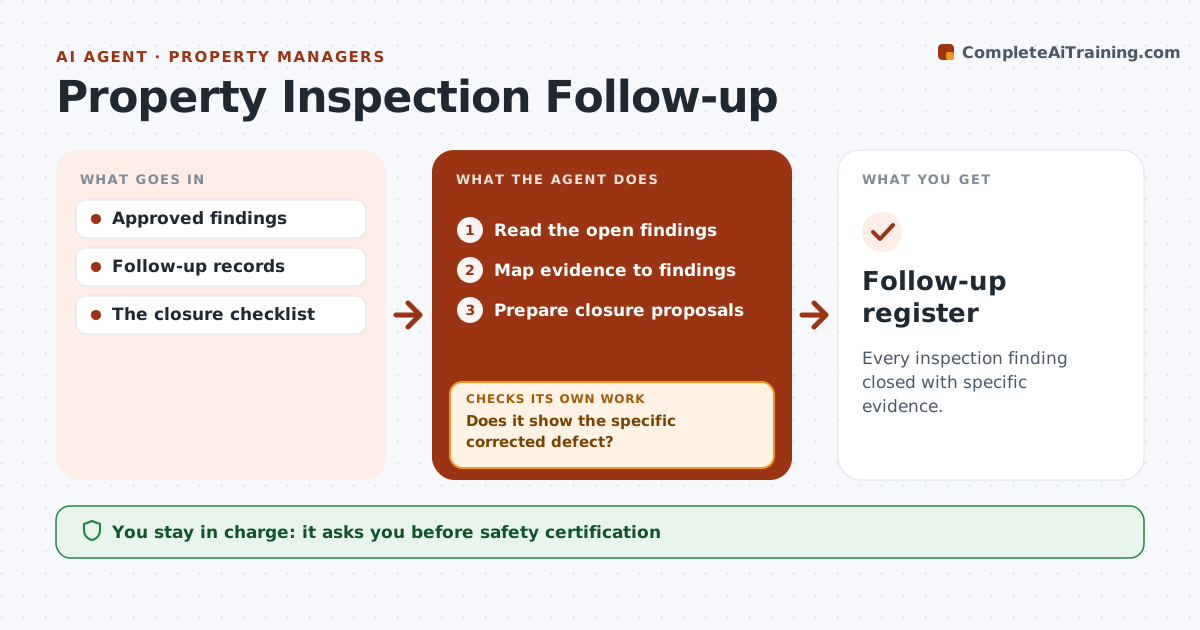
Every inspection finding closed with specific evidence.
What it does
Inspection findings get closed without real proof that the defect was fixed, and the same problem comes back at handover. This agent watches the follow-up register. When a contractor uploads evidence, it maps each photo or document to the finding it claims to close and checks that it shows the specific corrected defect in the right location. When a photo shows the wrong area or is too far away, it requests targeted evidence that says exactly what is missing. It then prepares closure proposals with the evidence attached. The inspection administrator decides whether to close each finding. Edge case: a single photo uploaded against five findings is matched only to those it clearly shows, and the rest stay open.
How it works
Follow the arrows from top to bottom. The orange dashed arrow is the loop: when a check fails, the agent goes back and tries again.
Read the steps as a list
- Evidence uploaded
- Read the open findings
- Map evidence to findings
- Does it show the specific corrected defect?If not: request targeted evidence naming what is missing. Back to step 3.
- Prepare closure proposals
- Inspection administrator closesThe agent waits here for your OK.
- Update the register and chase open items
- Follow-up register
How it decides
It checks evidence against the specific finding.
- Evidence must show the defect location, not just the room.
- One photo closes only the findings it clearly shows.
- Requests name exactly what is missing.
- Only the administrator closes findings.
Make it yours
Every agent is a starting point. You choose these settings for your own situation.
- Evidence required per finding type (default: close-up photo with location tag)
- Days before an evidence request is escalated (default 3)
- Who closes findings (default: inspection administrator)
- Register or system to read from
- Message template for evidence requests
What keeps you in control
It always asks you first
- Safety certification
- Tenant communication
Hard limits
- No safety certification.
It stops when
- Done: all closed or requested.
Set it up
We guide you through the set-up, step by step
Members get the full set-up guide for this agent. No technical skills needed: you copy, paste and upload.
- One set of instructions to paste into your AI, with the clicks for ChatGPT, Claude, Microsoft 365 Copilot, Gemini and Grok
- The agent then walks you through connecting your own data, one source at a time
- A downloadable copy with the flow chart, the rules and the full guide