AI agent for chief information officers
IT Budget Variance Forecast Agent
A reconciled monthly IT budget with an updated full-year forecast and an explained list of variances
What it does
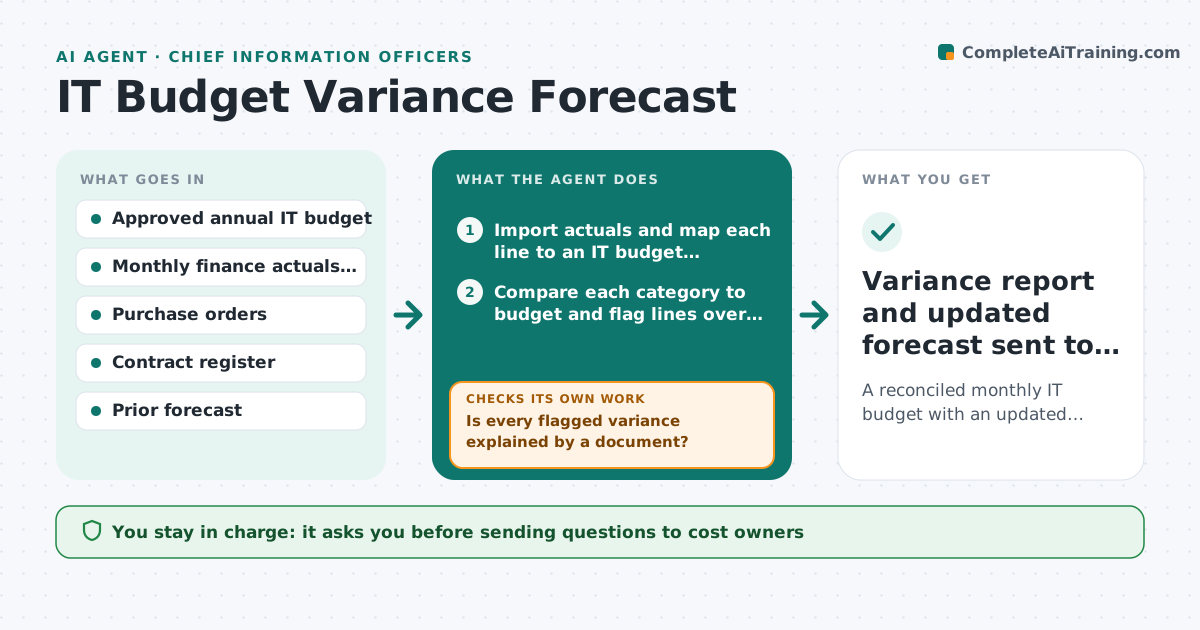
Each month an IT leader has to check the budget against real spend and update the year-end forecast, usually by hand in a spreadsheet. This agent pulls actuals from the finance export, maps each line to a budget category and flags lines that moved more than your threshold. For each flagged line it searches purchase orders, contracts and invoices for the cause. A line counts as explained only when a document covers at least 90% of the gap. If no cause is found, it widens the search to accruals and multi-year terms, then drafts a question to the cost owner instead of guessing. It rebuilds the forecast and checks that it ties to actuals plus remaining budget. You approve the forecast and the questions before anything goes to finance. Edge case: a three-year license paid upfront looks like a huge overrun, so the agent spreads it across the term first.
How it works
Follow the arrows from top to bottom. The orange dashed arrow is the loop: when a check fails, the agent goes back and tries again.
Read the steps as a list
- Finance posts monthly actuals
- Import actuals and map each line to an IT budget category
- Compare each category to budget and flag lines over the threshold
- Search POs, invoices and contracts for the cause of each flagged line
- Is every flagged variance explained by a document?If not: widen the search to accruals and multi-year terms, then draft a question to the cost owner for what is still unexplained. Back to step 4.
- Rebuild the full-year forecast with the explained changes
- Does the forecast total tie to actuals plus remaining budget?If not: find the category that breaks the tie-out and recalculate it. Back to step 6.
- IT leader approves forecast and cost owner questionsThe agent waits here for your OK.
- Variance report and updated forecast sent to finance
How it decides
A line is flagged when it differs from the monthly budget by more than the threshold. It is explained only when a matching contract, PO or invoice accounts for at least 90% of the gap.
- Flag a category when the month differs from budget by more than the threshold
- Treat upfront multi-year payments as prepaid and spread them across the term
- Mark a variance as timing if a matching PO is expected next month
Make it yours
Every agent is a starting point. You choose these settings for your own situation.
- Variance threshold that triggers investigation (default 10% or $5,000)
- Budget categories and their owners
- Day of month the run starts
- Forecast format (spreadsheet, slide or both)
What keeps you in control
It always asks you first
- Sending questions to cost owners
- Submitting the forecast to finance
Hard limits
- Never changes the finance system or the approved budget
- Does not send anything to finance without approval
It stops when
- Done: every flagged line is explained or has an open question, and the forecast ties out
- Stop: actuals file is incomplete or the budget baseline is missing
Set it up
We guide you through the set-up, step by step
Members get the full set-up guide for this agent. No technical skills needed: you copy, paste and upload.
- One set of instructions to paste into your AI, with the clicks for ChatGPT, Claude, Microsoft 365 Copilot, Gemini and Grok
- The agent then walks you through connecting your own data, one source at a time
- A downloadable copy with the flow chart, the rules and the full guide