AI agent for motion graphics designers
Motion Caption Collision Agent
Captions never cover faces, products or on-screen text, and stay within safe areas.
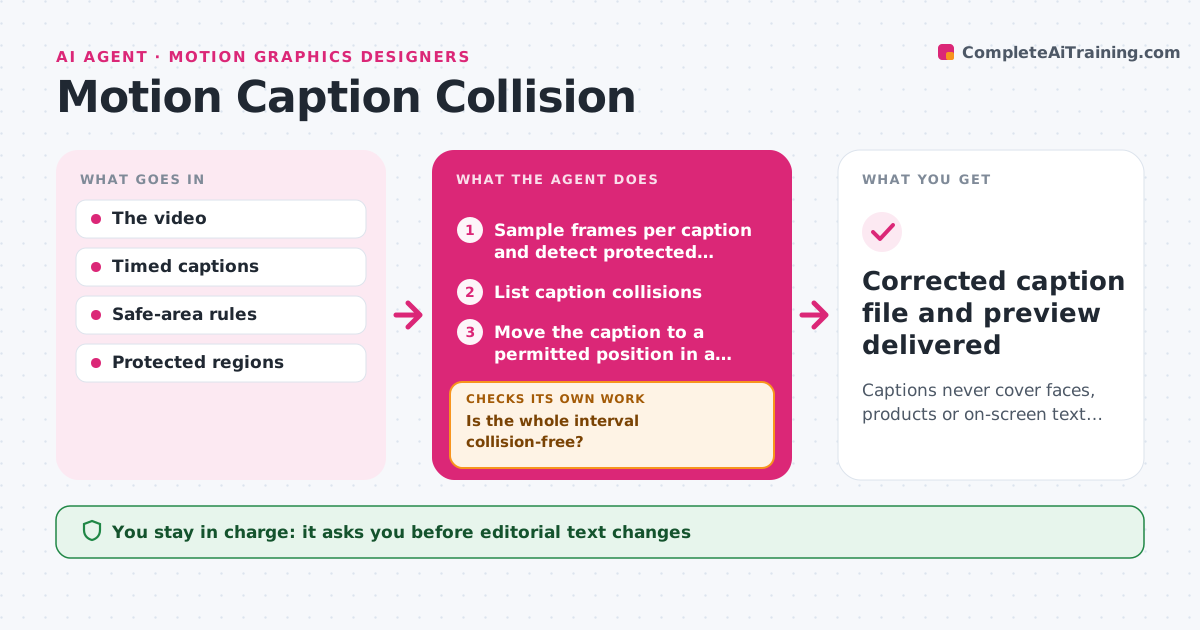
What it does
In motion graphics, captions can overlap faces, products or on-screen text as a shot changes. Fixing this by scrubbing through the timeline takes a long time. This agent samples frames for each caption, detects protected regions such as faces, products and burned-in text, and lists every collision. For each one it moves the caption to a permitted position inside the safe area on a copy, re-renders the interval and checks the whole interval again. If a position works at first but collides later, it moves the caption again or splits the timing into two parts. It never rewrites caption text; text changes go to the editor. The editor approves the placements and any splits. Edge case: when no safe position works for a single frame range, the agent flags it rather than shrinking the font below the minimum.
How it works
Follow the arrows from top to bottom. The orange dashed arrow is the loop: when a check fails, the agent goes back and tries again.
Read the steps as a list
- Video and captions ready
- Sample frames per caption and detect protected regions
- List caption collisions
- Move the caption to a permitted position in a copy
- Render the interval and recheck
- Is the whole interval collision-free?If not: move again or split the caption interval. Back to step 4.
- Editor approves placements and any text splitsThe agent waits here for your OK.
- Corrected caption file and preview delivered
How it decides
It samples frames for each caption interval, detects protected regions, and chooses the placement with no overlap; it re-checks the whole interval after each move and splits the interval if no single placement works.
- Placement choice: the safe position with no overlap for the whole interval.
- Split or move: split when no single position works.
- Text changes: never; splitting timing only, text edits go to the editor.
Make it yours
Every agent is a starting point. You choose these settings for your own situation.
- Safe area margins (default broadcast title-safe, 10% inset)
- Protected region types (default faces, products, logos and on-screen text)
- Minimum caption font size the agent may not go below
- Frame sampling rate for collision checks (default 4 frames per second)
- Whether splits need editor approval (default yes)
What keeps you in control
It always asks you first
- Editorial text changes
- Publication
Hard limits
- Never rewrites caption text.
It stops when
- Done: no collisions remain.
- Needs a human: a caption cannot fit without changing its text.
Set it up
We guide you through the set-up, step by step
Members get the full set-up guide for this agent. No technical skills needed: you copy, paste and upload.
- One set of instructions to paste into your AI, with the clicks for ChatGPT, Claude, Microsoft 365 Copilot, Gemini and Grok
- The agent then walks you through connecting your own data, one source at a time
- A downloadable copy with the flow chart, the rules and the full guide