AI agent for payroll administrators
Pre-Payroll Variance Check Agent
A payroll preview with every large change explained before approval
What it does
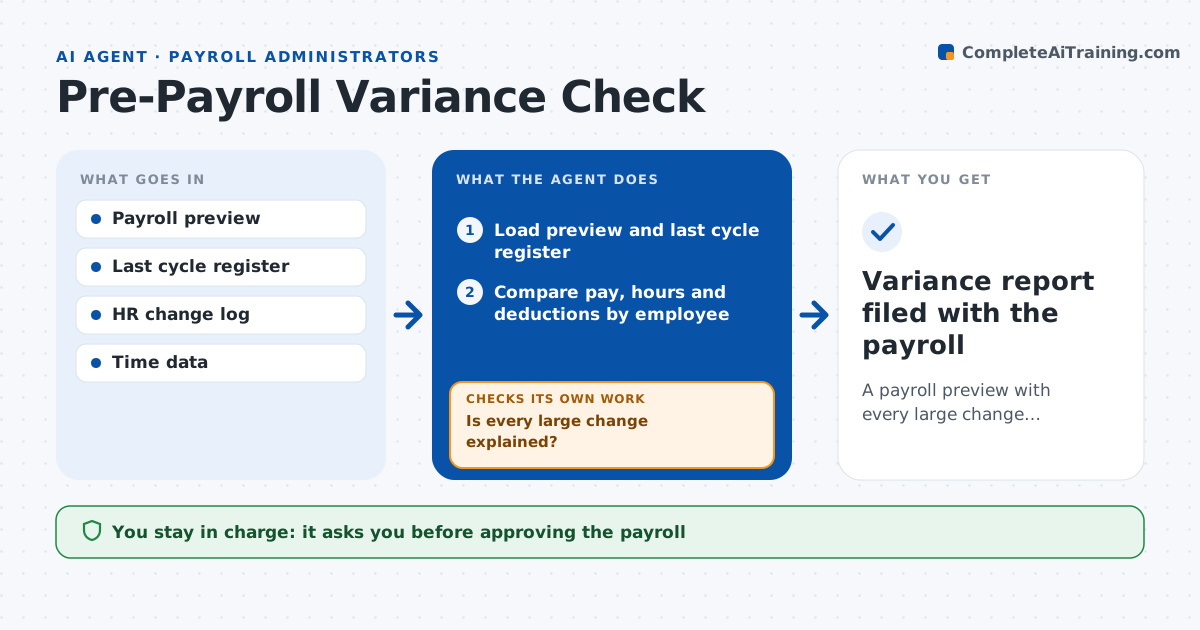
Payroll errors reach employees fast and erode trust, yet a preview of hundreds of lines is hard to check by eye. Before each payroll is approved, this agent compares the preview to the last cycle. It checks every employee for changes in gross pay, hours, deductions and net pay beyond set limits. For each large change it looks up the reason in HR changes and time records: a raise, new hire, termination, overtime or a benefit change. It flags changes with no reason on record and always flags zero or negative net pay. After the administrator corrects items, it reruns the comparison. It also checks totals for tax and benefit remittances. The administrator approves the final payroll. Edge case: an employee's net pay drops to zero because a garnishment was entered twice, which the agent catches.
How it works
Follow the arrows from top to bottom. The orange dashed arrow is the loop: when a check fails, the agent goes back and tries again.
Read the steps as a list
- Payroll preview ready
- Load preview and last cycle register
- Compare pay, hours and deductions by employee
- Look up HR changes and time records
- Is every large change explained?If not: list unexplained items for correction, then rerun after fixes. Back to step 3.
- Administrator approves payrollThe agent waits here for your OK.
- Variance report filed with the payroll
How it decides
It compares each employee to the last cycle and requires a matching HR or time record for changes above the limit.
- Net pay change above 10%: needs a reason
- New hire without signed start record: hold
- Net pay zero or negative: always flag
Make it yours
Every agent is a starting point. You choose these settings for your own situation.
- Change limits for pay and hours
- Fields to compare
- Groups to include
- Report format
What keeps you in control
It always asks you first
- Approving the payroll
Hard limits
- Never approves or submits payroll
- Never changes pay records
It stops when
- Done: payroll approved with report
- Stop: preview not final
Set it up
We guide you through the set-up, step by step
Members get the full set-up guide for this agent. No technical skills needed: you copy, paste and upload.
- One set of instructions to paste into your AI, with the clicks for ChatGPT, Claude, Microsoft 365 Copilot, Gemini and Grok
- The agent then walks you through connecting your own data, one source at a time
- A downloadable copy with the flow chart, the rules and the full guide