AI agent for elearning developers
Published Course Accessibility Audit Agent
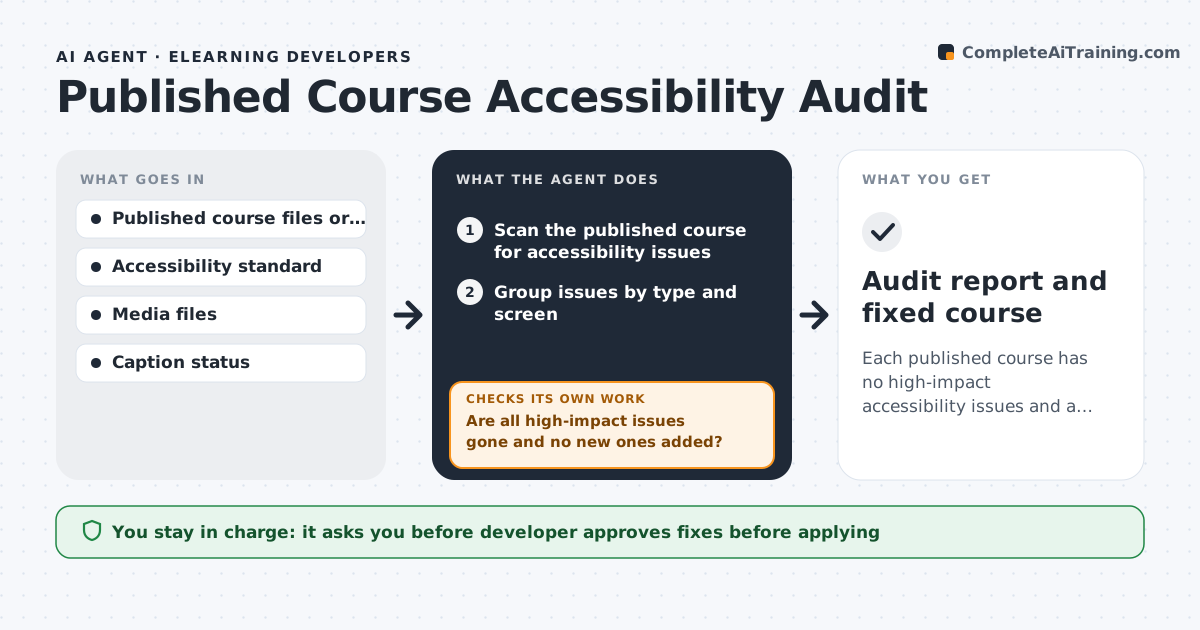
Each published course has no high-impact accessibility issues and a documented list of the rest.
What it does
Older courses were published before accessibility checks existed, and nobody knows what is wrong with them. The agent scans each published course for missing alt text, poor contrast, keyboard traps, missing captions and unlabeled controls. It ranks the issues by learner impact, so a keyboard trap that stops a learner finishing comes before a decorative image with no description. For each issue it drafts a fix, such as alt text, a caption file or a color change. After the developer applies the fixes in a copy, it scans again and compares the issue count. The developer approves publishing to a live course. Edge case: a video with no transcript is listed as high impact because screen reader users cannot reach it.
How it works
Follow the arrows from top to bottom. The orange dashed arrow is the loop: when a check fails, the agent goes back and tries again.
Read the steps as a list
- Quarterly run or course update
- Scan the published course for accessibility issues
- Group issues by type and screen
- Rank issues by learner impact
- Draft fixes such as alt text, captions and color changes
- Developer approves the fixes in a copyThe agent waits here for your OK.
- Apply the fixes to a test copy
- Rescan the copy
- Are all high-impact issues gone and no new ones added?If not: Revise the fixes and rescan until clear, noting any that need manual redesign. Back to step 4.
- Developer approves the update to the live courseThe agent waits here for your OK.
- Audit report and fixed course
How it decides
It ranks issues by whether they block completion, then by the number of learners affected.
- Keyboard traps and missing captions are high impact
- Contrast below the standard ratio is medium
- Decorative images need empty alt text
- Do not publish if a new issue appears
Make it yours
Every agent is a starting point. You choose these settings for your own situation.
- Standard and level to test
- Impact ranking rules
- Scan frequency
- Course list
- Report recipients
What keeps you in control
It always asks you first
- Developer approves fixes before applying
- Developer approves updates to live courses
Hard limits
- Never change a live course without approval
- Never write alt text that misdescribes an image
- Never hide an issue
It stops when
- Done: no high-impact issues remain and the report is filed
- Stop: a fix needs a redesign the developer must decide
Set it up
We guide you through the set-up, step by step
Members get the full set-up guide for this agent. No technical skills needed: you copy, paste and upload.
- One set of instructions to paste into your AI, with the clicks for ChatGPT, Claude, Microsoft 365 Copilot, Gemini and Grok
- The agent then walks you through connecting your own data, one source at a time
- A downloadable copy with the flow chart, the rules and the full guide