AI agent for architects
Specification Coordination Agent
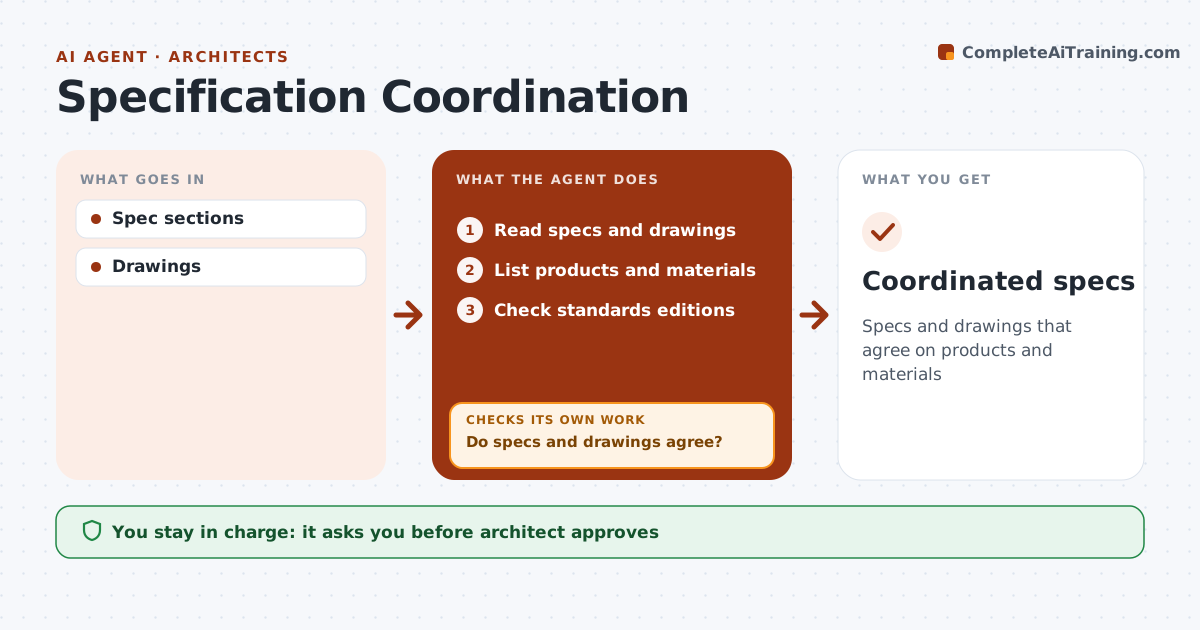
Specs and drawings that agree on products and materials
What it does
Specifications are often edited from past projects and drift from the drawings, leading to bids on the wrong products and change orders later. This agent reads the spec sections and the drawings and lists the products and materials named in each. It finds mismatches, such as a product on the drawings that is not in the specs, or spec sections for systems that are not in the project. It checks references to standards for current editions. It also flags leftover text from past projects. Mismatches are listed for the team with their location. After the team edits, it checks again until specs and drawings agree. The architect approves the final spec set before it is issued. Edge case: leftover text from a past project that still names a different client is flagged so it does not reach bidders.
How it works
Follow the arrows from top to bottom. The orange dashed arrow is the loop: when a check fails, the agent goes back and tries again.
Read the steps as a list
- Issue approaching
- Read specs and drawings
- List products and materials
- Do specs and drawings agree?If not: list mismatches for the team. Back to step 3.
- Check standards editions
- Architect approves spec setThe agent waits here for your OK.
- Coordinated specs
How it decides
Each product on drawings needs a spec; each spec needs a drawing reference.
- Mismatches listed
- Leftover text flagged
- Current standards required
Make it yours
Every agent is a starting point. You choose these settings for your own situation.
- Spec format
- Standards list
- Issue types
- Approvers
What keeps you in control
It always asks you first
- Architect approves
Hard limits
- Never issues specs
- Never changes design intent
It stops when
- Done: specs coordinated
- Stop: issue delayed
Set it up
We guide you through the set-up, step by step
Members get the full set-up guide for this agent. No technical skills needed: you copy, paste and upload.
- One set of instructions to paste into your AI, with the clicks for ChatGPT, Claude, Microsoft 365 Copilot, Gemini and Grok
- The agent then walks you through connecting your own data, one source at a time
- A downloadable copy with the flow chart, the rules and the full guide