AI agent for 3d artists
Texture Resolution Memory Budget Agent
An asset or scene whose texture memory fits the project budget with the least visible quality loss
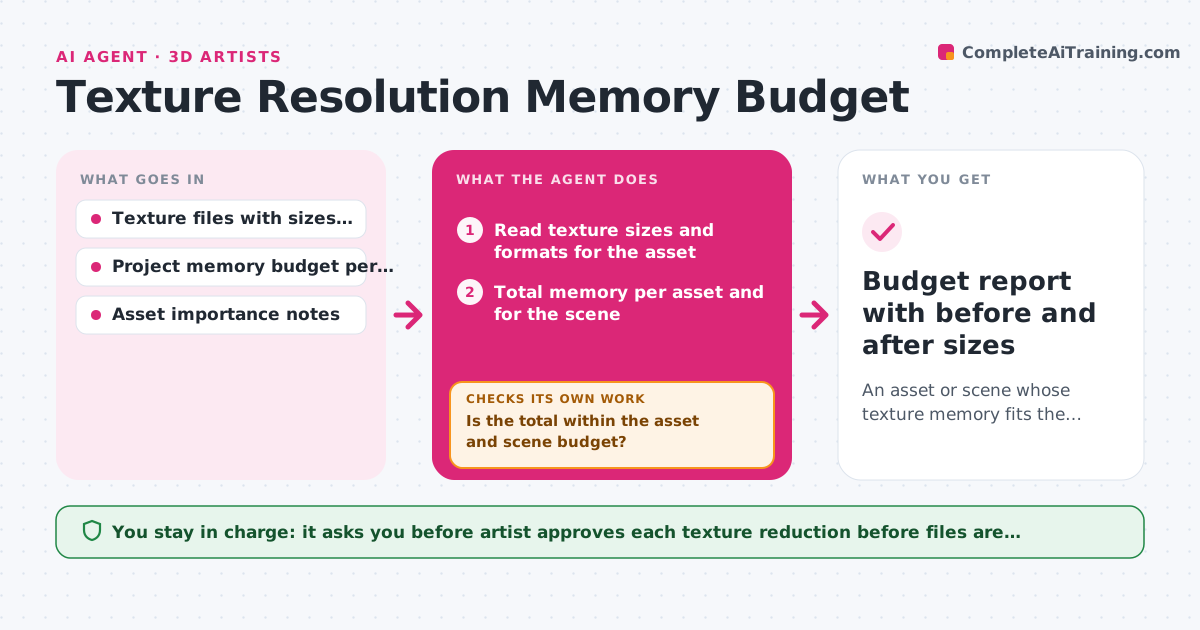
What it does
Real-time assets often ship with every map at 4K because that is how they were painted, and the memory bill arrives only when the build runs out of room. When an asset is ready for export, this agent reads every texture's size and format and totals the memory per asset and for the whole scene. It compares the numbers with the project budget. If the asset is over, it proposes specific cuts, such as dropping a roughness or ambient occlusion map to 1K or switching to a packed channel format, and picks the cuts that save the most with the least visual risk. It recalculates after each proposed change and repeats until the total fits or no safe cut is left. The artist approves each reduction before any file is overwritten. Edge case: a hero prop that appears close to camera keeps its albedo at full size, so the agent cuts secondary maps first.
How it works
Follow the arrows from top to bottom. The orange dashed arrow is the loop: when a check fails, the agent goes back and tries again.
Read the steps as a list
- Asset marked ready for export
- Read texture sizes and formats for the asset
- Total memory per asset and for the scene
- Is the total within the asset and scene budget?If not: Go to the cut proposal, then re-read the totals. Back to step 2.
- Rank maps by memory saved versus visual risk
- Propose a reduction such as roughness from 4K to 1K
- Artist approves or rejects the reductionThe agent waits here for your OK.
- Create the reduced copies without overwriting originals
- Does the recalculated total fit, and is a safe cut still available if it does not?If not: Propose the next cut on the ranked list and recalculate. Back to step 5.
- Budget report with before and after sizes
How it decides
It ranks maps by memory saved per unit of visual risk, cuts secondary maps first, and never touches maps flagged as hero or close-up until nothing else is left.
- Cut roughness, metallic, ambient occlusion and mask maps before albedo or normal
- Never reduce a map below 512 pixels on its longest side
- Keep hero and close-up assets at full albedo size unless the budget cannot be met any other way
- Prefer a block-compressed format before reducing resolution
Make it yours
Every agent is a starting point. You choose these settings for your own situation.
- Memory budget per asset and per scene
- Maps allowed to be reduced first
- Minimum resolution floor (default 512)
- Compression format preferences
- Which assets count as hero
What keeps you in control
It always asks you first
- Artist approves each texture reduction before files are replaced in the export folder
Hard limits
- Never overwrite original source textures
- Never change a hero asset without approval
It stops when
- Done: Asset and scene totals are under budget
- Stop: No safe cut remains and the asset is still over, so the agent reports the shortfall and asks for a budget decision
Set it up
We guide you through the set-up, step by step
Members get the full set-up guide for this agent. No technical skills needed: you copy, paste and upload.
- One set of instructions to paste into your AI, with the clicks for ChatGPT, Claude, Microsoft 365 Copilot, Gemini and Grok
- The agent then walks you through connecting your own data, one source at a time
- A downloadable copy with the flow chart, the rules and the full guide