Canva AI + ChatGPT for Teachers: Interactive Games & Worksheets (Video Course)
Save hours on prep without losing quality. With @evinwaloka, learn a simple ChatGPT + Canva AI workflow that turns rough ideas into interactive games or crisp PDFs,fast. Publish a link, print a worksheet, and grow a reusable library using free tools.
Related Certification: Certification in Creating Interactive Games & Worksheets with Canva AI & ChatGPT
Also includes Access to All:
What You Will Learn
- Use a two-tool workflow (ChatGPT + Canva AI) to create classroom materials
- Write and refine prompts for Canva Code (interactive) and Doc (print) outputs
- Build, test, publish, and share interactive web games via Canva Code
- Create editable, print-ready worksheets and export them as PDF from Canva Doc
- Organize and manage a cloud-based resource library with accessibility and pedagogy best practices
Study Guide
Canva AI Training for Teachers @evinwaloka , From Zero to Classroom-Ready
Imagine cutting your prep time in half without cutting quality. Imagine moving from "I have an idea" to "my students are already using it" in one sitting. That's what this course delivers. You'll learn a practical, two-tool workflow that pairs a language model (like ChatGPT) with Canva's AI features to build interactive games, professional worksheets, and other classroom resources,fast, accurate, and tailored to your learners.
This isn't theory. You'll build, publish, and manage resources that work in real classrooms. You'll see how to write prompts that actually produce what you want, how to navigate Canva's AI options like Code and Doc, and how to publish polished outputs that run on a free URL or export cleanly to PDF. You'll walk away with a system: ideate, generate, refine, publish, and organize,over and over,until your library practically builds itself.
What you'll master:
- A two-tool strategy: ChatGPT for prompt engineering + Canva AI for generation.
- Prompt fundamentals (role, goal, structure, interactivity, constraints) and efficient refining.
- Building interactive web-based games using Canva's Code output.
- Turning the same idea into printable, professional PDF worksheets using Canva's Doc output.
- Publishing, sharing, and managing everything through a simple, cloud-based system.
- Best practices for pedagogy, accessibility, and classroom integration.
Two mindsets to anchor the journey:
- "Maximize AI so that a smart teacher becomes a smarter teacher."
- Regarding Canva Pro: "The price is about 2,800 [currency unspecified] per month. And if you do for a whole year...it's about maybe 24,000 or so."
The Promise of AI for Educators (Context and Why This Matters)
Teaching is creative work under time pressure. AI helps you protect the craft while removing the grind. By pairing a language model's ability to turn messy ideas into precise instructions with Canva AI's instant design and build capabilities, you get a rapid pathway from lesson goals to polished outputs. The result: differentiated, visually engaging, and pedagogically sound resources that meet students where they are.
Benefits you'll feel immediately: time saved on lesson planning, consistent formatting and design, highly customized materials for different levels, and the freedom to experiment without a steep learning curve. Best of all, it's accessible. You can do this effectively using the free tiers of both tools.
Example 1: Quick win in literacy
You speak a rough idea into ChatGPT on your phone: "I need a nouns and types-of-nouns game for Grade 3 with easy/medium/hard levels." ChatGPT condenses your idea into a focused prompt. You paste that into Canva AI (Code). A few minutes later, you have a live, interactive game you can share via a link.
Example 2: Same idea, new format
Using the exact same core concept, you ask ChatGPT to adjust the prompt for a printable worksheet. You switch Canva AI to Doc, generate, tweak in the editor, and export as PDF. Game + worksheet done,two formats for different contexts.
Key Concepts and Terminology (Know the Tools, Speak the Language)
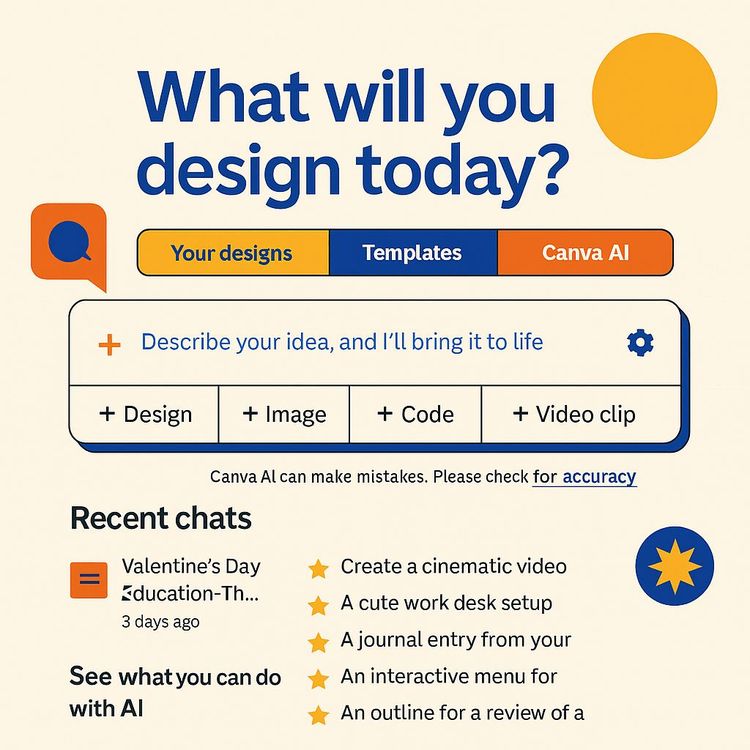
- Canva AI (Magic Design): Canva's built-in AI that turns text prompts into designs, docs, presentations, images, and simple websites via Code output.
- ChatGPT: A conversational AI model for brainstorming, refining instructions, and producing structured prompts optimized for Canva AI.
- Prompt: The instructions you give an AI. Specify topic, audience, format, tone, structure, interactivity, and constraints.
- Prompt Refinement: Expanding or compressing your idea into a structured prompt. Includes shortening to meet character limits while preserving essentials.
- Dictation Feature: Voice-to-text (e.g., in ChatGPT mobile). Great for rapid prompt drafting without typing.
- Output Types in Canva AI: "Code" builds a single-page interactive website. "Doc" builds a text-based document for print or PDF.
Example 1: Prompt vs. refined prompt
- Rough: "Make a Grade 3 nouns game."
- Refined: "You are a playful tutor. Build a 3-level nouns game (easy/medium/hard; 5 questions each) for Grade 3. Include instant feedback (celebratory meme on correct), one retry on wrong, and reveal answer after second attempt. No timer. Solo practice focus."
Example 2: Output types clarified
- Code: Generates HTML/CSS/JS for an interactive quiz website (hosted on a Canva subdomain).
- Doc: Generates a multi-page worksheet with sections, instructions, and optional answer keys,editable and downloadable as PDF Standard.
Set Up, Access, and Mindset (Start Smart, Keep It Simple)
- Create free accounts on Canva and your AI assistant (e.g., ChatGPT). If you're a verified teacher, explore Canva for Education perks.
- Optional: Canva Pro offers extra brand features and content. Use the free tier first; upgrade only if it solves a real bottleneck.
- Keep privacy top of mind. Don't paste student names or sensitive data into prompts. Work with anonymized content when possible.
Example 1: Minimal setup
Use a free Canva account + ChatGPT app with dictation on your phone. You brainstorm on the couch and generate the first draft materials before you even sit at your desk.
Example 2: Team setup
A grade-level team shares a single Google Drive folder and a spreadsheet. Each teacher adds links to the games and PDFs they generate, tagging topic and level. Within a few weeks, the team has a shared library.
The Two-Tool Strategy (Why Synergy Beats Solo)
Canva AI is powerful, but it performs best when fed a tight, specific prompt. ChatGPT is brilliant at turning a messy brain-dump into clean, structured instructions that Canva can execute. Use each tool for what it's best at:
- Tool 1: AI Assistant (ChatGPT) , "prompt engineer." You describe the vision; it returns a concise, structured prompt with roles, goals, constraints, and interactivity rules.
- Tool 2: Canva AI , "content generator." You paste the refined prompt, choose Code or Doc, and produce a working game or printable document.
Example 1: Grammar mini-site
ChatGPT writes a detailed spec for a parts-of-speech game. Canva AI (Code) turns it into a functional website with progress tracking across three levels.
Example 2: Math workbook
ChatGPT transforms your idea for fraction practice into a document spec with sections: warm-up, guided practice, challenge problems, answer key. Canva AI (Doc) generates a printable, multi-page worksheet with consistent formatting.
Phase I: Prompt Engineering Fundamentals (Your Input Is the Output)
The quality of what you get depends on the clarity of what you ask. Focus on five elements in your initial description to ChatGPT:
1) Role and Tone: Define who the AI is and how it speaks. "You are a top online tutor known for interactive classes."
2) Content Goal: Subject, topic, audience. "Create an interactive game on nouns and types of nouns for Grade 3."
3) Structure: Levels, number of questions, content variety. "Easy/medium/hard; 5 questions per level; mix MCQ, drag-and-drop, sentence spotting."
4) Interactivity & Feedback: How the system responds. "Celebratory meme on correct; one retry on wrong; then reveal answer."
5) Constraints & Purpose: Timers, environment, device constraints, and use case. "No timer. Solo practice. Works on phones and Chromebooks."
Example 1: Full dictation prompt (spoken to ChatGPT)
"You are a friendly primary tutor who builds interactive web games. I teach Grade 3 English. Create a prompt for Canva AI to build a nouns game with 3 levels: easy, medium, hard. Five questions each. Include MCQs, identify-the-noun-in-a-sentence, and categorize common vs proper. Give instant feedback: a celebratory meme and kind message for correct; allow one retry for wrong, then reveal the correct answer. No timer; it's for individual practice. Keep it upbeat and visually fun."
Example 2: Same structure for math
"You're a math intervention specialist. Create a Canva AI prompt for a fractions practice game for Grades 4-5: 3 levels (unit fractions, like denominators, unlike denominators), 5 items per level. Include visual fraction bars and one real-life word problem per level. Give hints after wrong attempts; one retry, then show the solution path. No timer. Solo practice."
Best practices
- Use dictation to move fast. Speak naturally; ChatGPT will structure it.
- Include the "why." If you want no timer, say it's to reduce anxiety and encourage mastery.
- Specify accessibility needs: contrast, large buttons, dyslexia-friendly fonts (if available), text-to-speech recommendations.
Prompt Refinement: From Long to Lean (Beat Character Limits Without Losing Clarity)
Canva AI may have character limits. After ChatGPT drafts your detailed prompt, ask it to shorten the prompt while preserving the core logic.
Instruction you can reuse:
"Shorten this prompt so it fits Canva AI's character limits. Keep the levels, question types, feedback rules (celebratory meme, one retry, then reveal), no timer, and solo practice focus."
Example 1: Condensed nouns game prompt
"Role: Interactive tutor. Build a Grade 3 nouns game as a 1-page site. 3 levels (easy/medium/hard), 5 Qs each: MCQ, noun-in-sentence, common vs proper. Feedback: celebratory meme + message on correct; allow 1 retry on wrong, then reveal correct. No timer. Solo practice. Colorful, kid-friendly UI; large buttons; mobile-friendly."
Example 2: Condensed fractions prompt
"Role: Math coach. Build a 1-page fractions game for Grades 4-5. Levels: unit fractions; add/subtract like denominators; add/subtract unlike denominators. 5 Qs/level incl. 1 word problem. Visual fraction bars. Feedback: hint after wrong; allow 1 retry; then show solution. No timer. Solo practice. Clean UI; accessible contrast; works on phones."
Tips for compression
- Replace lists of specific questions with "types" of questions.
- Use role:goal:structure:feedback:constraints format.
- Remove adjectives that don't affect function. Keep those that specify usability or pedagogy.
Phase II: Generate Interactive Content in Canva (Code Output)
Here's the step-by-step. It's simple, but the details matter:
1) Navigate to Canva AI: Open Canva, find the AI generation entry point (often labeled Magic Design or similar).
2) Input the refined prompt: Paste your condensed prompt.
3) Select Output Type: Choose "Code" to instruct Canva to create a functional, single-page website.
4) Generate and Test: Wait for Canva to build and preview the interactive game. Try all interactions: correct, wrong, retry, reveal.
5) Publish: Click Publish. Canva provides a free subdomain. Customize the final part of the path (lowercase letters and hyphens only). Share the URL with your students.
Example 1: Publishing a literacy game
- Path: yourname.my.canva.site/nouns-game
- Share it via your LMS, post a QR code in the classroom, or drop the link into a chat during online class. Ask one student to share their screen and talk through their reasoning while others play along.
Example 2: Publishing a science quiz
- Prompt for a "states of matter" game (3 levels: definitions, properties, real-life examples). Generate with Code, publish to yourname.my.canva.site/states-of-matter. Use it as a bell ringer or exit ticket.
Best practices
- Test on a phone and a Chromebook. Try landscape and portrait.
- Verify retry logic and feedback wording. Keep it encouraging and specific.
- If something breaks, regenerate or slightly rephrase your prompt (e.g., "Use simple vanilla JS and no external libraries").
Phase II Deep Dive: Design, Feedback, and Pedagogy in Your Game
You control more than content,you control learning experience. Make choices that support attention, memory, and courage to try again.
- Difficulty curves: Easy → Medium → Hard builds confidence. Use concrete → abstract transitions.
- Feedback: Celebratory memes and kind messages work. Add a short rationale on reveal: "Proper nouns name specific people, places, or things. 'London' is proper; 'city' is common."
- Accessibility: High contrast, readable fonts, large buttons, minimal clutter. Avoid flashing elements; keep sound optional.
- Anxiety: No timer for practice. Timers can return later for review games if needed.
Example 1: Level scaffolding
- Easy: Identify which word is a noun in short sentences.
- Medium: Classify nouns as common vs. proper.
- Hard: Rewrite sentences replacing underlined common nouns with proper nouns.
Example 2: Feedback phrasing
- Correct: "Yes! 'Elephant' is a noun,thing you can name." + a celebratory meme.
- Wrong: "Not quite. Think: nouns are people, places, or things. Try again!" → then reveal with a quick explanation after the second attempt.
Phase III: Adapt the Workflow for Printable Worksheets (Doc Output)
Switching from game to worksheet is a prompt shift. You're telling the AI to prioritize layout, clarity, and print-readiness.
1) Tweak the prompt in ChatGPT: "Adjust the prompt so it can be built as a worksheet saved as PDF." Ask for sections, instructions, space for answers, and an answer key.
2) Generate in Canva: Paste the new prompt. Select "Doc."
3) Edit in the Canva Editor: Fix phrasing, add your logo, adjust spacing, ensure clarity.
4) Manage answer keys: Duplicate the file for a student-facing version or remove the key before download.
5) Export: Share → Download → PDF Standard. Test print a page before class.
Example 1: Nouns worksheet
- Sections: Warm-Up (match nouns to pictures), Practice (underline nouns in sentences), Challenge (convert common to proper nouns), Reflection (write 3 sentences). Include an answer key at the end. Export as PDF Standard.
Example 2: Fractions worksheet
- Sections: Visual models (shade the fraction), Compute (add/subtract like denominators), Word problems (recipe context), Challenge (unlike denominators with LCM). Include hints in italics. Provide step-by-step solutions in the key.
Tips
- Ask ChatGPT to "enforce clean layout with headings, numbered items, and adequate answer space."
- Keep font sizes readable for print. Leave margins for hole-punching or notes.
Versatility: Repurpose One Idea into Many Formats
One core idea can become a game, a worksheet, a mini-lesson, or a practice pack with only minor prompt changes. Work smarter by repurposing.
Example 1: From game to student packet
- Start: Interactive Code game on adjectives.
- Repurpose: Doc output into a 4-page packet (notes + drills + short writing task). Same content, different use case.
Example 2: From worksheet to quick-check website
- Start: Vocabulary worksheet (match, fill-in, sentence creation).
- Repurpose: Code output into a 10-question quick-check site for homework review.
Accessibility, Inclusion, and Differentiation (Build for Every Learner)
- UDL principles: Offer multiple ways to engage (visuals, text, optional audio).
- Language support: Add picture cues; provide bilingual glossaries in worksheets.
- Readability: Short sentences, bigger buttons, high-contrast colors. Avoid over-decorating pages.
- Differentiation: Create two Doc versions (Core and Challenge) with the same design language for clarity and dignity.
Example 1: ELL-friendly nouns set
- Game uses simple sentences and image supports. Worksheet includes a mini-glossary with icons. Prompts encourage students to translate examples into their home language.
Example 2: Math accessibility
- Game has a "Show Hint" button instead of automatic hints (student agency). Worksheet uses large fraction models and step-by-step worked examples on the first page.
Troubleshooting and Quality Assurance (Catch Issues Before Students Do)
Common issues and fixes:
- Logic bugs: If buttons don't work as expected, regenerate with "Use simple vanilla JS" or "Ensure all state resets between levels."
- Miskeyed answers: In testing, intentionally choose wrong answers. Confirm retry and reveal logic.
- Performance: Ask Canva AI to "optimize for low-end devices and slow connections."
- Clarity: If instructions feel wordy, trim to one sentence + an example.
Example 1: Debug request
"Ensure all clickable elements have clear focus states and keyboard navigation. Keep code minimal and avoid external libraries."
Example 2: Content validation pass
Before publishing, skim questions and answers. If a definition looks off, copy it back into ChatGPT: "Verify this definition for accuracy and suggest a clearer phrasing."
Publishing, Sharing, and Classroom Use
When you click Publish in Canva (Code output), you get a link on a Canva subdomain. Customize the path with lowercase and hyphens. Share the link in your LMS, via QR codes, or in a live chat.
Example 1: Live guided play
Project the game; one student drives while others hold up A/B/C cards. Pause after each question for a quick explanation of the right answer.
Example 2: Station rotation
One station is the interactive game; another is the worksheet; a third is a discussion prompt. Groups rotate every few minutes. You circulate and coach.
Cloud-Based Management (Your Resource Library, Organized)
Centralize everything. Create a spreadsheet (e.g., Google Sheets) with columns: Resource Title, Subject/Topic, Grade/Level, Link (URL), File Location (Drive/Folder), Format (Code/Doc/PDF), Intended Use (bell ringer/homework/intervention), Last Reviewed, Notes.
Example 1: Sample row
Title: Nouns Game (E/M/H) | Topic: Grammar,Nouns | Grade: 3 | Link: yourname.my.canva.site/nouns-game | Format: Code | Use: Individual practice | Notes: Good for early-year review.
Example 2: Sample row
Title: Fractions Practice Packet | Topic: Fractions,Add/Subtract | Grade: 4-5 | File: Drive/Math/Fractions_Packet.pdf | Format: PDF (Doc origin) | Use: Homework/Review | Notes: Includes answer key on p. 6.
Tips
- Add tags in the Notes (e.g., "ELL-friendly," "No-timer," "Visuals").
- Review links each term; retire or update as needed.
Security, Privacy, and Ethics
- Avoid personal data: Don't include student names or sensitive details in prompts.
- Copyright and licensing: Use Canva's built-in elements and templates within their terms. If you upload third-party images, ensure you have rights.
- AI verification: Fact-check science and social studies content. Keep the human in the loop.
Example 1: Sanitized prompt
Use "Student A" or "Learner" instead of real names. Replace identifiable scenarios with generic ones.
Example 2: Attribution
If you use an external image or quote, include a small credit line in the worksheet footer.
Implications and Applications (Who Benefits and How)
- For Individual Educators: Less burnout from prep. Faster creation of differentiated materials. A growing library elevates your professional presence.
- For Students: More engaging, self-paced practice. Clear design improves focus and motivation.
- For Institutions: A cost-effective way to standardize quality and create internal libraries of modern resources.
Example 1: Intervention support
Create a set of three games at different reading levels on the same standard. Assign based on reading data, not grade labels.
Example 2: School-wide initiative
Department teams use this workflow to build a shared bank of games and PDFs aligned to standards. New teachers onboard with ready-to-use materials.
Action Items and Recommendations (Do This Next)
1) Familiarize yourself with the tools: Create free accounts on Canva and ChatGPT. Explore Magic Design and Doc/Code outputs.
2) Practice prompt engineering: Take one lesson you'll teach soon and dictate a detailed prompt to ChatGPT.
3) Start with an interactive game: Use Canva's Code output. Publish, test, and share the link.
4) Repurpose: Adjust the same prompt to build a printable worksheet. Export as PDF Standard.
5) Organize: Build a cloud-based spreadsheet to log links, files, and notes.
Example 1: One-hour sprint
- 10 minutes: Dictate your prompt to ChatGPT.
- 15 minutes: Refine and shorten.
- 15 minutes: Generate Code site, test, publish.
- 20 minutes: Repurpose to Doc, edit, export PDF.
Example 2: Weekly habit
Set a recurring block to produce one new game and one worksheet. Add both to your library. Over time, that's dozens of reusable assets.
Advanced Prompt Patterns (Reusable Recipes)
Use patterns to save time. Copy, tweak, repeat.
Example 1: Interactive game template
"Role: [Subject] tutor. Build a 1-page interactive game for [Grade/Level] on [Topic]. 3 levels (easy/medium/hard), 5 Qs each. Include [question types]. Feedback: [rules]. Constraints: no timer, mobile-friendly. Visual style: [simple, high contrast]."
Example 2: Worksheet template
"Role: Curriculum designer. Build a printable worksheet (multi-page) for [Grade/Level] on [Topic] with sections: Instructions, Warm-Up (5), Practice (10), Challenge (5), Reflection (2 prompts). Include answer key at end. Clean layout, readable fonts, space for answers. Export-ready as PDF Standard."
Classroom Scenarios: Practical Uses You'll Repeat
- Bell Ringers: 3-5 quick questions via Code site to start class.
- Exit Tickets: Short Doc or Code resource to check understanding.
- Homework: Printable Doc with clear instructions and an optional answer key for families.
- Sub Plans: A ready-made game link + worksheet packet keeps continuity when you're out.
Example 1: Geography practice
Game: Match countries to capitals (levels by continent). Worksheet: Map labeling + two short-response prompts on cultural landmarks.
Example 2: Science cycles
Game: Water cycle sequencing with drag-and-drop. Worksheet: Diagram labeling + short explanations for evaporation/condensation/precipitation.
Quality and Pedagogy: Make It Stick
- Alignment: Tie every game and worksheet to a specific standard or objective.
- Variety: Mix item types (MCQ, drag, short answer, categorize, match).
- Elaboration: Add "why" explanations after reveals. That's what cements learning.
- Reflection: Include 1-2 metacognitive prompts in worksheets.
Example 1: Reflection prompts
"Which question type felt easiest? Why?" "Where did you change your mind after feedback?"
Example 2: Elaboration tags in-game
After reveal: "Rule reminder: Proper nouns begin with capital letters,names of specific people, places, or things."
Troubleshooting Canva AI Outputs (When to Iterate, When to Edit)
- Minor layout issues in Doc? Fix in Canva Editor directly.
- Logic issue in Code? Regenerate with a clarified prompt: "Use clear variable names; comment the code for maintainability."
- Visual clashing? Add "Use a calm palette with high contrast, avoid neon."
Example 1: Overly busy worksheet
Prompt tweak: "Prioritize whitespace and legibility over decorative elements. No background textures."
Example 2: Ambiguous question
"Ensure a single unambiguous correct answer per item. If needed, rephrase to reduce edge cases."
From Single Resource to System (Make This Sustainable)
Design with reuse in mind. Establish templates you trust, store assets in a predictable way, and tag relentlessly. Your future self (and teammates) will thank you.
Example 1: Themed series
Build a "Parts of Speech" series: nouns, verbs, adjectives, adverbs,same design system, different content. Students learn the UI once, focus on content after.
Example 2: Tiered intervention packs
Create Core, Support, and Challenge versions of the same worksheet. Assign based on data, not labels.
Deep Dive: Using Dictation to Speed Up Prompts
You think faster than you type. Dictation closes that gap. Use the ChatGPT mobile app (or any voice-to-text) to talk through the details: roles, goals, structure, examples, and constraints. Then ask ChatGPT to clean and condense.
Example 1: On-the-go brainstorm
Walking to your car, you dictate a 90-second description of tomorrow's reading lesson. By the time you sit down, the refined Canva prompt is ready.
Example 2: Collaborative build
During a team meeting, one person reads the group's ideas into ChatGPT. You get a consensus-built prompt, refined in real time.
Two Complete Walkthroughs (End-to-End)
Walkthrough A: Interactive Nouns Game
1) Dictate prompt to ChatGPT with role, goal, structure, feedback, constraints.
2) Ask for a shortened version for Canva.
3) Paste into Canva AI, select Code, generate.
4) Test: correct/wrong/retry/reveal. Adjust if needed.
5) Publish to yourname.my.canva.site/nouns-game. Share via QR code and LMS.
6) Log the link in your resource spreadsheet.
Walkthrough B: Printable Fractions Worksheet
1) Ask ChatGPT to adapt the fractions game prompt for a multi-page worksheet with sections and an answer key.
2) Paste into Canva AI, select Doc, generate.
3) Edit in Canva: spacing, font, branding.
4) Duplicate to remove the answer key for a student version.
5) Export both as PDF Standard (Teacher and Student).
6) Log both files in your resource system.
Key Insights and Takeaways (What Matters Most)
- Synergy is key: ChatGPT for prompt refinement; Canva AI for content generation. Better together than apart.
- Prompting is a skill: The clarity and detail you provide drive output quality.
- Versatility: One idea → multiple formats (web game, printable PDF) with minor prompt tweaks.
- Accessibility: Effective with free versions of both tools.
- Efficiency: Dramatically reduces time to create high-quality, engaging practice and assessment materials.
- Cloud-based management: Keep links and files organized so you can reuse and iterate quickly.
Example 1: Single-idea expansion
Topic: Photosynthesis. Outputs: Code game (sequencing steps), Doc worksheet (diagram label + explanation), quick-check quiz (5 items) for homework.
Example 2: Semester-long habit
Weekly, you create one game and one worksheet per unit. By term's end, you've built a robust library that reduces planning pressure next term.
Practice Questions (Check Your Understanding)
Multiple Choice
1) What is the primary role of ChatGPT in this workflow?
a) To design final graphics
b) To host the final website
c) To refine ideas and generate detailed prompts for Canva AI
d) To directly download the final PDF worksheet
2) To create an interactive web-based game in Canva AI, which output type must you select?
a) Doc
b) Image
c) Code
d) Video
Short Answer
1) Why is it often necessary to ask ChatGPT to shorten a prompt before using it in Canva AI?
2) Describe the two main steps for sharing a generated game with a student for use in an online class.
Discussion
1) Draft a prompt to create an interactive quiz for a 6th-grade science class on the planets. What feedback and question types would you include?
2) What are the pedagogical advantages of a custom game vs. a generic app? Any potential limitations?
3) Beyond games and worksheets, what else could you create using the ChatGPT-to-Canva workflow?
Additional Resources (Keep Growing)
- Canva for Education: Explore educator-focused resources and templates. Many premium-style features are available to verified teachers.
- Prompt Engineering Guides: Search for "ChatGPT prompt engineering for educators" to refine your craft.
- Related topics: Differentiated instruction with AI, AI-generated images for lessons, generating lesson plans and rubrics with AI assistants.
Example 1: Image generation add-on
Request AI-generated images of fraction bars or science diagrams and drop them into your worksheets for clarity.
Example 2: Rubric creation
Ask ChatGPT to generate a rubric for a writing task aligned to the skills your worksheet covers. Paste it as an appendix page.
Frequently Asked Questions (Quick Answers)
- Do I need Canva Pro? No. Start with free. Upgrade only if you need brand kits, premium elements, or advanced collaboration features.
- Can I track student data? Canva's basic websites don't collect per-student analytics by default. If you need data, add a short reflective question in your LMS or a Google Form link at the end.
- What if the game doesn't match my curriculum? Tweak the prompt with exact standards or include sample items you want emulated.
Example 1: Standards alignment prompt
"Align questions to [standard code]. Ensure vocabulary matches that framework. Include an example mirroring released items."
Example 2: Low-tech fallback
If devices fail, print the Doc worksheet version. Same content, same day, no disruption.
Mindset and Momentum (Keep It Practical, Keep It Human)
The goal isn't to automate teaching. It's to automate the busywork so you can do more of the human work,coaching, connecting, and noticing the subtle moments that move a learner forward. Build one resource. Then another. Then batch them. Soon, you'll have a library that elevates your teaching and lightens your load.
Core reminder
"Maximize AI so that a smart teacher becomes a smarter teacher."
Final Checklist Before You Publish Anything
- Clear objective stated?
- Levels and items balanced?
- Feedback kind and corrective?
- Accessibility considered (contrast, size, language)?
- Links tested on phone + Chromebook?
- Answer key double-checked?
- Logged in your resource spreadsheet?
Example 1: Peer review
Share the link with a colleague for a 5-minute test. Ask them to intentionally get a few items wrong and report how it feels.
Example 2: Student pilot
Try the game with a small group first. Watch how they interact and listen to where they hesitate. Update your prompt or edit the Doc accordingly.
Conclusion: Build Once, Teach Better, Repeat
You now have a working system: use ChatGPT to turn your ideas into precise prompts; use Canva AI to turn those prompts into interactive games or professional worksheets; publish or print; then store everything in a tidy cloud system. That's the loop. Each pass gets faster. Each resource gets sharper.
What started as a tool becomes a habit. A habit becomes a library. A library becomes leverage: less time spent building from scratch and more time engaging with students, giving feedback, and guiding growth.
Make the first one today. Then make the second. Keep the bar high, keep the loop tight, and keep it human. Your future classes will thank you.
Before you go, do this:
- Pick one standard. Dictate the prompt. Generate the game with Code. Publish. Then repurpose to Doc and export as PDF. Log both. You've just doubled your impact with half the effort.
Frequently Asked Questions
Purpose of this FAQ
This FAQ distills the most common questions about using Canva AI with ChatGPT to build classroom-ready resources fast. It moves from the basics to advanced tactics, includes practical examples, and solves real problems teachers face,prompting, publishing, privacy, accuracy, and workflow. Use it to go from idea to shareable link or printable PDF with less friction and better results.
Fundamentals: Canva AI + ChatGPT Workflow
What is Canva AI and how can it be used in education?
Canva AI is a set of tools that turns clear instructions into finished resources.
Inside Canva, features like Magic Design interpret prompts to auto-generate designs, documents, presentations, images, and even simple code-based websites. For teachers, this means you can create lesson slides, printable workbooks, interactive quizzes, and custom visuals in minutes. Pairing Canva AI with a chatbot like ChatGPT adds structure and depth to your prompts, so the outputs are more accurate and classroom-ready. Example: dictate a rough idea to ChatGPT ("Grade 3 nouns game with three levels, five questions each, instant feedback, no timer"), get a refined prompt, then paste it into Canva AI to generate a playable quiz site. Result: faster prep, consistent design quality, and resources that engage students without burning your planning time.
What types of educational materials can be created with Canva AI?
Almost any core classroom artifact can be generated from a well-structured prompt.
Examples teachers use daily:
- Interactive websites/quizzes: Single-page sites for games, checks for understanding, or stations work.
- Documents and worksheets: Printable or digital packets with instructions, practice, and answer keys.
- Presentations: Lesson decks with visuals, activities, and discussion prompts.
- Images and diagrams: Custom illustrations for science, maps for social studies, or concept visuals for ELA.
Real example: "Build a three-level fractions game with visual pies, instant feedback, and a retry before reveal." Or: "Create a 6-page PDF workbook on photosynthesis with vocabulary, diagrams, a practice quiz, and an answer key." Tip: specify audience, structure, length, and constraints to keep results on-target.
Do I need a paid Canva account to use these AI features?
No,the free plan covers the essentials for this workflow.
You can generate code-based interactive sites and documents with a free Canva account. Pro adds extras like more assets, advanced brand controls, and custom domains. Many schools qualify for Canva for Education, which unlocks a wide library of premium features at no cost to verified teachers and students. Bottom line: the core process,writing prompts with ChatGPT, generating in Canva AI, publishing a canva.site link, and downloading PDFs,works on free. If you need brand kits, premium elements, or custom URLs, consider Pro or Canva for Education. Start free, validate your workflow, then upgrade only if the added features save more time than they cost.
What is the role of an AI chatbot like ChatGPT in this process?
ChatGPT turns your rough idea into a precise, high-signal prompt.
Think of it as your prompt architect. You describe your goal, audience, and constraints; ChatGPT expands that into step-by-step instructions Canva AI can execute cleanly. It also helps brainstorm formats (levels, question types, feedback rules), adapt reading levels, and shorten prompts to fit character limits. Example: you voice-dictate "Grade 6 solar system quiz, images for planets, mix of MCQs and drag-and-drop, retry once, no timer, celebratory meme on correct." ChatGPT returns a tight, structured prompt ready for Canva AI. Why this matters: better prompts equal better outputs, less rework, and faster publishing. Use ChatGPT for ideation; use Canva AI for production.
Why use a chatbot to write a prompt instead of writing directly in Canva AI?
Clarity, completeness, and speed.
Typing ad hoc prompts in Canva can miss details (levels, constraints, tone, layout). ChatGPT quickly expands a fuzzy idea into a fully specified brief,structure, item counts, scoring, retry logic, visuals, reading level, and page breakdowns. It can also compress long instructions to fit Canva limits without losing intent, and iterate fast when you say "shorter," "simpler," or "more visual." Bonus: voice dictation lets you speak your requirements,faster than typing. Real example: a 40-minute deck becomes a concise 10-slide brief: "Slide titles, bullets, one diagram per slide, no blank slides, exit ticket on slide 10." Fewer surprises, fewer regenerations, better results on the first try.
What is the step-by-step process for creating an interactive game using Canva AI?
Two tabs, one workflow.
1) Open ChatGPT and Canva in separate tabs.
2) In ChatGPT, describe the game: topic, grade, levels, item types, retry rules, no timer, tone, visuals.
3) Ask ChatGPT to condense the prompt to Canva's limits while keeping the must-haves.
4) Copy the refined prompt.
5) In Canva AI, paste the prompt and select "Code" as the output.
6) Generate and test the interactive preview.
7) Fix gaps by refining the prompt in ChatGPT (don't patch inside Canva first).
8) Publish and copy the shareable URL.
Example: "Grade 3 nouns game: 3 levels x 5 questions, images, meme on correct, one retry, no timer, friendly tone, show final score." This consistently yields a playable, shareable site.
How can I write an effective prompt for an educational game?
Be specific about the who, what, how, and constraints.
Include: role/persona ("You are a top online tutor"), goal ("create a Canva AI prompt for an interactive game"), topic/audience ("nouns for Grade 3"), structure ("3 levels: easy, medium, hard; 5 questions each"), interactivity ("celebratory meme on correct, one retry on wrong, reveal after"), constraints ("no timer, individual practice"), and final instruction ("give the best possible prompt"). Pro tip: add tone ("encouraging, simple language"), accessibility ("high contrast, alt text for images"), and feedback ("explain why the correct answer is correct"). Ask ChatGPT to condense while retaining the core logic. Clean inputs create clean games.
What should I do if the prompt generated by the AI chatbot is too long for Canva AI?
Compress without losing the non-negotiables.
Ask ChatGPT: "Shorten to fit Canva's limits but keep structure, item counts, retry logic, no timer, and feedback rules." Then: "Use compact labels (L1/L2/L3), remove filler, keep imperative sentences." If needed, split style guidance into a second short message you paste after the main prompt in Canva (e.g., "Use high-contrast colors; kid-friendly tone."). Checklist to trim: cut synonyms, merge similar directions, replace long phrases with keywords (e.g., "retry=1, explain answer"). Keep outcome-critical details; drop nice-to-haves. Test, then refine with micro-updates instead of rewriting from scratch.
In Canva AI, what output format should I select to create an interactive game?
Select "Code."
This tells Canva AI to generate a functional single-page website with interactivity (buttons, scoring, feedback). If you choose "Doc," you'll get a printable or digital document instead. Tip: explicitly ask for "clean, self-contained code with no external libraries" to reduce breakage. For accessibility, request labels, clear focus states, and descriptive alt text for images. After generation, test all interactions before sharing the link. If anything misfires, simplify the prompt ("no drag-and-drop; use multiple choice only") and regenerate.
Once Canva AI generates the game, how do I make it accessible to students?
Publish, copy link, share anywhere.
Click Publish to host the site on a canva.site URL, then share that link via LMS (Google Classroom, Canvas, Schoology), email, or QR code on slides. Students open it in any modern browser,no login required. Best practice: add a short intro line at the top of the game ("3 levels, 5 questions each. One retry. No timer.") so expectations are clear. For online classes, have the student share their screen while playing; you coach in real time. For in-person, post the link in your LMS and on a classroom slide as a QR code.
Can I customize the URL for the game I create?
Yes,customize the path, not the domain, on free.
The free plan uses canva.site. You can set the ending path (lowercase and hyphens only), such as /noun-types. With Pro or a verified education account that supports custom domains, you can get more control. Tip: use short, descriptive paths students can type easily: /fractions-levels, /ecosystems-quiz, /grammar-practice. Keep a spreadsheet of titles, grade levels, and URLs so you never lose your resources and can reuse them next term.
How can I use the generated game in an online class?
Let students drive; you guide.
Share the link and ask the learner to share their screen. Coach with prompts like "Explain your reasoning before you click," or "What rule applies here?" This turns a simple quiz into formative assessment with think-aloud. Alternate modes: small group breakout with a team captain sharing screen; teacher-led demo followed by independent play; station rotation where the link is a QR code at the station. End with a quick reflection: "What did you learn? What tripped you up?" Capture responses in the LMS for evidence of learning.
How can I create a printable worksheet instead of an interactive game?
Same workflow, different output.
In ChatGPT, say: "Adjust the prior prompt to produce a printable worksheet saved as PDF." Then paste the refined prompt into Canva AI and select "Doc." You'll get a structured document with headings, sections, and (optionally) an answer key. Example prompt add-ons: page count, margins, font size, space for student name/date, and "teacher answer key at the end." Open the result in the Canva editor for quick tweaks, then download as PDF Standard. Duplicate to create a student version without the answer key.
What prompt adjustments are needed to create a worksheet?
Switch from interactivity rules to layout and print clarity.
Add: page count, sections (warm-up, guided practice, independent practice), item counts per section, space for work, visual aids, and an optional answer key at the end. Specify readability (grade-appropriate language), fonts, and constraints ("black-and-white friendly," "fits on standard paper," "no blank pages"). Example: "6-page PDF workbook on noun types: page 1 overview, p2 matching, p3-p4 MCQs, p5 sorting table, p6 answer key. Large answer spaces, clear instructions, teacher tone removed from student copy."
How can I edit the worksheet and save it for students?
Edit in Canva, then export as PDF.
1) Generate the Doc and open in the Canva editor.
2) Remove the teacher key for the student version; keep a separate teacher copy by duplicating the design.
3) Adjust fonts, spacing, and any items that need clearer language or more room for work.
4) Click Share → Download → PDF Standard and save. Tip: name files with unit, topic, level (e.g., G3-ELA-Nouns-L2-Worksheet.pdf). Store in cloud folders by unit and link them in your curriculum map or LMS.
How can I save and organize the resources I create?
Cloud-first, naming rules, and one index.
Use a single spreadsheet (title, grade, subject, link, version, notes) as your library index. Store PDFs in Drive/OneDrive/Dropbox and game URLs in the sheet. In Canva, group designs in folders by unit or quarter. Naming pattern: Subject-Grade-Unit-Topic-Format-Version (e.g., Sci-G6-Unit3-Planets-Game-v1). This lets you find and update fast, share with teammates, and reuse next term without hunting through tabs.
What should I do if Canva AI's output is not what I expected (e.g., it includes blank pages in a presentation)?
Fix the prompt first, not the artifacts.
Blank slides or off-target content usually mean the prompt was vague. Return to ChatGPT and add specifics: item counts, slide-by-slide titles, "no empty slides," and constraints on content length. Ask for a condensed version preserving those non-negotiables, then regenerate in Canva. Template prompt patch: "Create 10 slides: title + 3 bullets each, 1 visual per slide, no blank slides, student-friendly language, consistent style." One clean regeneration beats ten manual patches.
Certification
About the Certification
Get certified in Canva AI + ChatGPT for classroom content. Prove you can turn rough ideas into interactive games and crisp PDFs fast, share links, printable worksheets, and build a reusable library,save prep time and keep quality with free tools.
Official Certification
Upon successful completion of the "Certification in Creating Interactive Games & Worksheets with Canva AI & ChatGPT", you will receive a verifiable digital certificate. This certificate demonstrates your expertise in the subject matter covered in this course.
Benefits of Certification
- Enhance your professional credibility and stand out in the job market.
- Validate your skills and knowledge in cutting-edge AI technologies.
- Unlock new career opportunities in the rapidly growing AI field.
- Share your achievement on your resume, LinkedIn, and other professional platforms.
How to complete your certification successfully?
To earn your certification, you’ll need to complete all video lessons, study the guide carefully, and review the FAQ. After that, you’ll be prepared to pass the certification requirements.
Other AI Video Courses
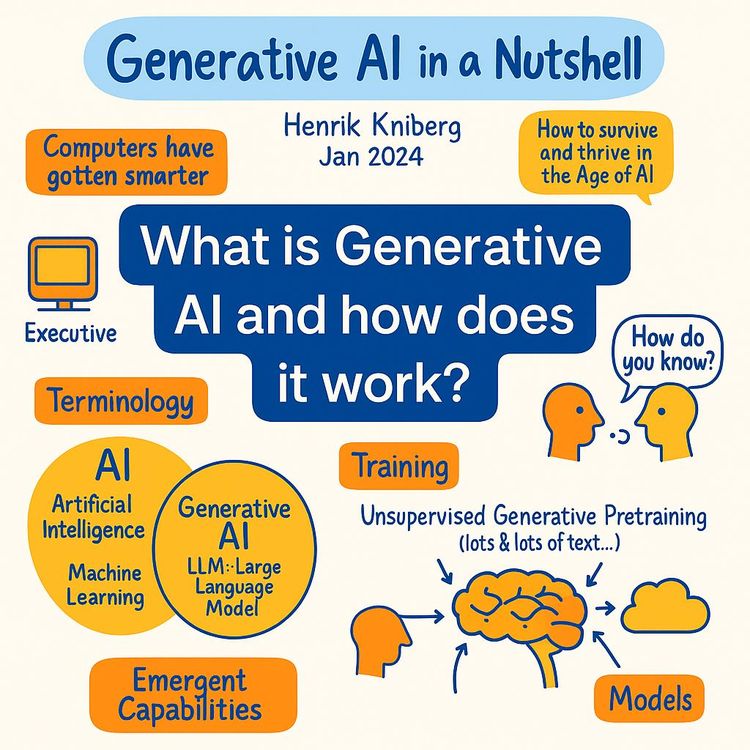
Video Course: What is Generative AI and how does it work?
Video Course: How to Use ChatGPT from Beginner to Professional
Video Course: How to Use Google Gemini for Google Workspace to Boost Productivity
Video Course: How to Use Claude 3.7 AI - Tips for Beginners!
Video Course: ChatGPT for Data Analytics: Full Course - from Beginners to Professional
Video Course: Generating Images and photos With ChatGPT?
Video Course: Generating Images & Photo's with MidJourney
Video Course: Generating Design's with Microsoft Designer and AI
Video Course: Generating Design's with Canva.com and AI
Join 20,000+ Professionals, Using AI to transform their Careers
Join professionals who didn’t just adapt, they thrived. You can too, with AI training designed for your job.