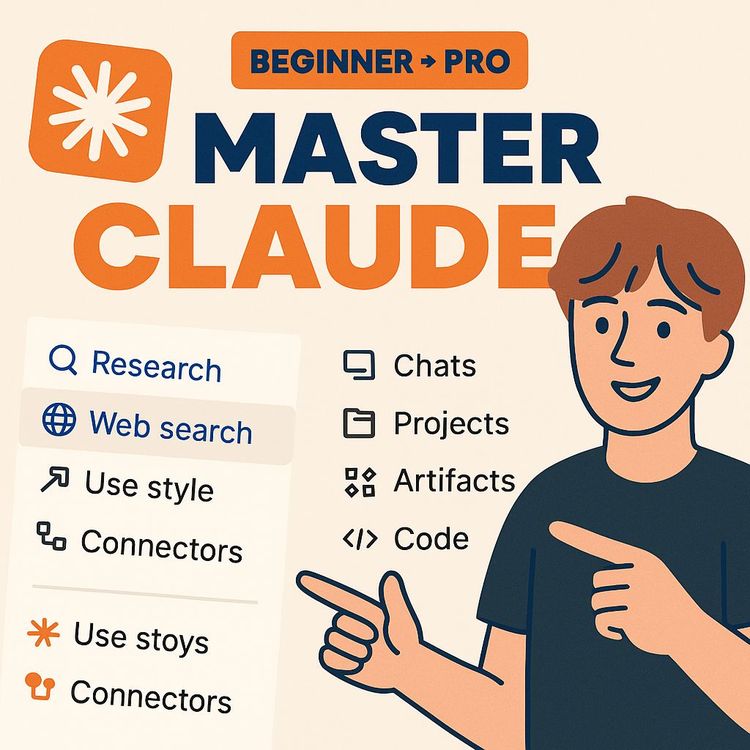
Claude AI Tutorial for Beginners: Build Your Complete AI Workflow (Video Course)
Go from random prompts to a real, repeatable system with Claude. You'll use GCAO, live web search, Vision, and no-code Artifacts, plus Skills, Projects, and Connectors, to build a context-aware helper. Save hours each week and run work from one window.
Related Certification: Certification in Building End-to-End Claude AI Workflows
Also includes Access to All:
What You Will Learn
- Apply the GCAO prompting framework for precise, structured outputs
- Use Web Search and Vision to research live data and analyze PDFs/images
- Build interactive Artifacts (calculators, dashboards, forms) without code
- Create Custom Instructions, Projects, and Skills to automate repeatable workflows
- Integrate connectors (Calendar, Drive, Gmail, Slack) to execute end-to-end tasks
Study Guide
Full Claude Tutorial for Beginners , Become A Pro
Let's make one thing clear from the start: Claude is not "another chatbot." It's a research analyst, creative partner, and light-weight engineer that can live inside your workflow and make you faster at almost everything you do. If you've only used it to spit out an email or summarize a PDF, you've scratched 5% of its potential.
In this course, you'll learn how to turn Claude into your personal AI operating system. You'll master precision prompting so you stop getting fluffy output. You'll research live information, analyze images, and build interactive tools (without touching a line of code) using Artifacts. Then you'll stack Custom Instructions, Projects, Skills, and Connectors to build a self-updating, context-aware, action-taking assistant that works the way you work. By the end, you won't "use AI." You'll run an intelligent system around your life and business.
What This Course Covers (and Why It's Valuable)
Here's the promise: move from one-off prompts to a tightly engineered workflow. You'll go beyond inspiration to implementation,into a system that saves hours weekly, reduces mental load, and compounds in value as you add context over time.
You'll learn to:
- Communicate with clarity using the GCAO framework (Goal, Context, Action, Output).
- Pull live data with Web Search, and see through screenshots and PDFs using Vision.
- Build working tools with Artifacts,calculators, dashboards, mini-sites,from plain language.
- Install "personality and process" into your account with Custom Instructions and Skills.
- Organize complexity with Projects so Claude remembers what matters to each domain.
- Connect your email, calendar, and docs so you can command your digital world from one window.
Let's get you from scattered queries to a cohesive, integrated system.
Getting Started: Plans, Models, and Interface
Free vs. Pro Plans
- Free: Great for exploring the platform, using Sonnet for quick tasks, running web searches, uploading files, and testing Artifacts. You'll hit usage ceilings faster, but it's powerful enough to learn the fundamentals.
- Pro: Higher usage limits plus access to Opus for deep reasoning, heavy analysis, and complex builds. If you work with long documents, code, or multi-step research often, you'll feel the difference instantly.
Model Selector: Sonnet vs. Opus
- Sonnet: Fast, reliable, and efficient for everyday tasks,emails, outlines, short research summaries, and simple tools.
- Opus: Your go-to for strategic planning, synthesis across many sources, logic-heavy problem-solving, and intricate Artifacts.
The Interface (What You'll Actually Use)
- Prompt Bar: Where you talk to Claude. Treat it like a project brief, not a text box.
- Model Selector: Swap between Sonnet and Opus depending on task complexity.
- "+" Button: Attach files or images, and toggle Web Search.
- Sidebar: Start new chats, revisit threads, rename or pin important ones, and jump into Projects (your organized workspaces).
Pro tip: Rename threads with outcomes, not topics. "Finalized Q4 Offer Positioning" beats "Marketing Ideas." Your future self will thank you.
How to Think When You Work With AI
Claude amplifies whatever you give it. Vague input equals generic output. Specific, constraint-rich input equals specific, useful output. Treat every chat like a living doc: you'll iterate, refine, and converge on "done."
Iteration Mindset
- Ask, review, critique, and adjust. Don't accept the first draft. Direct Claude with "make it sharper, shorten by 30%, and add one counter-argument."
- Add examples. Few-shot prompting (giving examples inside your prompt) trains Claude on taste quickly.
- Keep outputs structured. Use bullet points, sections, and labeled headings,your future automations depend on consistency.
Master Prompting With GCAO (Goal, Context, Action, Output)
GCAO is the difference between "meh" and "wow." It gives Claude the destination, the map, the task, and the format.
G , Goal
Describe the outcome, not just the task. Tell Claude what "success" looks like.
C , Context
Give relevant background, assets, constraints, audience, and mistakes you want to avoid.
A , Action
State exactly what you want Claude to do right now.
O , Output
Dictate the structure, tone, length, and negative constraints (what to exclude).
Example 1 (Content Strategy):
Goal: Convert overwhelmed small business owners into coaching inquiries.
Context: I run a solo coaching business, 45 minutes/day to create. Posting on Instagram and LinkedIn. Likes aren't converting. Audience: owners who value clarity and systems.
Action: Identify content that attracts buyers (not just followers) and explain why each idea works.
Output: Give 3 content angles with a one-sentence "why buyers care." Avoid generic advice (consistency, hashtags).
Example 2 (Hiring):
Goal: Hire a part-time operations assistant who can own SOP updates and weekly reporting.
Context: Remote team of 6, using Notion, Slack, Google Drive. Need 10-15 hours/week, must overlap 3 hours/day with EST mornings.
Action: Draft a job description and a 3-step paid test project to evaluate candidates' attention to detail and systems thinking.
Output: 1-page JD with role, responsibilities, tools, hours, pay range suggestions; plus a bulleted test project outline with scoring rubric.
Best Practices for GCAO
- Put constraints up front: budget, length, time, tone, audience.
- Ask for structured outputs and cite sources when using Web Search.
- If results feel generic, add examples of "good" and "bad" outcomes, then ask Claude to emulate or avoid accordingly.
Core Capability: Web Search
Web Search makes Claude a real-time research assistant. Use it for competitor analysis, market trends, policy updates, or technical docs. Always ask for sources and synthesis,speed is useless without credibility.
How to Use
- Click the "+" icon and enable Web Search.
- State what to find, where to look, and how to verify. Ask for a concise synthesis and cited links.
- Request cross-referencing: "Compare top 3 sources and show consensus vs. disagreement."
Example 1 (Competitor Audit):
"Use web search to map [Competitor]'s main offer, pricing, messaging pillars, lead magnets, and funnel steps. Provide direct links and quotes. Then list 3 strategic gaps I can fill, with suggested content angles."
Example 2 (Due Diligence Before a Partnership):
"Search for reviews, case studies, leadership bios, and press on [Company]. Summarize strengths, red flags, and what customers actually say. End with a 10-question checklist I should ask before partnering."
Tips
- Ask for a research memo format: Executive Summary, Findings, Links, Decision Factors.
- Request "evidence tags" next to claims so you know what is fact vs. inference.
- Have Claude maintain a running bibliography inside a Project so you can revisit sources later.
Core Capability: Vision (Image & Document Analysis)
Upload screenshots, PDFs, photos, and slides. Claude can analyze layout, messaging, structure, and content. It can also extract data from visuals and suggest improvements.
Example 1 (Landing Page Optimization):
"Here's the screenshot of my landing page. Diagnose above-the-fold clarity, headline messaging, proof, CTA placement, and page speed risks. Propose a new hero section and a 3-point proof cluster."
Example 2 (Slide Deck Review):
"Analyze this 12-slide sales deck. Identify cluttered slides, jargon, and logical gaps. Rewrite the agenda slide and craft a tight 60-second opener."
Example 3 (Invoice or Receipt Parsing):
"Extract vendor name, date, total, and line items from this photo of a receipt. Output as CSV."
Example 4 (Marketing Thumbnail Feedback):
"Critique this YouTube thumbnail for click-through. Evaluate contrast, emotion, and legibility on mobile. Suggest 3 headline swaps under 30 characters."
Tips
- When uploading long PDFs, ask for a structured summary: Problem, Insight, Implications, Action Items.
- Use Vision on wireframes before you code. Catch UX issues while they're cheap to fix.
- Pair Vision with Skills to automate repeated analyses (e.g., "run the landing page heuristic checklist").
Build Real Tools With Artifacts
Artifacts let you turn a prompt into a working mini-app inside the chat. Claude writes the HTML/CSS/JS and renders it. You can refine it in conversation, export the code, or share the tool.
How to Build
- Describe the job-to-be-done, inputs, and outputs.
- Ask for labeled fields, validation, and clear result displays.
- Iterate: "Add export to CSV," "Make it responsive," "Use brand colors."
Example 1 (ROI Calculator for Automation):
"Create an interactive ROI calculator. Inputs: hourly rate, hours per week on manual tasks, weeks per year. Outputs: annual cost of manual work and potential savings after a $5,000 one-time automation investment. Include a sensitivity slider for hours/week."
Example 2 (Content Brief Generator):
"Build a brief generator. Inputs: target audience, product, primary promise, CTA, channel. Output: a formatted brief with hook options, 3 key messages, objections to address, and a 7-day content outline. Include 'Copy to Clipboard'."
Example 3 (Lead Qualification Form):
"Create a qualification artifact with form fields for budget range, timeline, problem severity, and must-haves. Score leads 0-100 based on weights I'll provide. Show a grade and next-step recommendation."
Tips
- Keep inputs minimal; complexity kills adoption.
- Add tooltips explaining each field.
- Use consistent units (e.g., hours/week) and add validation to prevent nonsense inputs.
- Ask for a 'Reset' and 'Export' button for workflows.
Personalize Claude With Custom Instructions (Your AI OS Foundation)
Custom Instructions teach Claude who you are, how you think, and what to avoid. They apply to every conversation by default. This is your foundation.
Build Your Profile Around Five Areas
1) Identity: Who you are, role, business, clients/team.
2) Communication Style: Tone, brevity, formatting preferences.
3) Goals & Priorities: What you're advancing right now and over the next season.
4) Daily Schedule & Non-Negotiables: When you do deep work, what to protect.
5) Avoidances: Off-limits topics, words, or styles you don't want.
Example 1 (Consultant Profile):
Identity: Solo marketing consultant serving B2B SaaS under $10M.
Style: Direct, concise, bullet-first, no fluff, no emojis.
Goals: Book 4 strategy intensives/month; improve client retention.
Schedule: Deep work 8-11am; no calls Fri; 45 min/day for content.
Avoidances: No generic "post more" advice; no vanity metrics; avoid "hacks."
Example 2 (Team Lead Profile):
Identity: Head of Operations managing a team of 6.
Style: Clear, calm, and solution-oriented; summarize before details.
Goals: Reduce cycle time by 20%, clean up SOPs, improve handoffs.
Schedule: Standups 9am; planning Wed; reports due Thu.
Avoidances: Don't recommend tools that overlap with what we already pay for.
Tips
- Be explicit about deliverable formats you love (e.g., "always start with TL;DR").
- Include short- and long-term goals so Claude can prioritize suggestions.
- Add "Default task patterns" (e.g., "for any meeting, output Goals, Agenda, Risks, Decisions").
Organize Complexity With Projects (Context-Rich Workspaces)
Projects are dedicated containers with their own instructions and knowledge base (uploaded files). When you work in a Project, Claude automatically references those docs and rules.
What To Put Into a Project
- Project-specific instructions layered on top of your global profile.
- Brand or writing guidelines, SOPs, client briefs, past assets, datasets.
- Shared context so you don't re-explain the basics in every chat.
Example 1 (YouTube Production Project):
Instructions: "Use our Brand Guidelines.pdf and Intro Formula.docx for any script. Tone: confident, helpful, practical. No clickbait. Keep hooks under 12 words."
Files: Brand guidelines, hook formulas, style templates, competitor swipe file.
Workflow: Ideation → Outline → Script → Thumbnail Copy → Description → Timestamps. Each step becomes a repeatable chat inside the same Project.
Example 2 (Client Implementation Project):
Instructions: "Mirror Client X's voice. Prioritize ops wins in the first 30 days. Report progress weekly."
Files: Onboarding brief, contract, ICP doc, analytics snapshots, SOPs, brand assets.
Workflow: Weekly updates, KPI reviews, meeting prep, next-step plans,all in a single, searchable history.
Tips
- Name files clearly: "2024-Brand-Guidelines.pdf" might be tempting, but skip dates; use "Brand-Guidelines-v2.pdf" for clarity across time.
- For multi-client teams, one Project per client; for solo creators, one Project per initiative (newsletter, course, agency, etc.).
- Pin "house rules" at the top of Project instructions to reduce drift.
Automate Repeatables With Skills (Executable SOPs)
Skills are saved processes Claude can run the same way every time. Think: "Click a button, get a perfect deliverable." They're built with Claude's help, include examples, and can prompt you for inputs.
How to Create
- In Customize → Skills, start a new Skill with Claude.
- Define: purpose, inputs, output structure, and quality bar.
- Provide at least one gold-standard example.
- Set an activation phrase ("create proposal," "weekly summary," "QA landing page").
Example 1 (Proposal Generator):
Inputs: Client name, problem, scope, timeline, price range.
Output: Polished proposal with sections: Problem, Approach, Deliverables, Timeline, Investment, FAQs, Next Steps. Delivered as an Artifact (exportable .docx).
Activation: "create proposal."
Example 2 (Meeting Notes → Action Plan):
Inputs: Raw transcript or bullet notes.
Output: TL;DR, Decisions Made, Action Items (owner + due date), Risks, Open Questions. Enforce a standardized format across the org.
Activation: "process meeting notes."
Example 3 (Content Repurposing):
Inputs: One long-form piece (article, video script).
Output: 5 LinkedIn posts, 3 tweets, 2 email hooks, 1 short video script, all in brand voice with UTM-ready CTAs.
Activation: "repurpose this."
Tips
- Constrain every section's length to avoid bloat.
- Add a self-check step: "Before finalizing, validate the draft against the checklist and fix misses."
- Version your Skills: "Proposal v1.2 with new timeline table."
Integrate Your Ecosystem With Connectors
Connectors tie Claude into Gmail, Google Drive, Google Calendar, Slack, GitHub, and more. Now Claude can fetch info and take action with your approval. That's when it becomes a true command center.
How to Set Up
- Go to Customize → Connectors, choose an app, and authenticate.
- Set permissions per action. You can require approval for sensitive operations (e.g., sending email) while allowing read-only queries automatically.
Example 1 (Calendar + Email):
"What meetings do I have next week with Client X? Draft an agenda for each based on their last email thread, then prep a follow-up template for quick sending after the call."
Example 2 (Drive + Slack):
"Find the doc named 'Onboarding Playbook' in Drive. Summarize the new steps added last week. Post a 5-bullet changelog in Slack for #ops with owners tagged."
Example 3 (GitHub + Docs):
"List open issues labeled 'priority'. Summarize blockers and pull relevant documentation from Drive. Draft a status report with recommended next actions."
Tips
- Keep approval gates tight for send/delete operations.
- Ask for a confirmation step: "Show me what you'll send before sending."
- Combine multiple connectors in one command (calendar + email + docs) to prepare for meetings end-to-end.
The AI Stack: Layer Your System
Here's the mental model that unlocks scale:
- Foundation: Custom Instructions (your personal OS).
- Context Layer: Projects (workspaces with files and rules).
- Process Layer: Skills (executable SOPs).
- Action Layer: Connectors (bridge to apps).
Use all four, and Claude stops being "a tool" and starts running parts of your life.
End-to-End Scenario 1 (Agency Offer Launch):
1) Custom Instructions: Your agency's positioning, tone, schedule, and no-go advice.
2) Project: "Offer Launch." Upload brand, ICP, case studies, pricing. Add instructions about voice and CTA preferences.
3) Web Search: Research competitors' offers and gaps. Cite all sources.
4) Vision: Upload funnel wireframes for critique.
5) Artifacts: Build a lead-scoring tool for the sales team.
6) Skills: "create launch email sequence," "repurpose case studies," "QA landing page."
7) Connectors: Pull calendar to plan rollout, draft emails to warm leads, post updates in Slack.
Result: A coherent, evidence-backed launch executed faster with fewer mistakes.
End-to-End Scenario 2 (Academic Research Workflow):
1) Custom Instructions: Research domain, citation style, writing tone, and taboo sources.
2) Project: "Thesis." Upload PDFs, notes, and prior outlines.
3) Web Search: Pull current literature with links and quotes.
4) Vision: Upload highlighted PDFs for synthesis of key findings.
5) Artifact: Build a citation tracker app for your sources and notes.
6) Skill: "synthesize literature review" with standardized headings and counterpoints.
7) Connector: Save drafts to Drive, generate a checklist in Calendar for submission milestones.
Result: A rigorous, organized workflow with consistent outputs and clear progress.
Practical Applications Across Domains
Business & Professional
- Build a Skill for weekly CEO updates pulling metrics from your latest report.
- Use Projects per client with their brand voice files, then auto-generate proposals and SOWs with Skills.
Education & Research
- Organize a Project per course or paper; upload reading lists and notes; use a Skill to produce study guides.
- Build an Artifact that creates flashcards from uploaded PDFs.
Content Creation
- Use Vision to critique thumbnails or carousels.
- Create a Skill for "10-post content sprint" in your voice, fed by a single long-form draft.
Action Items: Your First Week With Claude
Day 1,Install the Foundation
- Write Custom Instructions using the five sections. Keep it tight and honest.
- Run one GCAO prompt you care about and iterate it 2-3 rounds.
Day 2,Explore Core Features
- Enable Web Search for one real research task; require sources and a summary.
- Upload an image or PDF to Vision; request actionable feedback.
Day 3,Build Your First Artifact
- Create a tiny calculator or brief generator. Keep it simple and useful.
Day 4,Create a Project
- Pick a priority initiative. Add 2-3 files and project-specific instructions.
Day 5,Automate One Process With a Skill
- Turn a repeatable task into a Skill (e.g., weekly summary, proposal draft).
Day 6,Connect One App
- Link Calendar or Drive. Ask a real question and use the result immediately.
Day 7,Stack and Review
- Run an end-to-end flow using Project + Skill + Connector. Note friction. Improve instructions.
Advanced Prompting Techniques (When You're Ready)
Few-Shot Prompting
Give 1-3 examples of "great" outputs. Ask Claude to infer the pattern and replicate it.
Checklists and Constraints
Provide a checklist Claude must pass before finalizing. Example: "Ensure all claims are cited, all bullets start with a verb, and no paragraph exceeds 4 lines."
Self-Critique Pass
"Critique your own output for clarity, evidence, and brevity. Identify 3 improvements and apply them."
Decomposition
Break a big task into subtasks. Ask Claude to outline the plan first, then tackle each piece.
Example (Decompose a Market Entry Plan):
- Step 1: ICP and pain points.
- Step 2: Offer structure and price testing.
- Step 3: Funnel outline and one-page landing.
- Step 4: 14-day content sprint.
- Step 5: Metrics and review cadence.
Quality and Reliability: Make Claude's Output Trustworthy
Evidence Discipline
- When using Web Search, demand links and direct quotes for key claims.
- Ask for a bias check: "What's likely missing? What would a skeptic say?"
Traceability
- Save final drafts and sources in Project files. Keep a rolling log of decisions.
Security Basics
- Avoid sharing secrets or credentials in plain text. Use Connectors' permission settings and require approvals for sensitive actions.
Troubleshooting Common Issues
Outputs Feel Generic
- Add more Context and stricter Output rules. Include a "bad vs. good" example and say why.
Too Long, Didn't Read
- Set hard limits: "No more than 200 words," "3 bullets only," "Table with 5 rows."
Confusion Across Threads
- Use Projects with files and instructions. Keep related work in one place.
Inconsistent Results
- Create a Skill with a locked format and a self-check routine.
Hands-On: Prompts and Mini-Exercises
Exercise 1,GCAO for Sales
Write a GCAO prompt to create a 3-email sequence for a warm lead who downloaded your guide last week. Require personalization tokens and a soft CTA.
Exercise 2,Vision Review
Upload a landing page screenshot and ask for a 5-point heuristic analysis (clarity, proof, friction, action, trust). Request a rewritten hero section.
Exercise 3,Artifact Build
Ask Claude to build a "Daily Plan Generator" with inputs for top 3 priorities, time blocks, and energy levels. Output a schedule and a minimalist checklist.
Exercise 4,Skill Creation
Create a "Weekly Ops Summary" Skill that converts meeting notes and metrics into a one-pager with TL;DR, metrics, blockers, fixes, and next week's plan.
Exercise 5,Connector Workflow
Connect Calendar. Ask: "List next week's client calls with prep notes extracted from the last email exchanges." Then draft agendas.
Deeper Dives: Use Cases and Templates
Business Proposal Skill Template
- Inputs: client, problem, outcomes, scope, timeline, investment, proof assets.
- Output: Branded proposal with summary page, detailed scope, timeline visual, FAQs, and Next Steps CTA.
Meeting Prep via Connectors
- "Pull tomorrow's meetings. For each, summarize last thread, list decisions pending, propose an agenda with time boxes, and draft a short confirmation email."
Research Memo Format
- TL;DR (5 bullets).
- Key Findings with citations.
- Disagreements across sources.
- Implications.
- Decision Checklist.
UI Habits That Boost Productivity
Name Threads by Outcome
"Final Keyword Map v3" beats "SEO."
Pin Crucial Threads
Keep Skills-in-progress and standing dashboards at the top.
Use the Model Intentionally
Sonnet for speed. Opus for thinking and complex builds.
Examples Galore: Applying Every Major Concept Twice
GCAO,Two More Scenarios
- New Hire Onboarding: "Design a 7-day onboarding plan for a junior copywriter. Include goals, readings, shadowing, and two deliverables with rubrics."
- Product Spec: "Draft a one-pager spec for a micro-feature that turns checklists into calendar tasks."
Web Search,Two More Scenarios
- Regulatory Monitor: "Summarize recent policy changes relevant to remote work taxes. Cite sources."
- Vendor Evaluation: "Compare 3 transcription tools for accuracy, price, security, and integrations."
Vision,Two More Scenarios
- Spreadsheet Screenshot: "Extract table data and identify anomalies."
- Resume Review: "Evaluate this resume for a product role. Suggest 3 quantified bullet rewrites."
Artifacts,Two More Scenarios
- Client ROI Estimator: Inputs for current spend vs. projected uplift; outputs: payback period chart.
- Learning Tracker: Inputs: study minutes, topic difficulty; output: spaced repetition schedule.
Custom Instructions,Two More Scenarios
- Creator Persona: Specify voice, pacing, content pillars, and banned phrases.
- Exec Persona: "Always start with the decision I need to make, then options, then recommendations."
Projects,Two More Scenarios
- Event Planning Project: Files: run of show, vendor list, budget. Outputs: timelines, checklists.
- Customer Support Project: Files: macros, SOPs. Outputs: improved responses and training docs.
Skills,Two More Scenarios
- QA Skill: "Audit any landing page against our 12-point checklist and produce fix tickets."
- Standup Skill: "Turn raw notes into Yesterday/Today/Blockers per teammate."
Connectors,Two More Scenarios
- Drive + Calendar: "Find the latest roadmap and schedule review time next week."
- Gmail + Docs: "Draft reply to RFP email, attach proposal Artifact, and save a copy to Drive."
Upgrading Your Thinking: From Requests to Systems
If you talk to AI the way most people do, you'll get the results most people get. The secret is moving from ad-hoc asks to engineered systems. Your goal is not "one perfect prompt." It's a stack that holds your identity, remembers your context, executes your processes, and acts in your ecosystem.
Mantras to Work By
- Claude is only as good as what you give it.
- Fewer, better instructions beat scattered asks.
- If you do it more than twice, Skill it.
- Add evidence or it didn't happen.
- The power is in the stack.
Security, Permissions, and Governance
Best Practices
- Use Connectors' approval gates for sending and deleting actions.
- Store sensitive knowledge in Projects and limit who has access in shared environments.
- Redact PII in shared prompts; keep sensitive data in connected, permissioned docs instead.
Quick Wins Checklist
- Write Custom Instructions (identity, style, goals, schedule, avoidances).
- Run one high-stakes GCAO prompt and iterate to excellence.
- Use Web Search for a real competitor or vendor choice and demand citations.
- Upload at least one image or PDF to Vision for critique.
- Build one Artifact you'll reuse weekly.
- Create one Project with 2-3 key files and instructions.
- Turn one repeatable task into a Skill.
- Connect one app and complete a real action.
Frequently Asked: Models, Limits, and When to Upgrade
When should I choose Sonnet?
For fast drafts, short replies, and simple analysis. It's plenty for everyday work.
When should I choose Opus?
For deep reasoning, synthesizing many sources, long docs, and complex tool builds.
When should I upgrade?
If you hit usage limits, need Opus regularly, or want to run multi-step workflows daily, upgrading pays for itself quickly in time saved.
Practice Scenarios (Use These to Cement Skills)
Scenario 1,Freelance Consultant Setup
Create two Projects: "Client A,Revamp" and "Client B,Retention." Upload brand docs and analytics snapshots. Write project instructions and run a weekly report Skill for each.
Scenario 2,Student Skill Stack
Create a Skill: "convert lecture notes to study guide," with sections: key terms, concept map, equations, and practice questions. Add a second Skill for "flashcard extraction."
Scenario 3,Connector Synergy
Combine Gmail + Calendar + Drive: "Find the last email from Jane about the Q3 deck, pull the latest version from Drive, propose an agenda, and schedule 30 minutes Friday morning to prep."
Advanced Build: A Lightweight Operating System
Step 1,Custom Instructions
Personality, process, guardrails. Keep it alive,update monthly.
Step 2,Projects
Workspaces for your major areas. Each with files, rules, and "house style."
Step 3,Skills
Executable SOPs for key deliverables. Version them as you learn.
Step 4,Connectors
Bring email, docs, calendar, and chat into the loop with approvals.
Step 5,Dashboards
Use Artifacts to build simple dashboards (goals, metrics, tasks). Keep your brain on the work, not on memory.
Mini-Templates You Can Steal
Custom Instructions Starter
Identity: [Role, clients, offers].
Style: [Tone, length, formatting].
Goals: [Top 3 outcomes you're chasing].
Schedule: [Deep work blocks, no-meeting days].
Avoidances: [Banned words, unhelpful advice, non-negotiables].
Project Instruction Starter
"In this Project, reference [files] before any output. Match [voice/brand] exactly. Prioritize [goals]. For any deliverable, start with [TL;DR/Outline]. Avoid [common pitfalls]."
Skill Definition Starter
Purpose: [What this does every time].
Inputs: [Required + optional].
Output: [Exact sections, length, format].
Quality Bar: [Checklist it must pass].
Activation: [Command].
Before We Wrap: Have We Covered Every Core Pillar?
- Foundational Prompting: GCAO with multiple examples,check.
- Core Capabilities: Web Search and Vision with real workflows,check.
- Artifacts: What they are, how to build, and 3+ examples,check.
- Custom Instructions: The five-part profile with examples,check.
- Projects: Dedicated, file-backed workspaces and examples,check.
- Skills: Reusable processes, creation flow, and multiple examples,check.
- Connectors: Calendar, email, Drive, Slack, GitHub usage,check.
- The AI Stack: Foundation, context, process, action,check.
- Applications across business, education, content,check.
- Action plan, tips, troubleshooting, and templates,check.
Conclusion: Turn Claude Into Your Strategic Partner
This isn't about being "good with prompts." It's about building a system around your brain. You've learned how to communicate with clarity, pull verified information, analyze visuals, and build interactive tools on demand. You've set the foundation with Custom Instructions, organized your world with Projects, locked in repeatable wins with Skills, and connected your apps so Claude can actually help you get things done.
The compounding effect lives in the stack. Each new file you upload, each Skill you refine, and each connector you add increases the leverage of everything else. Start small, but start today. Turn one repeating task into a Skill. Connect one tool. Build one simple Artifact. Iterate until you can feel the time savings in your calendar and the mental space in your workday.
The difference between casual users and pros is simple: pros design systems that keep paying them back. You now have the blueprint. Go implement it,and let Claude handle the busywork while you focus on moves that matter.
Frequently Asked Questions
This FAQ is a practical reference for anyone who wants clear, direct answers about using Claude,from first prompt to full workflow integration. It covers setup, prompting, core features like Vision, Web Search, and Artifacts, and advanced concepts such as Projects, Skills, Custom Instructions, and Connectors. Each answer is focused on business use, decision-making, and real examples so you can put ideas to work immediately.
Getting Started
What are the different subscription plans available for Claude?
Choose Free to test the core, and Pro for higher limits plus advanced models.
The Free plan includes access to the Sonnet model, Web Search, file uploads, and Artifacts. It's ideal for experimenting with core features like drafting emails, summarizing PDFs, and prototyping calculators.
The Pro plan is built for consistent daily use and more complex work. You'll get higher usage limits and access to top-tier models like Opus for deeper analysis, multi-step reasoning, code generation, and larger documents.
Business example: A founder might start free to validate use cases (proposal writing, content briefs, quick research), then upgrade when hitting usage caps or needing more complex deliverables,like building a sales ROI calculator Artifact or running in-depth competitor teardowns without rate concerns.
Tip: Track your weekly use. If you're throttled or delaying tasks until the next day, it's time to upgrade.
What are the main components of the Claude user interface?
Four areas matter: Prompt Bar, Model Selector, Plus (+), and Sidebar.
- Prompt Bar: Where you type instructions, attach files, and run Skills.
- Model Selector: Pick Sonnet for fast everyday tasks or Opus for complex reasoning, longer analyses, and coding.
- Plus (+): Toggle Web Search and upload files, screenshots, or photos for Vision.
- Sidebar: Start new chats, star important threads, rename, and organize into Projects. Projects hold persistent files and instructions for specific workstreams (e.g., "Client Onboarding," "YouTube Scripts").
Business example: Create a Project called "Sales Enablement," upload your pitch deck and pricing sheet, set instructions to match brand voice, then use the Prompt Bar to generate call scripts and follow-up emails using those files as ground truth.
Effective Prompting and Interaction
Why is the quality of my prompt so important?
Claude mirrors the clarity and context you provide.
Vague prompts produce vague work. Specific inputs,goals, audience, constraints, examples,produce practical outputs. Think of Claude like a fast analyst: it needs your direction to focus.
Useful structure: Who's the audience? What outcome do you want? What constraints exist (time, budget, tone)? What examples represent "good"?
Business example: Instead of "Write a cold email," say, "Write a 120-word cold email to CFOs at $10-50M logistics firms. Goal: demo booking. Avoid buzzwords. Include one credibility line from this case study [attach PDF]. Offer 15-minute diagnostic and 2 bullet points of ROI."
You'll cut revisions, get better fit, and save time,because you did the thinking once, up front.
What is the GCAO framework for writing better prompts?
GCAO: Goal, Context, Action, Output,simple and reliable.
- Goal: Define the business outcome, not just the task.
- Context: Add audience, channel, constraints, what's tried, and references.
- Action: Give a direct command (analyze, generate, reframe, compare).
- Output: Specify structure, length, tone, and what to avoid.
Example: "Goal: Convert overwhelmed small business owners to book a consult. Context: Coaching service; channels: LinkedIn, newsletter; 45 minutes/day; avoid fluffy advice. Action: Identify content that attracts buyers, not fans. Output: 3 angles with one-sentence why, no generic tips."
This framework reduces back-and-forth and yields on-target drafts quickly.
Should I stop after the first response?
No,iterate like you would with a capable assistant.
The first draft is a starting point. Ask for alternatives, deeper explanations, or tighter edits. Push for examples, add constraints, or upload references.
Practical loop: "Version B, 20% shorter, more direct. Add a CTA for a 10-minute audit. Base claims on the attached case study only."
Business example: For a landing page, you might run 3 iterations: first for structure, second for voice and specificity, third for proof and objections. Each pass compounds quality.
Treat Claude like a collaborator: give feedback, tighten scope, and ask it to check its own work against your constraints.
Core Features: Web Search, Vision, and Artifacts
What is the Web Search feature and how do I use it?
Web Search pulls current information into your chat, on demand.
Enable it via the + button. Ask for market stats, competitor pages, documentation, or recent articles. Claude will cite its findings and synthesize them for you.
Business uses: spot-check claims in a draft, gather talking points for a podcast, compare pricing pages, or summarize product docs before an integration call.
Prompt idea: "Use Web Search to review AcmeCo's pricing page, LinkedIn content, and 2 news mentions. Summarize positioning, ICP, and key objections. Then suggest 3 angles to differentiate our offer."
Always request sources and ask for contradictions or gaps so you can verify before acting.
How can I use Claude for competitor analysis?
Ask for structured findings + strategic gaps.
With Web Search on, prompt Claude to review a competitor's site, content, reviews, and media mentions. Request a structured report: ICP, offer, pricing, funnel, messaging, proof, and distribution.
Then ask: "Identify 5 gaps or weak spots we can exploit. Propose counter-positioning for our landing page and 3 ad hooks."
Business example: A SaaS founder can get a side-by-side comparison of onboarding flows (YouTube demos, docs, product screenshots), then generate a revised trial-to-paid checklist tailored to outdo the competitor's sticking points.
What is the Vision feature?
Vision lets Claude analyze images, screenshots, and documents.
Upload UI mockups, PDFs, charts, whiteboard photos, or marketing assets. Ask for critiques, summaries, extraction of key fields, or suggestions.
Business uses: Review a website hero section for clarity; summarize a photo of a whiteboard roadmap; extract line items from a scanned invoice; critique a slide deck's visual hierarchy.
Tip: Pair Vision with constraints: "Critique this landing page above the fold only. Goal: demo bookings. Limit feedback to clarity, social proof, and CTA placement."
What are some practical applications of the Vision feature?
Think feedback, extraction, and explanation.
- Marketing feedback: "Increase CTR on this YouTube thumbnail,analyze contrast, text size, and focal point."
- Document analysis: "Summarize this PDF and list 5 actions for our sales team."
- Real-world problem solving: "Diagnose this plant photo; give care steps and a shopping list."
- Ops: "Extract vendor, amount, and date from scanned receipts into a CSV-friendly table."
- Product: "Assess this UI screenshot for accessibility issues and list WCAG violations."
What are Artifacts?
Artifacts are interactive tools Claude builds inside your chat.
Claude can produce functional mini-apps (calculators, forms, dashboards) or rich documents in a separate panel you can use, download, or publish. This moves you from "text about a tool" to "a working tool."
Business example: Spin up an ROI calculator that estimates savings from automating inbox triage. Inputs: hourly rate, email volume, minutes per email. Output: annual time and cost saved, plus payback period. Use it in sales calls or as a lead magnet.
How do I create an Artifact?
Describe the tool, define inputs/outputs, and set constraints.
Prompt: "Build an interactive ROI calculator for service businesses. Inputs: hourly rate, admin hours/week, weeks/year. Outputs: annual admin cost, savings after $5,000 one-time automation investment, break-even weeks."
Ask Claude to validate formulas, add error handling, and style the UI. Then use, download, or publish the Artifact.
Tip: Iterate like software: "Add a scenario toggle (conservative, likely, optimistic). Export results as CSV."
Advanced Customization
What are Custom Instructions?
They're persistent rules for how Claude responds to you.
Set voice, formatting, and non-negotiables once,Claude applies them in every new chat. Include who you are, who you serve, tone preferences, and what to avoid.
Business example: "Be concise, use bullet points, cite sources, avoid hype language, and prioritize revenue-focused recommendations." You'll get consistent outputs aligned with your standards without re-explaining every time.
What is the "AI Operating System" concept?
It's your comprehensive profile that trains Claude on your world.
Combine identity, goals, communication style, schedule, and avoidances into one permanent brief. Claude uses it as the base for every task, so outputs align with your priorities and constraints.
Business example: A solo consultant sets revenue targets, deep-work windows, preferred deliverable formats, and brand voice rules. Result: proposals, content, and plans come back aligned,without micromanagement.
What are the key components of an AI Operating System prompt?
Use five sections: Identity, Communication Style, Goals, Schedule, Avoidances.
- Identity: role, business, audience, offers.
- Communication style: tone, structure, formatting, length.
- Goals & priorities: current focus areas and KPIs.
- Daily schedule & non-negotiables: time blocks, channels to avoid during deep work.
- Avoidances: banned phrases, off-limits topics, style constraints.
Add reference links and examples of "excellent" deliverables for calibration.
What are Projects?
Projects are dedicated workspaces with their own permanent context.
Each Project has files (SOPs, brand guides, client docs), instructions, and memory. Use them to separate areas of work like "Client A," "Podcast," or "Internal SOPs."
Business example: A "Client Onboarding" Project with a welcome email template, onboarding checklist, and brand voice doc. Ask Claude to generate client-specific onboarding sequences using those files as reference.
How do Projects work with personal Custom Instructions?
Projects layer on top of your global instructions.
Claude uses both: your personal rules and the Project's files/instructions. This produces context-aware outputs without re-uploading or re-typing guardrails.
Example: Your global rule is "keep emails under 120 words." In a "Partnerships" Project, you also add "use the partnership ROI sheet for proof." Claude will write short, partner-ready emails that include ROI references.
What is the difference between Skills and Projects?
Projects = context and knowledge. Skills = repeatable process.
- Projects store files, instructions, and memory for a topic or client.
- Skills are reusable, templatized workflows that run anywhere (e.g., "create proposal," "draft meeting agenda," "turn notes into SOP").
Together: The Project provides source material; the Skill transforms it into a deliverable consistently.
How do I create and use a Skill?
Describe the process, define inputs, examples, and output format.
Use the Customize > Skills area. Claude will help you define steps, required fields, and formatting. Add an activation command (e.g., "proposal").
Business example: A "proposal" Skill that accepts client name, problem, scope, timeline, and budget,then generates a branded .docx via an Artifact. Use it in any Project; it pulls context when available and prompts for missing inputs.
Integration and Automation
What are Connectors?
Connectors link Claude to apps like Gmail, Calendar, Drive, and Slack.
Claude can find files, draft replies, read schedules, and perform actions with your approval settings. This shifts Claude from "advisor" to "assistant that acts."
Business example: "Find the latest Q3 report in Drive, summarize it, and draft a Slack update for the sales channel with key wins and one risk."
How do I set up a Connector?
Go to Customize > Connectors, choose the app, and authorize.
Review requested scopes, authenticate, and test a simple command (e.g., "List events next week"). Keep sensitive actions on "Needs Approval" until you trust the workflow.
If something fails, ask Claude to explain the required permissions and show a safe test command.
Certification
About the Certification
Get certified in Claude AI workflow design. Prove you can build repeatable, context-aware assistants with GCAO, live search, Vision, and no-code Artifacts,automate research, draft docs, and run work from one window.
Official Certification
Upon successful completion of the "Certification in Building End-to-End Claude AI Workflows", you will receive a verifiable digital certificate. This certificate demonstrates your expertise in the subject matter covered in this course.
Benefits of Certification
- Enhance your professional credibility and stand out in the job market.
- Validate your skills and knowledge in cutting-edge AI technologies.
- Unlock new career opportunities in the rapidly growing AI field.
- Share your achievement on your resume, LinkedIn, and other professional platforms.
How to complete your certification successfully?
To earn your certification, you’ll need to complete all video lessons, study the guide carefully, and review the FAQ. After that, you’ll be prepared to pass the certification requirements.
Other AI Video Courses
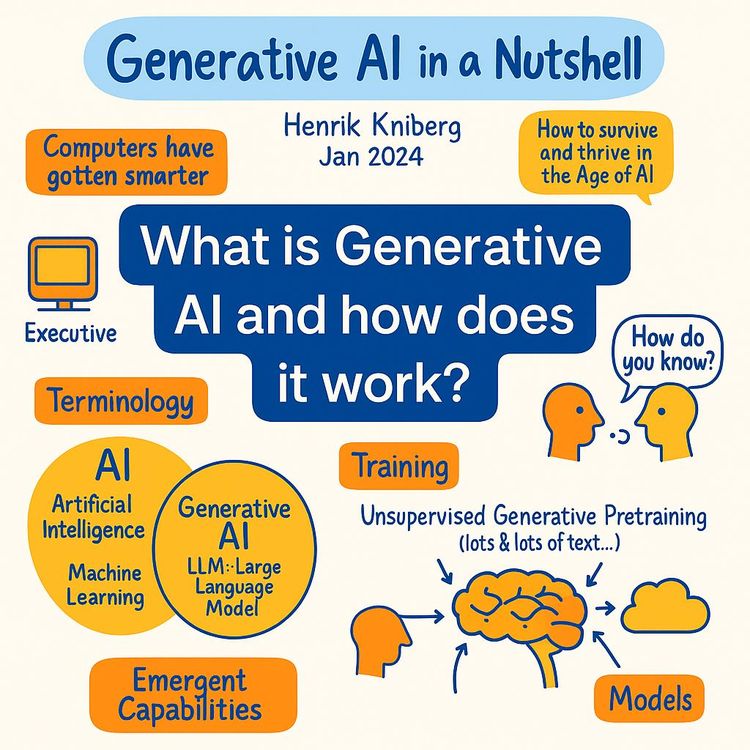
Video Course: What is Generative AI and how does it work?

Video Course: How to Use ChatGPT from Beginner to Professional
Video Course: How to Use Google Gemini for Google Workspace to Boost Productivity

Video Course: How to Use Claude 3.7 AI - Tips for Beginners!

Video Course: ChatGPT for Data Analytics: Full Course - from Beginners to Professional

Video Course: Generating Images and photos With ChatGPT?
Video Course: Generating Images & Photo's with MidJourney
Video Course: Generating Design's with Microsoft Designer and AI

Video Course: Generating Design's with Canva.com and AI
Join 20,000+ Professionals, Using AI to transform their Careers
Join professionals who didn’t just adapt, they thrived. You can too, with AI training designed for your job.