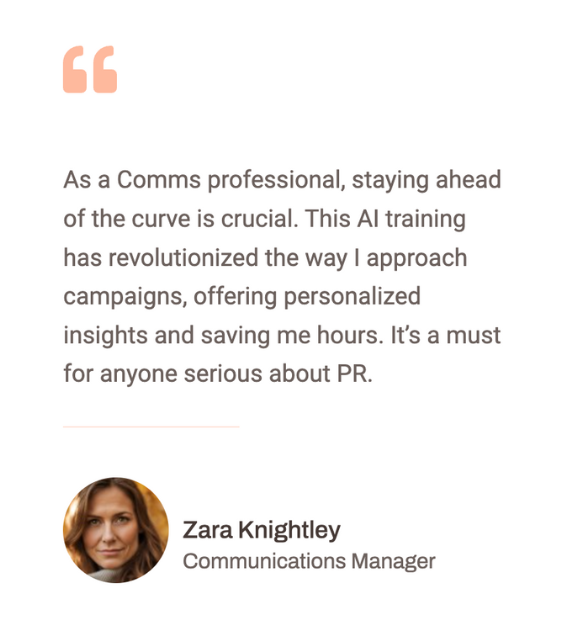
Claude Cowork 101: Setup, Connectors & Automation (Free) (Video Course)
Set up Claude Co-work and let it actually do the busywork,organize files, draft emails, build spreadsheets,inside a safe, scoped folder. This free, beginner-friendly course shows you how to start small, add connectors, and schedule wins that stick.
Related Certification: Certification in Implementing Claude Cowork Connectors & Workflow Automation
Also includes Access to All:
What You Will Learn
- Install and configure the Claude desktop app and set up scoped project folders
- Write clear multi-step prompts that become executable to-do plans and manifests
- Connect and use Gmail, Google Drive, and Notion safely (start read-only, then draft)
- Schedule recurring automations and manage runs while the app is active
- Apply copy-first guardrails, previews, and review workflows to audit and rollback changes
Study Guide
How To Get Started With Claude Co-work (Free Beginner Course)
You don't need another tool to think about your work. You need a tool that actually does it. That's the core value of Claude Co-work. It's an AI agent that lives on your computer, can see and manage a scoped set of your files, plug into your apps, and quietly handle the busywork you repeat every week. In this course, you'll learn how to set it up, write prompts that turn into real outcomes, connect it to your email and cloud apps, schedule recurring automations, and harden your workflow with sensible guardrails. We'll start simple,one folder and one task,then build toward a personalized executive assistant and research partner that runs on rails you design.
By the end, you'll know how to delegate complex work with confidence, review results like a pro, and create a library of small automations that add up to real leverage.
What Claude Co-work Is (And Why It's Different)
Most AI tools talk. Co-work works. It doesn't just suggest steps; it plans and performs them against a specific folder on your machine and, with your permission, your connected apps. That shift,from conversational to agentic,means you can treat it like a digital colleague: assign a project, scope the sandbox, approve a plan, and get results you can ship.
Here are the big ideas that drive it, explained simply:
- Platform: It's built into the Claude desktop app for Mac and Windows. You'll see three modes: Chat (normal conversation), Co-work (automation agent), and Code (advanced terminal-style capabilities for technical users).
- Project-based folders: You always point Co-work at a local folder to begin. That folder is the "project space." Co-work can read, write, create subfolders, and generate files,but only inside that space.
- Step-by-step execution: Give it a multi-step prompt, and it will create a visible to-do list, then execute steps one by one. You can watch the plan evolve in real time.
- Guardrails: It asks for permission before risky moves, and when organizing files, it typically copies them first so your originals remain intact until you're satisfied.
Example:
Ask Co-work to "Clean this folder: sort PDFs by client, rename using YYYY-MM-DD_Client_Topic.pdf, and generate a spreadsheet of all document titles, dates, and clients." It will plan the steps, ask permission where appropriate, then execute.
Another Example:
Point it at a writing project folder and say, "Find every .docx draft, extract the first 200 words as a summary, and create a single 'Drafts Overview.xlsx' with title, date, author, and summary columns."
Installing The Desktop App And Getting Oriented
Installation takes a few minutes, and orientation takes one session. That's all you need to get moving.
- Download and install the Claude desktop application for your system (Mac or Windows).
- Sign in with your Claude account credentials.
- Notice the three tabs: Chat, Co-work, and Code. We'll live in Co-work for most of this course.
Tip:
Keep the app docked and pinned. Co-work's scheduled tasks only run when the app is open and your computer is awake.
Tip:
Create a top-level "Claude Projects" folder with subfolders like "Receipts," "Emails," and "Research." You'll point Co-work to these when you start each task.
Co-work's Interface: What You'll See As It Works
When you click the Co-work tab, you'll notice a few core panels:
- Input box: Where you write your multi-step prompt.
- Project selector: "Work in a folder" to choose your working folder.
- To-do list: A visible plan Co-work generates before executing.
- Context / Skills panel: Shows files in scope and the skills the agent will use (e.g., read images, parse PDFs, create spreadsheets).
- Progress updates: Real-time checkmarks and notes as it completes steps.
Example:
After prompting a file-organization task, you might see a plan like: 1) Scan files, 2) Propose folder structure, 3) Copy and rename files, 4) Generate spreadsheet, 5) Provide summary and next steps.
Another Example:
During email work, you'll see steps like: 1) Analyze last 30 days of sent mail, 2) Draft a Voice Guide, 3) Build Mini-CRM, 4) Propose triage rules, 5) Draft replies.
Security Through Scoping: Why "Work In A Folder" Matters
Co-work's access is restricted to the folder you select for a task. That scoping is your safety net. Files outside that folder are invisible. When you use connectors (Gmail, Google Drive, Notion), you still grant explicit permissions and can keep tasks read-only at first.
Common guardrails you'll see in action:
- Permission prompts for new file types or risky actions.
- Copy-first behavior for file moves/renames, leaving originals untouched.
- Clear logs and step confirmations.
Example:
"Before renaming, make a 'Proposed_Changes.csv' preview file and wait for my approval. Only then copy and rename."
Another Example:
"When archiving images, create 'Archive_COPY' folders with your proposed structure. Keep the untouched originals in place until I confirm."
Writing Multi-Step Prompts That Turn Into Results
Co-work thrives on clarity. Think like a project manager: define the goal, list steps, set naming conventions, and specify deliverables. You can be natural and still be precise.
Prompt template you can adapt:
- Objective: What should the final outcome be?
- Scope: Which folder, file types, or date ranges?
- Steps: List the order of operations.
- Naming: Exact format (e.g., YYYY-MM-DD_Vendor_Amount.ext).
- Deliverables: Files to create (spreadsheets, summaries, reports).
- Safeguards: Copy-first, preview files, confirmation pauses.
- Schedule: If recurring, say when and how often.
Example (Receipts):
"Go through all images in this folder. Separate business vs. personal. Create Business and Personal folders. Inside Business, create subfolders by year and expense type (Software, Travel, etc.). Copy files into the right places. Rename business receipts as YYYY-MM-DD_Vendor_Amount.jpg. Create a spreadsheet of all business expenses with date, amount, vendor, and a suggested QuickBooks category."
Example (Client Docs):
"Scan all PDFs. Detect client name, doc type (proposal, SOW, invoice), and date. Build /CLIENT/TYPE/YYYY/ structure. Copy files accordingly. Rename using YYYY-MM-DD_Client_Type.pdf. Create a 'Client_Index.xlsx' with columns: Client, Doc Type, Date, Amount (if invoice), and File Path. Pause for my approval before renaming."
Deep Dive: Automated File And Data Management
This is the cleanest entry point. A folder, a plan, a predictable outcome. Here's a real workflow you can replicate.
Scenario: A folder with unorganized receipt images.
Instruction outline Co-work will follow:
- Analyze images to classify business vs. personal expenses.
- Create "Business" and "Personal" folders.
- Inside Business, create subfolders by year and by expense type (Software, Travel, etc.).
- Copy business receipts into the right subfolders and rename consistently (YYYY-MM-DD_Vendor_Amount.jpg).
- Generate an Excel spreadsheet summarizing business expenses with date, amount, vendor, and suggested accounting category.
Outcome you'll see:
- A clean folder hierarchy you can trust.
- Renamed files that tell their story at a glance.
- Originals preserved in the root until you verify the results.
- A spreadsheet ready for your accountant.
Example Prompt You Can Copy:
"In this folder, find all receipt images. Separate personal vs. business. Build a Business folder with subfolders by year and by expense category. Copy and rename business receipts to YYYY-MM-DD_Vendor_Amount.jpg. Create Business_Expenses.xlsx with columns: Date, Vendor, Amount, Category, Notes. Add a line item if anything looks like an equipment purchase that may qualify for a larger deduction."
Another Example (Reports & PDFs):
"Process all PDFs. Detect if they're proposals, signed agreements, or invoices. Create folders by type and year. Copy and rename to YYYY-MM-DD_Client_DocType.pdf. Extract key fields to a spreadsheet (Client, DocType, Date, Amount if invoice, Status). Flag missing signatures or overdue invoices in a separate 'Attention Needed.txt' summary."
Pro Tip:
Ask Co-work to generate a 'Before_and_After_Manifest.csv' that lists original file paths and new file paths. That makes audits and rollbacks painless.
Going Beyond Sorting: Data Extraction And Insight
Co-work doesn't stop at file movement. It can read PDFs and images, extract structured data, and add lightweight analysis.
- Pull invoice amounts, vendors, and due dates into a single sheet.
- Extract titles and executive summaries from Word docs into a briefing pack.
- Read table data from PDFs and normalize columns.
Example:
"From all invoices in the 'Invoices' subfolder, extract vendor, amount, due date, and status. Create Invoices_Overview.xlsx and a 'Past_Due_Summary.txt' with items due within 7 days."
Another Example:
"Summarize each whitepaper into 5 bullet points, extract the author and publish date, and create a 'Research_Digest.xlsx' plus a 'Key Takeaways.md' with one paragraph per paper."
Note:
It can even add short remarks if something stands out. You might see a note like, "This may qualify for a section 179 deduction." Treat these as prompts to double-check with your accountant.
Connectors: Extending Co-work Into Your Apps
Connectors let Co-work read (and sometimes write) data in apps like Gmail, Google Drive, and Notion. Start with read-only tasks until you trust the flow, then enable write access for drafting or updates.
How to add a connector:
- In the left panel, find Customize or Settings and open Connectors.
- Click the + icon, choose an app (e.g., Gmail, Google Drive, Notion), and complete the permission prompts.
- Confirm the connector shows as active before assigning tasks.
Example (Google Drive - Read-Only First):
"Read all docs in the 'Q3 Reports' Drive folder, summarize each in 3 bullet points, and save 'Q3_Summary.xlsx' locally with columns: Title, Owner, Link, Summary."
Another Example (Notion - Write Drafts):
"Scan the 'Content Ideas' database in Notion. For each idea with Status = Approved, create a draft outline in a new Notion page and save a local 'Outlines_Index.csv' with page links."
Tip:
If you're testing, explicitly say "read-only" or "draft only" in the prompt. Clarity reduces permission prompts and avoids accidental changes.
Build Your Email Executive Assistant (Gmail)
This is a flagship use case. You'll teach Co-work your voice and context, then let it draft replies for review. It's like cloning your email brain without handing over final send authority.
Phase 1: Learning your style
- Create/select a clean local folder for this project (e.g., "Emails").
- Connect Gmail as a connector and confirm it's active.
- Prompt Co-work to analyze the last 30 days of sent emails. Ask it to extract tone, patterns (what you reply to vs. ignore), and frequent contacts.
- Co-work will generate two local files: a Voice Guide (your tone and language rules) and a Mini-CRM (key contacts, context, and preferences).
Training Prompt You Can Use:
"Go through my emails in Gmail from the last 30 days. Understand what types of emails I respond to, what types I ignore, the tone of voice and language I use, the phrases I avoid, and any patterns in sign-offs or call-to-actions. From that, create a Voice Guide you can reference to draft emails in my voice. Also create a Mini-CRM with frequent contacts, relationship notes, and preferred response styles."
Phase 2: Drafting in your voice
- Keep the same local project folder selected so Co-work can reference the Voice Guide and Mini-CRM.
- Tell it to review unread emails and draft replies in Gmail.
- Drafts will be placed directly into your Gmail Drafts folder for review.
Example (Daily Triage):
"Review all unread emails in Gmail. Categorize as: Quick Reply, Delegate, Schedule, or Ignore. Draft replies for Quick Reply items in my voice using the Voice Guide. For Delegate or Schedule, propose next actions in a local 'Triage_Notes.txt.' Place all drafts in Gmail Drafts."
Another Example (Sales Follow-ups):
"Find unread emails from contacts in the Mini-CRM with tags 'Lead' or 'Prospect.' Draft tailored follow-ups referencing our last interaction. Insert placeholders for any missing info I need to add."
Prompt Library Snippet:
"Go through my emails...understand what types of emails I respond to, what types of emails I ignore, the tone of voice and language I use...and from that create a guide that you can reference to draft emails for me in my voice."
Tip:
Keep a CHANGELOG.md in the Emails folder. When you tweak tone rules or add custom phrases, ask Co-work to update the Voice Guide and log what changed and why.
Personalized Web Research With The Chrome Extension
Co-work can steer a Chrome tab to browse, read, and analyze web content. When it's in control, you'll see an orange border around the tab. The secret sauce: it uses your feeds and logins, so the research reflects your world, not a generic snapshot.
Example (Social → Content Ideas):
"Open Chrome and go to my Twitter feed. Scroll to see what's trending among the people I follow. Cluster topics, then generate 20 YouTube video ideas tailored to my audience. Save a 'Video_Ideas.xlsx' with Title, Hook, 3 Talking Points, and Example Tweet Link."
Another Example (LinkedIn Prospecting):
"Open Chrome, go to LinkedIn, and scan the last month of posts from my saved leads list. Identify top pain points and common initiatives. Create a 'Prospecting_Pack.md' with 5 email openers and 5 DM scripts in my voice."
Strategic Advantage:
Because it reads your curated feeds, the outputs are more relevant. It surfaces patterns from the people and topics that already matter to you, which makes idea generation and research sharper.
Scheduling: Turn One-Off Wins Into Recurring Automations
Once a task works, make it recurring. Use plain language; Co-work will translate it into a schedule and confirm.
Example (Monthly Receipts):
"On the first of every month at 8am, re-run the receipt organization task in this folder. Process only new files. Keep the same naming rules. Append new rows to Business_Expenses.xlsx and add a 'Month' column."
Another Example (Daily Email Triage):
"Every weekday at 7:30am, triage unread emails. Draft quick replies, summarize long threads in a local 'Daily_Summary.md,' and write a checklist of 3 actions for me to review."
Important:
Scheduled tasks only run if your computer is on and the Claude desktop app is open. If either is off, tasks will wait until conditions are met.
Operational Realities You Should Know
Give yourself an edge by knowing the fine print:
- Pricing: Co-work is included in Claude subscription plans. A Pro plan is usually enough for moderate use. Heavy, complex, or frequent tasks may benefit from the Max plan to avoid usage caps.
- Local storage: All project files, conversations, and memory docs (like your Voice Guide) live on your machine. They don't automatically sync to other devices.
- App state: The desktop app must be open for tasks,especially scheduled ones,to run.
- No cross-session memory: Each task starts fresh. If you want persistence, put reference files in the project folder and explicitly tell Co-work to use them.
Critical Limitation (Reminder):
"Everything is stored locally on your computer. If you switch to a different device, your...files won't follow you."
Tip:
If you want portability, put your project folders in a cloud-synced directory (e.g., iCloud, Dropbox, Drive for desktop). Just confirm you're not violating any data policies.
From Zero To First Win: Your Pilot Project
Start with a low-risk, high-value folder. The receipts example is perfect. It shows off classification, copying, renaming, and spreadsheet creation in a safe sandbox.
Suggested steps:
- Create a "Receipts" folder with a handful of test images.
- Write a detailed prompt including the folder structure, naming rules, and spreadsheet columns.
- Ask for a preview (manifest) before renaming.
- Review results, iterate, and finalize the flow.
- Schedule it monthly once it's dialed in.
Example To Copy:
"Analyze images in this folder, split business vs. personal, copy and rename business receipts to YYYY-MM-DD_Vendor_Amount.jpg, create a Business folder with year and category subfolders, and generate Business_Expenses.xlsx with Date, Vendor, Amount, Category, and Notes. Produce a Before_and_After_Manifest.csv and wait for my approval before renaming."
Another Pilot Option (Meeting Notes):
"Scan all .docx files named 'Meeting_Notes*.docx.' Extract action items, owners, and due dates. Create a 'Meetings_Summary.xlsx' with columns: Meeting, Owner, Action, Due Date, Status. Generate a 'Next_Actions.md' sorted by owner."
Mastering Safeguards And Reviews (So You Never Panic)
This is how you stay confident while letting the agent move fast:
- Copy-first: Ask Co-work to copy files to new folders instead of moving them until you approve.
- Previews and manifests: Always generate a manifest for proposed changes.
- Incremental runs: Start with 10 files, then scale up.
- Audit logs: Ask for a 'What_I_Did.md' summary of steps taken and decisions made.
Example:
"Process only the first 10 receipts for a dry run. Generate a Proposed_Changes.csv and a summary 'What_I_Did.md.' I'll confirm before you proceed on the rest."
Another Example:
"For renames, create copies with the new names in a 'Preview_Renames' folder. Do not overwrite anything. I'll compare and confirm."
Practical Prompts For Everyday Work
Here's a plug-and-play set you can adapt today:
Spreadsheet Builder From PDFs:
"Read all PDFs in this folder. Extract title, date, author (if available), and a 2-sentence summary. Create 'Docs_Overview.xlsx' with those columns plus file path."
Asset Organizer For Creators:
"Scan all images and video clips. Build folders by project name inferred from filenames (e.g., 'Launch', 'Tutorial'). Copy assets to their project folders. Rename using Project_ShortTitle_SequenceNumber.ext. Create a local 'Assets_Map.csv' linking originals to new paths."
Template Sync With Google Drive:
"Pull all Google Docs from the 'Standard Templates' Drive folder. Compare against local templates. If remote versions are newer, download copies locally and log what changed in 'Templates_Changelog.md.' Do not overwrite,save as 'TemplateName_UPDATED.copy'."
Using Skills And The Context Panel Like A Pro
As Co-work runs, you'll see which "skills" it's using,things like reading images, parsing PDFs, or generating spreadsheets. That visibility helps you write better prompts and predict run time.
- If you see it attempting to use a skill you didn't expect (e.g., web browsing), tell it to limit scope to local files.
- If a skill is missing (e.g., spreadsheet creation), ask it to install or activate that capability as part of the plan.
Example:
"Limit this task to local files only. Do not use any web browsing or connectors. Use only PDF parsing and spreadsheet creation skills."
Another Example:
"If the spreadsheet skill isn't active, enable it first, then proceed to create 'Research_Index.xlsx' with the specified columns."
Advanced File Projects: Two End-To-End Walkthroughs
Walkthrough 1: Contract Library Cleanup
- Objective: Normalize a decade of contracts into a clean, queryable library.
- Steps: Detect contract type (MSA, SOW, NDA), extract parties and dates, copy into /Contracts/Type/YYYY/, rename to YYYY-MM-DD_Client_Type_Version.pdf, parse key clauses into a spreadsheet, flag missing signatures or expired terms.
- Deliverables: Contracts_Index.xlsx, Missing_Signatures.txt, Expiring_Soon.txt, Before_After_Manifest.csv.
Walkthrough 2: Research Corpus For A Report
- Objective: Build a research pack from 200+ PDFs and web pages.
- Steps: Parse local PDFs, browse saved pages via Chrome with orange tab border, extract abstracts and 5 key findings, de-duplicate by title similarity, tag by theme, create a digest.
- Deliverables: Research_Digest.xlsx, Thematic_Summaries.md, Duplicates_Resolved.csv, Outline_First_Draft.md.
Connectors Deep Dive: Gmail, Google Drive, Notion (Plus Smart Ways To Start)
Getting great outcomes is mostly about scoping and permissions. Start small and expand.
- Gmail (Read → Draft): Begin with read-only analysis (patterns, voice). Then allow draft-writing to your Drafts folder. You approve sending.
- Google Drive (Read → Sync): Start with summaries and indexes. Later, let it create new docs or export spreadsheets back to Drive.
- Notion (Read/Write): Read databases to create outlines or backlogs. Then write new pages, update status properties, or append meeting notes.
Example (Drive Summaries):
"Read all Docs in Drive folder 'Team Updates.' Summarize each in 3 bullets. Create a local 'Team_Updates_Summary.xlsx' with Title, Owner, Link, Summary, and Suggested Next Step."
Another Example (Notion Status Updates):
"Read the Notion 'Content Pipeline' DB. For items with Status = Draft and no outline, create a Notion subpage with a 5-section outline. Update DB with Outline Status = Created and link to the page."
Scheduling Patterns That Earn Back Hours
There's a shape to great automation. Think weekly hygiene and monthly rollups.
- Weekly tasks: Inbox triage drafts, meeting notes digest, content ideas refresh, CRM cleanup.
- Monthly tasks: Expense reports, invoice follow-ups, folder archiving, template reviews.
Example (Weekly Digest):
"Every Friday at 4pm, read my 'Meeting Notes' folder. Extract action items by owner and due date. Create 'Weekly_Digest.md' and email me the summary as a draft."
Another Example (Monthly Finance Pack):
"On the first business day of each month at 9am, process new receipts, update Business_Expenses.xlsx, flag anomalies over $1,000 in 'Finance_Notes.txt,' and export the spreadsheet to my Google Drive 'Finance' folder."
Dealing With Limits And Errors (Without Losing Momentum)
When something goes wrong, it's usually one of these:
- App is closed or computer asleep: Scheduled tasks won't run. Keep the app open.
- Connector permissions: Re-authenticate if a connector fails.
- File permissions: If a folder is locked, move or adjust permissions, then retry.
- Usage limits: If you're a heavy user, consider upgrading your plan or splitting tasks into smaller batches.
Example (Graceful Retry):
"If you hit a permissions error, stop and produce 'Error_Report.md' with the failing file path and your proposed fix. Wait for my approval to continue."
Another Example (Batching):
"Process files in batches of 25. After each batch, generate a quick summary and pause for my confirmation."
Memory Without Memory: How To Persist Context Across Sessions
Co-work doesn't remember past tasks automatically. You create memory by saving reference files inside the working folder and telling Co-work to use them each time.
Practical patterns:
- Voice Guide: Rules for tone, phrases, and sign-offs.
- Mini-CRM: Contacts, roles, and relationship notes.
- Project Charter: Goals, definitions, folder structure, naming rules.
- CHANGELOG.md: What changed, when, and why.
Example:
"Before drafting emails, read Voice_Guide.md and Mini_CRM.csv in this folder. Follow those rules for tone and personalization."
Another Example:
"Read Project_Charter.md to confirm the folder structure and naming conventions before any changes. If you detect drift, propose updates in 'Proposed_Charter_Changes.md.'"
Role-Based Scenarios: What To Automate First
Business Professionals
- Automate expense reporting, file cleanup, and meeting digests.
- Build a research digest from Drive, then a one-pager summary for leadership.
Small Business Owners
- Treat Co-work like a part-time admin: inbox drafts, invoice indexing, basic customer reply templates.
- Schedule a monthly financial hygiene run: receipts, invoices, notes.
Content Creators
- Organize footage and assets, maintain a content calendar in Notion, and generate post ideas from your social feeds via Chrome.
- Draft outlines based on voice/style guides and past high-performers.
Educational Teams
- Teach students automation by scoping safe project folders and having Co-work perform data extraction and organization.
- Use connectors to analyze Drive-based submissions and produce feedback summaries.
Authoritative Prompts And Phrases (Copy-Paste Ready)
Tax Insight Nudge:
"This may qualify for a section 179 deduction."
Training Prompt (Voice + Contacts):
"Go through my emails...understand what types of emails I respond to, what types of emails I ignore, the tone of voice and language I use...and from that create a guide that you can reference to draft emails for me in my voice."
Local-First Reminder:
"Everything is stored locally on your computer. If you switch to a different device, your...files won't follow you."
Action Plan: Five Steps To Make It Real
Use this as your week-one checklist.
1) Initial Implementation
- Install the Claude desktop app and sign in.
- Open Co-work and familiarize yourself with the to-do list and context panels.
- Create a "Claude Projects" folder with subfolders for Receipts, Emails, Research, and Sandbox.
2) Pilot Project
- Pick the receipts example. It's safe and high-value.
- Write a prompt with structure, naming rules, and a spreadsheet deliverable.
- Insist on copy-first and manifest previews.
3) Explore One Connector
- Choose Google Drive or Gmail. Start read-only: summarize, index, or analyze.
- Only after trust is built, enable drafting or writing (e.g., Gmail Drafts or new Drive docs).
4) Develop An Automation Strategy
- Identify one repetitive task (weekly or monthly).
- Convert your successful pilot into a scheduled run with natural language timing.
- Keep each automation scoped to a single folder and a single purpose.
5) Establish Best Practices
- Standardize folder structures and naming conventions.
- Create project charter files and CHANGELOGs.
- For teams, agree on read-only trials before write access and require manifest previews.
Best Practices That Compound
- One folder = one purpose: Keep scopes clean and auditable.
- Write prompts like checklists: It becomes the plan Co-work executes.
- Default to copy-first: Originals are your safety net.
- Keep memory files local: Voice Guide, Mini-CRM, and Project_Charter.md.
- Start read-only with connectors: Build trust, then expand to draft/write.
- Schedule with intention: Weekly hygiene, monthly rollups.
- Review and refine: After each run, log what worked and what didn't.
Example (Team Charter):
"Create a 'Team_Charter.md' that defines folder structure, naming rules, and approval steps. Before any task, Co-work reads it and confirms compliance."
Another Example (Quality Gate):
"After generating drafts or spreadsheets, produce a 'QC_Checklist.md' tailored to the run so I can verify results in minutes."
Troubleshooting Playbook
- If a run stalls: Ask for a 'Run_State_Report.md' to see the last completed step and next actions.
- If connectors break: Reconnect and re-run a narrow test (one file, one email).
- If files don't appear: Confirm you're checking the active working folder and not a different directory.
- If performance drags: Split the job into batches and schedule them sequentially.
Example (Safe Abort):
"Stop after the current step. Save 'Partial_Results_Summary.md' and a list of pending steps with estimated time."
Another Example (Rollback):
"Compare 'Before_and_After_Manifest.csv.' Restore any file whose rename didn't match the specified pattern. Save restored files into 'Rollback' folder."
Advanced: When To Use The Code Mode
There's a "Code" tab in the desktop app for advanced users who want deeper terminal-style integration. Most beginners don't need it. You might consider it if you want to script specialized transformations, run developer tooling, or handle programmatic data validation inside a project folder with AI support. Keep it optional until your use cases really ask for it.
Example:
"Run a CSV validation script on 'Data/Raw/*.csv,' fix simple formatting issues, and output cleaned files to 'Data/Cleaned/' with a report of changes."
Another Example:
"Generate a shell script that archives log files older than 30 days into a 'Logs/Archive' folder, then ask for confirmation before executing."
Why Co-work's Local-First Model Is An Advantage
Working on your machine gives you control. It respects your existing file system and keeps sensitive data in your domain unless you explicitly connect external apps. Combined with scoped folders and permission prompts, it's a sane balance of power and safety.
- Security through scoping: Point to a folder. That's the sandbox.
- Personalization through your data: Voice Guide, Mini-CRM, curated feeds.
- Less friction: Outputs are already where you work,no exports required.
Example:
"Point to a confidential client folder. Keep all processing local. Create deliverables in '/Client/Deliverables/' with no external connectors."
Another Example:
"Operate entirely on my synced 'Projects' directory so results are available on my laptop and desktop via my cloud storage client."
Putting It All Together: Two Blueprint Workflows
Blueprint A: The Executive Email System
- Folder: /Claude Projects/Emails
- Connectors: Gmail (start read-only, then Drafts)
- Memory: Voice_Guide.md, Mini_CRM.csv, CHANGELOG.md
- Daily: Triage unread emails, draft quick replies, summarize long threads locally.
- Weekly: Produce a 'Inbox_Review.md' with metrics (unreads, follow-ups, wins).
- Monthly: Update Voice Guide with new tone rules based on your edits.
Blueprint B: The Finance Hygiene Loop
- Folder: /Claude Projects/Receipts
- Connectors: None at first; add Drive later for export.
- Memory: Project_Charter.md with naming rules and categories.
- Monthly: Classify receipts, copy/rename, update Business_Expenses.xlsx, flag large purchases.
- Optional: Export the spreadsheet to Drive and draft an email summary for your bookkeeper.
Common Questions Answered Fast
What exactly makes Co-work different from a chatbot?
It doesn't just suggest. It does. It plans, executes, and writes files inside a folder you choose,and can act inside your connected apps with your permission.
Can it mess up my files?
You're protected by copy-first behavior and scoping. Ask for manifests and confirmations before changes. Keep originals until you're happy.
Does it remember me across tasks?
Not by default. Save memory docs (Voice Guide, Mini-CRM, Project_Charter.md) in the project folder and tell it to use them each time.
Do scheduled tasks run if my computer is off?
No. The computer and the Claude app must be on for runs to happen as scheduled.
Practice: Two Mini-Projects To Build Skill
Mini-Project 1: Drive Summary
- Connect Google Drive (read-only).
- Prompt: "Read all Docs in 'Research/AI' and create 'AI_Research_Summary.xlsx' with Title, Owner, Link, and 3-bullet summary."
- Add a local 'Key_Insights.md' with a one-paragraph synthesis across all docs.
Mini-Project 2: Notion Content Outlines
- Connect Notion (read/write).
- Prompt: "Scan 'Content Ideas' DB. For each idea with Status = Approved, generate a structured outline as a new Notion page and save links in 'Outlines_Index.csv' locally."
- Add a CHANGELOG.md entry after each run with counts and errors.
Wrap-Around Applications And Implications
Where this really benefits you:
- For business professionals: Offload admin loops like expenses, inbox prep, and research digests.
- For small business owners: Treat it like a junior admin who never gets tired,data entry, file cleanup, basic customer responses (drafted for your review).
- For content creators: Organize assets, mine your feeds for ideas, and generate outlines in your style.
- For educational institutions: Teach automation principles safely with scoped folders and clear deliverables.
Example (Sales Ops):
"Weekly, pull exported CSVs from CRM, normalize columns, dedupe contacts, and produce a 'Leads_Cleaned.xlsx' with a log of changes."
Another Example (HR Admin):
"Organize resumes by role and seniority, extract candidate details into a spreadsheet, and draft template reply emails for shortlisting."
Final Checks: Did We Cover Every Core Principle?
- Access via desktop app with Chat, Co-work, Code modes? Covered.
- Folder-based scoping and security guardrails? Covered with examples and tips.
- Step-by-step plan, visible to-do list, progress updates? Covered.
- Copy-first safeguards and permission prompts? Covered.
- Local file management, data extraction, content creation? Covered with detailed receipts and doc examples.
- Connectors (Gmail, Google Drive, Notion) and read/write behaviors? Covered with phased rollouts.
- Executive assistant for email (Voice Guide + Mini-CRM, Drafts in Gmail)? Covered with prompts and scheduling.
- Chrome extension for personalized research (orange border, curated feeds)? Covered with examples.
- Scheduling recurring tasks with natural language? Covered with multiple examples.
- Operational considerations: pricing, local storage, app state, no cross-session memory? Covered with reminders and tips.
- Key insights: agentic AI, automation power, local-first, scoping security, personalization, connector amplification? Covered across sections.
- Quotes and prompt examples? Included verbatim where relevant.
- Action steps and recommendations? Provided as a five-part plan.
Conclusion: Make Co-work Your Quiet Competitive Advantage
You now have everything you need to turn Claude Co-work into a hands-on digital colleague. Start with a single folder. Write a prompt that reads like a checklist. Let the agent plan, copy-first, and show its work. Review the outputs, tune the rules, and only then set it on a schedule. From there, extend into connectors,first read-only, then drafting or writing when you're ready. Save your memory files in the project folder so every run has context. Keep your guardrails tight and your prompts clear.
Do that, and you'll feel the shift: fewer manual loops, more finished outcomes, and a calendar that actually has room for deep work. The compounding benefit lives in the routines you automate. Pick one today, run it once, and lock it in with a schedule. Delegate the busywork so you can do the meaningful work.
Frequently Asked Questions
This FAQ exists to answer the most common questions about using Claude Co-work effectively,from setup and first tasks to automation, connectors, safety, and advanced workflows. It's written for business professionals who want practical, step-by-step clarity, clear guardrails, and examples you can apply to real projects. You'll find quick wins, deeper tactics, and answers to edge cases you'll likely face once you start delegating work to an AI that actually does the work.
Getting Started
What is Claude Co-work?
Quick answer:
Claude Co-work is an AI assistant that doesn't just chat,it completes work on your computer. It can access a folder you choose, analyze and organize files, generate spreadsheets and documents, connect to apps like Gmail or Google Drive, and run multi-step projects end-to-end. Think of it as a digital colleague that takes a clearly written task and executes it with transparency you can track.
Why it matters:
Most AI tools hand you text you still have to implement. Co-work implements. You provide intent and constraints; it plans the steps and does the labor.
Example:
"Clean my Finance folder, standardize file names, sort by category, and create a summary sheet." Co-work will plan, copy and sort files, apply naming rules, and produce a spreadsheet you can open immediately.
How is Claude Co-work different from a standard AI chatbot like ChatGPT?
Core difference:
Agency. Traditional chatbots generate text; you execute. Co-work executes for you. It works inside a designated folder, creates and edits files, interacts with connectors, and runs multi-step sequences you approve.
Transparency:
It shows its plan, the resources it's using, and progress as it checks off steps.
Example:
Instead of "write an SOP for onboarding," you can say, "Draft the SOP, create a folder with the SOP and templates, and produce a checklist spreadsheet with owners and deadlines." Co-work builds the assets and files directly where you told it to work.
Where can I access Claude Co-work?
Availability:
Co-work is available inside the Claude desktop application for Mac and Windows. After installation and login, you'll see tabs for Chat, Co-work, and Code. Select the Co-work tab to start tasks.
Why desktop:
Local access enables it to work with files and folders you explicitly grant. This keeps projects contained and auditable.
Tip:
Pin the app to your dock or taskbar and keep it open while projects run or while waiting for scheduled tasks to trigger.
How do I start a task in Co-work?
First step:
Select a "working folder." Co-work only acts inside this folder for the current task. You can choose a folder with existing files or an empty folder for new output.
Then prompt:
Write a clear, multi-step instruction describing the goal, constraints, and deliverables. Co-work will generate a plan and request confirmation if needed.
Example:
"In this folder, group invoices by client, rename files to Client-Description-YYYYMMDD, create a summary spreadsheet with totals per client, and draft a report as a PDF."
Core Concepts and Interface
How does Co-work handle my files safely?
Guardrails:
By default, Co-work copies rather than overwrites originals when reorganizing. It operates only in the folder you authorized, requests permission on first access, and surfaces its plan before acting.
Why it helps:
This lets you review outcomes and roll back by simply comparing originals and outputs.
Example:
When organizing receipts, Co-work creates a new structure with copies, leaving the source files untouched until you manually decide to archive or delete them.
Can Co-work handle complex, multi-step instructions?
Yes,this is its edge:
Provide a detailed prompt with steps, rules, and deliverables. Co-work turns that into a to-do list, executes in order, and shows progress. You can pause it, refine instructions, or add steps mid-run.
Tip:
Include definitions (naming rules, category logic, exceptions) in your prompt to reduce rework.
Example:
"Analyze PDFs, extract key fields, save to a CSV, flag missing fields, and create a summary memo highlighting outliers."
What can I see in the Co-work interface while a task is running?
Visibility:
You'll see a to-do list (plan and current step), a context panel (files, skills, connectors in use), and an expandable log of its reasoning and code execution.
Why it helps:
It's like watching a project manager's checklist in real time,useful for audits and quick course-corrections.
Actionable tip:
If you spot a misinterpretation early, adjust your prompt and let Co-work re-plan instead of letting it finish and fixing later.
What is the difference between "Context" and "Skills"?
Context:
The resources Co-work is using: files in your folder, connectors, references you provided.
Skills:
Specific capabilities Co-work applies: reading images, generating spreadsheets, summarizing PDFs, sending content to connected apps, etc.
Practical view:
Context = what's available; Skills = what it can do with it. Seeing both clarifies why it chose certain steps and which resources affected the output.
Practical Applications and Automation
Can you provide an example of using Co-work with local files?
Receipt cleanup example:
Ask Co-work to: 1) classify receipts as business vs. personal, 2) create "Business" and "Personal" folders, 3) for business, create subfolders by year and expense type, 4) copy receipts into the right folders, 5) rename files using a convention like YYYY-Category-Receipt.jpg, and 6) create a spreadsheet with date, amount, vendor, and a suggested accounting category.
Outcome:
You get a clean structure, standardized naming, and a ready-to-use summary sheet,without touching the originals.
How does task scheduling work?
Simple rule:
After a successful run, tell Co-work the cadence (daily, weekly, monthly, or a specific day/time). It will propose a scheduled task for approval.
Requirements:
Your computer must be on, you're logged in, and the Claude app is open.
Example:
"On the first business day each month, process any new receipts in this folder, update the spreadsheet, and export a summary PDF."
What are "Connectors" and how do they enhance Co-work?
Connectors extend reach:
They integrate Co-work with third-party apps (e.g., Gmail, Google Calendar, Google Drive, Notion). Co-work can read or write data through these integrations while keeping actions scoped to your current task.
Use cases:
Email drafting, calendar scheduling, document templating, content pipelines, CRM updates.
Tip:
Add only the connectors you need for the project at hand to keep permissions lean and audit simple.
How can Co-work act as an "executive assistant" for my email?
Practical flow:
Connect Gmail, create an empty "Emails" project folder, and instruct Co-work to study your recent replies to infer tone and preferences. It will create a voice guide and a mini-CRM of frequent contacts inside that folder. Next, ask it to draft replies for new messages directly in Gmail (saved as drafts for your review).
Why it works:
It builds reference files it can reuse for future tasks,your style becomes repeatable.
Scheduling:
Run daily so your drafts are ready when you start your day.
Can Claude Co-work browse the web for me?
Yes, via the Chrome extension:
Install the official extension to let Co-work open pages, click links, scroll feeds, and extract information. The active tab will show an orange border when Co-work is in control.
Example:
"Open my feed, review trending topics among accounts I follow, and propose five content ideas with outlines." This leverages your personalized feed, not generic data, for sharper insights.
Important Considerations and Limits
What does Claude Co-work cost?
Plans:
Co-work is included with paid Claude plans, such as Pro. Heavy usage or complex, frequent tasks may require a higher-tier plan (e.g., Max) to avoid usage limits.
Tip:
Batch tasks and schedule off-hours runs to maximize throughput without peaking your credits.
Where are my project files and conversations stored?
Local by default:
Files, artifacts, and task data are stored in the project folders you choose on your computer. If you switch devices, use a cloud sync tool (e.g., iCloud, Dropbox, OneDrive) to keep those folders in sync.
Why it matters:
Local storage gives you control and simpler audits, but it also means portability depends on your sync setup.
Certification
About the Certification
Get certified in Claude Cowork setup, connectors, and automation. Prove you can stand up a safe, scoped workspace, integrate apps, auto-organize files, draft emails, build spreadsheets, and schedule reliable workflows that cut busywork.
Official Certification
Upon successful completion of the "Certification in Implementing Claude Cowork Connectors & Workflow Automation", you will receive a verifiable digital certificate. This certificate demonstrates your expertise in the subject matter covered in this course.
Benefits of Certification
- Enhance your professional credibility and stand out in the job market.
- Validate your skills and knowledge in cutting-edge AI technologies.
- Unlock new career opportunities in the rapidly growing AI field.
- Share your achievement on your resume, LinkedIn, and other professional platforms.
How to complete your certification successfully?
To earn your certification, you’ll need to complete all video lessons, study the guide carefully, and review the FAQ. After that, you’ll be prepared to pass the certification requirements.
Other AI Video Courses
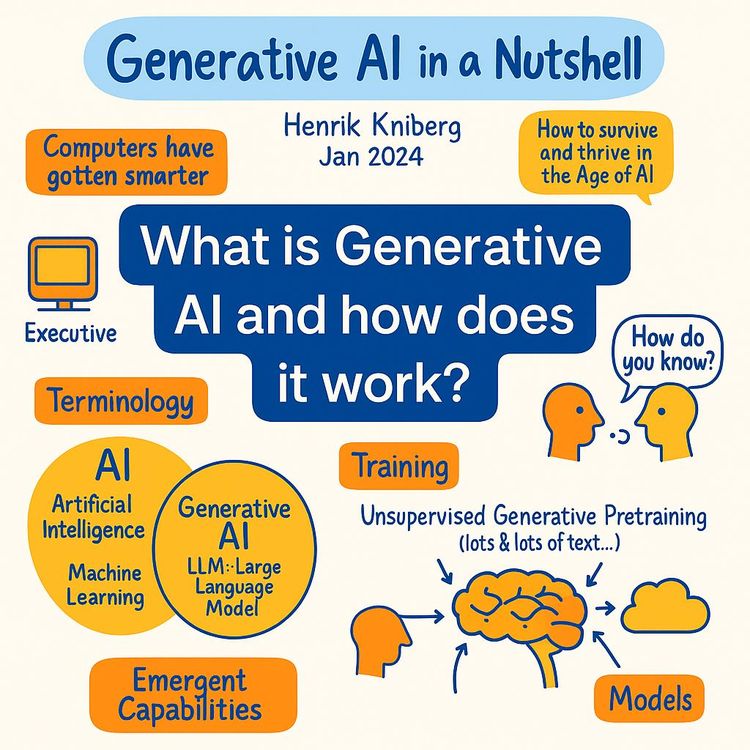
Video Course: What is Generative AI and how does it work?

Video Course: How to Use ChatGPT from Beginner to Professional
Video Course: How to Use Google Gemini for Google Workspace to Boost Productivity

Video Course: How to Use Claude 3.7 AI - Tips for Beginners!

Video Course: ChatGPT for Data Analytics: Full Course - from Beginners to Professional

Video Course: Generating Images and photos With ChatGPT?

Video Course: Generating Images & Photo's with MidJourney

Video Course: Generating Design's with Microsoft Designer and AI

Video Course: Generating Design's with Canva.com and AI
Join 20,000+ Professionals, Using AI to transform their Careers
Join professionals who didn’t just adapt, they thrived. You can too, with AI training designed for your job.