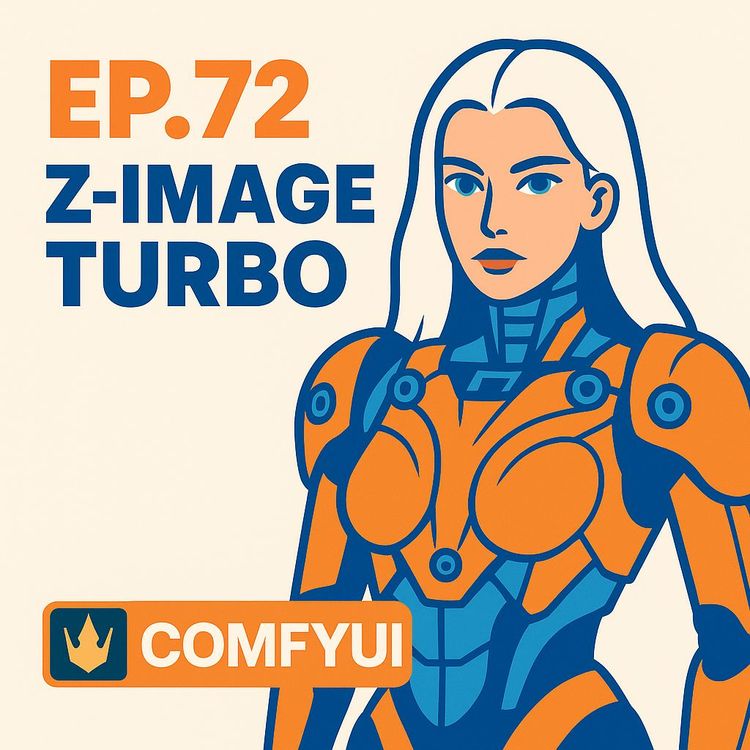
ComfyUI Z-Image Turbo: Fast Workflows, ControlNet & LoRA Training (Video Course)
Build fast, reliable AI image workflows in ComfyUI. Learn Z-Image Turbo for quick base renders, use ControlNet to lock pose and layout, and train LoRAs for reusable characters and styles,plus clean upscale-and-refine methods for crisp 2K and HD.
Related Certification: Certification in Optimizing ComfyUI Workflows, ControlNet & LoRA Training
Also includes Access to All:
What You Will Learn
- Choose and install Z-Image Turbo (BF16 vs FP8; all-in-one vs split) for your GPU
- Tune core parameters for speed and quality (steps ≤9, CFG ~1.0, samplers, image sizes)
- Use ControlNet (Canny/Depth/DW-Pose) to lock composition and pose (start strength 0.6-0.8)
- Train and apply LoRAs for consistent characters/styles (10-20 curated images, unique trigger tokens)
- Produce sharp Full HD and 2K outputs with generate-and-crop and upscale-then-refine (denoise ~0.3)
- Maintain folder hygiene and troubleshooting practices (checkpoints/diffusion/vae/loras/model_patches)
Study Guide
ComfyUI Tutorial Series Ep 72: Z-Image Turbo Workflows, ControlNet Essentials & LoRA Training
You're here because you want speed, control, and repeatability out of AI image generation. Not just "pretty pictures," but a workflow you can trust when a client is breathing down your neck or when your creative brain won't settle for hit-or-miss results.
This course is a complete, end-to-end guide to building professional AI image workflows in ComfyUI using the Z-Image Turbo model, ControlNet for structure, and LoRA training for custom characters and styles. We'll start at zero and move into advanced territory without skipping steps. You'll learn how to choose the right Z-Image version for your machine, dial in the exact parameters that make it fly, up-res the right way, steer composition with ControlNet, and train custom LoRAs that you can recall with a simple trigger word.
By the end, you'll have a set of battle-tested workflows that balance speed with quality, and a mental model for making reliable creative decisions inside ComfyUI.
The Mindset: From "Prompt and Pray" to Controlled Production
Most people throw a prompt at a model and hope for the best. That's fine for play. But when you want consistency,same character, pose, style, and layout,hope is not a strategy. This course focuses on a system:
- Z-Image Turbo for fast, high-quality base images
- ControlNet to enforce composition, depth, and pose
- LoRA training to lock in characters and styles you can reuse
Think of it like a modular pipeline: generate, constrain, customize, upscale, refine. That's how you escape randomness and build repeatable, professional outputs.
What Is ComfyUI and Why Use It for This?
ComfyUI is a node-based interface for diffusion models. You connect loaders, samplers, encoders, and utilities like Lego for images. That means total transparency: you can see and control every step. For advanced workflows,like applying ControlNet maps, running multiple samplers, inserting a second denoise pass, or stacking LoRAs,ComfyUI gives you the steering wheel.
Deep Dive: The Z-Image Turbo Model
Z-Image Turbo (ZIT) is a 6B parameter text-to-image diffusion model built for speed without tanking quality. It can do photorealism and a broad range of art styles, but its real advantage is iteration time,think seconds, not minutes. That matters when you want 20 variations in one sitting, not one lucky hit after a long wait.
Key Benefits:
- Rapid generation (often around single-digit seconds on capable hardware)
- Handles detailed prompts
- Works well with ControlNet and LoRA workflows
- Minimal steps needed for sharp results
Z-Image Versions, Placement, and Setup
There are two precision formats and two packaging styles. Choose based on your hardware and how you like to organize files.
Precision Versions:
- BF16: Best quality, recommended for GPUs with around 16GB+ VRAM
- FP8: Smaller, more memory efficient. Ideal for 12GB or less VRAM. Quality is near BF16 and stability is better on tight VRAM
Packaging:
- All-in-One: Single checkpoint (.safetensors) including the diffusion model, CLIP/Qwen text encoder, and VAE. Place in ComfyUI/models/checkpoints/. Easiest setup
- Split: Separate model, CLIP/Qwen, and VAE files. Identical output to all-in-one. You'll place:
- Diffusion model: ComfyUI/models/diffusion/
- Text encoder (Qwen/CLIP family): appropriate text encoders folder via your loader node
- VAE: ComfyUI/models/vae/ (the same VAE used with Flux typically works)
Node Requirement:
- In split workflows, set your Load CLIP node to the correct Qwen format. Look for "Luminina T2" (sometimes labeled "Luminina_2_t") so Z-Image parses prompts correctly
Example 1:
A creator with a 24GB GPU chooses BF16 All-in-One, drops it in checkpoints, adds a Load Checkpoint node in ComfyUI, and is generating in minutes.
Example 2:
A laptop user with 8GB VRAM picks FP8 Split to avoid out-of-memory errors. They place the diffusion model in /diffusion, the VAE in /vae, and the Qwen encoder in the CLIP loader path.
Core Parameter Tuning: Steps, CFG, Samplers, and Size
Small changes here swing results dramatically. Z-Image Turbo rewards a lighter touch.
Steps:
- Go low. There's no upside past 9 steps,quality may even dip. Sweet spot: ~7-9 for most scenes
CFG (Classifier-Free Guidance):
- Start at 1.0 if you're not using a negative prompt. It's fast and balanced
- Below 1.0 (e.g., 0.8): more desaturated, "artsy" look
- Above 1.0 (2.0-3.0): cranks saturation/contrast at the cost of speed
Samplers & Schedulers:
- Great starting points: euler + simple scheduler
- Want sharper edges? Try simple or multi-step schedulers with euler or dpm variants
- For skin realism vs. crisp detail, test pairs: euler+simple, euler+res, or simple+simple
Image Size:
- Z-Image handles moderate sizes well (e.g., 1344x768). Very high resolutions can go soft or diffuse. Use upscale-and-refine instead of cranking base resolution
Example 1:
Portrait workflow uses 9 steps, CFG 1.0, sampler euler, scheduler simple, 1344x768 base. Output is crisp and clean in seconds.
Example 2:
Fantasy landscape goes flat at 2048x1152 direct. You drop to 1360x768, generate, upscale to 2K, then refine at denoise 0.3 for texture and pop.
Prompts that Work with Z-Image Turbo
Z-Image is literal. If weird props or patterns show up, it's often your wording. Be descriptive, but prune ambiguous terms. Long prompts are fine. Negative prompts aren't required for good results when CFG is 1.0, but you can use them if you have a specific artifact to remove.
Example 1:
"studio portrait, soft window light, shallow depth of field, freckles, detailed skin, neutral background, 85mm lens look" performs better than "portrait of woman in studio lighting"
Example 2:
If "sharp lines" keeps creating unwanted patterns, switch to "crisp details, clean edges" and remove "lines" entirely.
Exact Full HD Without Softness: Generate-and-Crop Method
Directly forcing 1920x1080 can be suboptimal. Use a slightly larger compatible size and crop down after decoding.
Workflow:
1) Generate at 1928x1080 (landscape) or 1080x1928 (portrait)
2) Decode with VAE
3) Add an Image Crop node and trim the excess (e.g., crop 8 pixels from width) to finalize 1920x1080
Why it works:
You're staying inside the model's "comfortable" grid and shaving off edges at the end. Cleaner detail, fewer oddities.
Example 1:
A YouTube thumbnail background generated at 1928x1080 then cropped to 1920x1080 looks noticeably crisper,no haloing around text.
Example 2:
A poster portrait in 1080x1928 avoids the mushy midtones that showed up when you tried to generate exactly 1080x1920.
2K Upscale-and-Refine: The Professional Way
For higher resolutions, go two-stage: upscale first, then add detail with a gentle denoise pass.
Workflow:
1) Generate base image at 1344x768 or 1360x768
2) Upscale to 2K using an Upscale Image node and a quality model (you can test multiple upscale models)
3) Run a second KSampler pass at low denoise (~0.3) to enhance details without breaking composition
Tip:
Higher denoise like 0.7 will "reinterpret" the image and change it more aggressively. Use intentionally if you want a creative remix.
Example 1:
Product photo: base at 1344x768 → upscale to 2560x1440 → refine at denoise 0.3. The label text and material textures become crisp without plastic-looking artifacts.
Example 2:
Character art: base at 1360x768 → upscale to 2048x1152 → refine at 0.3. Eyes, hair strands, and fabric stitching improve without changing the face shape.
ControlNet Essentials: Enforcing Structure, Pose, and Layout
ControlNet adds extra conditioning so your output respects a source structure,edges, depth, or pose. This is how you keep composition consistent across a series.
Setup:
- Download ControlNet Union model
- Place in ComfyUI/models/model_patches/
- Update ComfyUI so the node loads correctly
Pre-Processors You'll Use Most:
- Canny: edges and outlines. Great for preserving composition from photos or line art
- Depth: builds a depth map to maintain 3D structure and scene layout
- DW-Pose: extract human pose skeletons for repeatable character positions
Strength:
- Start between 0.6 and 0.8. 1.0 is usually too rigid. You want guidance, not a straightjacket
Example 1:
Pose consistency for a character series: Use DW-Pose from a single reference shot, then generate multiple outfits with the same body angle and gesture. Strength 0.7 lands the pose without freezing facial expression variety.
Example 2:
Interior layout consistency: Use a Depth pre-processor on a room photo to keep wall positions and furniture scale fixed, then generate different decor styles with the same layout.
Building the Z-Image + ControlNet Workflow in ComfyUI
Here's a clean setup that scales:
Nodes Overview:
- Load Checkpoint (All-in-One) OR Load Model + Load CLIP (Luminina T2/Luminina_2_t) + Load VAE (Split)
- Positive/Negative Prompt nodes
- KSampler node (Steps ≤ 9, CFG 1.0 to start, euler + simple)
- VAE Decode → optional Image Crop (for Full HD method)
- ControlNet Union node + Pre-Processor (Canny/Depth/DW-Pose) wired into the KSampler conditioning
Tip:
Wire ControlNet to the first KSampler (base generation). If you do a later denoise refine, you can leave ControlNet off or at lower strength unless you want to preserve structure again.
Example 1:
Canny pipeline: Load image → Canny → ControlNet Union (strength 0.65) → KSampler (9 steps, CFG 1.0). Output keeps layout and major edges while changing textures and light.
Example 2:
DW-Pose pipeline: Photo → DW-Pose → ControlNet Union (0.75) → Generate a stylized character in the same pose. Swap outfits just by prompt edits.
Automatic Prompting with Qwen-VL: Let the Model Write for You
When you're stuck, let Qwen-VL analyze an image and generate a detailed descriptive prompt,or expand a short phrase into something production-ready.
Image-to-Prompt:
- Load an image → Qwen-VL node → take the generated text and feed it to Z-Image as your positive prompt
Formula-Based Expansion:
- Write a simple idea (e.g., "macro photo of a burger") → feed it through a Qwen-VL prompt expansion template → output a longer, richer description with lighting, camera, materials
Why it matters:
Z-Image seed variation can feel limited across similar prompts. Prompt expansion injects variety with intent, not randomness.
Example 1:
"street fashion, daytime" becomes a paragraph describing lens length, fabric texture, bokeh, color palette, and pose cues,leading to consistently better images.
Example 2:
You drop a reference photo of a desk setup into Qwen-VL. It produces a thorough prompt that recreates the look with new colors and brand elements while keeping the vibe.
LoRA Training: Custom Characters and Styles on Demand
LoRA (Low-Rank Adaptation) lets you "teach" the base model something new with a small dataset,without retraining the whole model. You can train on an online platform (e.g., Fowl.app) in a few steps.
When to Use LoRA:
- You need a recurring character (same face, hair, eyes) across scenes and styles
- You want a unified art style you can switch on/off with a trigger word
- You want product/brand consistency across campaigns
Dataset Rules that Actually Work:
- 10-20 images is plenty when they're consistent
- Keep lighting, era, and appearance cohesive. If images span wildly different conditions, the LoRA gets confused and muddles identity/style
- Use high-resolution, clean images. Garbage in, guess what out
Training Types:
- Content: for people, objects, characters
- Style: for aesthetics (e.g., "game digital painting")
Trigger Words:
- A short unique token you include in the prompt to activate your LoRA (e.g., "p1x5girl" or "mychar123"). Make it memorable and not a common word
Strength (in ComfyUI):
- Default 1.0. Lower to 0.7-0.8 to blend with other styles or when your LoRA is overpowering
Example 1:
Character LoRA of a woman with white hair and green eyes using 15 curated portraits. Trigger word "p1x5girl." At strength 1.0 you get very consistent identity; at 0.8 you can shift into pencil or watercolor while keeping her recognizable.
Example 2:
Style LoRA trained on 15 game asset images with cohesive palettes and brushwork. Trigger word applies an instant "digital painting" makeover to otherwise flat renders.
Case Study: Training a Character LoRA (Step-by-Step)
Goal:
Create a consistent character LoRA for a "woman with white hair and green eyes."
Dataset:
- 15 high-quality images, similar lighting/era, multiple angles
Training Parameters:
- Type: Content
- Steps: ~1000 is a solid start for 15 images
- Trigger: "p1x5girl" (unique, short, easy to remember)
Install:
- Download the LoRA .safetensors and place it in ComfyUI/models/loras/
Use in ComfyUI:
- Add a Load LoRA node and select your file
- Include "p1x5girl" in your positive prompt
- Start strength at 1.0, then test 0.8 if you want style flexibility
Example Prompt:
"p1x5girl, studio portrait, soft light through window, subtle freckles, 85mm lens, shallow depth of field, clean background, neutral tones, detailed skin texture"
Example 1:
Photoreal look: strength 1.0, CFG 1.0, 9 steps. The character's features repeat reliably across angles.
Example 2:
Pencil drawing: reduce LoRA strength to 0.8 and add "graphite pencil sketch, cross-hatching, paper grain" to the prompt. You keep the character identity while shifting the style convincingly.
Case Study: Training a Style LoRA (Step-by-Step)
Goal:
Create a "game digital painting" style LoRA that transforms 3D-looking outputs into hand-painted assets.
Dataset:
- 15 cohesive images,same palette family, brush style, and finish
- Avoid mixing unrelated looks (e.g., painterly + flat iconography)
Training Parameters:
- Type: Style
- Steps: ~1500 for tighter style imprint
- Trigger: a distinctive token like "gdpainter"
Install & Use:
- Load LoRA → include "gdpainter" in your prompt
- Start at strength 1.0, pull back to ~0.8 if the style overwrites too much
Example 1:
"gdpainter, fantasy armor set, subdued palette, hand-painted highlights, soft edges, concept art sheet layout." Turns plasticky renders into proper painterly assets.
Example 2:
"gdpainter, potion bottle item, colored glass, subtle bloom, soft shadow on parchment." Cohesive with your other items for a game inventory UI.
Using Multiple LoRAs Together
You can combine a Content LoRA (character) with a Style LoRA. Two levers: prompt and strength values. Keep both around 0.7-1.0 and test combinations; too strong and they fight each other.
Example 1:
Character LoRA (1.0) + Style LoRA (0.8): The face stays consistent while the painterly style lands softly.
Example 2:
Character LoRA (0.9) + Style LoRA (0.9): More aggressive style; if the face starts drifting, reduce the style to 0.7.
From Workflow to Output: A Complete Pipeline You Can Reuse
Base Generation:
- Z-Image Turbo (BF16 if you have VRAM, FP8 otherwise)
- Steps ≤ 9, CFG 1.0, euler + simple, 1344x768 or 1360x768
Structure Control (Optional):
- ControlNet Union + Canny/Depth/DW-Pose at 0.6-0.8 strength
Customization (Optional):
- Load LoRA(s), include trigger words, tune strength
Resolution:
- For exact 1920x1080: 1928x1080 → crop to 1920x1080 after VAE decode
- For 2K+: upscale → second KSampler pass at denoise ~0.3
Example 1:
Marketing banner series: Depth ControlNet to preserve layout, a brand style LoRA at 0.8, base generation at 1360x768, upscale to 2560x1440, refine at 0.3 denoise. Each banner looks consistent across colorways.
Example 2:
Character sheet: DW-Pose to keep the same stance, Content LoRA at 1.0, generate 5 outfits, then crop to exact Full HD panels for a clean, consistent presentation.
Troubleshooting and Best Practices
Issue: High-res output looks blurry or washed out
- Solution: Drop base resolution to ~1344x768 → upscale → refine at denoise 0.3. Also try CFG 1.0 if you had it higher
Issue: Skin or textures look oddly sharp or plastic
- Solution: Try a different sampler+scheduler pair (euler+simple is clean), lower steps to ≤ 9
Issue: VRAM crashes
- Solution: Switch to FP8, reduce base resolution, avoid loading unused LoRAs, clear big image batches from RAM periodically
Issue: ControlNet is over-constraining
- Solution: Lower strength to ~0.6-0.7; if using DW-Pose, try a slightly looser pose pre-processor configuration
Issue: LoRA dominates and blocks style changes
- Solution: Drop LoRA strength to 0.8 or 0.7; or keep LoRA at 1.0 and push stronger style descriptors in the prompt
Example 1:
You trained a character LoRA and your pencil sketch still looks like a photo. Lower LoRA to 0.8 and add "graphite, paper grain, cross-hatching."
Example 2:
Your room renders look foggy at 2K. Instead of generating at 2K directly, go 1360x768 → upscale → refine at 0.3. Problem solved.
Practical Prompts: Reusable Templates
Portrait (Photoreal):
"[LoRA trigger if used], studio portrait, soft window light, detailed skin, subtle makeup, shallow depth of field, 85mm lens look, crisp eyes, neutral background, color accurate, natural tones"
Character (Stylized):
"[Character trigger], [Style trigger], full-body character, heroic pose, dynamic rim light, painterly brushwork, cohesive color palette, subtle texture variation, clean silhouette"
Product Shot:
"clean product photography, soft lightbox glow, accurate material properties, sharp label, microtexture on surfaces, balanced contrast, crisp reflections, no fingerprints"
Example 1:
Add DW-Pose to the stylized character prompt to preserve stance across outfit variations.
Example 2:
Use Canny on an existing ad layout to preserve text-safe areas and object positions while generating new backgrounds.
Putting ControlNet to Work: Three Mini-Projects
1) Pose Library for Character Consistency
- Collect 10 reference poses → DW-Pose maps → save each as a ControlNet input preset
- Generate a character across all poses for brand consistency
2) Layout Lock for Thumbnails
- Use Canny on your best-performing thumbnail layout
- Generate new versions with different scenes while preserving title space and subject framing
3) Interior Design Variations
- Depth map from a photo of a blank living room
- Generate multiple decor styles with identical spatial feel
Example 1:
You swap a streetwear brand's seasonal palettes into the same hero pose across campaigns. Everything feels cohesive.
Example 2:
You create five YouTube thumbnails in an hour by reusing a Canny guide and dropping in different visual hooks behind the subject.
Advanced: Second Denoise Pass and When to Use It
The refine pass isn't only for upscales. Sometimes you want to nudge texture and microcontrast on a base image without changing composition.
How:
- Feed the decoded image back into a KSampler at denoise 0.2-0.35 with the same prompt. Small bumps in detail, no layout drift.
Example 1:
Fashion portrait: second pass at 0.25 enriches fabric without sharpening faces unnaturally.
Example 2:
Food photography: 0.3 denoise adds juicy detail to lettuce and buns without melting the burger's shape.
Quality Control for LoRA Datasets
LoRA training starts with curation. Get this right and everything else gets easier.
Checklist:
- Same subject across images for Content LoRA
- Consistent lighting conditions if possible
- Minimal backgrounds that distract the model
- Crops that center the subject
- No low-res or heavily compressed images
Example 1:
You select 15 head-and-shoulders portraits of the same person with similar lighting. The LoRA nails identity on first try.
Example 2:
You train a Style LoRA with 15 polished concept paintings from the same artist. The style applies cleanly to 3D-looking renders without weird overlays.
Folder Hygiene: Where Files Go
Keep your workspace clean so you don't misload models.
Paths Recap:
- All-in-One Z-Image: ComfyUI/models/checkpoints/
- Split Z-Image diffusion: ComfyUI/models/diffusion/
- VAE: ComfyUI/models/vae/
- LoRA files: ComfyUI/models/loras/
- ControlNet Union: ComfyUI/models/model_patches/
Example 1:
A tidy folder structure avoids loading the wrong CLIP/encoder and wondering why prompts feel off.
Example 2:
When you update ComfyUI, all node loaders still find the right files,no mysterious empty dropdowns.
Actionable Recommendations You Can Implement Today
1) Pick the Right Model Build
- 16GB+ VRAM: BF16
- 12GB or less: FP8 for stability and fewer crashes
2) Use Staged Workflows
- Full HD: generate slightly larger (1928x1080) → crop to 1920x1080
- 2K+: generate moderate → upscale → refine at denoise ~0.3
3) Curate LoRA Datasets
- 10-20 cohesive images, clearly aligned to either Content or Style
4) Master ControlNet Early
- If you need pose/layout consistency, integrate ControlNet right away. Start at strength 0.6-0.8
5) Keep ComfyUI Updated
- You want access to the latest nodes, bug fixes, and compatibility for ControlNet Union
Example 1:
You switch from direct 2K generation to upscale-and-refine and cut your correction time in half.
Example 2:
You retrain a messy LoRA dataset with tighter curation and the character finally looks like the same person across scenes.
Common Questions (Answered with Clarity)
Q: Do I really need a negative prompt?
A: Not necessarily with Z-Image. Start with CFG 1.0 and no negative. Add negatives only for specific artifacts.
Q: Why does more than 9 steps look worse?
A: The model converges fast. Extra steps can overshoot and add unnatural sharpness or mushiness. Stay ≤ 9.
Q: My images look flat at high CFG. Why?
A: High CFG can overconstrain color/contrast and slow the sampler. Bring it back to 1.0, especially if you skipped negatives.
Q: How do I get more variety?
A: Use Qwen-VL to expand prompts. Seed changes alone may not be enough for Z-Image on similar prompts.
Example 1:
Dropping CFG from 2.5 to 1.0 restored natural skin tones and depth in portraits.
Example 2:
Switching from 12 steps to 9 steps and using euler+simple fixed oversharpened textures in product shots.
Real-World Applications
Digital Art & Design:
- Concept art sprints, stable character sheets, cohesive style boards
- Rapid iterations on layout and framing with ControlNet
Content Creation:
- Fast campaign visuals that match brand style via Style LoRA
- Social media sets with the same pose or layout for recognizability
Education & Training:
- A demonstrable framework for teaching modern AI-art pipelines,covers model config, control conditioning, and custom adaptation
Prototyping:
- Product mocks, architectural interiors with depth-aware layout consistency, quick "client-ready" drafts
Example 1:
A brand uses a Style LoRA to produce weekly banners with different products that still look unified.
Example 2:
An indie game artist builds an item library with a single Style LoRA so new items drop seamlessly into the existing UI.
Hands-On Mini-Exercises
Exercise 1: Build Your Base Z-Image Workflow
- Load All-in-One BF16 or Split FP8
- Set steps to 9, CFG 1.0, euler + simple, 1344x768
- Generate 5 variations of a portrait prompt
Exercise 2: ControlNet Pose Consistency
- Use DW-Pose from a single reference
- Generate 3 outfits with the same pose and expression variety
Exercise 3: 2K Upscale-and-Refine
- Take your best base image
- Upscale to 2K → refine at 0.3 denoise
- Compare to direct 2K generation,you'll see the difference
Example 1:
You notice the refined 2K version has clean eyelashes and the direct 2K version looks fuzzy. You stick with staged.
Example 2:
Your ControlNet series finally matches poses across an entire character sheet,no more drift.
Performance Tips That Save Time
Prompt once, batch seeds wisely:
- Use a seed range to preview multiple outputs quickly, then lock the seed on your favorite for refinements
Cache and reuse maps:
- Save your Canny, Depth, and DW-Pose outputs to reuse across sessions
Version control your LoRAs:
- Keep v1, v2, etc., with notes about dataset and steps. If v3 drifts, roll back
Example 1:
You save a set of 10 DW-Pose maps for your hero character. New outfits become trivial.
Example 2:
You keep a "winning" Canny layout for ad variants, swapping content without touching composition.
Putting It All Together: Two Full Workflows
Workflow A: Fast Photoreal Portrait with Style Variant
- Model: Z-Image BF16 (or FP8 on low VRAM)
- Steps 9, CFG 1.0, euler + simple, 1344x768
- Generate base portrait
- Upscale to 2K → refine at denoise 0.3
- Add Style LoRA at 0.8 for a painterly variant, same composition intact
Workflow B: Character Consistency + Pose Lock + Full HD Output
- Load Character LoRA (strength 1.0)
- Use DW-Pose at strength 0.7 for pose lock
- Generate at 1928x1080, crop to 1920x1080 after VAE decode
- Create 4 outfit variations by editing only the clothing terms in your prompt
Example 1:
You deliver a portrait series: photoreal, painterly, charcoal,same face, same mood, different finish. Client buys the bundle.
Example 2:
You ship a character sheet with perfect pose consistency across armor sets. The art director asks how you kept the silhouette rock-solid. You smile.
Key Insights You Should Remember
- Z-Image Turbo is fast enough that going over 9 steps only hurts quality and wastes time
- CFG 1.0 is an efficient default when you're not using a negative prompt. Higher CFG is slower and can look overcooked
- High-res direct generation often looks diffuse. Professional standards: generate modest size → upscale → refine
- ControlNet (Canny, Depth, DW-Pose) is your structure anchor. Start strength at 0.6-0.8
- LoRA training doesn't need big data. It needs cohesive data. 10-20 quality images beat 100 randoms
- LoRA strength is a blend knob. Use it to keep identity while flexing style
Before You Wrap: Verify You've Set Up Everything Correctly
Checklist:
- Chosen BF16 vs FP8 based on VRAM
- All-in-One in checkpoints or Split in diffusion/vae with CLIP set to Luminina T2/Luminina_2_t
- Steps ≤ 9, CFG 1.0, euler + simple to start
- For Full HD, using the generate-and-crop trick
- For 2K+, using upscale-and-refine at denoise ~0.3
- ControlNet Union in model_patches and working with Canny/Depth/DW-Pose at 0.6-0.8
- LoRA triggers included in prompt and strength tuned based on your goal
Example 1:
Your first pass matches all the above, and your images already look cleaner and more consistent than previous attempts.
Example 2:
You skip the crop step and go direct 1920x1080. Side-by-side, the cropped version is sharper. You switch permanently.
Conclusion: This Is How You Produce on Command
You've learned the exact levers for speed, control, and repeatability inside ComfyUI. Z-Image Turbo gives you fast, high-quality base images. ControlNet lets you lock in composition, depth, and pose. LoRA training lets you call up characters and styles like presets. And with staged upscaling, you keep sharpness without fighting the model.
Now apply it. Build the base workflow. Add ControlNet when you need consistency. Train one Content LoRA and one Style LoRA this week. Run them through the Full HD and 2K pipelines. The goal isn't to memorize settings. It's to internalize the system,so you can generate intentionally, revise quickly, and deliver work you're proud of on repeat.
Speed is nothing without control. Control is nothing without consistency. You've got all three now. Go make something people can't ignore.
Frequently Asked Questions
This FAQ is a practical reference for anyone building efficient, high-quality image workflows with ComfyUI using Z-Image Turbo, ControlNet, and LoRA training. It answers common setup questions, explains parameters that matter, and covers advanced issues like upscaling, consistency, and dataset curation. The goal is simple: help you make confident technical decisions, avoid dead ends, and ship assets that meet business standards.
What is the Z-Image Turbo (ZIT) model?
Quick take:
Z-Image Turbo is a fast, 6B-parameter text-to-image diffusion model built for realistic results and diverse styles with low step counts.
It produces convincing photorealistic images and can switch into various illustration styles with the right prompt. Why it matters:
Shorter generation times mean faster iteration cycles for campaigns, product shots, and creative testing. ZIT belongs to a family that includes planned base and edit variants. In practice, you can run lean workflows (4-9 steps) and still get sharp results, which is ideal for batch work and on-demand content. Use descriptive prompts to steer style, lighting, and composition. Example: "lifestyle photo of a ceramic mug on a wooden table, soft morning light, shallow depth of field, muted palette."
What are the different versions of the ZIT model available?
Quick take:
Pick BF16 for quality on higher-VRAM GPUs, FP8 for lower VRAM; use all-in-one for simplicity, split for control.
- BF16: Highest fidelity, great if your GPU can handle it.
- FP8: Smaller memory footprint; close speed, slightly lower quality in some cases.
- All-in-One (checkpoint): Single .safetensors including model + CLIP + VAE for quick setup.
- Split models: Separate files (diffusion, CLIP, VAE) for transparent, configurable workflows.
Business use case:
Teams often standardize on FP8 for general-gen on 12GB cards, and BF16 for final renders on 24GB+ cards. All-in-one simplifies onboarding; split enables controlled experiments and audits.
Which ZIT model version should I use based on my hardware?
Quick take:
16GB+ VRAM: BF16. 12GB or less: FP8. This avoids slowdowns and out-of-memory errors.
- 16GB+ GPUs: Choose BF16 for best potential quality and comparable speed to FP8 on capable hardware.
- 12GB or less: Choose FP8. Running BF16 here often leads to memory issues or throttled performance.
Example:
A creative team using 12GB mobile workstations runs FP8 for concepting, then hands off to a studio PC with 24GB VRAM to re-render the final in BF16 for hero assets.
Where do I place the ZIT model files in my ComfyUI folders?
Quick take:
All-in-one → checkpoints; split diffusion → diffusion.
- All-in-One Checkpoints: Put .safetensors in ComfyUI/models/checkpoints.
- Split Diffusion: Put the main diffusion file in ComfyUI/models/diffusion.
Tip:
Keep consistent naming and a README in your models folder so teammates know which files pair together (diffusion + CLIP + VAE).
What other components are required to use the ZIT model?
Quick take:
You need three: ZIT diffusion model, Qwen text encoder, and a VAE (Flux VAE works well).
- ZIT model: BF16 or FP8.
- Text encoder: Qwen (ensure the CLIP/Load Clip node matches the required type).
- VAE: Use the Flux-compatible VAE for decoding.
Split workflows load each separately; all-in-one checkpoints include all three. Why it matters:
Correct encoder/VAE pairing avoids color shifts, mushy details, or prompt mismatch.
How should I configure the Load CLIP node for the ZIT model?
Quick take:
Set Load CLIP type to "Luminina 2" for Qwen compatibility.
In split workflows, open the Load CLIP node and set type to Luminina 2 so prompt embeddings are formatted correctly for ZIT. If this is wrong:
You'll see weak prompt adherence, odd phrasing effects, or flat outputs. After switching, re-encode your prompts and test with a short seed sweep to confirm.
What are the recommended settings for Steps, CFG, and Sampler/Scheduler?
Quick take:
Steps 4-9, CFG 1.0, and test samplers based on texture goals.
- Steps: 4-9 is the sweet spot; going higher can soften quality and waste time.
- CFG: 1.0 is a balanced default, especially with no negative prompt.
- Sampler/Scheduler: For realistic skin, try euler + karras; for sharper edges, try res or simple with multistep.
Workflow tip:
Create a "sampler shootout" template that renders the same prompt across 3 sampler/scheduler pairs to pick the look you want.
How does the CFG scale affect the final image?
Quick take:
It mostly nudges saturation and contrast; higher values cost time.
- CFG < 1.0 (e.g., 0.8): Flatter, more muted output,sometimes useful for editorial looks.
- CFG = 1.0: Fast and balanced; recommended baseline.
- CFG 2-3: Punchier colors/contrast but slower. Use sparingly.
Example:
For a skincare brand requiring soft, natural tones, 0.9-1.0 helps avoid over-saturation and keeps skin realistic.
Does the ZIT model work well with long, detailed prompts?
Quick take:
Yes. ZIT responds well to descriptive prompts covering subject, style, lighting, and composition.
Think in "scene blocks": subject, environment, lighting, lens, color, mood. Add constraints like "empty background" or "centered composition" when needed. Practical tip:
Maintain a prompt library of brand-ready templates (product, lifestyle, flat lay) and swap specifics per brief. This saves time and raises consistency across campaigns.
Why am I getting low variation between generations even with different seeds?
Quick take:
ZIT can be seed-sticky; prompt edits drive larger changes than seed swaps.
If outputs feel too similar, change descriptive terms, add new elements, or alter composition cues rather than only changing seeds. Try:
- Add lens cues (35mm close-up vs. 85mm portrait).
- Switch lighting (window light vs. studio strobe).
- Insert context elements (props, background textures).
Seed is best for reproducibility; prompts steer direction.
My images look blurry or "diffused" at high resolutions. How can I fix this?
Quick take:
Generate slightly smaller, then upscale and refine.
Large native resolutions can soften detail. Start at a moderate size (e.g., 1536x864 or 1344x768) where ZIT is crisp, then upscale and optionally run a low-denoise refine pass. Business example:
Create 1344x768 lifestyle shots for a catalog, upscale to 2K for web hero banners, then refine with denoise ~0.3 to regain micro-detail without changing composition.
How can I generate a precise Full HD (1920x1080) image?
Quick take:
Generate at a compatible dimension (e.g., 1920x1088), then crop to 1920x1080.
Some dimensions don't align with internal block sizes. Fix: set size to 1920x1088, decode, then crop 8px from height using ImageCrop. Result:
You get exact 1920x1080 without quality penalties or composition drift.
The model is creating strange artifacts based on my prompt. What should I do?
Quick take:
Remove or rephrase literal phrases causing unwanted visuals.
ZIT takes words seriously. If "cracked earth texture" adds cracks to skin, isolate environment cues ("cracked clay background") and protect the subject ("smooth skin, no cracks"). Process:
- Audit adjectives and nouns closest to the subject.
- Add disambiguators ("background only," "no facial texture artifacts").
- Regenerate with small variations to confirm the fix.
How can I upscale an image to 2K resolution using the ZIT model?
Quick take:
Two-pass method: generate smaller → upscale → low-denoise refine.
1) Generate at a crisp base resolution (e.g., 1536x864). 2) Use an upscaler to reach 2K. 3) Run a KSampler refine with denoise ~0.3 to add detail without reshaping the image. Note:
Denoise ~0.7 introduces bigger creative shifts and can desaturate,use only when you want style changes, not fidelity.
Can I use the ZIT model to improve or change the style of an existing image?
Quick take:
Yes. Downscale slightly, prompt for the desired look, and use moderate denoise.
Feed your image through ImageScale, then into KSampler with a concise style prompt (or empty prompt for subtle cleanup). Adjust denoise to control how much changes. Example:
Fix "plastic skin" by prompting "natural skin texture, soft directional light, realistic pores," denoise ~0.25-0.4, test a few seeds, and lock the best.
How do I use ControlNet with the Z-Image Turbo model?
Quick take:
Use ControlNet Union, connect a pre-processor map, and set strength ~0.6-0.8.
Place the ControlNet Union model in ComfyUI/models/model_patches. Load it, run a pre-processor (Canny, DepthAnything, DW-Pose), and feed the map into Apply ControlNet. Tip:
Strength of 1.0 is often too restrictive. Start at 0.6-0.8 to keep structure while letting ZIT handle textures and style.
How can I automatically generate a detailed prompt from a reference image?
Quick take:
Use a Qwen-VL node to analyze the image and output a descriptive prompt.
Load your image, connect to Qwen-VL, and choose a formula that suits your use case (e.g., product listing vs. lifestyle). Pipe the generated text into CLIP Text Encode. Use case:
Reverse-engineer a competitor photo to study lighting, tone, and composition,then adapt the prompt for your brand.
How can I expand a simple prompt into a long, detailed one automatically?
Quick take:
Feed a short concept and a "prompt expansion formula" into Qwen-VL.
Write a directive like "Create a long, descriptive, photorealistic prompt for [concept] including lighting, lens, composition, mood." Concatenate with your concept (e.g., "macro photo of a burger"), send to Qwen-VL, and use the output with ZIT. Benefit:
Faster ideation and more variety when seed changes alone don't move the needle.
What are the key steps for training a consistent character LoRA?
Quick take:
Curate 10-15 clean images, train ~1000 steps, use a unique trigger word, pick "Content."
Use consistent angles, lighting, and identity cues. Start with default learning rate. Create a unique trigger (e.g., P1x4_girl) to avoid conflicts. Pro tip:
Exclude wild backgrounds and busy scenes; your LoRA should learn the character, not the set dressing.
How do I use a trained LoRA in a ZIT workflow in ComfyUI?
Quick take:
Place LoRA in models/loras, load with Load LoRA, include trigger words in your prompt.
Refresh ComfyUI to index the file. Add Load LoRA and select your LoRA. In the positive prompt, include the trigger plus your scene description. Tip:
Store trigger words in the filename for quick recall (e.g., mychar_P1x4_girl.safetensors).
My character LoRA is too strong and I can't change the art style. What can I do?
Quick take:
Lower LoRA strength_model to ~0.7-0.8 to let the base model influence style.
When a photoreal LoRA overpowers "pencil sketch" or "watercolor," reduce strength until the style comes through while keeping identity. Note:
Different samplers can react differently to LoRA intensity,test a couple to find the best blend for your target style.
What is the process for training a Style LoRA?
Quick take:
Use ~15 images with extreme stylistic consistency, train longer (~1500 steps), select "Style."
Keep subject matter narrow (e.g., only game inventory icons) to teach textures, brushwork, and color palette cleanly. Pick a unique trigger for the style. Outcome:
Better style transfer without leaking unwanted subjects or scene types into your generations.
What hardware do I need to run Z-Image Turbo smoothly?
Quick take:
12GB VRAM runs FP8 comfortably; 16GB+ runs BF16 and larger batches.
- GPU: NVIDIA with 12-24GB VRAM is practical for day-to-day. FP8 lowers VRAM pressure.
- Storage: Keep models on SSD for faster loads.
- CPU/RAM: Helpful for preprocessing and UI responsiveness but secondary to VRAM.
Business tip:
Use FP8 on laptops for ideation; reserve a desktop or cloud GPU for final BF16 renders and batch jobs.
Can I run Z-Image Turbo on CPU or Apple Silicon?
Quick take:
Technically possible with workarounds, but often too slow for production.
CPU inference is prohibitively slow for most workflows. Apple Silicon can work via custom builds/backends, but expect limited model choices, different node support, and slower generation compared to NVIDIA GPUs. Recommendation:
If time matters, use an NVIDIA GPU locally or a cloud GPU instance; save non-GPU setups for experimentation, not production.
How should I structure prompts for branded product shots?
Quick take:
Use a template: product + surface + background + lighting + lens + mood + constraints.
Example: "matte black wireless earbuds on concrete slab, seamless gray background, soft overhead key light with rim light, 50mm lens, high contrast, crisp edges, shallow depth of field, center composition, no text, no watermark." Why this works:
You control context and polish while preventing artifacts ("no text," "no watermark"). Save prompt templates per category (cosmetics, footwear, electronics) for repeatable results.
Do I need negative prompts with Z-Image Turbo?
Quick take:
Often optional. Start with CFG=1.0 and only add negatives if specific issues appear.
ZIT behaves well without heavy negatives. If you see recurring artifacts, add targeted negatives like "no extra fingers," "no watermark," or "no text." Keep it tight:
Overly long negative lists can slow gen time and sometimes reduce variation. Use only what fixes the problem.
Certification
About the Certification
Get certified in ComfyUI Z-Image Turbo workflows, ControlNet, and LoRA training. Build fast pipelines, lock pose and layout, train reusable character/style LoRAs, and upscale to crisp 2K/HD,delivering consistent, on-brand assets on deadline.
Official Certification
Upon successful completion of the "Certification in Optimizing ComfyUI Workflows, ControlNet & LoRA Training", you will receive a verifiable digital certificate. This certificate demonstrates your expertise in the subject matter covered in this course.
Benefits of Certification
- Enhance your professional credibility and stand out in the job market.
- Validate your skills and knowledge in cutting-edge AI technologies.
- Unlock new career opportunities in the rapidly growing AI field.
- Share your achievement on your resume, LinkedIn, and other professional platforms.
How to complete your certification successfully?
To earn your certification, you’ll need to complete all video lessons, study the guide carefully, and review the FAQ. After that, you’ll be prepared to pass the certification requirements.
Other AI Video Courses

Video Course: What is Generative AI and how does it work?

Video Course: How to Use ChatGPT from Beginner to Professional

Video Course: How to Use Google Gemini for Google Workspace to Boost Productivity
Video Course: How to Use Claude 3.7 AI - Tips for Beginners!

Video Course: ChatGPT for Data Analytics: Full Course - from Beginners to Professional

Video Course: Generating Images and photos With ChatGPT?
Video Course: Generating Images & Photo's with MidJourney

Video Course: Generating Design's with Microsoft Designer and AI

Video Course: Generating Design's with Canva.com and AI
Join 20,000+ Professionals, Using AI to transform their Careers
Join professionals who didn’t just adapt, they thrived. You can too, with AI training designed for your job.