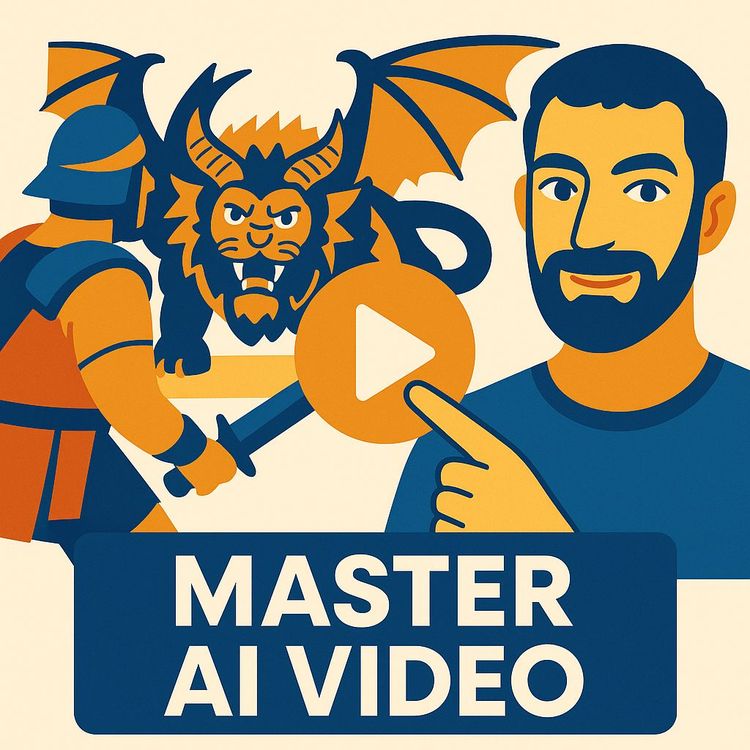
Create Lifelike Cinematic AI Videos: From Prompt to Final Cut (Video Course)
Create lifelike, cinematic AI videos without a studio. Learn a clear workflow,from style guides and consistent characters to motion control, voice edits, and sound,so every shot feels intentional from first frame to final cut.
Related Certification: Certification in End-to-End Lifelike Cinematic AI Video Production
Also includes Access to All:
What You Will Learn
- Execute a full AI video pipeline from style guide to final export.
- Build and enforce a style guide to generate consistent characters, locations, and props.
- Create shot lists and direct scenes using cinematic framing, angles, and pacing.
- Animate stills into controlled clips and apply multi-model strategies for camera moves.
- Map real performances with motion control and preserve lip-sync using voice isolation/changing.
- Edit, design sound, and upscale for a polished cinematic finish.
Study Guide
Introduction: Why Cinematic AI Video Is Your New Superpower
You don't need a studio, a crew, or decades of technical training to produce lifelike, cinematic videos anymore. You need vision, taste, and a workflow that actually respects them. That's what this course gives you.
We'll walk through a complete, repeatable system for creating cinematic AI videos,from a blank page to a polished edit. You'll learn how to lock in a consistent visual style, build characters and locations that hold up across shots, animate them with director-level control, and finish with professional sound and pacing. Then we'll crank up the control with motion capture and advanced voice manipulation to get performances that feel human, nuanced, and intentional.
This isn't prompt roulette. This is a production framework. You'll learn to think like a director and use integrated AI platforms like a power user. You'll learn when to lean on different models, how to fix inconsistencies fast, and how to keep your aesthetic intact from the first frame to the final cut. If you want lifelike results, this is the path.
What You'll Be Able To Do By The End
- Run the full AI video production workflow: pre-production, production, and post.
- Build and enforce a visual aesthetic with a style guide that keeps everything cohesive.
- Generate consistent characters, locations, and objects,then reuse them across shots.
- Create a shot list using cinematic language and direct with natural prompts.
- Animate stills into controlled video sequences with camera moves and action you dictate.
- Capture real human performances and map them onto AI characters with motion control.
- Replace dialogue voices while preserving timing and emotion, and keep everything in sync.
- Edit, design sound, and upscale for a final cinematic finish.
Key Concepts & Language (So You Sound Like a Director)
- Visual Aesthetic: The mood, color, lighting, and composition that define your world.
- Style Guide: A curated set of reference images that lock in your aesthetic and keep it consistent.
- Key Components: The characters, locations, and objects that show up across your scene or film.
- Image Generation Model: Creates still images from prompts (e.g., Nano Banana Pro for consistency and iterative edits).
- Video Generation Model: Animates stills or makes clips from prompts (e.g., VO 3.1, Sora 2, Cling).
- Natural Language Prompting: Directing the model with human language (no technical code required).
- Iterative Editing: Making small, surgical changes to converge on your vision.
- Shot List: The ordered set of shots (framing, angle, action) you'll need to tell the story.
- Motion Control: Map a real performance (a "driving video") onto your AI character with tools like Cling Motion Control.
- Voice Isolator / Voice Changer: Pull clean dialogue from noisy audio; change the voice while keeping timing and emotion (e.g., 11 Labs).
- Upscaling: Boost resolution and clarity with AI (e.g., Topaz Video AI).
The Director Mindset: You're Not Prompting, You're Filmmaking
The models are your crew. You're the director. Your skill isn't memorizing prompts,it's knowing the language of film. Angles, frames, pacing, blocking, emotional beats. The better you understand fundamentals, the more the models obey you. The stronger your style guide and assets, the less you fight inconsistencies. The clearer your shot list, the smoother your production.
Pre-Production: Lock Visual Consistency & Build Your World
The first mistake people make: generating random shots before defining the look. Don't do that. Start with consistency, then produce everything inside that container.
Step 1: Create a Style Guide That Dictates the Look
Collect images that match your desired look. Think color palette, lighting (soft vs. hard), grain, lens choice (wide, standard, telephoto), and mood. Use tools like Midjourney to explore. Save 10-20 references that feel like they were shot on the same set. Combine them into a single collage or keep them in a tight folder. This is your visual anchor for the entire project.
Example 1:
Neo-noir crime drama: deep shadows, practical practicals in the background, green-tinted fluorescents, reflective rain-soaked streets, 50mm lens look, gentle film grain.
Example 2:
Dreamlike fantasy: soft pastel palette, backlit haze, bokeh-heavy backgrounds, shallow depth of field, warm rim lighting, painterly textures.
Pro tip:
Annotate your style guide with 3-5 descriptive words you'll reuse in prompts (e.g., "muted teal-orange palette, practical tungsten lamps, gentle grain, low-key lighting"). Consistent phrasing stacks consistency across the pipeline.
Step 1B: Generate Key Assets (Characters, Locations, Objects)
With the style guide ready, move into image generation on a high-adherence model like Nano Banana Pro. Upload the guide as a reference and describe what you want: character, room, or object. Iterate with surgical edits, not total overhauls.
Example 1 (Character):
"Create a still of an alien mob boss in the visual aesthetic of the uploaded guide: cinematic light from a desk lamp, subtle smoke, 50mm perspective, stern expression." Then iterate: "Remove the cigar. Add a silver signet ring. Slight scar on left cheek."
Example 2 (Location):
"Generate the mob boss's office: dark wood desk, frosted glass door behind, tungsten lamp, rain on window, low-key lighting matching the style guide." Then expand angles: "Same room from the doorway, slightly low angle."
Now objects. You can in-paint to replace or insert items.
Example 3 (Object Insertion):
Circle an area on the desk. Prompt: "Replace circled notebook with the uploaded alien skull prop. Match lighting and perspective."
Pro tip:
Generate multiple angles for each location upfront: corner A, corner B, doorway, window view, behind the desk, profile from the bookshelf. You'll thank yourself during shot planning.
Pro tip:
If you're incorporating a real person's likeness, ensure you have rights and permission. Keep lighting and angle roughly consistent with your style guide for cleaner downstream results.
Step 2: Build a Shot List With Cinematic Language
Great prompting is simply clear direction. Use film terms so models and you stay aligned.
- Framing: Establishing, Wide/Full, Medium, Close-Up, Extreme Close-Up.
- Angles: Low, High, Dutch.
- Perspectives: Over-the-Shoulder (OTS), POV.
- Detail: Insert shots.
Example 1 (Three-Shot Sequence):
1) Establishing: "Rainy city street outside a dim office, neon reflection on wet pavement." 2) OTS: "From behind the detective, looking at the mob boss across the desk." 3) Close-Up: "Mob boss's hand tightening on the silver ring."
Example 2 (Dialogue Setup):
1) Two-Shot Medium: "Both characters framed at the desk, camera eye-level." 2) OTS Reverse: "Over detective's shoulder to boss." 3) OTS Reverse: "Over boss's shoulder to detective."
Pro tip:
Write your shot list like a director: "Medium OTS on detective; low-angle close-up on ring; insert of key card sliding across desk; slow dolly-in on mob boss as he whispers." The more specific, the cleaner the generation.
A Cinematographer's Guide to AI Prompting (Quick Reference)
- Establishing Shot: Orient the audience to the space.
- Wide/Full: Character in environment.
- Medium: Dialogue sweet spot, shoulders or waist up.
- Close-Up: Emotion and micro-expressions.
- Extreme Close-Up: A revealing detail (eye flicker, finger tremble).
- Low Angle: Power or threat.
- High Angle: Vulnerability.
- Dutch: Unease or tension.
- OTS: Relationship dynamics.
- POV: Subjective immersion.
Example 1:
"Close-up on detective's eyes, reflection of the desk lamp visible, shallow depth of field, low-key lighting from style guide."
Example 2:
"High-angle shot of the office layout, floor plan feel, boss small in frame to suggest pressure closing in."
Production: Animate Your Stills With Precision
Now we turn the stills into motion using video models. Use a multi-model platform like Higsfield so you can switch models quickly (VO 3.1, Cling, Sora 2). Each model has strengths, weaknesses, and content restrictions. Some excel at dynamic camera moves. Some nail subtle emotion. Some restrict human likeness. Match the tool to the shot.
Step 3: Animate the Images (Camera, Action, Audio)
A strong video prompt has three pillars: reinforce the image context, define action, and define camera movement. Add audio direction with intention.
Example 1 (Prompt Structure):
"Using the uploaded still of the mob boss at his desk, the boss glances down at the ring and then looks up with a faint smirk. Camera does a slow dolly-in. No music. Soft ambient rain outside the window."
Example 2 (Action-Heavy):
"Using the office doorway angle, the detective opens the frosted door, light spills in, he pauses, then steps in. Camera handheld pan right to follow. No music. Distant thunder."
Start and end frames are your cheat code for complex transitions. Give the model a beginning and an end, and it will bridge them.
Example 3 (Start/End Frames):
Start: door closed. End: door half-open with detective's silhouette. Prompt: "Animate the door opening as described, maintain dimensional consistency, subtle dust particles in light beam."
Example 4 (Transformation):
Start: neutral face. End: eyebrow raised, lips tightened. Prompt: "Subtle facial shift over 2-3 seconds, keep lighting continuity and eye line."
Pro tip:
Always add "no music" unless you are testing temp music. Score in post for control. If you plan to do full sound design, also add "no sound effects."
Pro tip:
If a model struggles with a specific camera move (like a precise arc), generate two shorter clips with simpler moves and cut them together. Or switch models: Cling may handle a move that VO 3.1 doesn't, and vice versa.
Step 4: Post-Production & Editing (Pacing, Rhythm, Feel)
Assemble your best clips in DaVinci Resolve or Adobe Premiere. Add your music early and cut to the beat. Shape the rhythm with reaction shots and cutaways. Layer sound design for depth.
Example 1 (Assembly):
Place the establishing shot under a moody ambient track. Match the boss's smirk to a subtle musical swell. Cut to the ring close-up on a downbeat.
Example 2 (Sound Design):
Layer footsteps, leather chair creak, rain hiss, silent pause before dialogue, then a whisper that cuts through the noise. Blend room tone between clips to hide seams.
Pro tip:
Export dialogue and ambient FX to separate tracks where possible. Crossfade ambiences between cuts to glue scenes together. Silence is a tool,use it to create tension before critical lines.
Advanced Control: Motion Capture & Voice Mastery
When prompts aren't enough to nail performance, drive it. Motion control lets you map your acting onto your AI character. Then edit voices without breaking lip-sync or timing.
Motion Control: Map Real Performance to Your Character
Record a "driving video" of someone acting the scene,yourself or a performer. Upload it with your static character image to a tool like Cling Motion Control. The AI transfers facial expressions, body language, and timing to the character.
Example 1 (Dialogue Precision):
You speak the line "You already know the answer," with a restrained smile and a slow head tilt. The alien mob boss now delivers that exact performance, including micro-expressions.
Example 2 (Complex Action):
Use a breakdancer's clip to animate a mythical creature's movement. The physicality transfers,footwork, spins, weight shifts,giving you dynamic action that text prompts would butcher.
Pro tip:
Keep your driving video clean: consistent lighting, stable camera, no heavy motion blur, and a clear background. Frame the performer similarly to the target shot (distance, angle) for cleaner mapping.
Pro tip:
Record at a higher frame rate if the action is fast. More temporal information equals cleaner transfer.
Advanced Dialogue & Voice Manipulation
Believable scenes need clean dialogue and distinct voices. Start by isolating dialogue from noisy clips, then change it while keeping timing and emotion intact.
Example 1 (Voice Isolation):
A generated clip has great acting but intrusive background music. Run it through 11 Labs Voice Isolator to extract the voice cleanly. Now you can mix or replace the music without muddy dialogue.
Example 2 (Voice Changing):
You played both characters in a scene. Use 11 Labs Voice Changer to give the detective a grounded baritone and the boss a smooth, dangerous tenor,preserving lip-sync, pauses, and inflection you already performed.
Pro tip:
Keep the original timing. Don't stretch or compress audio after lip-sync is established. If you must, do it before voice changing so the AI can preserve cadence.
Pro tip:
For multi-character scenes, give each voice a unique timbre and space in the mix: different EQ profiles, small variations in reverb and mic proximity.
Audio Strategy: The Emotional Spine Of Your Film
Sound sells reality. Music guides pace. Effects glue the world. Dialogue carries the story. Treat audio like a core design layer, not an afterthought.
Example 1 (Interrogation Room):
Cold room tone with a low AC hum. Occasional fluorescent buzz. Footsteps ping off concrete. A long, dry reverb tail on the door slam. Music sits low and sparse to let silence do the heavy lifting.
Example 2 (Forest Chase):
Layered foliage rustle, branches snapping, distant crow calls, breath rhythms synced to cuts, music accelerates with percussive hits on key jumps. Wind rises on wide shots, falls on close-ups.
Pro tip:
Use contrast. A quiet bed makes small sounds (a ring tap, a breath) feel monumental. Build peaks and valleys. Constant loudness kills tension.
Multi-Model Platforms & Your Model Playbook
An integrated platform like Higsfield gives you a stable environment to test and swap models. No single model is best at everything. Curate a "shot-by-shot" playbook.
- VO 3.1: Often strong with general scene motion and stability.
- Cling: Excellent for camera choreography and specific movement requests; pairs with motion control.
- Sora 2: Useful for certain styles and non-human content; may restrict human characters in some contexts.
Example 1 (Split Responsibilities):
Generate subtle facial performance with VO 3.1 from a close-up still. For the same scene's tracking shot through the doorway, switch to Cling for a smoother handheld feel.
Example 2 (Restrictions Workaround):
If a model limits human likeness, use it to generate environment plates and props. Then composite or animate character-specific shots in a different model that allows it.
Pro tip:
Maintain consistency by always referencing your original stills and style guide when switching models. Include key phrases and visual anchors in prompts across models.
Pro tip:
Version control matters. Save your best frames, prompts, and settings after each success. Build a "recipe book" for your project.
In-Video Editing & Upscaling
Sometimes you'll want to surgically change a generated video. Tools like Cling 01 allow in-video edits. Then you'll finish with upscaling for clarity and resolution.
Example 1 (In-Video Edits):
"Replace the creature with a unicorn; preserve original lighting and camera motion." Or: "Change desk lamp to blue and dim background practicals by 20%."
Example 2 (Cleanup):
"Remove the coffee cup from the left edge. Fill background naturally with bookshelf texture."
Pro tip:
Ask for specific, localized changes. Global edits risk altering the entire frame's style. Keep your instructions surgical.
Finish with an upscale pass in Topaz Video AI to push from 1080p to higher resolutions, clean artifacts, and stabilize fine detail.
Example 3 (Quality Pass):
Sharpen subtle textures like fabric weave and wood grain. Add gentle film grain to unify shots from different models.
Example 4 (Motion Polish):
Use motion stabilization and frame interpolation carefully on micro-judder, then reintroduce a tiny bit of camera shake if the shot feels too sterile.
Pro tip:
Upscale last, after color and sound are locked. Always inspect skin, eyes, and edges after upscaling; they reveal artifacts first.
Case Applications: Where This Workflow Pays Off
- Filmmaking & VFX: Produce animated shorts, previz complex sequences, or generate hero shots without a full VFX pipeline.
- Marketing & Advertising: Prototype campaigns fast, then render final ads tightly aligned to brand aesthetics.
- Education & Training: Simulate historical events, scientific processes, or roleplays with believable characters and spaces.
- Social Media & Content Creation: Deliver studio-grade visuals solo and at speed.
Example 1 (Indie Director):
Build a full noir short: style guide, character stills, shot list, animated close-ups, motion-controlled dialogue, precise sound design. Release a clean 2-3 minute piece that feels handcrafted.
Example 2 (Brand Campaign):
Generate product hero shots in multiple environments, animate macro insert shots and smooth dolly-ins, match brand palette and lighting, run voiceover through a brand-appropriate voice using a voice changer, and finalize with crisp upscaling.
Recommendations for Different Learners
For Professionals:
Study cinematography: shot types, blocking, lighting logic. Build a personal library of prompts, frames, and edits per model. Use a platform like Higsfield to test models side by side and learn each one's strengths.
For Educational Institutions:
Teach the director-curator mindset. Less "prompt hacking," more storytelling, shot composition, and pacing. Have students create a style guide and a 10-shot scene before advancing to motion control.
For New Learners:
Start small. One location, two characters, five shots. Nail consistency and continuity first. Then add motion control for one dialogue shot and a voice change for one character.
Common Pitfalls & How To Fix Them
Problem: Visual inconsistency across shots.
Solution: Re-anchor each prompt with the same style guide and hero frames. Keep lens language consistent (e.g., "50mm perspective"). Iterate with small edits rather than regenerating from scratch.
Problem: Camera moves feel floaty or wrong.
Solution: Be explicit: "slow dolly-in," "handheld pan right," "locked-off tripod." If a model struggles, split the move into stages or switch models. Cut the sequence in post.
Problem: Lip-sync is off after voice changes.
Solution: Isolate dialogue first, then voice change, preserving timing. Don't alter clip length afterward. If needed, redo the voice change with the exact final timing.
Problem: Dialogue buried under effects or music.
Solution: Sidechain compress FX and music under dialogue, roll off low-end rumble on voices, and reduce reverb in tight rooms.
Problem: Human likeness restrictions block generation.
Solution: Use restricted models for environments and objects only. Animate characters in a permissive model, then cut together. Or stylize characters to fit allowed categories.
Key Insights You'll Use Forever
- Consistency is engineered: style guide first, assets second, shots last.
- You're the director. Cinematography beats prompt tricks.
- Use multiple models. Pick the right tool per shot.
- Motion control unlocks performance that prompting can't.
- Audio sells reality: isolate, replace, and design it with intent.
- Integrated platforms make the whole pipeline fast and reliable.
Authoritative Statements (Bookmark These)
- Early consistency problems in AI video are now solved by systematic workflows and new tools.
- Consolidated platforms that host multiple frontier models have simplified production significantly.
- The creator's role is director and curator; taste and vision drive quality.
The Complete Workflow, Step by Step (Recap)
1) Define the visual aesthetic and build a style guide.
2) Generate key assets: characters, locations, and objects with a consistent look (use Nano Banana Pro or your most reliable model).
3) Plan the entire shot list using cinematic language (framing, angle, perspective, inserts).
4) Animate stills into clips with video models (VO 3.1, Cling, Sora 2), specifying camera, action, and audio; add "no music" unless needed.
5) Use start/end frames for complex transitions and transformations.
6) Assemble and edit the sequence; pace against music; layer sound design.
7) For granular control, use motion control (Cling Motion Control) to map real performances onto characters.
8) Isolate dialogue and change voices with 11 Labs while preserving timing and emotion.
9) Perform in-video edits (Cling 01) when needed; upscale in Topaz Video AI for final polish.
Deep-Dive Examples: Two End-to-End Mini Projects
Example 1 (Character-Driven Micro-Drama):
- Style: Neo-noir office, tungsten warmth, rain, shallow depth of field.
- Assets: Mob boss, detective, desk objects, office from four angles.
- Shots: Establishing → OTS → Close-Up ring insert → POV of door opening → Close-Up on smirk.
- Animation: VO 3.1 for subtle close-ups; Cling for doorway handheld pan.
- Motion Control: Your performance drives the boss's line delivery and micro-expressions.
- Audio: Isolate dialogue, change voice of the detective, add rain and chair creaks, score in post.
- Finish: In-video edit to remove a stray cup; upscale to final resolution.
Example 2 (Action-Fantasy Beat):
- Style: Foggy forest at dawn, soft blue-green palette, gentle haze, dramatic shafts of light.
- Assets: Mythical creature, ranger character, forest clearing from multiple angles, magical object insert.
- Shots: Wide establishing → Low-angle creature approach → POV of ranger → Insert of the glowing object in hand → Arc shot around the confrontation.
- Animation: Cling for arc move; VO 3.1 for creature close-up reaction.
- Motion Control: Breakdancer's move mapped to creature for a sudden evasive spin.
- Audio: Layered nature beds, breath sync, impact hits, minimal score that swells on the arc.
- Finish: In-video edit to brighten the magical object; upscale and add subtle grain for cohesion.
Ethics, Rights, and Good Taste
- Get consent for real likenesses and distinct voices. If you're recreating a person, you need permission.
- Avoid misleading representations. If your goal is fiction, label it clearly.
- Watch for bias in datasets. Cast and design your world with intention and inclusivity.
- Respect platform rules and content restrictions. Work creatively within constraints or switch models responsibly.
Practice: Questions & Prompts To Cement The Skills
Multiple Choice
1) What is the primary purpose of a low-angle shot?
a) To make a subject appear small and vulnerable.
b) To create a sense of unease and disorientation.
c) To make a subject appear powerful and dominant.
d) To provide an overview of the scene's geography.
2) When prompting a video model, which of the following is recommended to add for better editing control?
a) "more music"
b) "no sound effects"
c) "no music"
d) "cinematic lighting"
3) What is the function of a "driving video" in motion control?
a) It serves as the background for the scene.
b) It provides the reference performance that is mapped onto a character.
c) It is the final, rendered video clip.
d) It is a style guide for the AI.
Short Answer
1) Explain the difference between a "dolly" and a "zoom" camera movement.
2) What are the three essential components of a strong video generation prompt?
3) Describe the process of using a Voice Changer to create a unique voice for an AI character while maintaining the lip-sync from the original performance.
Discussion & Critical Thinking
1) Create a three-shot sequence for a tense interrogation. For each shot, name the shot type, describe the action, and explain how it builds tension.
2) Your model can't produce a clean arc shot. Share two strategies to solve this,one within the model and one by changing the workflow or tool.
Your First Three Assignments
Assignment 1 (Five-Shot Scene):
Create a style guide, generate one location and two characters, and produce a five-shot dialogue beat. Use "no music" in generation and add your own score in post. Include one insert shot and one OTS pair.
Assignment 2 (Motion Control Test):
Record a driving video of a single line. Map it onto your character. Change the character's voice while preserving timing. Export a clean dialogue mix over minimal ambience.
Assignment 3 (In-Video Edit + Upscale):
Perform at least one in-video edit (object replace or lighting tweak) and then upscale the finished piece. Compare pre/post frames for detail retention and artifact reduction.
Frequently Overlooked Best Practices
Pro tip:
Front-load creative constraints. Decide lens feel (e.g., 35mm vs 85mm), color palette, and lighting logic before generating anything. Use the same phrasing across prompts.
Pro tip:
Commit to hero frames. Pick the stills that define your world and reuse them as references for every new shot. This is how you get "same film" energy.
Pro tip:
Animate in layers. If a shot requires both complex camera motion and nuanced facial acting, split the work across models and stitch in post.
Pro tip:
Make silence a character. Let breath, glances, and tiny sounds create weight before lines land.
From Study to Studio: Putting It All Together
Let's trace the full pipeline as a habit, not a one-off:
- Pre-Production: Define aesthetic → Build style guide → Generate characters, locations, and objects with Nano Banana Pro → Plan your shot list in cinematic language.
- Production: Animate stills in Higsfield with VO 3.1, Cling, or Sora 2 → Use start/end frames for complex motion → Set "no music" unless testing temp score → Generate consistent ambiences sparingly.
- Post-Production: Edit in Resolve or Premiere → Add music early and cut to it → Layer Foley and ambiences → Motion control any critical performance beats → Isolate and change voices with 11 Labs → In-video edits with Cling 01 → Upscale in Topaz Video AI → Final mix and export.
Example 1 (Prompt Template You Can Reuse):
"Using the uploaded still [describe subject briefly], [describe action precisely], camera [define move: slow dolly-in/locked-off/handheld pan], maintain [lighting from style guide], [no music], [ambient: soft rain and distant traffic]."
Example 2 (Motion Control Checklist):
- Record: stable, well-lit, framed like the target shot.
- Perform: exact timing and emotion you want in the final.
- Map: apply to the target still with Cling Motion Control.
- Voice: isolate → change voice while preserving cadence → mix with room tone and effects.
Verification: Did We Cover Every Core Idea?
- Style guide as the foundation for consistency,covered, with multiple examples and tips.
- Generating characters, locations, and objects using high-adherence models like Nano Banana Pro,covered with in-painting and iteration methods.
- Shot list creation using cinematic language,covered with specific framing, angles, perspective, and inserts.
- Multi-model platforms (Higsfield) and model roles (VO 3.1, Cling, Sora 2) with restrictions,covered with strategies and examples.
- Animation prompting: camera moves, action, audio, and "no music",covered with prompt templates.
- Start/end frame technique,covered with practical examples.
- Post-production assembly, pacing, and sound design,covered with detailed techniques.
- Motion control: driving video workflows, dialogue and complex action,covered with examples and tips.
- Advanced audio: voice isolation and voice changing with 11 Labs,covered with sync-preserving advice.
- In-video edits (Cling 01) and upscaling (Topaz Video AI),covered with specific use cases.
- Key insights, authoritative statements, implications across industries,covered with scenarios.
- Implementation guidance for pros, schools, and new learners,covered with action steps.
- Practice questions and assignments,included.
Conclusion: This Is How You Direct With AI
If your videos feel random, it's not the tools,it's the workflow. The moment you start with a style guide and build assets inside that world, everything changes. Your characters remain themselves. Your rooms feel like they exist. Your cuts flow. Your sound carries emotion. And when you need more control, motion control and voice tools give you human-level nuance without a set or a studio.
Remember the core truths: plan consistency, direct with cinematic language, pick the right model per shot, control performance with motion capture, and sculpt the experience with sound. Respect these fundamentals and you'll ship lifelike, cinematic work that looks intentional,not accidental.
Now build your style guide, pick a five-shot scene, and make something real. The tools are waiting for direction. Yours.
Frequently Asked Questions
This FAQ exists to answer the most common,and most useful,questions about creating lifelike cinematic AI videos, from first prompt to final export. It's arranged from basic concepts to advanced control so you can find quick, practical guidance no matter your skill level. Each answer focuses on clear steps, proven workflows, and business-friendly decisions that save time and budget while improving creative output.
Section 1: Fundamentals and Asset Generation
What has been the biggest challenge with AI video, and how is it being addressed?
Core insight:
Consistency across shots has been the main hurdle. Characters, locations, and lighting often shift between generations, breaking continuity. This is now addressed through better models, unified platforms, and a structured workflow that starts with asset consistency. Build a style guide, lock your hero character, environment, and key props, then generate all shot frames against that foundation. Use iterative edits (inpainting, minor touchups) to keep visuals aligned. Integrated platforms that host multiple image and video models in one place reduce tool-switching and help you maintain a single source of truth. Once you treat your initial assets like a brand book,clear, stable, referenceable,your sequences become coherent by default. The result: fewer reshoots, predictable outputs, and footage that cuts together cleanly.
What is the very first step in the AI video creation process?
Start with a style guide and core assets:
Define the look, then lock the essentials,characters, location, props, and visual aesthetic. Treat this like a creative contract for everything that follows. Gather reference images that nail color, lighting, mood, wardrobe, and production design. Use them to generate your primary stills: the hero character in context, the room or set, and any hero objects. From there, you can iterate on details (wardrobe tweaks, prop swaps) while preserving the base. This initial groundwork removes ambiguity from later prompts, shortens iteration cycles, and keeps shot-to-shot consistency tight. Real-world example: a product launch ad where the CEO avatar, boardroom set, and branded objects remain identical across multiple camera angles and edits.
How can I define and maintain a consistent visual aesthetic?
Build a mood board that becomes a style guide:
Use an image platform with strong aesthetic controls (e.g., Midjourney) to collect references for lighting, palette, lens feel, and texture. Create a grid or collage and reuse it as a reference input for your image model. Keep prompts short and specific, reinforcing the same cinematic keywords and camera language. Save winning generations as "golden references" and re-upload them when creating new shots. If a shot drifts, inpaint or run minor iterations to pull it back on-model. Practical tip: create two guides,one for characters (skin tone, wardrobe, hair, makeup) and one for environments (light sources, contrast, color grade). This dual guide keeps both faces and sets locked in.
What kind of platform is best for generating the scene elements?
Use an all-in-one platform that hosts leading models:
A unified workspace (e.g., Higsfield) lets you access top image and video models (Nano Banana Pro, VO3.1, Cling, Sora 2) without juggling logins and formats. This reduces friction, preserves metadata and seeds, and makes iterative edits predictable. Choose models by task: a consistency-strong image model for base assets; a video model that handles your desired camera moves and motion quality. Keep everything in one project to store references, prompts, and versions. Business benefit: fewer context switches, faster feedback loops, and cleaner handoffs if multiple team members collaborate.
How do I generate my main character and location?
Reference-driven prompting with iterative refinement:
Upload your style guide and write a concise prompt describing the character and setting in one frame. Example: "Use this aesthetic to create a cinematic still of an alien mob boss sitting behind a desk, moody overhead practicals, shallow depth of field." Generate multiple options, shortlist the best, and iterate: "Remove the cigar and whiskey," or "Add a brass desk lamp, warm tungsten glow." Keep selected images as "hero references" for later shots. This approach produces a consistent character-in-context look, which makes downstream animation and editing smoother.
Can I use a photo of a real person as a character?
Yes,use image-to-image with a clean reference workflow:
Upload a clear portrait and a separate scene image. Prompt the model to place the person into the environment with specific wardrobe and pose notes. Example: "Add this man to the empty chair, brown leather jacket, gray shirt, soft backlight." Keep lighting direction and color temperature consistent between references to avoid mismatched composites. For brand or legal work, confirm permissions and likeness rights before publishing. This method works well for executive messaging, training content, and customer stories where recognizable faces matter.
How do I add or replace specific objects in my scene?
Use inpainting with a precise mask and short prompts:
Select the region, upload (or describe) the object, and prompt for integration: "Replace the circled object with a chrome desk clock, matching lighting and shadows." Keep the mask tight to avoid altering nearby areas. If shadows or reflections are off, run a second pass focused on light and surface detail. Tip: create a small "prop library" of preapproved objects (brand items, hero products) and reuse them across shots. This keeps continuity tight and reduces rework.
After creating my key character and setting images, what's next?
Build a shot list and generate coverage around your set:
Use natural language to request angles: "Over-the-shoulder of the boss," "Medium of the visitor," "Extreme close-up on ringed hand tapping the desk." Maintain the same aesthetic references and camera notes to keep visuals consistent. Generate more than you think you need; editing thrives on options. Label each still by shot type and camera note (e.g., CU_FACE_01_soft_left) to keep your library organized. This becomes the blueprint for animation.
Section 2: Cinematography for AI
What are the basic camera shots I should know to build a scene?
Think in coverage,wide to tight:
Establishing for location, Wide/Full for blocking, Medium for interactions, Close-Up for emotion, Extreme Close-Up for detail. Generate each type for the same moment to give yourself editing choices. Example: in a boardroom pitch, open with an Establishing of the skyline, cut to a Wide of the table, move to Mediums for dialogue, and hit Close-Ups for reactions. This structure lets you control pacing and emphasis in the edit. AI responds well to standard film language, so label shots clearly in prompts.
What camera angles can I use to add a specific mood?
Angle is emotion:
Low angle signals power or threat. High angle signals vulnerability. Dutch angle suggests unease or tension. Aerial sells scale and geography. Choose angles that support the moment: low on a CEO during a decisive line; slight high on a nervous intern; a restrained Dutch angle during a confrontation. Tie angles to story beats in your shot list and prompt them directly: "Low-angle Medium shot; subtle Dutch tilt; background practicals flare softly."
What are perspective and detail shots?
Perspective reveals relationships; inserts carry information:
Over-the-Shoulder frames conversations and power dynamics. POV puts the viewer in a character's head. Insert shots isolate important objects or actions,a finger on a trigger, a pen signing a contract, a phone notification. In AI workflows, these shots help models maintain narrative clarity and give editors clean ways to emphasize story without additional dialogue. Prompt them intentionally: "Insert: close-up of a metal key turning, cold blue rim light, 85mm look."
Section 3: Animation and Motion
How do I animate the images I've created?
Use image-to-video in a capable video model:
Load a still as the start frame into VO3.1, Cling, or Sora 2. Write a prompt with three parts: reinforce the subject ("alien mob boss at desk"), describe the action ("he leans forward and speaks"), and specify the camera ("slow dolly in, subtle handheld"). Keep prompts short and concrete. For dialogue, include the exact words and desired emotion. If the motion drifts, reduce complexity and iterate. Build animation in small beats rather than one long shot.
What are the primary camera movements I can prompt for?
Call the move like a director:
Static, Pan, Tilt, Dolly In/Out, Zoom, Tracking, and Arc. Be explicit: "slow dolly in," "wide tracking right," "gentle handheld." A dolly zoom (vertigo effect) is difficult via text; some platforms offer presets that do it better than freeform prompts. If a move fails, simplify: request a static shot first, then add movement in a second pass. You can also simulate subtle motion later with keyframing in your editor.
Can AI video generators create sound?
Yes,use with intent:
Some models generate ambient sounds, effects, and even dialogue. For dialogue, provide exact lines, tone, and voice description. Example: "He says, 'Release the beast,' low, restrained, gravelly." For control in post, add "no music" to your prompt, and consider "no sound effects" if you plan a full sound design pass later. Generated audio is great for drafts and timing; final mixes often benefit from dedicated tools.
How do I avoid unwanted music in my generated clips?
Use negative prompts on every generation:
Add "no music" consistently, including on iterations, to prevent mismatched tracks across shots. If you forget, extract the dialogue with a voice isolator and rebuild the soundscape in post. Keep a reusable prompt template so critical negatives are never skipped. This small habit makes final mixes cleaner and licensing safer.
When should I use both a start and an end frame for animation?
Use start/end frames to lock complex outcomes:
Image-to-image-to-video gives the model a clear path: the gate closed at start, the creature outside at end. It also helps with precise camera moves (e.g., arc that lands on a face). Provide minimal but clear motion instructions alongside both frames. This reduces guesswork and cuts the number of regenerations needed to get the exact beat you want.
Section 4: Advanced Control and Post-Production
How can I get precise control over a character's movements and facial expressions?
Apply motion control with a driving video:
Tools like Cling Motion Control map a real performance onto your AI character. Record a clean driving video with good lighting and neutral background. You'll get controllable gestures, eye lines, and lip-sync. This technique is ideal for dialogue-heavy content, CEO messages, and character-led ads. It also solves hand/face issues that text prompts alone can't reliably handle.
How do I change the voice of a character after using motion control?
Run voice changing on isolated dialogue:
Extract the voice track, upload it to a tool like 11 Labs, and select a new voice that fits the character. The pacing and emotion remain, while the timbre changes. Re-sync if needed, then mix with background and effects. This gives you the performance you recorded with a voice that fits your story or brand.
What should I do if my generated dialogue has unwanted background noise?
Use a voice isolator before further processing:
Run the clip through a voice isolation tool to separate vocals from music/effects. You can then apply voice changing, EQ, compression, and noise reduction with fewer artifacts. Save both a "clean dialogue" file and a "full mix" file for flexibility in the edit. This workflow preserves clarity, especially when you plan to add custom music later.
How can I edit my final video clips into a cohesive scene?
Assemble, then refine:
Use an NLE (DaVinci Resolve, Premiere Pro, CapCut). Start by arranging clips per your shot list. Add temp music early,rhythm makes pacing decisions easier. Layer sound effects and room tone to glue shots together. Use J/L cuts to smooth dialogue transitions. Add color adjustments and subtle film grain for continuity. Keep a checklist: continuity, pacing, audio balance, final title card. Export test cuts for stakeholder feedback before polishing.
Is it possible to edit a video after it has been generated?
Yes,video-to-video editing is viable:
Tools like Cling allow prompts against an existing clip: swap a creature, shift lighting, or alter color grade. Keep changes focused; broad prompts can introduce drift. For larger fixes, break the shot into sections and edit each part. You can also composite fixes in your NLE (e.g., replace one element in a masked layer) for surgical control.
How can I improve the final video quality?
Upscale and enhance late in the pipeline:
Use a video upscaler (e.g., Topaz Video AI or platform enhancers) to increase resolution and frame rate once picture lock is near. Prioritize denoising, de-flicker, and motion consistency. Export high-bitrate masters and downscale for platforms as needed. Keep a settings template for your brand deliverables to ensure consistency across projects.
Section 5: Getting Started & Setup
What hardware do I need to create cinematic AI videos?
Use the cloud and keep local simple:
Most modern platforms run models in the cloud, so a mid-range laptop with stable internet is enough. You'll benefit from fast storage (SSD), 16GB+ RAM, and a calibrated display for color work. For offline or heavy local work, a workstation GPU helps with upscaling and editing. Prioritize reliability: uninterrupted power, backup drives, and a headset mic for clean scratch dialogue. Performance mostly depends on model queues and credits, not your CPU/GPU.
How long does it take to produce a 60-second piece?
Time is won or lost in pre-production:
With a solid style guide and shot list, generating assets and animating can be done in hours. Expect time for iterations, motion control, and sound design. Editing and polish add more. A lean, well-planned workflow can deliver same-day drafts; larger teams or complex scenes may schedule multiple working sessions for feedback and refinements. The fastest path: short prompts, tight references, and decisive reviews.
Certification
About the Certification
Get certified in Cinematic AI Video Production. Prove you can build style guides, keep characters consistent, control motion, edit voice, mix sound, and deliver lifelike shots,from prompt to final cut,for ads, trailers, and social campaigns.
Official Certification
Upon successful completion of the "Certification in End-to-End Lifelike Cinematic AI Video Production", you will receive a verifiable digital certificate. This certificate demonstrates your expertise in the subject matter covered in this course.
Benefits of Certification
- Enhance your professional credibility and stand out in the job market.
- Validate your skills and knowledge in cutting-edge AI technologies.
- Unlock new career opportunities in the rapidly growing AI field.
- Share your achievement on your resume, LinkedIn, and other professional platforms.
How to complete your certification successfully?
To earn your certification, you’ll need to complete all video lessons, study the guide carefully, and review the FAQ. After that, you’ll be prepared to pass the certification requirements.
Other AI Video Courses
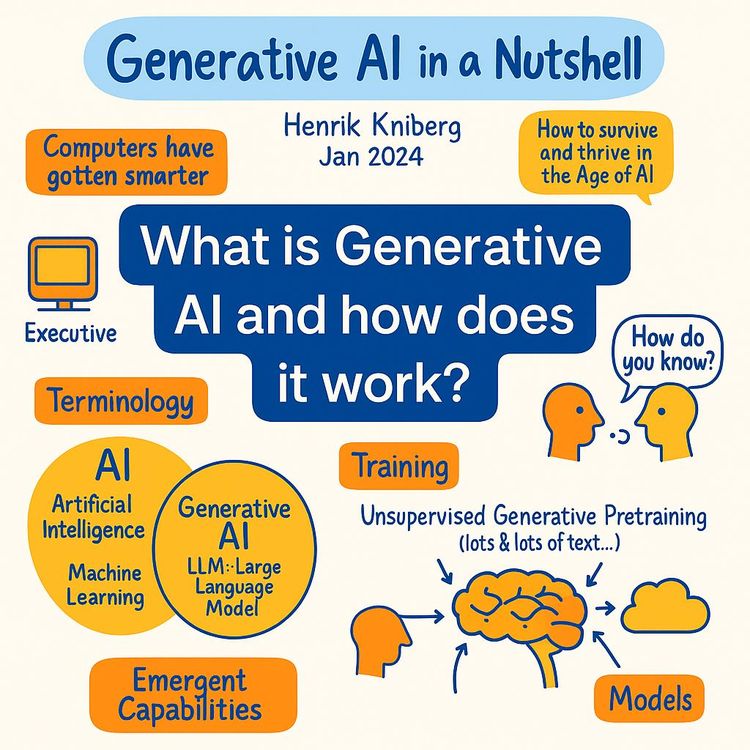
Video Course: What is Generative AI and how does it work?

Video Course: How to Use ChatGPT from Beginner to Professional
Video Course: How to Use Google Gemini for Google Workspace to Boost Productivity
Video Course: How to Use Claude 3.7 AI - Tips for Beginners!

Video Course: ChatGPT for Data Analytics: Full Course - from Beginners to Professional

Video Course: Generating Images and photos With ChatGPT?
Video Course: Generating Images & Photo's with MidJourney

Video Course: Generating Design's with Microsoft Designer and AI

Video Course: Generating Design's with Canva.com and AI
Join 20,000+ Professionals, Using AI to transform their Careers
Join professionals who didn’t just adapt, they thrived. You can too, with AI training designed for your job.