Google Gemini AI Free Course: Setup, Prompts, Tools & Gems (Video Course)
Stop treating Gemini like a chat box. This free course shows you how to set it up right, pick the right model, co-create in Canvas, build reusable Gems, plug in your files, and use voice/camera,so everyday work gets faster, smarter, and actually fun.
Related Certification: Certification in Implementing Gemini AI: Setup, Prompt Engineering, Tools & Gems
Also includes Access to All:
What You Will Learn
- Personalize Gemini: account tiers, Custom Instructions, and connected apps
- Choose models and use Canvas for iterative drafting and high-quality outputs
- Build and maintain Gems with knowledge bases to automate recurring tasks
- Use Deep Research, Guided Learning, and Visual Layout for dense reports and lessons
- Employ mobile voice, camera, and multimodal image/video features in real situations
- Set up Scheduled Actions and Notebook LM to automate workflows and manage files
Study Guide
Introduction: What This Course Covers and Why It Matters
Most people talk to AI like it's a search bar. They toss in a question, grab something passable, and move on. That's like owning a performance car and never leaving first gear. This course teaches you to drive Gemini properly,so you get outputs that are sharper, more relevant, and tailored to your actual life and work.
You'll learn how to set Gemini up the right way (the part most users skip). You'll master the interface, the models, and the tools that turn Gemini from a chat window into a full studio for creation, research, automation, and learning. You'll build your own specialized assistants with Gems. You'll integrate your files, notebooks, and Google apps so Gemini can work with your reality, not generic examples. You'll use Canvas to co-create, Guided Learning to study, Deep Research to go deep, and the mobile app to bring AI into the real world with your voice and camera.
By the end, you won't just "use Gemini." You'll have a fully personalized AI system that accelerates everything you do,professionally, academically, and personally. Let's turn you into the kind of person who gets asymmetrical returns from the same tools everyone else is dabbling with.
Mindset: From Asking Questions to Designing Systems
Gemini rewards users who treat it like a system, not a toy. The real edge comes from configuration, context, and consistency. You'll set rules once (Custom Instructions), connect the apps that hold your information, and build reusable assistants (Gems) that actually know your world. Then you'll choose the right model for the job and work inside Canvas when you need depth and iteration. That's how you go from "good enough" to work you're proud to publish, present, or ship.
Part 1 , Setup That Pays Off: Personalization and Configuration
Before you ask for anything big, set the stage. This is where quality is decided. Ten minutes here will save you hours later and ensures Gemini answers like a colleague who knows you, not a stranger on the internet.
Account Tiers: Start Free, Upgrade As Needed
Gemini has multiple tiers. The free plan is generous and perfect for getting started. Paid plans unlock more powerful models, increased limits, and advanced features like video generation, Personal Intelligence, and scheduled actions. The rule is simple: start free, upgrade when your workload demands it.
Examples:
1) You're drafting emails, brainstorming ideas, and doing light research. Free plan + Fast model handles most of it.
2) You're producing technical reports, generating higher-fidelity images, or want automated routines to run daily. Upgrade to access more robust models and features like Scheduled Actions.
Tips:
- Use the free plan to master workflow and prompting fundamentals first.
- Upgrade when you hit model limits regularly or need the advanced features below.
Custom Instructions: Tell Gemini Who You Are and What You Want
Custom Instructions is the quiet superpower. You set permanent preferences for tone, depth, structure, and context (like your role, devices, industry). Gemini applies these across chats, giving you answers that match your world out of the box.
How to configure:
- Open settings (gear icon).
- Go to Instructions for Gemini.
- Add your response style preferences and background details.
Examples:
1) "Give me structured answers with numbered steps and short summaries. Use practical examples. I prefer concise writing with clear subheadings."
2) "I'm a marketing manager using a MacBook and iPhone. Provide Apple-specific troubleshooting and marketing frameworks. Use audience insights and plain language."
Best practices:
- Be explicit about depth: "Start high-level, then dive deeper with options."
- Define tone: "Professional but warm. No corporate buzzwords."
- State recurring formats: "When I request emails, include subject lines + preview text."
- Add device context for troubleshooting support.
Connected Apps vs. Personal Intelligence
Gemini can access your Google world,Gmail, Drive, Calendar, Photos,so it can fetch information, summarize documents, and plan based on your actual schedule and files. There are two levels:
Connected Apps (on the free plan):
You manually ask Gemini to look into your apps. It won't automatically derive context unless you request it.
Personal Intelligence (on paid plans):
Gemini blends your past chats, Custom Instructions, and connected apps to deliver context-aware help without you constantly hand-holding it. This is where "assistant" becomes real.
Examples:
1) Connected Apps: "Check my Calendar next Tuesday, find a 60-minute block, and draft an email to invite my team. Include Zoom." Gemini looks at your calendar only because you asked.
2) Personal Intelligence: "Draft a weekly project update for leadership." Gemini references your past chats, your instructions, and key docs in Drive to pull a coherent update without you pointing at each document.
Tips:
- On free plans, be explicit: "Search my Drive for last quarter's proposal template titled 'Q4 Proposal' and adapt it."
- On paid plans, give high-level prompts: "Create a proposal based on our standard Q4 template and last week's client notes."
Privacy Option: Temporary Chat
When you want privacy, use Temporary Chat. It's an incognito-style session that isn't saved to history or used to train models. Use it for sensitive topics, confidential info, or early-stage thinking.
Examples:
1) Brainstorm compensation strategies without saving the discussion.
2) Test an idea you're not ready to document, like pivoting a product strategy.
Best practices:
- Use Temporary Chat for anything you wouldn't put in an email.
- After the session, export the final result if needed, then close the chat.
Part 2 , Core Interface and Models: Moving Smoothly and Choosing Wisely
The workspace is designed to remove friction. But the real advantage comes from selecting the right model for the right task and refining your prompts intelligently.
Navigation: New Chat, Temporary Chat, and My Stuff
New Chat: Start clean threads for different topics. Keeps context clear and prevents cross-contamination.
Temporary Chat: Private, no history, no training. Use when you need discretion.
My Stuff: A library for the assets you create with Gemini,images, documents, and more,separate from chat history. This makes it easier to track outputs across projects.
Examples:
1) New Chat for a new client brief so previous context doesn't leak in.
2) My Stuff to quickly grab all variants of a product image you generated over multiple sessions.
Tips:
- Name your chats intentionally: "Proposal , Fintech , Draft 1".
- Regularly clear or archive old chats to reduce mental clutter.
Choosing the Right Model: Fast, Thinking, Pro
Fast: Great for speed, brainstorming, quick answers, and general tasks. Free plan usage is abundant.
Thinking: Slower but higher quality. Use for important writing, complex planning, nuanced reasoning, and creative work that benefits from depth. Often has usage limits on free plans.
Pro: Specialized for coding and advanced math. Use when you need robust code generation, debugging, algorithmic reasoning, or step-by-step math.
Examples:
1) Fast: "List 10 hooks for a YouTube intro about productivity myths."
2) Thinking: "Draft a 1,500-word whitepaper with citations and a persuasive arc for mid-market CFOs."
3) Pro: "Write a function that computes the rolling standard deviation for a time series and include unit tests."
Best practices:
- Start with Fast for exploration, switch to Thinking for the final draft.
- When writing code or solving equations, switch to Pro early to save time.
Input Methods and Prompt Refinement
Microphone Input: Speaking your prompts is faster. Use it for brain-dumps, idea storms, or when you're multitasking.
Editing Prompts: You can edit your last prompt and regenerate. This is perfect for small corrections or narrowing scope without starting a new chat.
Examples:
1) Microphone: Dictate a meeting summary while walking, then ask Gemini to format it into bullet points and action items.
2) Edit Prompt: You asked for "marketing ideas" but got fluff. Edit to "marketing ideas for a B2B SaaS selling to HR directors with $50k ACV, 3 channels only."
Tips:
- Use voice for speed; follow up with a brief typed refinement for precision.
- When you see a good direction, lock it in: "This is the style. Keep this tone for all future drafts."
Part 3 , Canvas and Advanced Tools: Turn Gemini Into a Production Studio
Canvas is where you co-create. It's not just chat; it's a live editor, version control, and content transformer in one place. Then you've got specialized tools for images, videos, research, and study that make it a complete workspace.
Canvas: The Interactive Workspace
What it is: A side-by-side editor that lets you and Gemini work in the same document. You can revise directly, highlight areas, and ask for focused changes. It tracks versions and can transform content into multiple formats (webpage, infographic, quiz, flashcards, audio overview).
How to use it:
- Enable Canvas via Tools before or during a prompt.
- Draft with Gemini and edit live.
- Highlight any section and instruct: "Make this firmer," "Reduce fluff," or "Turn this into 3 bullet points with verbs."
- Use Create to convert the content into other formats.
Examples:
1) Draft a sales email in Canvas, highlight the intro, and ask: "Open with an insight, not a greeting." Then version and compare.
2) Write a lesson outline, click Create, generate an infographic and flashcards. Export both to Docs and present them to your study group.
Best practices:
- Work in passes: structure first, tone second, polish third.
- Use version toggles to A/B test direction.
- Export stable drafts to Docs to share with collaborators.
Multimodal Generation: Images and Video
Image Generation: Prompt Gemini with clear descriptions. Use Thinking for higher fidelity. You can also upload images for edits.
Video Generation (paid feature): Create short video clips from text or images. A smart workflow is to perfect a static image first, then animate it to conserve credits and improve quality.
Examples:
1) Image Generation: "Create a flat-lay image of a minimalist desk with a silver laptop, black notebook, ceramic mug, and warm side lighting." Then iterate: "Add a subtle grain texture and a plant in the top-right."
2) Image Editing: Upload your headshot and ask: "Retouch this for a professional profile,neutral background, consistent lighting, keep natural look."
3) Video: "Using this approved product image as the first frame, generate a 6-second loop with a gentle parallax and floating specs text."
Tips:
- Describe lighting, style, and mood for better images.
- For video, decide the first frame and the motion intent before generating.
Guided Learning: Turn Gemini Into a Tutor
What it is: An interactive teaching mode. You set the topic; Gemini explains, quizzes you, and adapts based on your answers.
Examples:
1) "Help me learn contract law for my exam. Start with offer, acceptance, consideration,quiz me after each section."
2) "Teach me SQL joins with examples. Give me progressive challenges and correct my answers."
Best practices:
- Combine with Canvas: keep your notes and quiz answers in one place.
- Ask for layered difficulty: "Beginner, then intermediate, then advanced problems."
Deep Research: Dense, Technical, and Structured
What it is: A tool for heavy, structured reports with charts, references, and technical language. Great for literature overviews, industry briefs, and deep-dive memos.
Examples:
1) "Produce a detailed report on the market for AI-enabled note-taking tools, including market segmentation, key players, pricing tiers, and a feature matrix."
2) "Create a technical briefing on vector databases for non-engineers with analogies, diagrams, and migration risks."
Tips:
- Specify audience and purpose to control tone: "For executives, 5-minute read, with optional appendices."
- Ask for a summary at top and a decision section at the end.
Visual Layout (Labs): Highly Visual Answer Formats
What it is: An experimental feature that presents results in a magazine-like layout with images, carousels, and embedded media. Useful for concept decks, learning materials, or shareable briefs.
Examples:
1) "Summarize the key takeaways from these five articles with images and a card-style layout."
2) "Create a visually rich overview of stoicism with quotes, short explanations, and a resource carousel."
Best practices:
- Use when presentation matters,client-facing or educational materials.
- Pair with Canvas to finalize the narrative before visualizing.
Part 4 , Gems: Build Your Own Specialized AI Assistants
Gems are reusable, customized instances of Gemini. Think of them as your personal AI employees: each one has a job, instructions, tools, and a knowledge base. This is where automation and specialization meet.
My Gems: The Three Core Components
1) Custom Instructions per Gem: You define the role, tone, scope, and rules for this specific assistant.
2) Default Tools: Decide which tools load by default (e.g., Canvas for writing tasks).
3) Knowledge Base: Upload PDFs, docs, or connect a Notebook LM collection so the Gem has a permanent reference library.
Examples:
1) Email Helper Gem: "You are a professional email editor for B2B. Tighten language, reduce hedging, include subject + preview line, and keep the brand's voice guide in mind." Default Tool: Canvas. Knowledge: "Brand Voice Guide.pdf".
2) Proposal Builder Gem: "As a proposal architect, follow our 'Problem → Solution → Proof → Plan → Price' structure. Always ask clarifying questions before drafting." Knowledge: "Proposal Templates" folder in Drive or Notebook LM collection.
Best practices:
- Write instructions like SOPs. Clear beats clever.
- Upload your style guides, templates, and FAQs to the Knowledge section.
- Test with edge cases and refine the instructions until the Gem performs without hand-holding.
Gems from Labs (Experimental Mini-Apps)
You can describe an idea and let Gemini generate a simple, AI-powered app. Then iterate conversationally to adjust features.
Examples:
1) "Create a task management app for YouTube creators that prioritizes tasks by expected ROI and automates script bullet points from a video brief."
2) "Build a content calendar mini-app that scores ideas by novelty, difficulty, and potential reach. Include export to Sheets."
Tips:
- Start with the user journey: inputs, outputs, decisions.
- Add constraints: permissions, formats, and naming conventions.
Maintaining and Improving Your Gems
Treat Gems like living systems. Update their instructions as your processes evolve. Add new files to their knowledge base. Keep versions if you work in teams.
Examples:
1) Update your Email Helper Gem with a new rule: "No more than 8 sentences per email unless otherwise noted."
2) Add this quarter's case studies to your Proposal Builder Gem so it can include fresh proof points automatically.
Best practices:
- Schedule a monthly review: what worked, what confused it, what needs tightening.
- Keep knowledge sources clean and labeled so the Gem doesn't drift.
Part 5 , System Integration and Automation
Connect your files and set recurring routines. This is how you move tasks off your plate completely.
File Handling and Notebook LM
File Handling: Upload PDFs, documents, and images directly. Ask Gemini to summarize, compare, extract, or transform them. This is perfect for proposal kits, research bundles, or onboarding material.
Notebook LM Integration: Notebook LM organizes sources into notebooks you can query with Gemini. It's fantastic for project-based work where you want a curated set of materials.
Examples:
1) Upload four competitor PDFs and ask: "Create a comparison table with features, pricing, and differentiators. Highlight gaps we can exploit."
2) Load a Notebook LM collection called "Climate Grant Research" and ask: "From this collection, draft a funder-specific letter of intent with the most relevant data points."
Tips:
- Label files clearly: "Case Study , Fintech , 2023.pdf" is better than "final_v7.pdf".
- For Notebook LM, group sources by project and keep each collection focused.
Scheduled Actions (Paid Feature)
Automate recurring prompts and workflows. You set the time and frequency, Gemini does the rest, and you get mobile notifications.
Examples:
1) "Every weekday at 7 a.m., scan top industry newsletters and summarize 5 key insights with links."
2) "Every Friday at 3 p.m., review my Calendar next week, surface conflicts, suggest 3 focus blocks, and draft emails to reschedule low-priority meetings."
Best practices:
- Make outputs actionable (bullets, links, next steps).
- Add constraints: "3 bullets per item, max 120 words each."
- Review the first few runs, then let it run unattended.
Part 6 , The Mobile Experience: Bring Gemini Into Your Real Life
Gemini on mobile isn't a smaller version of the web app. It adds unique abilities,camera intelligence and real-time voice,so you can learn, plan, and create hands-free.
Camera Functionality
Open the camera, point at an object, document, or scene, and ask for help. It's a real-time assistant for translation, identification, and analysis.
Examples:
1) Snap a photo of ingredients in your kitchen. "What can I cook in 25 minutes? List 2 options with steps."
2) On a trip, point at a sign in another language. "Translate and explain the tone,formal or casual?"
Tips:
- Good lighting improves recognition.
- Ask for step-by-step guidance: "Identify this plant, care instructions, and sunlight needs."
Real-Time Voice Chat
Beyond dictation, this enables a back-and-forth conversation. Perfect for driving, walking, or cooking. Turn on the camera mid-conversation to discuss what you're seeing.
Examples:
1) "I'm driving. Help me think through a product launch timeline. Ask questions, then summarize next steps at the end."
2) "I'm at the hardware store looking at two paint options. Based on this photo and lighting, which finish should I pick?"
Best practices:
- Treat it like a coach: "Challenge my assumptions and ask me to clarify."
- End voice sessions with: "Summarize actions and send them to my email."
Part 7 , Practical Prompting: Patterns That Get Reliable Results
Prompts are not poems. They're specs. Good prompts define context, constraints, and the finish line. Use these patterns across tasks to get consistent quality.
Pattern: Role → Goal → Inputs → Constraints → Output
- Role: who Gemini is acting as.
- Goal: what success looks like.
- Inputs: data, files, or assumptions.
- Constraints: length, tone, audience.
- Output: format and sections.
Examples:
1) "Act as a proposal architect. Goal: win mid-market HR buyers. Input: company overview below. Constraints: plain English, 1,000-1,200 words, include pricing table. Output: proposal draft with Executive Summary, Approach, Proof, Plan, Price."
2) "Act as a tutor. Goal: help me master supply and demand curves. Input: I'm new to economics. Constraints: visual explanations, 3 practice questions per concept. Output: a study plan with diagrams and quizzes."
Tips:
- Add "ask 5 clarifying questions before you start" for complex projects.
- For iteration: "Keep the structure. Only edit tone and clarity."
Part 8 , Real-World Applications Across Domains
Now let's map the features to real life: education, professional work, and personal use. This is where you'll feel the difference between dabbling and mastery.
Education: Students and Educators
Student Workflow:
- Use Guided Learning for concept mastery.
- Draft notes and summaries in Canvas with version control.
- Use Create to generate flashcards, quizzes, infographics.
- Use Deep Research for advanced essays, and ask for "key sources + counterarguments."
Examples:
1) "Guided Learning: Teach me the American Revolution. After each section, quiz me with 3 questions. Then generate flashcards from my wrong answers."
2) "Deep Research: Write a 1,200-word argument on the causes of the industrial boom. Include 3 counterpoints and a visual timeline."
Educator Workflow:
- Plan lessons in Canvas, then Create infographics and quizzes.
- Build a Gem with a curriculum guide uploaded as the knowledge base for fast, consistent materials.
Examples:
1) "Create a week-long lesson plan on photosynthesis with daily objectives, in-class activities, and homework."
2) "Generate an infographic summarizing cellular respiration with key equations and labels for students."
Professional: Knowledge Workers, Managers, and Developers
Knowledge Workers & Managers:
- Use Canvas for proposals, memos, and SOPs.
- Build an Email Helper Gem with your style guide.
- Use Scheduled Actions to track industry news and prep weekly briefs.
Examples:
1) "Every weekday at 8 a.m., summarize top 5 headlines in my industry with 2-line commentary and source links."
2) "Draft an SOP for onboarding new clients with a checklist, timeline, and email templates."
Developers:
- Switch to Pro model for coding tasks.
- Use Canvas to iterate on code explanations and documentation.
- Upload design docs and ask for test plan generation.
Examples:
1) "Generate Python code to parse large CSV files, handle missing values, and output an aggregated report. Include docstrings and tests."
2) "Review this PR description and propose test cases based on acceptance criteria."
Personal Use: Daily Life, Planning, and Creativity
AI can also reduce the friction of everyday decisions.
Examples:
1) Trip Planning: "Check my Gmail for flight confirmations and my Calendar for open days. Draft a 3-day itinerary in Lisbon with food, culture, and light hiking. Include reservation links."
2) Cooking and Health: Snap your pantry, ask for 2 balanced meals with calorie estimates, and get a shopping list with quantities.
Tips:
- Use voice when moving; ask for next steps to be emailed or added to Calendar.
- Keep a Personal Projects Gem with hobbies and routines so Gemini remembers your preferences.
Part 9 , Implementation Playbook: Setup to Habit
You'll get the most from Gemini by installing a few habits. Here's a sequence you can repeat across projects.
All Users:
- Configure Custom Instructions with tone, depth, and device info.
- Connect apps you're comfortable sharing (Gmail, Drive, Calendar).
- Create one Gem for your most repetitive task (usually email, meeting notes, or reports).
Examples:
1) Build an Email Helper Gem with your voice guide and signature.
2) Connect Calendar and set a daily prep routine: "Every morning, summarize my schedule, conflicts, and top 3 priorities."
Students & Educators:
- Learn Canvas deeply. Use Create to transform content into multiple formats.
- Use Guided Learning weekly on your toughest subject.
Examples:
1) "Use Canvas to turn lecture notes into an infographic + flashcards for Friday's review."
2) "Guided Learning on statistics concepts with practice problems and solutions."
Professionals:
- Identify one rule-based task and turn it into a Gem with a knowledge base.
- Use Notebook LM to organize project docs and connect them to Gemini.
Examples:
1) "Build a 'Quarterly Report Builder' Gem that knows our standard sections and pulls from a Notebook LM folder called 'Q Reports'."
2) "Gem: 'Meeting Summarizer' with instructions to detect decisions, owners, and deadlines."
Mobile Users:
- Use real-time voice chat for planning, coaching, and brainstorming on the go.
- Use the camera for translation, identification, and step-by-step guidance.
Examples:
1) "During a walk, outline a 5-part content series while Gemini asks you clarifying questions and emails you the summary."
2) "Use the camera to analyze a whiteboard after a meeting; ask Gemini to clean it up and send a Markdown summary."
Part 10 , Advanced Workflows and Patterns
Once you're fluent, stack tools and features for compounding results.
Workflow: Research → Draft → Transform → Automate
- Research with Deep Research or uploads + Notebook LM.
- Draft in Canvas using Thinking for quality.
- Transform with Create into slides, infographics, or quizzes.
- Automate updates with Scheduled Actions (if needed).
Examples:
1) Industry Landscape: Upload 5 reports → Deep Research summary → Canvas draft → Create a client-facing infographic → Weekly Scheduled Action to update trends.
2) Team Training: Build a Guided Learning course → Convert to flashcards and a quiz → Schedule monthly review reminders.
Best practices:
- Keep a prompt library: proven prompts for research, drafting, and editing.
- For any recurring deliverable, build a Gem with attached templates.
Part 11 , Troubleshooting, Quality Control, and Privacy
Things won't be perfect out of the gate. Here's how to fix and protect.
Quality Control:
- When outputs feel generic, increase context in the prompt or switch to Thinking.
- If the tone feels off, paste a writing sample and say: "Mirror this tone exactly."
- For factual tasks, ask: "List sources and rate confidence."
Examples:
1) "Rewrite this section with fewer qualifiers. Remove 'might,' 'maybe,' and 'could' unless necessary."
2) "Present two versions: Version A direct and punchy; Version B more diplomatic for risk-averse readers."
Usage Limits & Model Switching:
- If you hit limits on Thinking, pivot to Fast for exploration, then return to Thinking for final drafts.
- For code/math, use Pro to avoid back-and-forth.
Privacy Choices:
- Use Temporary Chat for sensitive topics.
- Connect only the apps you need; you can toggle access anytime.
- Keep confidential details out of persistent Custom Instructions if not necessary.
Examples:
1) Use Temporary Chat to draft a delicate HR memo, then export final text outside Gemini.
2) Disconnect Drive temporarily when working on proprietary client materials you don't want discoverable.
Feature-by-Feature Deep-Dive With Examples and Best Practices
Here's a comprehensive roll-up to ensure you've absorbed every key concept and can deploy it with confidence.
1) Initial Configuration and Personalization
- Account tiers: Start free, upgrade when work demands higher limits, better models, or features like video and scheduling.
- Custom Instructions: Define response style and user info (profession, devices).
- Personal Intelligence (paid): Blends past chats, instructions, and connected apps for context-aware outputs.
- Connected Apps (free): Explicitly request access to Gmail, Drive, Calendar when needed.
Examples:
1) Custom Instructions: "I prefer structured answers with summaries and examples. Speak in plain English."
2) Personal Intelligence: "Generate a weekly progress report using last week's chats and the 'Project Phoenix' folder in Drive."
2) Core Interface and Functionality
- Navigation: New Chat, Temporary Chat, My Stuff.
- Models: Fast (speed), Thinking (quality), Pro (code/math).
- Input methods: microphone for fast prompting; prompt editing for tighter iterations.
Examples:
1) Use Temporary Chat to draft a negotiation plan without saving history.
2) Edit the last prompt to narrow scope: "Limit to 3 options and a recommended pick with reasoning."
3) Advanced Tools and Capabilities
- Canvas: live editing, version control, content transformation (webpage, infographic, quiz, flashcards, audio).
- Multimodal: image generation and editing; video generation (paid).
- Guided Learning for tutoring.
- Deep Research for dense reports with visuals.
- Visual Layout (Labs) for magazine-style presentations.
Examples:
1) Canvas: Highlight a paragraph and command: "Reduce to 2 punchy sentences." Then compare versions.
2) Deep Research: "Create a technical brief on zero-trust architecture for non-technical stakeholders with diagrams."
4) Customization with Gems
- My Gems: custom instructions, default tools, knowledge base via uploaded files or Notebook LM.
- Gems from Labs: Generate simple mini-apps and iterate conversationally.
Examples:
1) My Gem: "Email Helper" with brand style guide; default Canvas; outputs with subject + preview line.
2) Labs: "Mini-app to score lead quality from a CSV and output a ranked list with next actions."
5) System Integration and Automation
- File handling: analyze PDFs, images, docs.
- Notebook LM: curate a source collection and query within Gemini.
- Scheduled Actions (paid): automate recurring tasks and receive notifications.
Examples:
1) "Every Monday, summarize my meeting notes from last week and propose 3 priorities."
2) "From Notebook LM 'Client Research,' build a one-pager per client with value props and objections."
6) Mobile Experience
- Camera: identify, translate, analyze in real time.
- Real-time voice chat: hands-free, conversational problem-solving; activate camera mid-conversation.
Examples:
1) "Explain this machine's instruction label and tell me the safe operation steps."
2) "I'm walking. Help me rehearse my presentation. Interrupt me with feedback when I ramble."
Skill Drills: Small Reps That Build Mastery
Practice with short, focused tasks to internalize the workflow.
Drill 1 , Custom Instructions Tuning:
Write your Custom Instructions. Ask Gemini to review them and propose improvements tailored to your goals. Iterate twice.
Drill 2 , Canvas Passes:
Draft a 500-word piece in Fast. Switch to Thinking and do three passes: structure, tone, polish. Export final.
Drill 3 , Build Your First Gem:
Create an "Email Helper" Gem with your brand guide. Test on three emails: intro, follow-up, difficult conversation.
Drill 4 , Mobile Camera Workflow:
Photograph a messy whiteboard. Ask Gemini to extract tasks, owners, and deadlines. Email the summary to your team.
Drill 5 , Scheduled Action:
Set a daily brief for industry news with 3 bullets and links. Refine format after 3 days.
Common Mistakes and How to Avoid Them
Mistake: Treating Gemini like a search engine.
Fix: Provide role, audience, and constraints. Ask for clarifying questions.
Mistake: Using one model for everything.
Fix: Fast for exploration, Thinking for quality, Pro for code/math.
Mistake: Ignoring Canvas.
Fix: Use it for any task that benefits from drafts, versions, and transformations.
Mistake: Not building Gems for recurring tasks.
Fix: Turn repeated workflows into Gem SOPs with attached knowledge.
Mistake: Forgetting privacy options.
Fix: Use Temporary Chat for sensitive work. Toggle app connections consciously.
Sample Prompts You Can Copy and Use
Canvas Editing Prompt:
"In Canvas, improve clarity and remove filler. Keep structure. Output: version A (concise), version B (story-driven)."
Guided Learning Prompt:
"Tutor me on Bayesian reasoning. Start simple, escalate difficulty, quiz me after each concept, and correct in detail."
Deep Research Prompt:
"Create a technical report on privacy-preserving analytics for business leaders with visuals, risks, and vendor landscape."
Gem Setup Prompt (Instructions):
"You are my Proposal Builder. Always follow: Problem, Solution, Proof, Plan, Price. Ask 5 clarifying questions before drafting. Keep tone: confident and plain English."
Mobile Voice Prompt:
"I'm walking. Help me plan a 6-week content sprint for LinkedIn. Ask me about audience, goals, and resources. Summarize with deadlines."
Performance Routines: Weekly, Monthly, Quarterly
Weekly:
- Review Scheduled Actions output quality.
- Clean up My Stuff and tag key outputs.
- Add new docs to Notebook LM collections as projects evolve.
Monthly:
- Audit your Gems: update instructions, add new examples, prune old files.
- Refine Custom Instructions based on what actually helps.
Quarterly:
- Build one new Gem for a task you still do manually.
- Refresh templates (proposals, reports, emails) with new best examples.
Final Recap: The Key Insights You Shouldn't Forget
- Personalization is everything. Custom Instructions and connected apps multiply quality. If output feels generic, fix setup first.
- Pick the right model for the job. Use Fast for ideation, Thinking for important deliverables, Pro for code and math.
- Canvas is your creative workshop. Draft, iterate, compare versions, and transform content into multiple formats without leaving the space.
- Gems remove repetition. Turn your recurring tasks into specialized assistants with their own instructions and knowledge.
- Mobile unlocks new modes. Real-time voice and camera input make Gemini useful when you're not at your desk.
- Privacy is always available. Temporary Chat gives you a safe space for sensitive work.
Conclusion: Turn Knowledge Into Leverage
You've seen what Gemini can do when it's properly configured, when you work inside Canvas, when you select the right model, and when you build specialized Gems with real knowledge behind them. You've learned how to bring your files and notebooks into the system, how to automate the boring parts with Scheduled Actions, and how to use your voice and camera on mobile to turn idle moments into progress.
Here's the punchline: none of this helps if you keep asking generic questions. Configure your Custom Instructions. Connect the apps you trust. Build one Gem this week. Use Canvas for your next deliverable. Try Guided Learning for a topic you avoid. Set one Scheduled Action. Take a picture of something confusing and ask for help. Small reps, repeated, turn into a compounding edge.
Before we close, quick check that we covered everything from the plan: personalization and account tiers, Custom Instructions and Connected Apps, Personal Intelligence, navigation basics including New Chat, Temporary Chat, and My Stuff, model selection (Fast, Thinking, Pro), microphone input and prompt editing, Canvas with live editing, version control, and content transformation, multimodal generation (image and video), Guided Learning, Deep Research, Visual Layout, My Gems with instructions, default tools, and knowledge bases, Labs mini-apps, file handling and Notebook LM, Scheduled Actions, mobile camera and real-time voice chat, plus practical applications across education, professional work, and personal life, with privacy options throughout. All in here.
Use this course as your blueprint. The system you design today becomes the assistant that saves you hours tomorrow. Build once, iterate often, and let Gemini do the heavy lifting while you focus on the work only you can do.
Frequently Asked Questions
This FAQ exists to answer real questions people have before, during, and after learning Gemini,so you can skip trial-and-error and get results faster.
It moves from basics to advanced workflows, clarifies feature differences by plan, and includes practical examples for business use. Use it as a reference while you build your own playbook.
Getting Started
What is Google Gemini?
Gemini is a multimodal conversational AI that works with text, images, audio, and files to help you think, create, and ship work faster.
It can draft emails, summarize long documents, generate or review code, outline strategies, create images, plan projects, and teach complex topics in plain language. You interact with it through a chat interface on web or mobile, and you can connect it to Google services for context (Gmail, Drive, Calendar, YouTube). Think of it as a flexible teammate: you set the intent and constraints; it does first drafts, analysis, and iteration. For business use, it's strong at research synthesis, meeting prep, content repurposing, and structured workflows. Example:
"Summarize this client deck (PDF), extract the top 5 risks, and draft a concise reply email with three options."
How do I access Gemini and what are the pricing plans?
Use the web app at gemini.google.com or the mobile app; plans range from free to premium tiers with higher limits and extra features.
The free plan gives you core functionality and the Fast model. Paid tiers increase access to higher-reasoning models, add features like video generation and scheduled actions, and raise usage limits. Availability can vary by region and account. You sign in with your Google account; if you're already signed into Gmail or Calendar, you're likely good to go. Start on free to learn the basics, then upgrade when you consistently hit limits or need automation and heavier research. Example:
Free: daily ideation and email drafting. Paid: run Deep Research, automate daily news briefs, generate videos, and connect broader context across apps.
Do I need to be signed into a Google account to use Gemini?
Yes,signing in unlocks history, instructions, connected apps, and cross-device continuity.
Being signed in lets Gemini remember your chat history (unless you use Temporary Chat), apply your custom instructions, and use your connected services (Gmail, Drive, Calendar, YouTube) when you ask for them. It also enables smoother use on mobile and the web. For work, consider using your company-managed account for data governance and access control. Example:
"Check my calendar next Tuesday afternoon for open time blocks and propose two 30-minute slots for a client call."
Setup, Personalization, and Privacy
How can I customize Gemini's responses to fit my preferences?
Use Instructions for Gemini to set tone, format, and context once,then stop repeating yourself.
Go to Settings → Instructions for Gemini. Add your role, audience, writing style, structure, tool preferences, and any do/don't rules. You can specify brand voice, length, and call-to-action styles. This context applies across chats, so your outputs stay consistent. Keep it short, specific, and easy to maintain. Update it monthly as your needs shift. Example:
"I'm a B2B SaaS marketer. Write in concise, practical language. Use bullet-point summaries and end with an action step. Prioritize accuracy over flair."
How does Gemini remember personal information about me?
Two paths: put details in Instructions, or ask Gemini to remember a fact during chat (it will confirm and store it).
Instructions define standing preferences and bio info. During a conversation, you can also say "Remember that I…" and Gemini will confirm it's stored. You can review and manage this info in your settings page. Keep sensitive details out of persistent memory; use Temporary Chat for sensitive topics. Example:
"Remember that I manage a remote team across PST and EST, and I prefer meeting agendas with decision points at the top."
What is the difference between Connected Apps on the free and paid plans?
Free: on-demand access when you ask for it. Paid: deeper contextual integration for more intuitive help.
On free, you can connect Gmail, Drive, Calendar, and YouTube, but you typically need to prompt explicitly ("Check Drive for the project roadmap"). On paid plans, a feature often called Personal Intelligence can more fluidly tie together your instructions, past chats, and connected apps for richer context. App availability, behavior, and limits may vary by account. Always review permissions before connecting. Example:
"Summarize this Drive folder's proposals and list open action items assigned to me this week."
How can I have a private conversation that isn't saved or used for training?
Use Temporary Chat for sensitive work; it doesn't save to history or feed model improvement.
Temporary Chat acts like an incognito session: no history, no personalization, and no model training from that conversation. This is ideal for confidential planning, early product ideas, or HR topics. Opting out of training globally can limit features, so keep your default experience normal and switch to Temporary Chat only when needed. Always avoid sharing regulated data unless your organization's policies explicitly allow it. Example:
"Temporary Chat: draft a restructuring announcement with three tone options,direct, empathetic, and neutral."
Should I use a work or personal account for business tasks?
Use your organization-managed account for business work to align with security, compliance, and data retention policies.
Company accounts let admins control access, audit activity, and enforce policies. Keep personal creative experiments on your personal account to avoid commingling. If you collaborate externally, share outputs (Docs/links) rather than raw chats to reduce exposure. When switching accounts, double-check which account is active in your browser to prevent cross-over. Example:
Draft in a work account, export to a company Doc, and share with the team via your corporate Drive.
Chat, Prompting, and Files
What are the different conversation models like "Fast," "Thinking," and "Pro"?
Fast = speed, Thinking = depth, Pro = specialized math/coding,pick based on stakes and complexity.
Fast handles brainstorming, summaries, and simple tasks quickly. Thinking invests more compute for nuanced reasoning, structured writing, and heavier analysis (use it when quality matters). Pro targets advanced math/coding scenarios and may be overkill for general tasks. Free plans typically have unlimited Fast and limited Thinking; paid plans raise those limits and may offer Pro access. Switch models when you shift from ideation to final-draft work. Example:
Start with Fast to outline a proposal, then switch to Thinking to refine the executive summary and risk section.
Certification
About the Certification
Get certified in Google Gemini AI setup, prompts, tools, and Gems. Configure models, co-create in Canvas, build reusable Gems, integrate files, and use voice/camera to ship faster content, automate workflows, and produce reliable AI-assisted work.
Official Certification
Upon successful completion of the "Certification in Implementing Gemini AI: Setup, Prompt Engineering, Tools & Gems", you will receive a verifiable digital certificate. This certificate demonstrates your expertise in the subject matter covered in this course.
Benefits of Certification
- Enhance your professional credibility and stand out in the job market.
- Validate your skills and knowledge in cutting-edge AI technologies.
- Unlock new career opportunities in the rapidly growing AI field.
- Share your achievement on your resume, LinkedIn, and other professional platforms.
How to complete your certification successfully?
To earn your certification, you’ll need to complete all video lessons, study the guide carefully, and review the FAQ. After that, you’ll be prepared to pass the certification requirements.
Other AI Video Courses
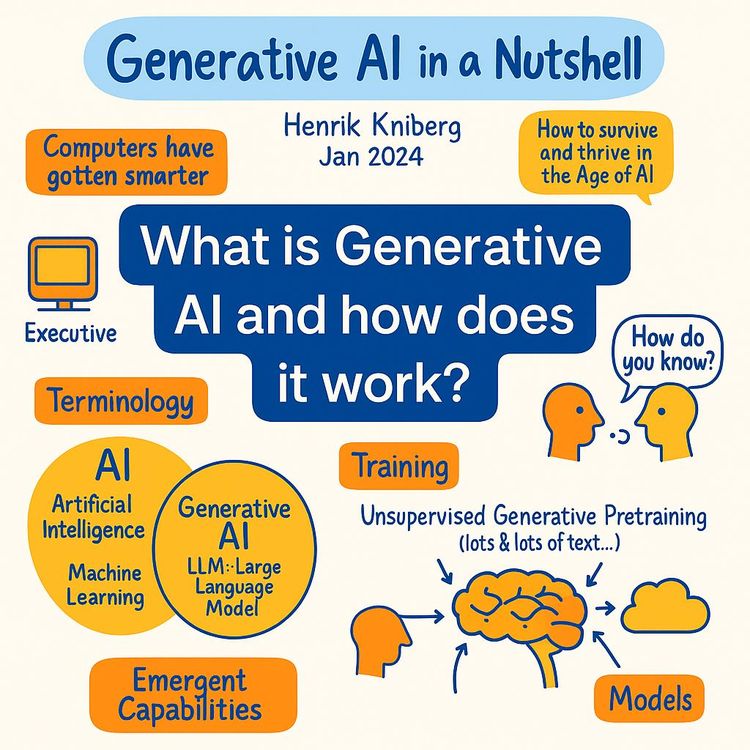
Video Course: What is Generative AI and how does it work?

Video Course: How to Use ChatGPT from Beginner to Professional
Video Course: How to Use Google Gemini for Google Workspace to Boost Productivity

Video Course: How to Use Claude 3.7 AI - Tips for Beginners!

Video Course: ChatGPT for Data Analytics: Full Course - from Beginners to Professional

Video Course: Generating Images and photos With ChatGPT?

Video Course: Generating Images & Photo's with MidJourney
Video Course: Generating Design's with Microsoft Designer and AI

Video Course: Generating Design's with Canva.com and AI
Join 20,000+ Professionals, Using AI to transform their Careers
Join professionals who didn’t just adapt, they thrived. You can too, with AI training designed for your job.