Notion AI for Beginners: Build Databases, Dashboards, Automations (Video Course)
Go from blank page to a calm, action-ready workspace. Learn blocks, pages, and databases, then build real systems,projects, tasks, a Book Tracker, even a simple CRM. Buttons, formulas, and Calendar tie it all together so you get more done with less noise.
Related Certification: Certification in Building Notion AI Databases, Dashboards & Automations

Also includes Access to All:
What You Will Learn
- Build pages and layouts using blocks, templates, icons, columns, and callouts
- Create relational databases with views, filters, sorts, and rollups (Tasks, Projects, Books)
- Design a Project + Task system with Relations, Rollups, and a command-center dashboard
- Time-block and track work using Notion Calendar, Date properties, and Time Entries
- Write formulas and add buttons/automations to reduce repetition and surface insights
- Set up Teamspaces, groups, and permission models for scalable team collaboration
Study Guide
Learn Notion - Full Course for Beginners
Notion looks simple on the surface: a blank page, some text, maybe a list. But underneath, it's a modular system that lets you design your own personal or business OS. This course walks you from zero to confidently building dashboards, databases, automations, and team workspaces that actually reduce mental load and increase output. You'll learn the fundamentals (blocks, pages, databases), then move into real systems (projects, tasks, knowledge bases), and finish with advanced moves (formulas, buttons, automations, permission models, and teamspaces). If you want one tool to run your life or your entire business, this is it,and this guide shows you how to do it right, from day one.
You'll build things as you learn: an "About Me" page for practice, a Book Tracker, a full Project + Task system, time blocking with Notion Calendar, a simple CRM, and a team-ready dashboard. You'll understand not just where to click, but how to think about structure so your workspace stays usable as you grow.
The Two Core Ideas That Make Notion Different
Before anything else, lock in these two ideas. They explain why Notion can replace a dozen tools when used well.
1) Everything is a block
Every piece of content (a paragraph, heading, image, to-do item, database, callout, toggle, embed) is a movable, reusable block. Hover any block and you'll see a six-dot handle you can drag to reorder or move into columns. Type "/" to summon the command menu and insert anything instantly. This is how you build pages fast and keep them clean.
Examples:
- Example 1:
Create a meeting note with a Heading 2 for the meeting title, a Date block, a To-Do list for action items, and a Toggle for "Notes" that hides the long transcript until you need it.
- Example 2:
Design a habit page with columns: left column is a callout explaining your current focus, right column is a checklist for daily habits and a quote block for a reminder you want to see each morning.
Tips:
- Get comfortable with "/" + the block name (e.g., /h2, /todo, /toggle, /callout).
- Use columns to reduce scroll and put related info side-by-side.
- Use callouts for key info and toggles to "declutter" long pages.
2) Pages are supercharged folders
Notion doesn't use traditional folders. Everything is a page, and pages can contain blocks and more pages inside them. Think of a page as a "superfolder" that can include context,text, images, instructions, links, and dashboards,alongside its subpages. This makes navigation faster and your thinking clearer.
Examples:
- Example 1:
A top-level "Personal" page that includes a short note about your focus, links to "Projects," "Areas," and "Resources," and a linked database view for "Today's Tasks."
- Example 2:
A "Work" page that acts as a hub with an icon, a cover, a short mission statement, and subpages for "Projects," "SOPs," "Meetings," and a company dashboard.
Tip:
Nest pages to reflect how you think, not how a computer demands you file things. Fewer levels, more context on each hub page.
Key Concepts and Terminology (So You Speak Notion Natively)
Block: The atomic unit of content. Everything is a block.
Page: A canvas that holds blocks and nested pages.
Slash command (/): Type "/" to insert blocks fast (headings, lists, media, databases, callouts, toggles, etc.).
Database: A structured collection of pages with properties. Think spreadsheets that are also pages. Views can be Table, Board, List, Gallery, Calendar, Timeline.
Property: A piece of metadata on a database entry (Status, Date, Person, Number, Text, etc.).
Relation: A property that links entries between databases (e.g., tasks to projects).
Rollup: Aggregates data from a related database (e.g., % of tasks completed for a project).
View: A customized interface (filters, sorts, groups) for the same database.
Linked view: A view of an existing database placed on a different page. This is how you build dashboards.
Database template: A prebuilt page layout and pre-filled properties for new entries in a database.
Teamspace: A top-level container for teams or departments with scoped permissions.
Working With Pages Like a Pro
Concept:
Your page is a flexible canvas. Style it so your brain wants to use it daily. Focus on clarity and speed.
Styling:
- Add an icon and a cover for quick visual recognition.
- Use the page menu to switch fonts, enable small text, and toggle full width. Use full width for dashboards and databases; default width for reading/writing.
- Headings (/h1, /h2, /h3) create hierarchy; Divider (/div) separates sections; Callout highlights rules or decisions; Toggles hide long explanations.
Applications:
- Meeting notes that follow the same structure each time (Attendees, Agenda, Notes, Actions).
- A reading page with quotes, highlights, and linked books from your Books database.
Examples:
- Example 1: About Me Page (practice)
Two columns: left has a quote and short bio, right has an image. Below, Heading 2 sections for "About," "Experience," and "Skills," each separated by a Divider. Add toggle blocks for "Fun Facts" and "Contact."
- Example 2: Weekly Review Page
Heading 2 "Wins," Heading 2 "Lessons," Heading 2 "Adjustments for Next Week." Add a linked view of Tasks filtered to "Completed in the last 7 days" under Wins, and another linked view for "Overdue" under Adjustments.
Tips:
- Keep pages scannable. Headings every few paragraphs, callouts for key rules, toggles for details.
- Reuse layout patterns you like; turn them into page templates.
Databases: The Engine of Your System
Concept:
Databases turn Notion from "nice notes" into an operating system. Each row is its own page. Properties describe each page. Views help you see the same dataset in different ways.
Create databases inline or full page:
Inline for local context (a small table on a page). Full-page for "backend" databases that power your dashboards. Each entry can hold content,notes, checklists, images,just like any page.
Essential properties and when to use them:
- Text: Short notes or titles (e.g., "Call script summary").
- Number: Budgets, scores, quantities (e.g., "Estimated Hours").
- Select: Single tag like Priority (High, Medium, Low).
- Multi-select: Multiple tags like Topics (Marketing, Ops, Legal).
- Status: For workflows (To Do, In Progress, Done). It supports grouped status stages.
- Date: Deadlines, publish dates, event ranges. Can include time.
- Person: Assign ownership (e.g., "Responsible").
- Checkbox: Simple true/false (e.g., "Approved").
- Files & media: Upload assets (e.g., draft PDFs or images).
- URL / Email: Links and addresses.
- Relation: Link to entries in another database.
- Rollup: Aggregate information from related entries (counts, percentages, sums).
Examples:
- Example 1:
Tasks database with Name, Status (To Do, Doing, Done), Due Date, Person (Assignee), Priority (Select), Project (Relation).
- Example 2:
Books database with Book Title, Status (To Read, Reading, Read), Author (Select), Tags (Multi-select), Rating (Number), Cover (Files & media).
Advanced properties: Relations and Rollups
- Relation links Tasks → Projects so each task belongs to a project and each project shows its tasks.
- Rollup on Projects counts tasks done / total and computes a progress percentage.
Examples:
- Example 1:
Projects roll up "% Complete" based on related Tasks where Status = Done.
- Example 2:
CRM: Contacts relate to Companies. Companies roll up "Total Deals" and "Last Contacted."
Views, filters, sorts, and groups
- Views: Table (all properties), Board (Kanban by Status/Select), List (clean quick list), Gallery (cards with cover), Calendar (date-based), Timeline (roadmaps).
- Filters: Only show what matters ("Assigned to me," "Due this week").
- Sorts: Order by Due Date, Priority, or Name.
- Groups: Visually group by Status, Priority, or Assignee.
Examples:
- Example 1:
A Board view of Tasks grouped by Status for kanban flow.
- Example 2:
A Calendar view of a Content database to see scheduled posts.
Linked databases (for dashboards)
Create a linked view of your Tasks on your Home page. Filter: "Assigned to me" and "Due today." Now your daily focus lives on your homepage, but the data stays in your central Tasks database.
Examples:
- Example 1:
On a Project page, embed a linked view of Tasks filtered by Relation = current project, grouped by Status.
- Example 2:
On a Personal Home page, show Books database filtered where Status = Reading and a List of "Top Priorities" from your Projects database.
Tips:
- Use consistent property names across databases (e.g., "Status," "Responsible," "Due").
- Keep one "source of truth" database per information type (Tasks, Projects, Docs, Contacts). Interact with them through linked views on dashboards ("frontend") and store them in a dedicated area ("backend").
Hands-On: Build a Book Tracker (Practice)
Concept:
Practice properties, views, and filters with a small, useful database.
Steps:
1) Create a Table called "Books." Rename "Name" to "Book Title."
2) Add properties: Status (To Read, Reading, Read), Rating (Select with stars or Number 1-10), Author (Select), Tags (Multi-select), URL (optional), Cover (Files & media).
3) Add some entries with realistic data.
Views and filters:
- Create "Currently Reading" view: Filter Status = Reading; hide Rating if you don't need it there.
- Create a Board view grouped by Status so you can drag cards from "To Read" → "Reading" → "Read."
Examples:
- Example 1:
Gallery view that uses the Cover property for a visual bookshelf.
- Example 2:
Calendar view to mark target finish dates for each book using the Date property "Finish By."
Tip:
On each book's page, keep your highlights and notes. The database stores the metadata; the page stores your insights.
Build Your First System: Projects + Tasks (Start to Finish)
Concept:
This is the blueprint for most productivity systems. Two databases, linked: Projects own outcomes; Tasks own actions.
1) Projects database
Properties you need:
- Status (Not Started, In Progress, Blocked, Complete).
- Duration (Date with end date for timelines).
- Priority (High, Medium, Low).
- Owner (Person) or Responsible.
- Tasks (Relation → Tasks).
- Progress (Rollup → Tasks → Status → percent complete).
2) Tasks database
Properties you need:
- Status (To Do, Doing, Done).
- Due Date (Date with time).
- Priority (Select).
- Responsible (Person).
- Project (Relation → Projects).
- Estimated (Number, hours).
- Actual (Number, hours; optional; or track via Time Entries relation).
3) Connect them
Create a Relation from Tasks → Projects. Then on Projects add the mirrored Relation back to Tasks. Add a Rollup on Projects to compute % complete (count tasks with Status = Done / total tasks).
4) Database templates
- Project template: Pre-fill a page with sections "Objective," "Scope," "Success Criteria," and two linked views of Tasks (Open and Completed) filtered to current project. Include a Quick Action button to add a new Task auto-related to this project.
- Task template: Pre-fill a checklist, a definition of done, and default properties (Priority = Medium, Status = To Do).
5) Build a dashboard
Create a "Command Center" page:
- Linked Projects board grouped by Status (filter out Completed).
- Linked Tasks list filtered to "Assigned to me" and "Due today."
- Buttons: "New Project," "Quick Task" (pre-fills Responsible = me; Due Date = today).
- Optional: Callout with weekly goals and a toggle for "Someday/Maybe."
Examples:
- Example 1: Personal project
"Launch Newsletter" as a Project with tasks like "Choose platform," "Create 5-article backlog," "Design signup page." Use Priority and Due Dates; track % complete via Rollup.
- Example 2: Team project
"Website Redesign" with Owner = Design Lead. Tasks assigned to designers and developers. Board view by Status; Timeline view by Duration; weekly standup uses the Project template page to review Open Tasks.
Tips:
- Keep Status options tight and universal across databases when possible.
- Let Project pages be the context hub; keep Tasks atomic and actionable.
Dashboards That Drive Action
Concept:
Dashboards aren't for decoration. They surface what matters now and hide what doesn't. Use linked databases, filters, and groups to bring attention to what moves the needle.
Personal dashboard elements:
- Today's Tasks (List, Assigned to me, Due today).
- Active Projects (Board, grouped by Status, filter out Complete).
- Calendar or Timeline view for this week's key dates.
- Quick capture buttons: "Add Task," "Add Note," "Log Idea."
Team dashboard elements:
- Team Projects (Board grouped by Status, grouped or filtered by Owner).
- Department Docs (Linked Docs database filtered by "Team = Marketing," for example).
- Team Meetings (Calendar view of a Meetings database).
- KPIs (Numbers or callouts linked via Rollups or formulas from a Metrics database).
Examples:
- Example 1:
A "Creator HQ" with Content Calendar (Timeline), Task list (Today), Ideas board (Status: Idea, Drafting, Ready, Published), and a Quick Action to create a "Content Brief" that auto-fills your template.
- Example 2:
An "Ops Command" page with Tickets (Board grouped by Severity), SOPs (Docs database filtered tag = SOP), Projects by Owner, and an "Escalations Today" list filtered from Tickets where Due Date is today and Status ≠ Done.
Tips:
- One screen, no scrolling if possible. If you're scrolling, you're debating. Trim it down.
- Group by Status; filter by ownership and time. Build action into the layout.
Time Blocking With Notion Calendar
Concept:
Notion Calendar integrates with your databases so you can schedule database entries with Date properties directly onto your calendar. Drag tasks into time blocks and watch the Date fields sync automatically.
Implementation:
- Connect your Tasks or Content database to Notion Calendar (it detects Date properties).
- Drag from the "unscheduled" list into time slots. Change something in Calendar, it updates in Notion; change in Notion, it updates in Calendar.
Examples:
- Example 1:
Weekly Planning: On Sunday, schedule your top 5 tasks into blocks. Each block sets the task's Date + time. Your "Today" view in Notion reflects the plan.
- Example 2:
Content Timeline: Schedule drafting, editing, and publishing steps on the calendar for each article using the same Content database. The timeline view in Notion mirrors your plan.
Tips:
- Add an "Estimated" property and compare it to actual time after the block. Adjust your future estimates based on the gap.
- Use color-coded views by Priority or Project for quick context.
Time Tracking Inside Notion
Concept:
You can approximate time tracking without leaving Notion. Use buttons to set timestamps and formulas to calculate duration. For multi-session work, use a related Time Entries database.
Simple method (per task):
- Add Start Time (Date) and End Time (Date).
- Add a Button "Start" to set Start Time = now; Button "Stop" to set End Time = now.
- Add a Formula "Minutes" using: dateBetween(prop("End Time"), prop("Start Time"), "minutes").
Advanced method (multiple sessions):
- Create a Time Entries database with Task (Relation), Start (Date), End (Date).
- Button "Start Tracking" creates a Time Entry linked to the current Task with Start = now.
- Button "Stop Tracking" finds the open Time Entry (End is empty) and sets End = now.
- On Tasks, add a Rollup "Total Minutes" summing dateBetween(End, Start, "minutes") from related Time Entries.
Examples:
- Example 1:
Compare "Estimated Hours" vs "Total Minutes / 60" for each task and flag Over/Under as a Formula: if(prop("Actual") > prop("Estimated"), "Over", "Under").
- Example 2:
Weekly report: Linked view of Tasks filtered to Completed this week with columns for Estimated, Actual, and Variance formula.
Tips:
- Don't track everything. Track high-cost tasks or ones you consistently underestimate.
- Use buttons to cut friction. One click to start; one to stop.
Formulas: Make Your Data Think
Concept:
Formulas turn properties into decisions. Notion's updated formula engine uses dot notation, reads left to right, and supports lists, text, dates, numbers, and booleans (true/false).
Core functions:
- Math: add, subtract, multiply, divide, round.
- Text: format (convert to text), contains, replace, length.
- Date: formatDate, dateBetween, dateAdd.
- Logic: if, and, or, empty, not.
- Arrays (lists): map, filter, find, sort, length.
Examples:
- Example 1: Deadline alert
if(and(prop("Status") != "Done", dateBetween(prop("Due Date"), now(), "days") <= 0), "Overdue", "On Track")
- Example 2: Project progress label
prop("Tasks").filter(current.prop("Status") == "Done").length().divide(prop("Tasks").length()).format()
More examples:
- Example 3: Budget remaining
prop("Budget").subtract(prop("Spent"))
- Example 4: Friendly date
formatDate(prop("Due Date"), "ddd, MMM D")
Tips:
- Start with plain-English logic and translate to a formula last.
- Use helper properties (e.g., a Number "Weight" or a Text "Label") to simplify complex formulas.
Buttons and Automations: Reduce Repetition
Concept:
Buttons and database automations cut manual steps. Buttons are one-click actions; automations react to triggers like new pages or property changes.
Buttons (page-level or database property):
- Create a page in a database with default properties (e.g., Quick Task).
- Edit properties on selected pages (e.g., set Status to Done).
- Insert templates.
Database automations (on paid plans):
- Triggers: New page added, property edited (e.g., Status changes), scheduled times.
- Actions: Add/edit pages, set properties, send notifications (e.g., Slack/email via integrations).
Examples:
- Example 1:
When Task Status = Done, set Completion Date = now and move Priority to Low automatically.
- Example 2:
When new Lead is added to CRM, assign Responsible based on Region and create three follow-up Tasks with due dates staggered.
More examples:
- Example 3:
Every Friday at noon, find Tasks completed this week and move them to an Archive database; post a summary in a "Wins" page.
- Example 4:
When a Project moves to "In Progress," set all related Tasks with empty Status to "To Do" and assign the Project Owner to each unassigned Task.
Tips:
- Test automations on a duplicate database to avoid overwriting real data.
- Keep logs: create an "Automation Logs" database to record what ran and when (especially for teams).
Notion for Teams: Teamspaces, Groups, and Permissions
Concept:
Notion scales with your organization using Teamspaces and permission groups. Control access at the group level and build team-specific dashboards to keep everyone focused.
Teamspaces:
Create a Teamspace per function (Marketing, Sales, Product, Ops). Each Teamspace contains that team's Projects, Docs, and Dashboards. Set default permissions once per Teamspace; stop micromanaging page-by-page permissions.
Groups:
Create groups like "Admins," "Marketing," "Leadership," "Contractors." Assign permissions to groups, not individuals. This keeps access clean as headcount changes.
Permission levels:
- Full Access: Edit content and share settings.
- Can Edit Content: Edit page content and database entries; cannot change database structure or share settings (good default for most collaborators).
- Can Comment or View: Read or comment only.
Examples:
- Example 1:
Marketing Teamspace: Content Calendar (Timeline), Campaign Projects (Board), Brand Guidelines (Docs), and a "Requests" intake form feeding a Tasks database where the whole org can submit but only Marketing can edit.
- Example 2:
Ops Teamspace: SOPs (Docs database with Type = SOP), Tickets (Board grouped by Severity), Inventory (Table with counts and reorder thresholds), and an Ops Dashboard for daily standups.
Tips:
- Default to "Can Edit Content" on shared operational pages; reserve "Full Access" for system owners.
- Use a single Docs database with a "Team" select to avoid scattered pages. Filter by Team for each Teamspace.
Build a Business OS in Notion (Lightweight but Powerful)
Concept:
Use a few core databases connected by Relations to run the essentials: Projects, Tasks, Docs, CRM, Content, People, and SOPs. Keep it simple. Expand only when your data demands it.
Core databases and suggested properties:
- Projects: Status, Duration, Priority, Owner (Person), Area (Select), Tasks (Relation), Progress (Rollup).
- Tasks: Status, Due Date, Priority, Responsible (Person), Project (Relation), Estimated (Number), Actual (Number or Rollup from Time Entries).
- Docs (Wiki): Title, Type (SOP, Meeting, Decision, Brainstorm), Team (Select), Project (Relation), Status (Draft, Approved).
- CRM (Companies): Company, Tier (Select), Industry (Select), Contacts (Relation), Deals (Relation), Last Contact (Rollup).
- CRM (Contacts): Name, Role, Email, Company (Relation), Last Touch (Date), Tags (Multi-select).
- Content: Title, Status (Idea, Drafting, Editing, Scheduled, Published), Channel (Blog, Newsletter, Social), Publish Date (Date), Project (Relation).
- People (Directory): Name, Role, Manager (Relation to People), Team (Select), Start Date (Date).
- SOPs: Title, Owner (Person), Last Updated (Date), Team (Select), Linked Tools (URL/File), Related Projects (Relation).
Relations and rollups that matter:
- Tasks → Projects; Projects roll up % complete.
- Docs → Projects for relevant context; Projects roll up "Open Docs" (drafts).
- Contacts → Companies; Companies roll up "Total Open Deals" or "Latest Touch."
- Content → Projects to align initiatives; Calendar/TIMELINE views for editorial planning.
Examples:
- Example 1:
Sales reviews the CRM dashboard: Board of Deals by Stage; List of Companies Tier A; Contacts who haven't been touched in 14 days (filter using dateBetween(now(), prop("Last Touch"), "days") > 14).
- Example 2:
Marketing runs a Content Command Center: Timeline for upcoming posts, Board grouped by Status, Quick Action button to create a "Content Brief" that auto-relates to a selected Project and pre-fills the template.
Tips:
- Separate "backend" databases from "frontend" dashboards. Give teams dashboards filtered to their scope.
- Review your structures monthly. Archive stale projects; prune orphan docs.
For Individuals and Students: A Second Brain You'll Actually Use
Concept:
Notion becomes your thinking partner when you build a few simple databases and connect them with dashboards you see daily.
Individuals:
- Projects + Tasks as above.
- Books / Articles database with Status and Highlights on each page.
- Goals database with Target Date, Area (Health, Wealth, Relationships), and Key Actions (Relation to Tasks).
- Personal Home dashboard: Today's Tasks, Active Projects, Reading Now, and a Weekly Review checklist.
Students:
- Classes database (Name, Professor, Schedule).
- Assignments database (Status, Due Date, Class Relation, Priority).
- Notes database (Type: Lecture, Reading, Lab; Relation to Class).
- Weekly dashboard: Calendar of Assignments due, List of "Due this week," and a Board of Notes by Class for easy access.
Examples:
- Example 1:
A Learning Hub: Courses (Projects), Lessons (Tasks), Resources (Docs). The dashboard shows "Next Lesson," "Open Questions," and "Reading Queue."
- Example 2:
Fitness Tracker: Workouts database (Type, Duration, Intensity), Goals (Relation), and a Calendar view for planning sessions.
Tips:
- Build for daily use. If it feels heavy, it won't stick.
- Use one capture point for ideas and triage later into the right database.
Design Principles and Best Practices (So Your System Scales)
Start simple, then expand
Most people overbuild and then never use it. Begin with a few properties and views. Add complexity only to solve real problems.
Naming conventions
- Properties: use consistent names (Status, Responsible, Due). Avoid synonyms across databases.
- Databases: plural nouns (Tasks, Projects, Docs).
- Status taxonomies: reuse the same Status sets wherever possible.
Frontend vs backend
- Backend: Central databases in one area (e.g., "_Database" section).
- Frontend: Dashboards and project pages using linked views filtered and grouped for purpose.
Visual clarity
- Use icons and minimal color. Color only where it adds meaning (Priority or Status).
- Limit columns on dashboards; too many makes it noisy.
Performance and hygiene
- Archive or filter out completed items from primary views.
- Avoid huge pages stuffed with dozens of full-page databases. Use linked views and filters.
Docs vs databases
- If it needs categorization, filtering, or cross-linking, use a database (e.g., SOPs, Meeting Notes).
- If it's a one-off brain dump, a page is fine (and can live under a Docs database later).
Examples:
- Example 1:
Property standards: "Responsible" for Person, "Status" for workflow, "Priority" for triage, "Due Date" for deadlines. Every database uses these names the same way.
- Example 2:
Consistent Status: To Do, Doing, Done for tasks; Not Started, In Progress, Blocked, Complete for projects.
Implementation Blueprint: A Simple Build Plan
Concept:
Here's a practical sequence to build your workspace without overwhelm.
Step-by-step:
- Step 1: Create Personal Home and Work Home pages with icons, a short focus statement, and space for linked views.
- Step 2: Build Tasks and Projects databases. Add essential properties only. Connect with Relation and Rollup.
- Step 3: Create the Command Center dashboard with Today's Tasks and Active Projects. Add Quick Buttons to create tasks/projects fast.
- Step 4: Add Docs database for notes, SOPs, and meeting notes. Create templates (Meeting Note, SOP, Decision Record).
- Step 5: Add Content or Books database depending on your needs. Create a Calendar or Gallery view.
- Step 6: Connect Notion Calendar to your Tasks database and time-block your top priorities.
- Step 7: Add small automations (set Completion Date when Status changes) and test. Add one more only if it saves daily steps.
Examples:
- Example 1:
After 1 week, review what you didn't use. Remove it. Double down on what stuck (usually the dashboard + tasks).
- Example 2:
Create a "Changelog" page where you document system changes so teammates understand updates over time.
Action Items and Recommendations You Should Do Now
1) Build a Personal "About Me" page
Use headings, columns, toggles, and a callout to practice layout. Make it clean and scannable.
2) Create a Book Tracker database
Properties: Title, Author (Select), Status (To Read, Reading, Read), Rating (Select 1-5). Add Gallery and Board views to test different ways of seeing the same data.
3) Develop a basic Project + Task system
Two databases, linked by Relation. Add a Rollup on Projects to calculate % complete from related Tasks.
4) Establish property naming conventions
Decide on "Responsible" for Person and "Status" for workflow, and reuse across all databases. Consistency reduces friction.
Practice Exercises (Build While You Learn)
Exercise 1: About Me Page
Follow the earlier example: two columns, quote + image, sections with H2 headings, and toggles for details. Add a callout with 3 principles you work by.
Exercise 2: Book Tracker
Create the database, add properties, and build "Currently Reading" and "Reading List" views. Try a Gallery with covers.
Exercise 3: Projects + Tasks
Build two databases from scratch. Connect with Relation, add a Rollup, and make a Project template that embeds linked Tasks filtered to the current project.
Exercise 4: Calendar integration
Connect the Tasks database to Notion Calendar. Time-block your top 3 tasks for the week. Move a block,confirm it updates the task's Date in Notion.
Exercise 5: Time tracking
Simple version: add Start, End, and a Minutes formula. Advanced: build a Time Entries database and roll up totals to Tasks.
Exercise 6: One automation
Create an automation that sets Completion Date when Status = Done. Test with a dummy task.
Exercise 7: Teamspace + permissions
Create a mock Teamspace (e.g., Marketing). Add groups (Admins, Marketing). Build a team dashboard with Projects, Tasks, and Docs filtered by Team.
Knowledge Check (Optional)
Multiple choice:
1) What's the fundamental building block in Notion?
a) Database b) Page c) Block d) Column
Answer: c) Block
2) Which property calculates % completed tasks for a project?
a) Relation b) Formula c) Rollup d) Number
Answer: c) Rollup
3) To make a Kanban board, group by which property type?
a) Date or Person b) Select or Status c) Text or Number d) URL or Email
Answer: b) Select or Status
Short answer:
1) Difference between a page and a database: a page is a canvas for blocks; a database is a structured collection of pages with properties, filters, and views.
2) Three components of a database automation: Trigger (e.g., Status changes), Action (e.g., set Completion Date), Schedule (optional recurring time).
3) Purpose of a linked view: place a filtered interface of a central database anywhere to build dashboards without duplicating data.
Discussion prompts:
- Would you use one Docs database with a "Type" property or separate databases for SOPs, Meetings, etc.? Pros and cons for each approach? Consider filters, permissions, and simplicity.
- Design a content pipeline using properties (Status, Channel, Publish Date), views (Timeline, Board), and automations (create follow-up tasks at each stage).
- How will you keep the workspace simple as the team grows? Consider naming conventions, group permissions, archives, and a monthly system review.
Advanced Concepts Deep Dive (Optional but Powerful)
Array logic with Relations
Because a Relation returns a list, you can use .filter(), .map(), .length() to compute powerful summaries inside Formulas.
Examples:
- Example 1: Completed ratio (alternate)
prop("Tasks").filter(current.prop("Status") == "Done").length().divide(prop("Tasks").length()).round(2)
- Example 2: Next due task name
prop("Tasks").sort(current.prop("Due Date")).find(true).prop("Name")
Recurring tasks (without third-party tools)
- Create a Task template "Weekly Review" with a fixed checklist.
- Use a Button on your dashboard that duplicates the template and sets the Due Date to next week via dateAdd(now(), 7, "days").
Separate "Docs" from "Data"
- Keep brain dumps in a Docs database, tagged by Team, Topic, and Project Relation.
- Use filtered linked views to keep dashboards clean. Docs support context; databases make it discoverable.
Integrations and Extensions
Productivity methodologies to adapt:
- PARA Method: Organize by Projects, Areas, Resources, Archives. Map each to Notion pages and databases.
- GTD: Capture → Clarify → Organize. Use an "Inbox" for capture, then move items into Tasks or Docs with proper properties.
Companion tools:
- Notion Calendar: Live time-blocking with database sync.
- Tally: Collect form inputs straight into a Notion database (e.g., intake forms).
- Super.so: Turn Notion pages into a simple website.
- Make, Zapier, Relay.app: Connect Notion to your other tools. Create CRM leads from form submissions, send Slack alerts when deals move stages, or log invoices to a finance sheet.
Further study:
- Notion Template Gallery: Browse proven layouts and borrow structure.
- Official tutorials: Learn new features and workflow ideas.
- Data architecture basics: Understand relations, normalization, and scalable naming to prevent chaos.
Key Insights You Should Remember
Quote:
The real magic of Notion isn't in static pages; it's in databases, relations, and dashboards that put the right data in front of you at the right time.
Essentials:
- Embrace blocks. Type "/" and build fast.
- Use databases for anything structured. Don't bury structured info in random pages.
- Linked views power dashboards. One source of truth, many focused interfaces.
- Connect your system with Relations and Rollups. Information should flow, not be copied.
- Automate repeatable steps with templates, buttons, and automations.
- Manage permissions with groups. Keep access clean and scalable.
- Start simple. Expand only when the pain demands it.
Before We Wrap: Quick Self-Audit of What You've Learned
Covered:
- Blocks and pages (and practical layout skills).
- Databases, properties (Status, Select, Multi-select, Date, Person, Checkbox, Number, Text, Files, URL, Email), Relations, and Rollups.
- Views: Table, Board, List, Gallery, Calendar, Timeline; Filters, Sorts, Groups.
- Linked databases and dashboards (personal and team).
- Project + Task systems with templates, progress rollups, and Quick Actions.
- Notion Calendar for time-blocking and planning.
- Time tracking (simple and advanced with Time Entries).
- Formulas with dot notation and array functions.
- Buttons and database automations, including recurring tasks and scheduled actions.
- Teamspaces, Groups, Permissions, and team dashboards.
- Individual, student, team, and business applications (CRM, content, SOPs, wiki).
- Action items, naming conventions, and best practices to keep systems scalable.
Conclusion: Turn Knowledge Into a System You Open Every Day
You don't need another complicated productivity theory. You need a workspace that reflects how you think, shows you what matters, and hides everything else. That's what you just learned to build. Start with pages and blocks to move quickly. Graduate to databases for anything you'll track more than once. Link your data across projects and roles. Build dashboards that force focus. Add formulas and automations only when they save real time. Set permissions with groups so scale doesn't turn into chaos.
The value of Notion compounds the more you use it. Your Projects and Tasks become a living system instead of scattered notes. Your Docs stop disappearing into the void. Your team works out of a single source of truth. Most importantly, you make better decisions because the right information is right there, every day.
Next steps:
Build the "About Me" page. Create the Book Tracker. Set up Projects + Tasks. Connect Notion Calendar and block your week. Ship one small automation. Then iterate. Keep what works, remove what doesn't, and let your Notion workspace evolve into the operating system that supports your life and business.
Frequently Asked Questions
This FAQ is built to answer the real questions people ask before, during, and after taking a full beginner's course on Notion. It moves from quick-start basics to advanced build-outs, while solving common roadblocks along the way. Use it as a reference while you learn, implement, and scale Notion for personal productivity or a team workspace. Goal: reduce guesswork and shorten your time to value.
Part 1 , The Basics of Notion
What is Notion?
Notion is a flexible workspace for notes, tasks, wikis, and databases,think documents that can act like apps. You can write simple notes, create dashboards, or run projects with linked databases. The core advantage is flexibility,Notion adapts to your workflow, not the other way around.
For example, a solo consultant can keep client notes, tasks, and invoices in one place. A small team can document processes, track projects, and centralize updates. Because every database entry is also a page, you move fluidly between high-level overviews and detailed execution. Start simple: one Home page with quick links, a basic Tasks database, and a lightweight wiki. As your needs grow, add relations, rollups, and automations to connect everything. The same workspace scales from personal planning to a full operating system for a business without switching tools.
What is a "block" in Notion?
A block is any piece of content,text, heading, image, list, page, database, or embed. Pages are made of blocks you can drag, reorder, convert, and style. Think Lego: each block is a movable unit you can snap into place to design your page.
Hover a block to reveal the six-dot handle to drag it or open the block menu to convert it (e.g., text to heading), recolor, duplicate, or turn it into a toggle. You can even nest blocks inside toggles or arrange them in columns. This structure lets you build anything from a clean meeting note with headings and action lists to a full dashboard with callouts, charts (via embeds), and linked databases. Once you internalize "everything is a block," organizing complex information becomes intuitive and fast.
How do you organize pages if there are no folders?
Notion replaces folders with nested pages. Any page can contain sub-pages, plus content on the parent page itself,so your "folder" can double as a dashboard. Use a small set of top-level hubs, then nest pages to create clear structure.
Example: create a top page called "My Private Life" or "Company HQ." Inside, add sections like Projects, Areas (ongoing responsibilities), Resources, and Archive. On the parent page, add quick links, a task view filtered to you, and key SOPs. For teams, mirror your org chart with Teamspaces (e.g., Marketing, Sales), using each Teamspace home as a dashboard. Tip: Use consistent page icons, covers, and naming conventions to make navigation obvious. Favor fewer, well-structured hubs over many scattered pages.
How can I style my Notion pages?
Notion gives you simple styling options that go a long way: icons and covers for identity, font choices, small text, and full-width for dashboards. Use callouts, quotes, dividers, and color to create visual hierarchy without clutter.
Practical setup: set full-width for pages with wide tables or dashboards; keep default width for documents. Use H1-H3 headings consistently. Add callouts to highlight instructions or decisions. Color sparingly,reserve it for status, warnings, or summaries. For scannability, break long pages with dividers and toggles. Example: A client portal can feature a top callout with a status badge, a clean two-column layout (milestones left, files right), and a filtered tasks view below. The goal is clarity, not decoration.
What is the slash "/" command?
Typing "/" opens a searchable menu of every block type,headings, to-dos, tables, embeds, columns, templates, and more. It's the fastest way to build pages without touching the mouse.
Examples: "/h1" for a top heading, "/todo" for checkboxes, "/table" for a new database, "/image" to upload, "/callout" to highlight tips, "/2 columns" to split layout. Keep typing after the slash to filter the menu ("/cal" → Calendar view). Pro tip: memorize a handful you use daily (h1/h2/h3, todo, callout, table, template button). You'll build complex pages in seconds while keeping flow. Combine with keyboard shortcuts (e.g., cmd/ctrl + shift + l to toggle dark mode) for speed.
How can I create columns?
There are two ways: drag-and-drop or slash command. Drag a block by the six-dot handle to the far left or right of another block until a vertical line appears; release to create a new column. Or type "/2 columns" (3-5 also supported) to generate an empty column layout. Columns let you place related information side-by-side for faster scanning.
Use cases: dashboard (KPIs left, quick actions right), client portal (timeline left, deliverables right), meeting notes (agenda left, decisions right). Keep columns balanced,avoid dense multi-column layouts for text-heavy docs. On mobile, columns stack vertically, so put the most important content first in your left-most column for better phone reading.
How do I share a Notion page with others?
Click Share at the top right of any page. You can invite people by email with specific permissions (view, comment, edit, full access) or publish the page to the web for a public link. Use invites for private collaboration and "Publish to web" for public docs or simple sites.
Examples: share a project space with your team at "Can edit"; publish a knowledge base for your customers at "Public web." For clients, create a dedicated portal page, invite them as guests with "Can view" or "Can comment," and lock the page structure. Note: Published pages update in real time as you edit. Always review sensitive content before publishing and prefer private invites for anything confidential.
Part 2 , Understanding Databases
What is a Notion database and why should I use one?
A database stores a collection of related items (tasks, projects, notes, contacts) with properties (status, date, owner) you can filter, sort, group, and view in multiple layouts (table, board, calendar, list, timeline, gallery). Use databases for structured information you'll revisit, track, or analyze.
Example: a content calendar database with properties like Stage, Publish Date, Channel, and Assignee. Switch to a board view grouped by Stage to manage workflow. Or filter a table for "This Week" to plan execution. Each row is a page, so you can hold briefs, checklists, and files inside the item itself. Compared to static documents, databases create a living system where your information stays current and reportable.
What's the difference between a full-page database and an inline database?
Full-page databases live on their own page and fill the canvas; inline databases are embedded inside a page alongside other blocks. Use full-page for primary datasets; use inline for dashboards where context and multiple views live together.
Example: keep your master Tasks database as full-page. Then, on your Home or Team dashboard, insert linked inline views of Tasks filtered to "Assigned to me" or "Due today." You can convert types via the database menu (...). Practically, many builders house "backend" databases as full-page (clean and secure) and surface "frontend" inline views across dashboards for day-to-day work. This separation simplifies permissions and reduces clutter.
What are properties in a database?
Properties are the columns that add structure and meaning to each entry. Common types include Text, Number, Select, Multi-select, Status, Date, Person, Checkbox, URL, Files, Email/Phone, Relation, Rollup, and Formula. Choose properties that answer: what will we filter, sort, group, and report on?
Example task properties: Status (To do → In progress → Done), Due Date, Priority (Select), Assignee (Person), Project (Relation), and Effort (Number). For projects: Owner, Duration (Date range), Budget (Number), and Progress (Rollup). Keep your property set lean; too many columns slow adoption and clutter views. Add only what's necessary to decide, act, and measure outcomes.
Certification
About the Certification
Get certified in Notion AI Databases, Dashboards & Automations. Prove you can build clean workspaces, design real CRMs and trackers, automate tasks with buttons and formulas, and ship project hubs and calendars that keep teams moving.
Official Certification
Upon successful completion of the "Certification in Building Notion AI Databases, Dashboards & Automations", you will receive a verifiable digital certificate. This certificate demonstrates your expertise in the subject matter covered in this course.
Benefits of Certification
- Enhance your professional credibility and stand out in the job market.
- Validate your skills and knowledge in cutting-edge AI technologies.
- Unlock new career opportunities in the rapidly growing AI field.
- Share your achievement on your resume, LinkedIn, and other professional platforms.
How to complete your certification successfully?
To earn your certification, you’ll need to complete all video lessons, study the guide carefully, and review the FAQ. After that, you’ll be prepared to pass the certification requirements.
Other AI Video Courses
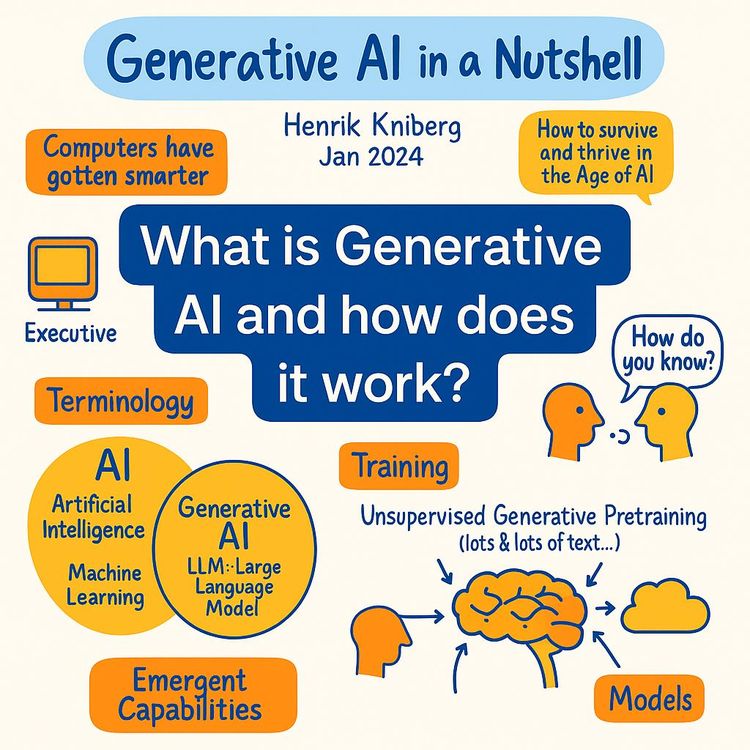
Video Course: What is Generative AI and how does it work?

Video Course: How to Use ChatGPT from Beginner to Professional
Video Course: How to Use Google Gemini for Google Workspace to Boost Productivity

Video Course: How to Use Claude 3.7 AI - Tips for Beginners!

Video Course: ChatGPT for Data Analytics: Full Course - from Beginners to Professional

Video Course: Generating Images and photos With ChatGPT?

Video Course: Generating Images & Photo's with MidJourney

Video Course: Generating Design's with Microsoft Designer and AI

Video Course: Generating Design's with Canva.com and AI
Join 20,000+ Professionals, Using AI to transform their Careers
Join professionals who didn’t just adapt, they thrived. You can too, with AI training designed for your job.