
MCP server · Security
Identity AIops MCP server
by AIops-tools
Lets your AI check who can log in, why logins fail, and safely fix Keycloak or authentik settings.
This is a helper for teams who run their own login system, either Keycloak or authentik. It lets your AI look into sign-in problems, permissions, and security gaps, and make careful changes when you ask. It is handy if you look after the place where your colleagues log in and want a second pair of eyes.
What is an MCP server? The 30-second version
On its own, your AI can only chat. An MCP server is a small helper program that gives your AI a new skill or a connection to an app. This one connects your AI to your identity provider, which is the system that handles logins. Once it is connected, your AI can look things up there and make changes for you when you ask.
What this MCP server does
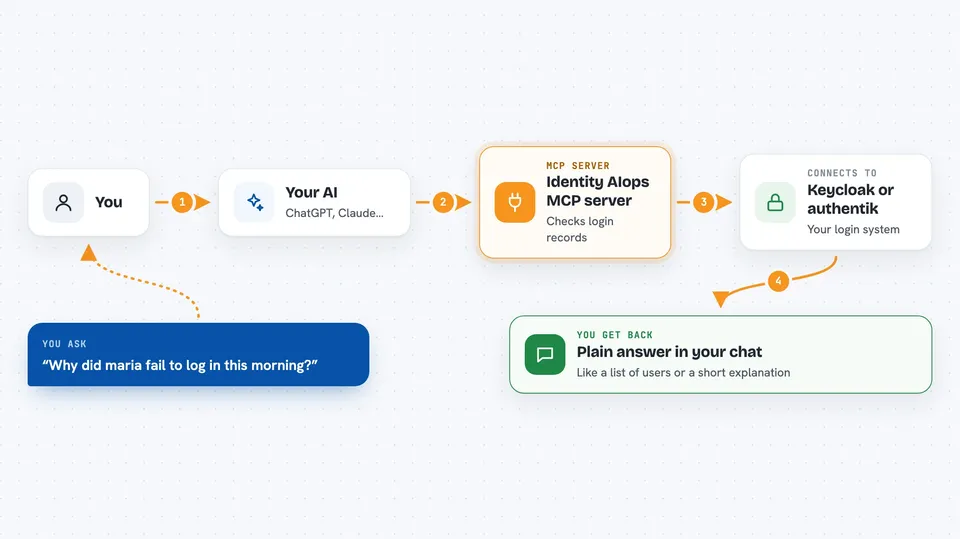
You ask your AI a question about your login system, like who failed to sign in today. Your AI passes that request to this helper program. The helper talks to your Keycloak or authentik server using its admin connection. It brings back the answer, and your AI explains it to you in the chat. If you ask for a change, like disabling an account, the helper does it and writes down what it did.
 Click to zoom
What you can do with it
- Find out why a login failed, whether it was a wrong password, a locked account, or a broken app setting
- List users who have not signed in for a long time or never signed in at all
- Check which apps have risky settings, like open redirect links or missing extra security
- See how many people have set up a second factor for logging in, and who has not
- Disable or re-enable a user account when someone leaves or comes back
- Force a password reset for a user
- Undo a change you made earlier using a saved undo record
Try asking your AI
- “Why did user maria fail to log in this morning?”
- “Show me all accounts that have never logged in”
- “Which apps have redirect links that are too open?”
- “How many of our users have set up a second factor?”
What it gives back to you
You get answers in plain language in your chat, like a list of users, a count, or a short explanation of what went wrong. For changes, it tells you what it did, and it keeps a record you can look back at. It can also show you a preview before making a change, so you can decide first.
Before you start
What you need
- A Keycloak or authentik server you can reach
- An admin account or API token for that server with the right permissions
- The uv tool installed on your computer
- A master password you choose, to keep your saved credentials encrypted
Good to know
It can change or disable accounts and app settings, so check the preview and make sure your admin account has only the permissions you want the AI to use.
Install it with your AI
Add Identity AIops MCP server to your AI, no technical skills needed
You don't install anything by hand. You copy one prompt, paste it into an AI that can work on your computer, and it checks, installs and connects the server for you, asking you when it needs something.
Sign in to get the install prompt
Members get a ready-made prompt that lets the Claude desktop app check Identity AIops MCP server, install it and connect it for them, step by step. You don't need any technical skills: you copy, paste and answer a few questions. Your connected AI can also find and install any of the 4,361 MCP servers here for you.
Who it's for
IT admins and support teams who run their own login system and want help checking and fixing it.
