MCP server · Coding
OzBridge MCP server
by sena-labs
Run Warp Oz coding agents from your AI chat, in any editor that speaks MCP.
OzBridge is a small helper that connects your AI assistant to Warp Oz, a coding agent that can work on your project. It lets you start Oz runs, check on them, and see their results without leaving the chat window. It is handy if you already use Warp and want your AI to drive it for you.
What is an MCP server? The 30-second version
On its own, your AI can only chat with you. An MCP server is a small helper program that gives your AI a new skill or a connection to another app. This one connects your AI to Warp Oz, so when you ask for something, the AI can pass the request to Oz and bring the answer back. You do not need to understand how it works under the hood, you just talk to your AI like normal.
What this MCP server does
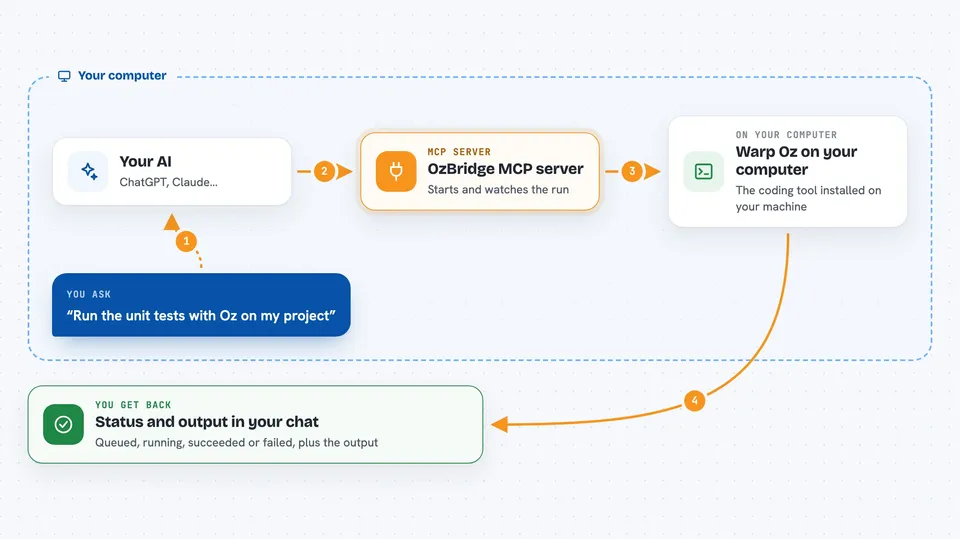
You type a request in your AI chat, like asking it to run a coding task. The AI sends that request through OzBridge to the Warp Oz command line tool on your computer. OzBridge starts an Oz agent, either locally in your workspace or in the cloud, and watches it while it runs. When the run finishes, OzBridge brings the status and the output back to your chat so you can read it. You can also ask it to list past runs or check on one that is still going.
 Click to zoom
What you can do with it
- Start a local Oz agent to work on files in your project
- Start a cloud Oz agent for bigger or longer tasks
- Check the status and output of a specific Oz run
- List recent Oz runs and filter them by status
- List the AI models available in Oz and pick a default
- See and manage scheduled Oz runs
- List the MCP servers already configured in Oz
Try asking your AI
- “Run the unit tests locally via Oz”
- “Start a cloud Oz run to refactor the auth folder”
- “Show me the status of run run-abc123”
- “List my recent Oz runs that succeeded”
What it gives back to you
You get back plain text and tables in your chat. For a run, you see its status, like queued, in progress, succeeded or failed, and the output the agent produced. For a list request, you get a short table of runs with their names, statuses and ids. If you ask about models or schedules, you get a simple list you can read at a glance.
Before you start
What you need
- Warp Terminal installed on your computer, with the oz command available
- A Warp account, signed in with oz login
- Node.js 18 or newer if you run the standalone server with npx
- An MCP-capable AI client, like Claude Code, Cursor, Codex CLI or VS Code with Copilot Chat
Good to know
Cloud runs use Warp credits, so check before starting one, and local runs can change files in your project, so keep your work saved or in version control.
Install it with your AI
Add OzBridge MCP server to your AI, no technical skills needed
You don't install anything by hand. You copy one prompt, paste it into an AI that can work on your computer, and it checks, installs and connects the server for you, asking you when it needs something.
Sign in to get the install prompt
Members get a ready-made prompt that lets the Claude desktop app check OzBridge MCP server, install it and connect it for them, step by step. You don't need any technical skills: you copy, paste and answer a few questions. Your connected AI can also find and install any of the 4,609 MCP servers here for you.
Who it's for
Developers and technical teams who already use Warp Oz and want to start and check coding agent runs from their AI chat instead of switching apps.