MCP server · Music
Sonos MCP server
by Tommertom
Lets your AI control your Sonos speakers: play music, set volume, group rooms, and browse your library.

This is a small helper program that connects your AI assistant to the Sonos speakers in your home. Once it is set up, you can just type what you want in plain words, like playing music in the kitchen or turning the volume down in the living room. It is handy for anyone who has Sonos speakers and wants to control them without opening the Sonos app.
What is an MCP server? The 30-second version
On its own, your AI can only chat with you. An MCP server is a small helper program that gives your AI a new skill or a connection to an app or service. This one connects your AI to your Sonos speakers on your home network, so the AI can look things up or do things there for you when you ask. You stay in the chat, and the helper does the work behind the scenes.
What this MCP server does
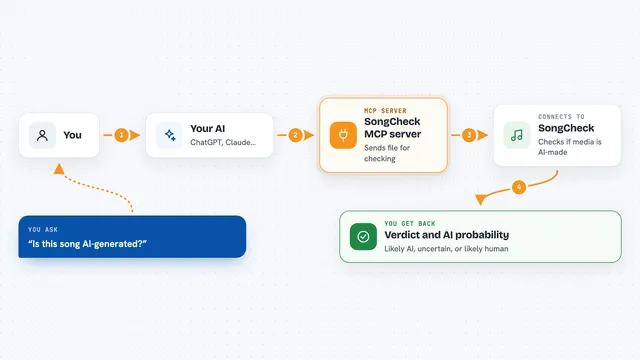
You type a request in plain words, like play jazz in the living room. Your AI reads that and uses this helper to talk to your Sonos speakers over your home network. The helper finds your speakers, sends the right commands, and checks what is playing. Then it sends the result back to your AI, which tells you what happened in the chat.
 Click to zoom
What you can do with it
- Play, pause, stop, skip forward, or skip back on any speaker
- Set the volume or mute a room
- Group speakers together or split them apart
- Browse your music library by artist, album, track, or genre
- Search your library for a song or artist
- Set bass, treble, and other sound settings
- Create, change, or delete alarms
Try asking your AI
- “Play jazz in the living room”
- “What's playing in the kitchen?”
- “Set volume to 50 in all rooms”
- “Group the kitchen and dining room together”
What it gives back to you
You get answers in the chat, like the name of the song that is playing, the volume level, or a list of your speakers. When you ask it to change something, it tells you what it changed, such as the volume or the group setup. If you browse your library, it gives you a list of artists, albums, or tracks. It can also show you alarms and sound settings.
Before you start
What you need
- Sonos speakers on the same home network as your computer
- An MCP client like Claude Desktop, Cline, Cursor, VS Code Copilot, or Windsurf
- Node.js installed on your computer (the free program that runs this helper)
Good to know
This helper can change things on your speakers, like alarms, groups, and volume, so it is worth checking what the AI plans to do before you say yes.
Install it with your AI
Add Sonos MCP server to your AI, no technical skills needed
You don't install anything by hand. You copy one prompt, paste it into an AI that can work on your computer, and it checks, installs and connects the server for you, asking you when it needs something.
Sign in to get the install prompt
Members get a ready-made prompt that lets the Claude desktop app check Sonos MCP server, install it and connect it for them, step by step. You don't need any technical skills: you copy, paste and answer a few questions. Your connected AI can also find and install any of the 4,361 MCP servers here for you.
Who it's for
People with Sonos speakers at home who want to control them by chatting with their AI instead of using the Sonos app.