MCP server · Music
Cochlea MCP server
Let your AI create, render, and inspect audio files, then check the sound with numbers and pictures.

Cochlea is a tool for making and studying audio without ever pressing play. You describe a piece of music as plain text, and Cochlea turns it into a real audio file, then measures what came out. It is handy if you work with sound, jingles, or audio checks and want your AI to handle the boring parts.
What is an MCP server? The 30-second version
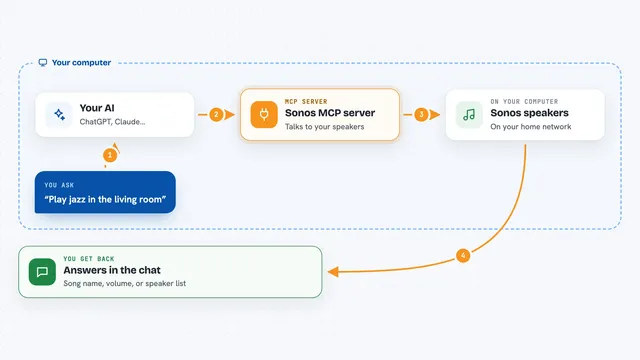
On its own, your AI can only chat. An MCP server is a small helper program that gives your AI a new skill or a connection to another tool. This one connects your AI to Cochlea, an audio engine that runs on your own computer. Once it is connected, you can ask your AI to make an audio file or measure one, and it will use Cochlea to do the actual work.
What this MCP server does
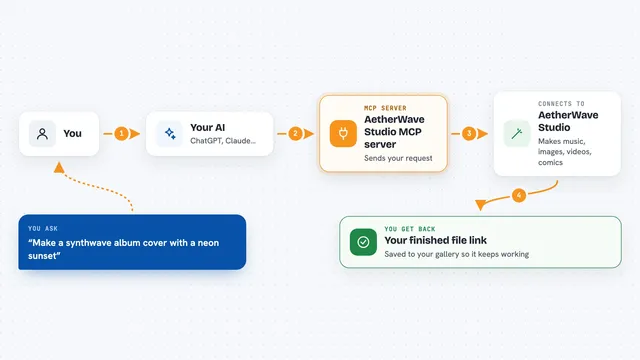
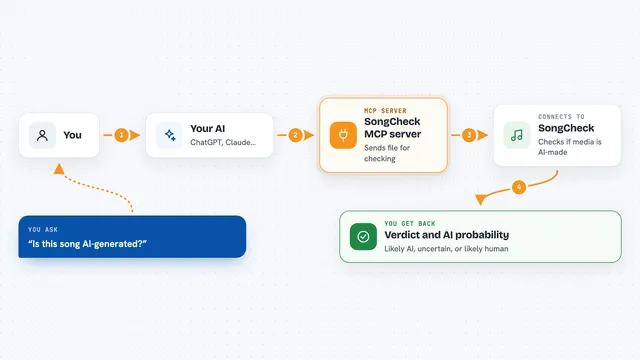
You ask your AI for something audio related, like rendering a short tune or checking how loud a file is. The AI sends that request to Cochlea through this helper. Cochlea writes the audio file, or opens the file you pointed at and studies it. Then it sends back numbers, a short text report, or a picture of the sound. Your AI reads that and tells you what it found.
 Click to zoom
What you can do with it
- Render a music score you describe as text into a WAV file
- Measure loudness, pitch, tempo, and key of any audio file
- Draw a spectrogram picture of a sound so you can see it
- Compare two audio files and show what changed between them
- Import a MIDI file and turn it into an editable score
- Turn a recorded solo into a score file
- Check a score for mistakes before you render it
Try asking your AI
- “Render this score to mix.wav and tell me the loudness”
- “Probe my recording.wav and give me the tempo and key”
- “Make a spectrogram of bars 17 to 19 of this file”
- “Compare old_mix.wav and new_mix.wav and tell me what changed”
What it gives back to you
You get back short reports with numbers like loudness, tempo, key, and note names. For a spectrogram, you get a small picture right in the chat. For a render, you get a file saved on your computer plus a confirmation. Everything is written in plain text you can read.
Before you start
What you need
- The Rust tool installer (called cargo), from rustup.rs
- The Cochlea MCP server installed with cargo install cochlea-mcp
- An MCP client like Claude Desktop or Claude Code
Good to know
It reads and writes files on your computer, so point it at a folder you are happy for it to work in, and use the --root option if you want to keep it contained.
Install it with your AI
Add Cochlea MCP server to your AI, no technical skills needed
You don't install anything by hand. You copy one prompt, paste it into an AI that can work on your computer, and it checks, installs and connects the server for you, asking you when it needs something.
Sign in to get the install prompt
Members get a ready-made prompt that lets the Claude desktop app check Cochlea MCP server, install it and connect it for them, step by step. You don't need any technical skills: you copy, paste and answer a few questions. Your connected AI can also find and install any of the 4,361 MCP servers here for you.
Who it's for
People who work with audio, like sound designers, music makers, podcast editors, or anyone who needs to check or create audio files without listening to them.