MCP server · Coding
ITASCA MCP server
by yusong652
Let your AI browse ITASCA docs and run PFC, FLAC, 3DEC, MPoint or MassFlow simulations for you.

This is a helper that connects your AI assistant to ITASCA's simulation software, the kind used for rocks, soil and geomechanics. It lets your AI look up the official documentation and run simulations in the engine you already have open. It is handy if you work with PFC, FLAC, 3DEC, MPoint or MassFlow and want to ask questions in plain language instead of hunting through manuals.
What is an MCP server? The 30-second version
On its own, your AI can only chat. An MCP server is a small helper program that gives your AI a new skill or a connection to another piece of software. This one connects your AI to your ITASCA engine, so it can read the engine's documentation and send commands into the engine for you. You stay in charge: you ask, the AI acts, and you see the results.
What this MCP server does
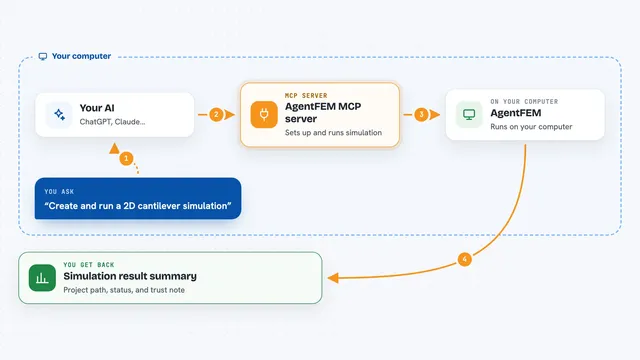
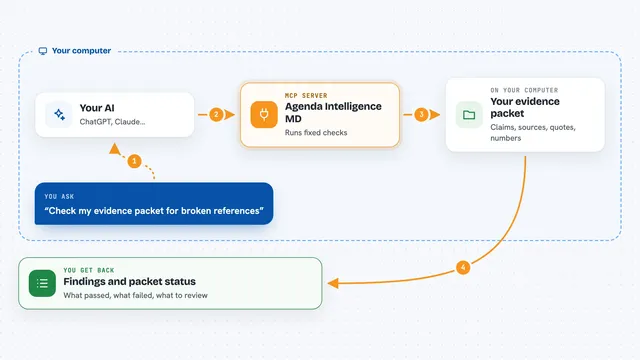
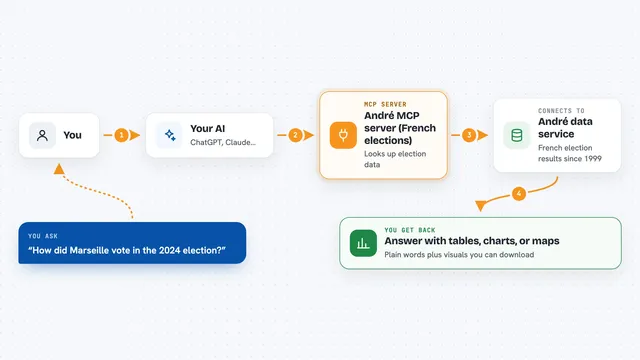
You ask your AI something like running a test or looking up a command. The AI uses this helper to search the ITASCA documentation for your engine, or to send a command or script into the engine you have open. The engine runs it and sends back the output, plots or numbers. The AI then explains what happened and shows you the result in the chat.
 Click to zoom
What you can do with it
- Search the ITASCA documentation for commands, Python API and reference pages
- Run a simulation script inside your open PFC, FLAC, 3DEC, MPoint or MassFlow engine
- Check the progress of a long-running simulation without stopping it
- Interrupt a running task when you want it to stop
- Browse the history of tasks you have submitted
- See what you typed in the engine's console and what it printed back
- Plot results such as stress-strain curves or contact force chains
Try asking your AI
- “Run a biaxial compression test on a dense specimen and plot the stress-strain curve”
- “Look up the plot commands in the docs, then plot the contact force chains of the current model”
- “The simulation is still running, check the current unbalanced force without stopping it”
- “Build a slope model in FLAC3D and find the factor of safety”
What it gives back to you
You get answers in the chat: documentation excerpts, command output, numbers from the running model, and plots the engine produced. For long tasks, the AI can report progress and intermediate values. When it changes something in the model, it tells you what it ran and what came back.
Before you start
What you need
- An ITASCA engine installed (PFC, FLAC, 3DEC, MPoint or MassFlow), version 9.0 or newer recommended
- uv installed on your computer (the tool that runs this helper)
- An AI agent that supports MCP, such as Claude Code, Codex CLI or Gemini CLI
- The bridge file addon.py loaded inside your ITASCA engine
Good to know
The AI can run commands and scripts inside your ITASCA engine, which may change or overwrite your model, so keep a copy of anything important before letting it act.
Install it with your AI
Add ITASCA MCP server to your AI, no technical skills needed
You don't install anything by hand. You copy one prompt, paste it into an AI that can work on your computer, and it checks, installs and connects the server for you, asking you when it needs something.
Sign in to get the install prompt
Members get a ready-made prompt that lets the Claude desktop app check ITASCA MCP server, install it and connect it for them, step by step. You don't need any technical skills: you copy, paste and answer a few questions. Your connected AI can also find and install any of the 4,361 MCP servers here for you.
Who it's for
Geotechnical and mining engineers, researchers and students who already use ITASCA software and want to work faster with an AI assistant.