AI agent for ux writers
Accessibility Text Review Agent
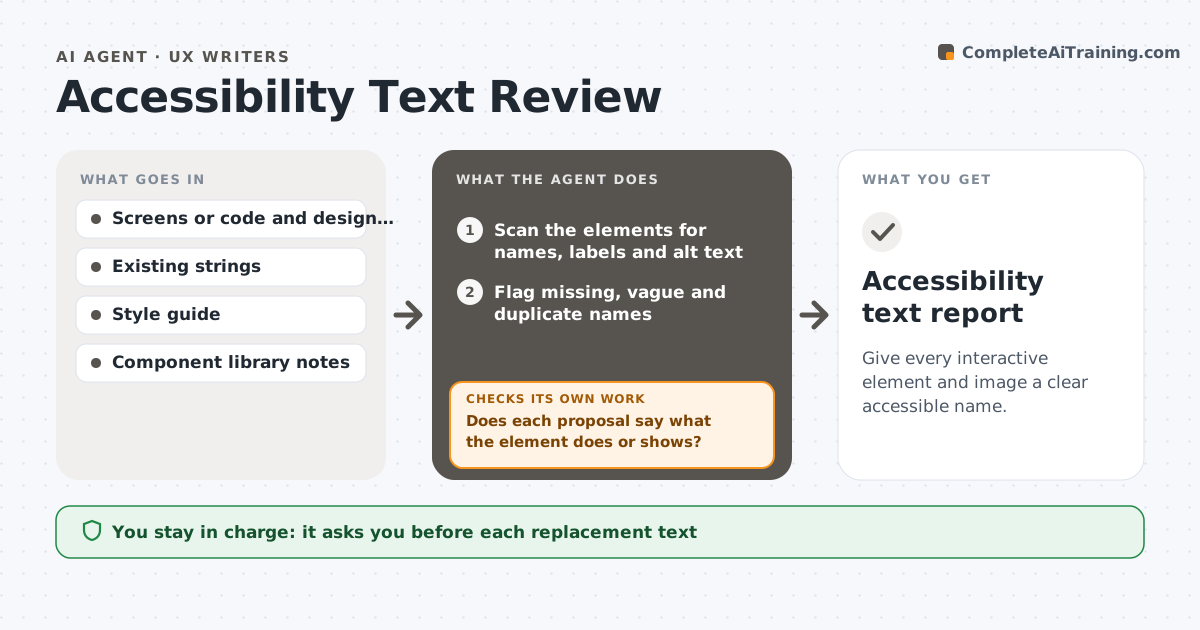
Give every interactive element and image a clear accessible name.
What it does
Screen reader users rely on labels, button text and alt text, and these are often missing, vague or repeated. This agent scans screens or the code and design files for form fields with no label, buttons that say only Click here or an icon with no name, links with identical text, images with no alt text or with filler like image, and headings out of order. It proposes replacements that say what the element does or shows, in the product's voice. It rechecks the screens after changes. Items that depend on design, such as an icon with no clear meaning, are listed for the designer. It never edits the product. The writer approves each replacement. Edge case: purely decorative images are marked as decorative, not given alt text.
How it works
Follow the arrows from top to bottom. The orange dashed arrow is the loop: when a check fails, the agent goes back and tries again.
Read the steps as a list
- Screen or release ready
- Scan the elements for names, labels and alt text
- Flag missing, vague and duplicate names
- Separate decorative images from meaningful ones
- Propose replacement text in the product voice
- Does each proposal say what the element does or shows?If not: rewrite it with the purpose and context. Back to step 4.
- List items that need design input
- Writer approves the replacementsThe agent waits here for your OK.
- Rescan the updated screens
- Are all flagged items fixed with no new issues?If not: list remaining and new items for the next round. Back to step 4.
- Accessibility text report
How it decides
It flags an element when it has no accessible name, a name that repeats elsewhere on the screen with a different purpose, or a name that does not say what it does. Decorative items are skipped.
- Flag any form field with no label
- Flag links named click here or more without context
- Skip purely decorative images
- Keep alt text under 125 characters unless a chart needs more
Make it yours
Every agent is a starting point. You choose these settings for your own situation.
- Screens in scope
- Alt text length (default 125 characters)
- Naming patterns
- Design input list
- Standard to check against
What keeps you in control
It always asks you first
- Each replacement text
- Marking an image decorative
Hard limits
- Never edit the product directly
- Never invent a meaning for an unclear icon
It stops when
- Done: no missing names remain
- Stop: screens not accessible to the scanner
Set it up
We guide you through the set-up, step by step
Members get the full set-up guide for this agent. No technical skills needed: you copy, paste and upload.
- One set of instructions to paste into your AI, with the clicks for ChatGPT, Claude, Microsoft 365 Copilot, Gemini and Grok
- The agent then walks you through connecting your own data, one source at a time
- A downloadable copy with the flow chart, the rules and the full guide