AI agent for web designers
Accessible Alt Text and Reading Order Agent
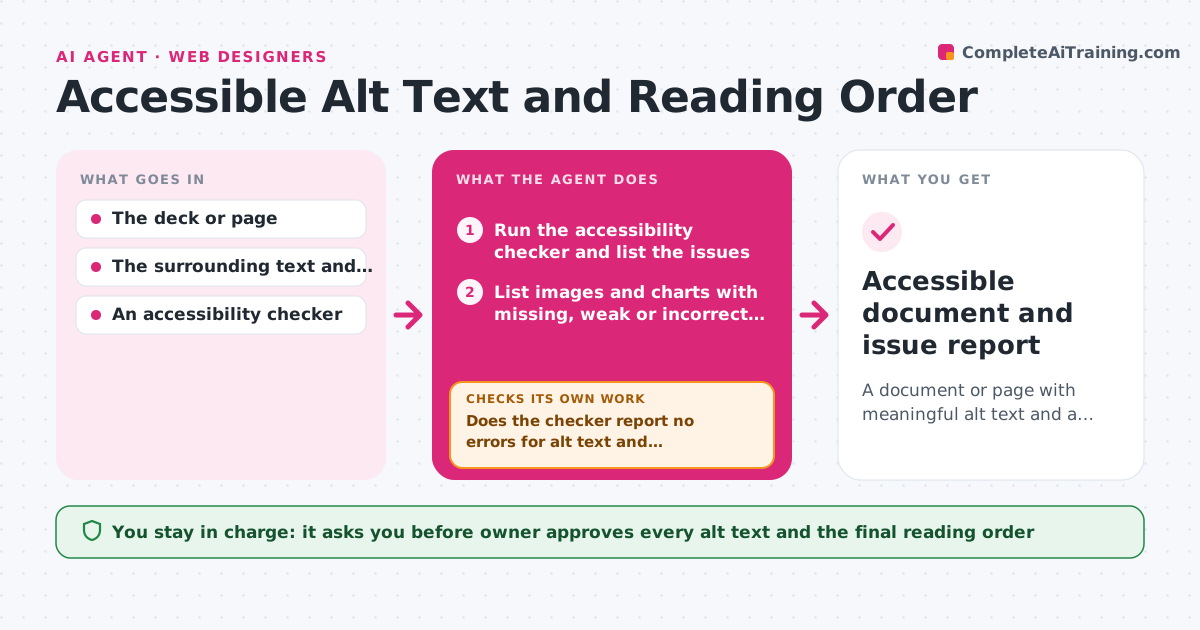
A document or page with meaningful alt text and a correct reading order, confirmed by an accessibility check
What it does
A deck or web page goes live, and a screen reader user hears 'image, image, image' and then a title after the footer. This agent scans a deck or page and lists every image, chart and element that lacks a description, is marked decorative when it carries meaning, or sits in the wrong order in the reading sequence. It drafts alt text based on the content and the context of the slide or section, keeps it short and useful, and suggests a reading order that follows the visual flow. Then it retests with an accessibility checker and a screen reader style walkthrough, looping until the checker finds no errors. It also flags low contrast and missing headings it notices on the way. The owner approves the final text. Edge case: a chart gets a summary of its key finding, not a description of its colors.
How it works
Follow the arrows from top to bottom. The orange dashed arrow is the loop: when a check fails, the agent goes back and tries again.
Read the steps as a list
- Document ready for publishing
- Run the accessibility checker and list the issues
- List images and charts with missing, weak or incorrect alt text
- Draft alt text from the image and the surrounding context
- Map the reading order against the visual layout
- Owner approves the alt text and the reading orderThe agent waits here for your OK.
- Apply the approved text and order on a copy
- Run the accessibility checker again
- Does the checker report no errors for alt text and reading order?If not: List the remaining issues and revise the text or order. Back to step 3.
- Does a walk through the reading order make sense in sequence?If not: Reorder the elements and recheck. Back to step 5.
- Accessible document and issue report
How it decides
It treats an image as meaningful when removing it would lose information, writes alt text that conveys that information, and marks it decorative only if it adds nothing.
- Mark an image decorative only if it adds no information
- Keep alt text under 150 characters unless the image needs more
- For a chart, state the key finding and the data type
- Reading order follows the title, then content from top left to bottom right unless the design says otherwise
Make it yours
Every agent is a starting point. You choose these settings for your own situation.
- Checker or standard used
- Alt text length limit
- Which images are decorative
- Format of the issue report
- Language and tone of alt text
What keeps you in control
It always asks you first
- Owner approves every alt text and the final reading order
Hard limits
- Never publish the document
- Never invent facts in alt text
It stops when
- Done: The checker finds no alt text or reading order issues
- Stop: An image's meaning is unclear, so the agent asks the owner what it conveys
Set it up
We guide you through the set-up, step by step
Members get the full set-up guide for this agent. No technical skills needed: you copy, paste and upload.
- One set of instructions to paste into your AI, with the clicks for ChatGPT, Claude, Microsoft 365 Copilot, Gemini and Grok
- The agent then walks you through connecting your own data, one source at a time
- A downloadable copy with the flow chart, the rules and the full guide