
Learning path
Learning AI as a Presentation Designer
For presentation designers, AI can help shape slide stories, explore layouts, and tighten revisions. This path walks you through setup, your own prompt course, and video lessons chosen for your work.

Your path
Everything in the Presentation Designer AI kit, in the order that makes sense. Members tick off each step and see their progress.
Set up your AI
We guide you through each click.
Let skills do your everyday tasks
Connect your apps and pick your AI apps
Hand whole tasks to AI agents
Build your own tools
Keep growing
Everything for presentation designers
All the courses, certifications, AI tools, MCP servers and apps for presentation designers, most relevant first. Open any list to see more.
Take the prompt courses
A short framework course to learn how to ask, then 9 lessons with ready-to-use prompts for presentation designers.
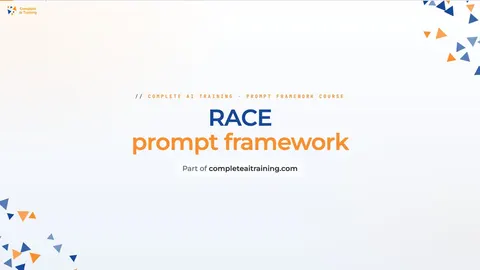
Start with this framework: how to talk to AI
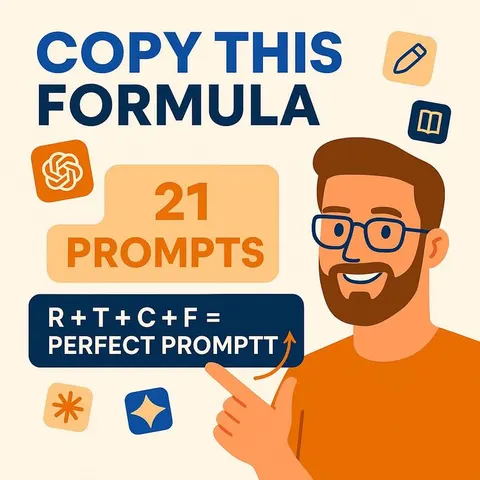
RACE fits presentation design because it defines role, action, context, and expected quality, like turning a sales deck into executive-ready slides.
Then your prompt course for presentation designers- 1Outline & Structure Content4 prompts
- 2Slide Layout Ideas3 prompts
- 3Typography & Color Choices4 prompts
- 4Charts & Data Storytelling4 prompts
- 5Brand Guidelines & Consistency2 prompts
- 6Client Feedback & Revisions3 prompts
- 7Slide Critique & Refinement3 prompts
- 8Final Files & Handoff2 prompts
- 9Proposals & Pricing2 prompts
Watch the video courses or add them to your Favorites for later
89 video courses our AI picked for presentation designers, most useful first. Save the ones you want to watch later with the heart.
Favorites are saved to your account: sign in or get your AI kit first.
Show all 89 video courses
Get certified, or add certifications to your Favorites
Every course ends in an exam and a certificate you can add to LinkedIn. Save the certifications you are aiming for with the heart.
Favorites are saved to your account: sign in or get your AI kit first.
More certifications for presentation designersShow all 24 certifications
Try the AI tools for presentation designers
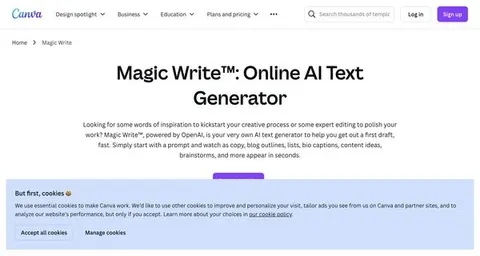
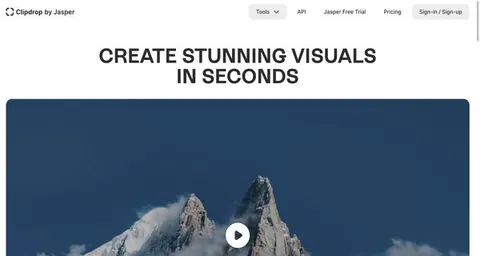
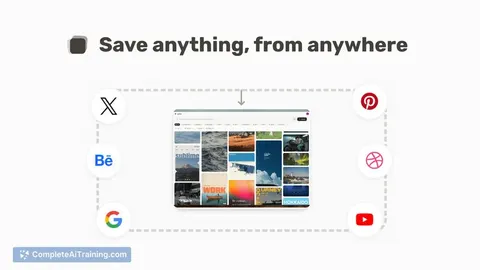
24 AI tools our AI matched to the work of presentation designers, best fit first. Each review shows what it does, its alternatives and the jobs it suits.
Favorites are saved to your account: sign in or get your AI kit first.
Show all 24 AI tools
Connect your AI to the apps presentation designers use
MCP servers let ChatGPT, Claude or Copilot look things up and get work done in other apps, like your email, calendar or bookkeeping software. These 12 fit the work of presentation designers best, well-known apps first.

Google Slides MCP server
by A1-x-TechLets your AI look at and edit your Google Slides decks, from adding slides to exporting them as PDF.
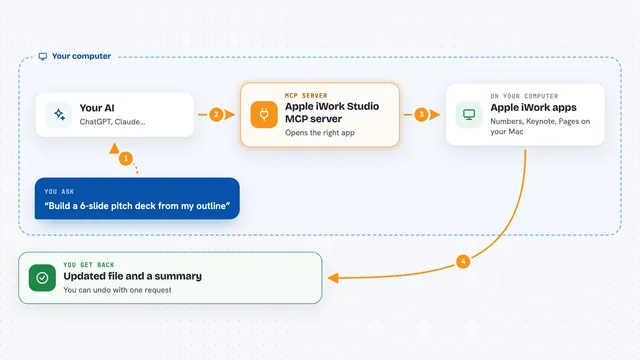
Apple iWork Studio MCP server
by ArkanjiLets your AI create, edit, design and export Apple Numbers, Keynote and Pages files for you.

Unsplash MCP server
by hellokatonLets your AI search Unsplash for photos by keyword, color, and orientation, and hand you the results.

VE Google Workspace MCP server
by HuntsDeskLet your AI read and write your Google Docs, Sheets, Slides, Drive, Gmail and Calendar for you.

Stocky stock photo MCP server
by joelioSearch and download free stock photos from Pexels and Unsplash right from your AI chat.

Pexels MCP server
by afshinatorYour AI can search free Pexels stock photos and videos and bring back links and credits.
Show all 12 MCP servers

Pexafy MCP server
by PexafyLets your AI find free stock photos by describing a scene, and shows them right in the chat.
ResearchNo install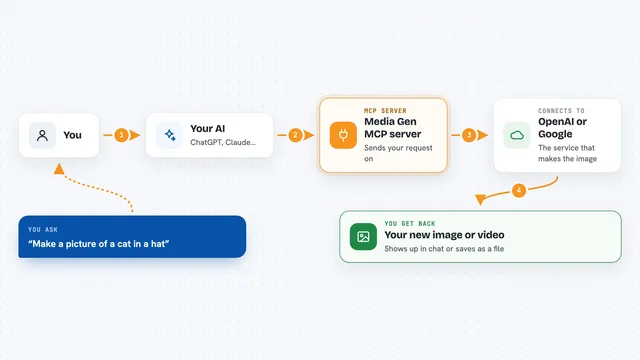
Media Gen MCP server
by strato-spaceCreate and edit images and videos with OpenAI and Google tools, right from your AI chat.
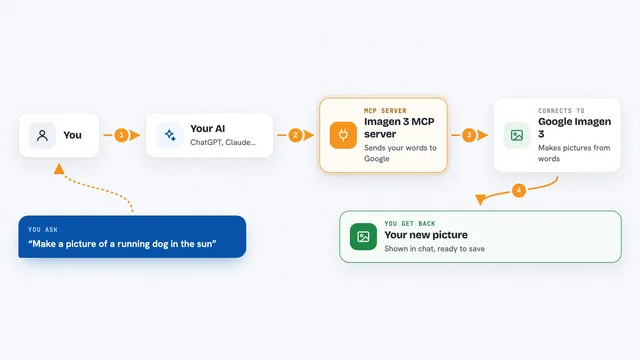
Imagen 3 MCP server
by hamflxAsk your AI to create pictures from a written description, using Google's Imagen 3 image maker.

Google Images MCP server
by HasDataLets your AI search Google Images and bring back picture links, source pages and sizes.
ResearchNo install
OpenAI GPT Image MCP server
by SureScaleAILets your AI create and edit images with OpenAI's image models, right from the chat.
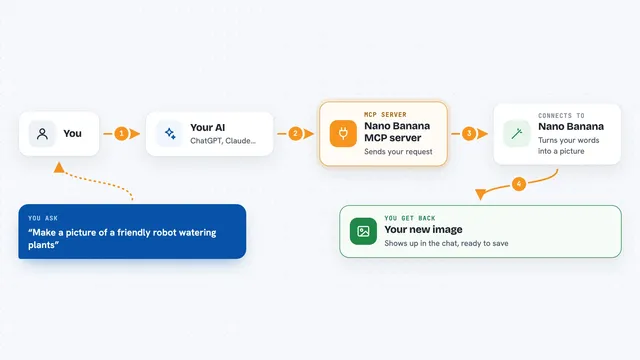
Nano Banana MCP server
by nanana-appLet your AI create new images or change existing ones using the Nano Banana image model.
Build your own AI apps for presentation designers
Apps you build yourself with your own AI, no coding needed and no monthly fee. Our AI picked the 6 that fit the work of presentation designers.
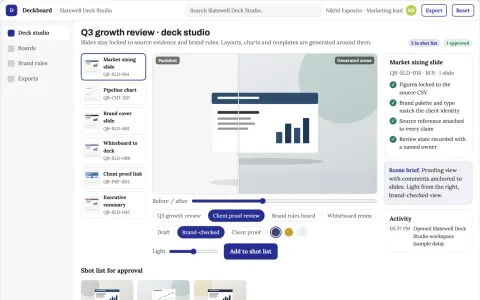
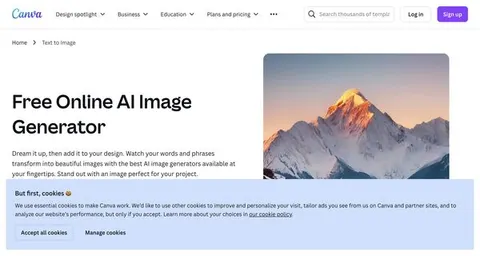
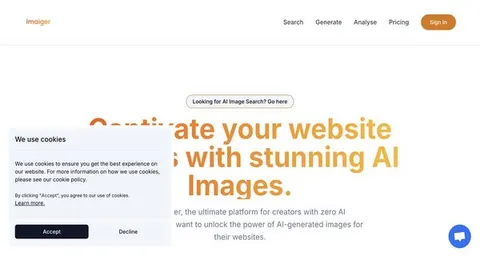
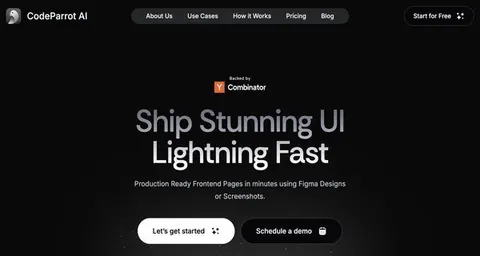
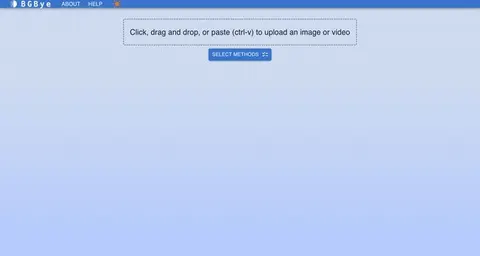
Presentation deck production and brand review workbench
Reduce deck production cycles while keeping brand and data accuracy under named-owner review.
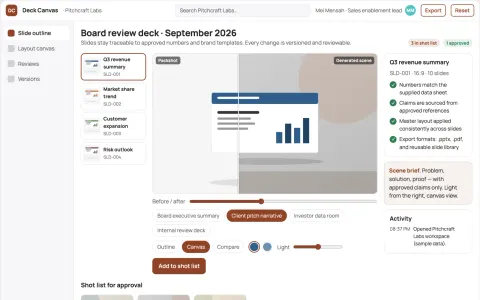
Presentation design service
Editable slides with traceable numbers and reusable sales narratives.
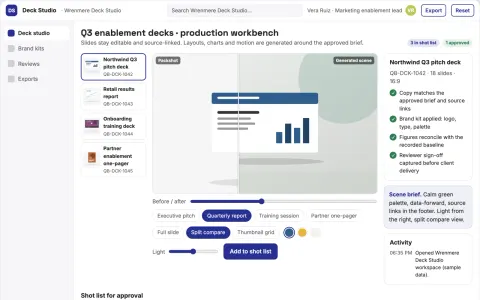
Prompt-to-deck presentation production workbench
Reduce manual slide production while keeping the deck on brand and on message.
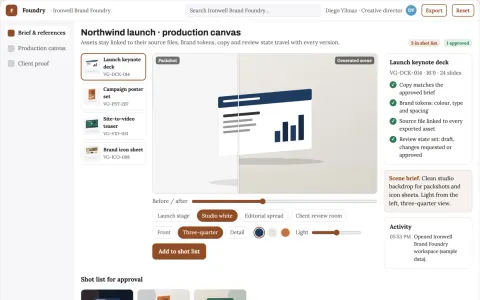
Brand visual production and review platform
Reduce tool sprawl and review cycles while keeping one brand system.
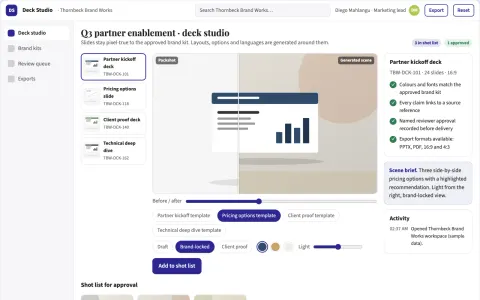
Branded deck production and review workbench
Reduce deck production and rework cycles while keeping brand and message control.
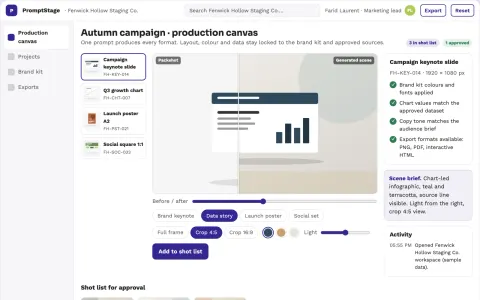
Prompt-to-visual production and brand review workbench
Reduce tool switching and manual layout work while keeping brand and data control.



















About this learning path
7 topicsAI for Presentation Designers: A Clear Working Path
You already know how to turn a messy brief into a deck people can follow. The hard part is often the hours around the design: outlining, trying layouts, rewriting slide titles, and chasing feedback.
This path adds AI to those hours without changing what makes your work good. You set up a tool, learn prompts for the job, watch video courses picked for presentation work, and see the certifications that come with them.
Why AI Matters Now
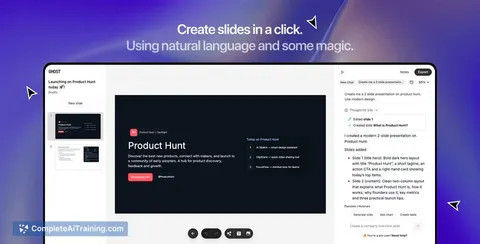
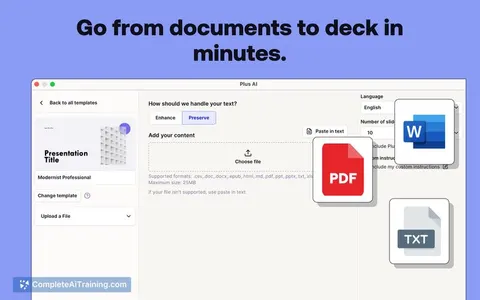
Clients want decks faster, and the raw material often arrives as a mix of notes, old slides, and half-finished thoughts. AI can help you shape that material into a clear story, test layout directions, and summarize feedback before you commit hours in your design tool.
The designer still leads. Your eye for hierarchy, pacing, and brand is what makes the deck feel right. AI is a working assistant for the parts that are repetitive or easy to postpone.
What the Path Includes
You start with setup questions and a guided way to connect your AI tool, so it is ready for real presentation work. Then you practice job-specific skills inside your AI and move into this prompt course.
The path also points you to video courses chosen for presentation designers. Each video course shows its certification, so you can see what proof of learning comes with it.
Video Courses and Certificates
The video lessons are picked for the work you do: slide structure, visual hierarchy, data storytelling, brand systems, and client communication. They are not generic AI videos.
When you finish a video course, you can keep its certificate for your profile, your resume, or a client conversation. It shows you invested in doing this work well.
How It Saves You Time
AI helps you outline before you open your design tool, so you are not moving boxes around while the story is still unclear. It gives you layout options, slide title ideas, and a first pass at charts.
It also helps you sort client feedback into a revision plan and prepare export notes. The time you save goes back into the craft that clients actually notice.
How It Protects Your Career
When AI handles the first draft, you stay in charge of judgment, taste, and client trust. You learn where to check the work, how to keep it on brand, and what not to paste into a tool.
That balance matters. The designers who use AI well are not replaced by it. They become the ones who can take on more decks without losing quality.
How to Start
Pick one real project and one lesson, such as Outline and Structure. Read the prompt, change it to match your client's tone, and run it in ChatGPT, Claude, or Gemini.
Keep client names, private numbers, and unreleased material out of the tool unless your workplace allows it. Start small, check the output, and build from there.
Frequently asked questions
Do I need to be technical to use this path?
No. If you can write a brief, use slides, and explain your choices to a client, you can follow the setup and lessons at your own pace.Will AI design the deck for me?
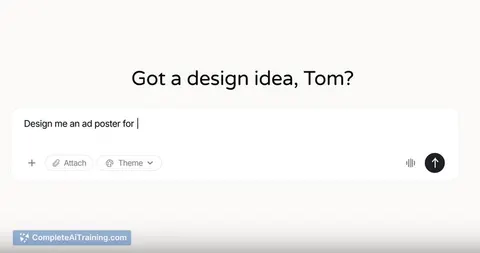
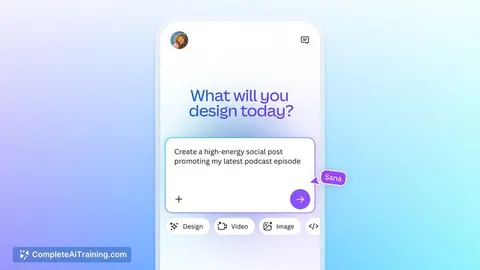
No. It can suggest structures, layouts, type pairings, chart ideas, and revision plans. You still decide what is clear, on brand, and right for the audience.Is it safe to use client material with AI?
Follow your employer and client rules first. Remove names, private numbers, and unreleased details when you can, and use only the tools your workplace approves.How long does the path take?
You can move at your own speed. Many people start with the prompt course, then add video lessons as they appear in their work.