AI agent for database administrators
Connection Pool Saturation Agent
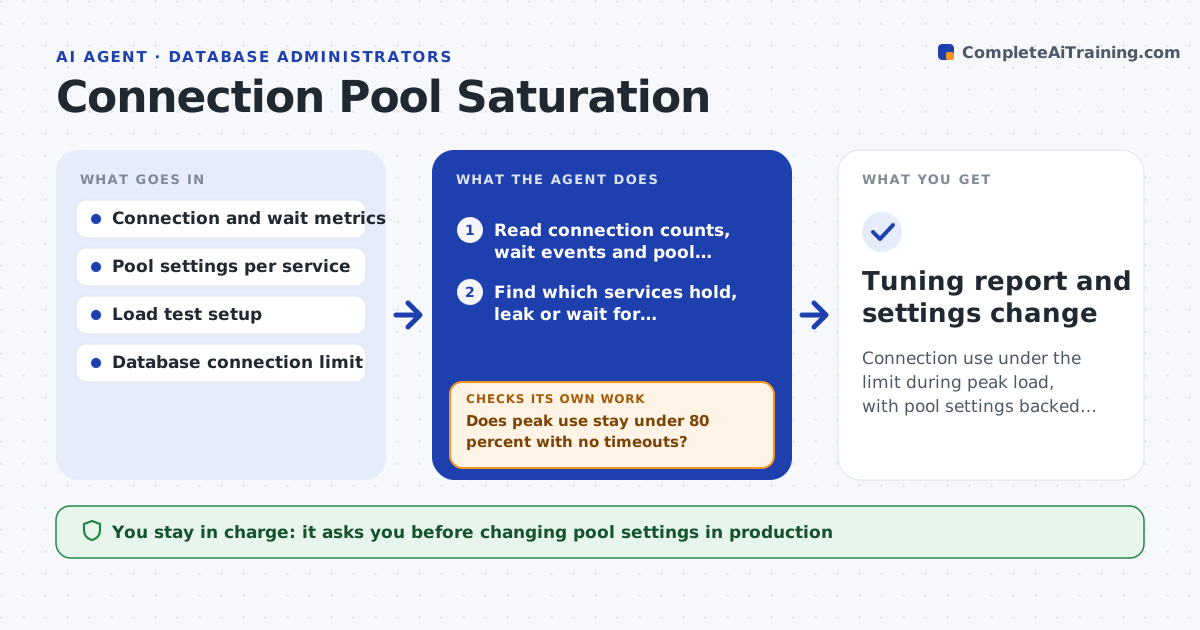
Connection use under the limit during peak load, with pool settings backed by test results
What it does
At peak hour users see random timeouts, and the real cause is that the database ran out of connections. This agent reads connection counts, wait events and each application's pool settings, and identifies which services hold the most connections, which hold them idle and which seem to leak. It builds a revised pool configuration and tests it under a load test in a non-production setup. After each test it re-measures wait times, errors and connection use, and tunes again if the results are not yet within target. When the numbers hold, it prepares the change for production with the evidence. A person approves the production setting. Edge case: a service holding connections open during a slow third-party call is flagged as a design issue, not just a pool size.
How it works
Follow the arrows from top to bottom. The orange dashed arrow is the loop: when a check fails, the agent goes back and tries again.
Read the steps as a list
- Saturation alert or planned peak
- Read connection counts, wait events and pool settings
- Find which services hold, leak or wait for connections
- Draft a revised pool size and timeout for each service
- Run a load test with the new settings in staging
- Does peak use stay under 80 percent with no timeouts?If not: adjust sizes based on which service waited and retest. Back to step 3.
- Re-measure after the test and compare with the baseline
- Is any service leaking connections after the test?If not: flag the code path and keep the cap while the owner fixes it. Back to step 3.
- DBA approves the production settingThe agent waits here for your OK.
- Tuning report and settings change
How it decides
Pool sizes are lowered for idle holders and raised only for services that wait. A setting passes when peak use stays below 80 percent of the limit with no timeouts.
- Target peak use below 80 percent of the connection limit
- Lower pools for services with over 60 percent idle connections
- Flag connections held longer than 30 seconds
- Stop after 4 failed tuning rounds and escalate
Make it yours
Every agent is a starting point. You choose these settings for your own situation.
- Peak use target (default 80 percent)
- Idle share that triggers a cut (default 60 percent)
- Services in scope
- Load test profile
What keeps you in control
It always asks you first
- Changing pool settings in production
Hard limits
- Never changes production settings without approval
- Tests only in staging
It stops when
- Done: tests pass and the change is approved
- Stop: staging cannot reproduce the peak
Set it up
We guide you through the set-up, step by step
Members get the full set-up guide for this agent. No technical skills needed: you copy, paste and upload.
- One set of instructions to paste into your AI, with the clicks for ChatGPT, Claude, Microsoft 365 Copilot, Gemini and Grok
- The agent then walks you through connecting your own data, one source at a time
- A downloadable copy with the flow chart, the rules and the full guide