AI agent for technical support specialists
Infection Cleanup Verification Agent
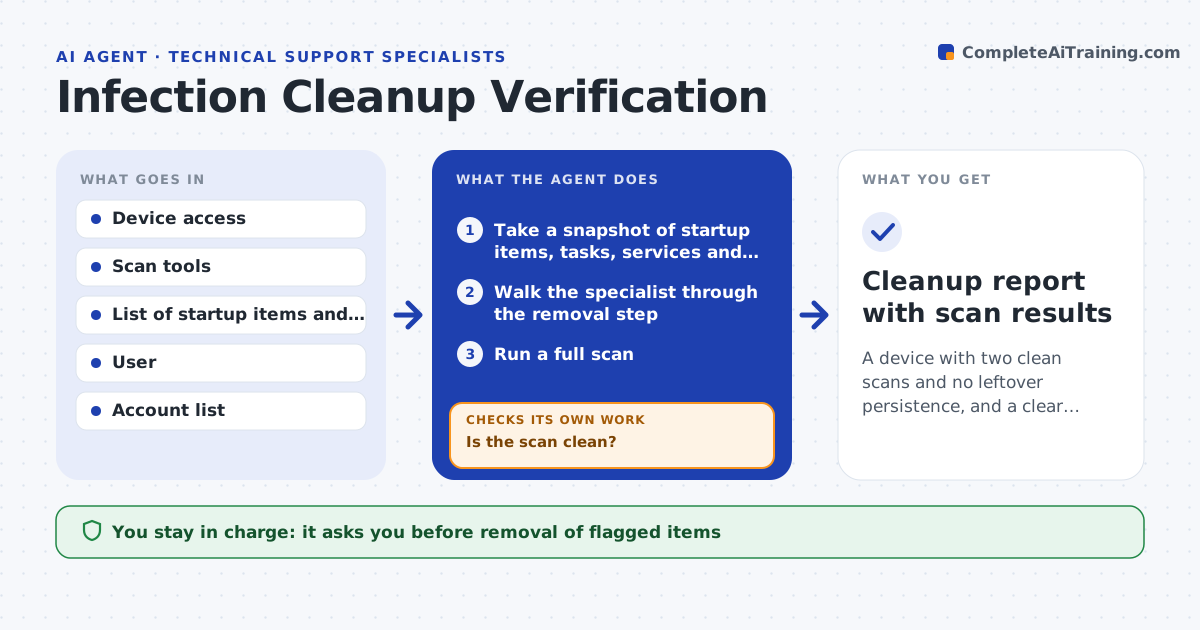
A device with two clean scans and no leftover persistence, and a clear next-step note for the user
What it does
A malware cleanup that looks finished often is not, and the infection returns days later through a hidden startup entry or a new account. This agent walks the specialist through the cleanup steps for the device and records each action. After every removal, it runs a full scan and checks startup items, scheduled tasks, browser extensions, services and local accounts for anything left over or newly added. If a trace is found, it removes it with approval and scans again. It repeats until two scans in a row are clean and the checks show nothing suspicious. It then drafts advice for the user to change passwords from a clean device and notes whether a reinstall is advisable. The specialist approves password resets and any reinstall. Edge case: a scheduled task recreates the file after each removal.
How it works
Follow the arrows from top to bottom. The orange dashed arrow is the loop: when a check fails, the agent goes back and tries again.
Read the steps as a list
- Specialist confirms a suspected infection on a device
- Take a snapshot of startup items, tasks, services and accounts
- Walk the specialist through the removal step
- Run a full scan
- Is the scan clean?If not: record the finding, remove it with approval and repeat the step. Back to step 3.
- Compare startup items, tasks, services and accounts with the snapshot
- Did the check find new or leftover items, or a second clean scan not yet confirmed?If not: remove or flag each item and run the scan again. Back to step 3.
- Draft password reset and reinstall advice for the user
- Specialist approves password resets and any reinstallThe agent waits here for your OK.
- Cleanup report with scan results
How it decides
A device counts as clean only after two consecutive full scans with no findings and no unknown startup items, tasks or accounts.
- Require two clean full scans in a row
- Treat any unknown scheduled task as suspicious
- Flag new local accounts for review
- Recommend reinstall if persistence returns after two cleanups
Make it yours
Every agent is a starting point. You choose these settings for your own situation.
- Scan tools used
- Number of clean scans required (default 2)
- Items it snapshots
- Reinstall threshold
What keeps you in control
It always asks you first
- Removal of flagged items
- Password resets
- Reinstall
Hard limits
- Never deletes files without approval
- Never asks for passwords
It stops when
- Done: two clean scans and no leftovers
- Stop: infection returns after two cleanups, reinstall is advised
Set it up
We guide you through the set-up, step by step
Members get the full set-up guide for this agent. No technical skills needed: you copy, paste and upload.
- One set of instructions to paste into your AI, with the clicks for ChatGPT, Claude, Microsoft 365 Copilot, Gemini and Grok
- The agent then walks you through connecting your own data, one source at a time
- A downloadable copy with the flow chart, the rules and the full guide