AI agent for elearning developers
Mobile Device Compatibility Test Agent
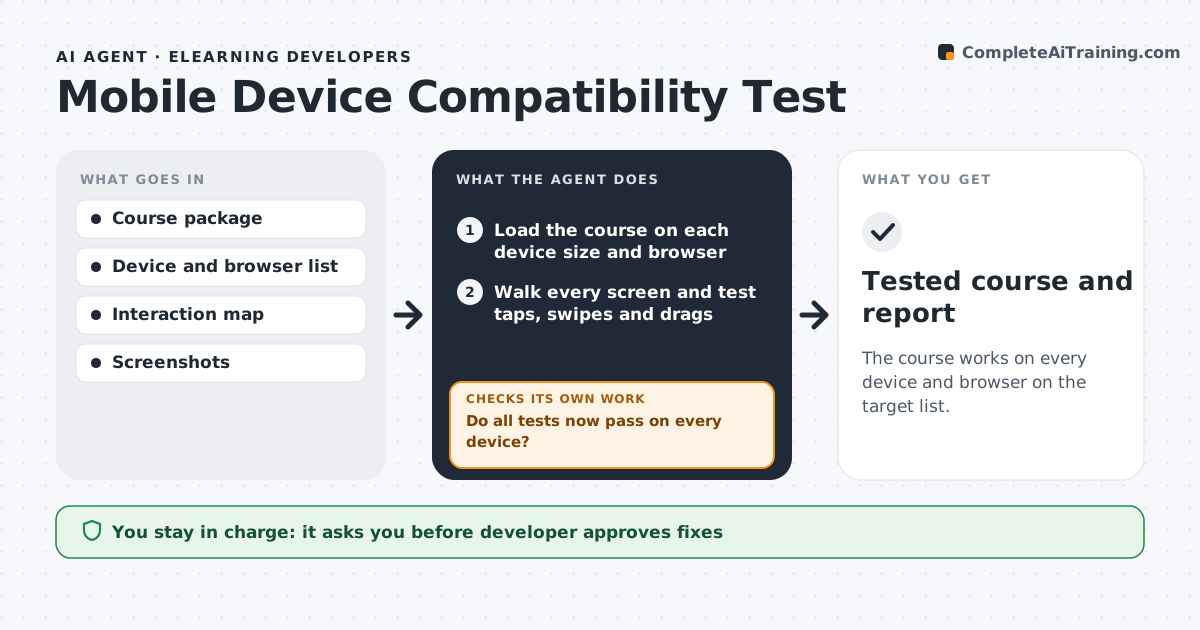
The course works on every device and browser on the target list.
What it does
A course that looks right on the developer's laptop can break on a small phone: buttons off screen, text cut off or an interaction that needs a mouse. The agent runs the course through a list of device sizes and browsers and walks each screen, testing taps, swipes and drag actions. It records every layout and interaction failure with a screenshot and the device. It groups failures by cause, such as a fixed width object, and proposes fixes in the course settings or content. After the developer applies them in a copy, the agent reruns the failed tests and any related ones. The developer approves release. Edge case: a drag-and-drop activity needs a tap alternative on touch screens.
How it works
Follow the arrows from top to bottom. The orange dashed arrow is the loop: when a check fails, the agent goes back and tries again.
Read the steps as a list
- Course build complete
- Load the course on each device size and browser
- Walk every screen and test taps, swipes and drags
- Record failures with screenshots
- Group failures by cause and propose fixes
- Developer approves the fixesThe agent waits here for your OK.
- Apply fixes in a copy and rebuild
- Rerun the failed tests and related screens
- Do all tests now pass on every device?If not: Return the remaining failures to the cause step and propose a different fix. Back to step 3.
- Write the compatibility report
- Tested course and report
How it decides
It compares each screen's rendered layout and interactions with the expected result per device and groups failures by cause.
- Any screen with content off screen fails
- Interactions needing a mouse need a touch alternative
- Text under 14 px on mobile is flagged
- A fix must not break another device
Make it yours
Every agent is a starting point. You choose these settings for your own situation.
- Device and browser list
- Minimum text size
- Interaction types to test
- Rebuild process
- Report format
What keeps you in control
It always asks you first
- Developer approves fixes
- Developer approves release
Hard limits
- Never publish without approval
- Never drop a device without approval
- Never test with real learner data
It stops when
- Done: all devices pass
- Stop: a device cannot run the course and the developer decides to drop it
Set it up
We guide you through the set-up, step by step
Members get the full set-up guide for this agent. No technical skills needed: you copy, paste and upload.
- One set of instructions to paste into your AI, with the clicks for ChatGPT, Claude, Microsoft 365 Copilot, Gemini and Grok
- The agent then walks you through connecting your own data, one source at a time
- A downloadable copy with the flow chart, the rules and the full guide