AI agent for chiropractors
Payer Fee Schedule and Contract Check Agent
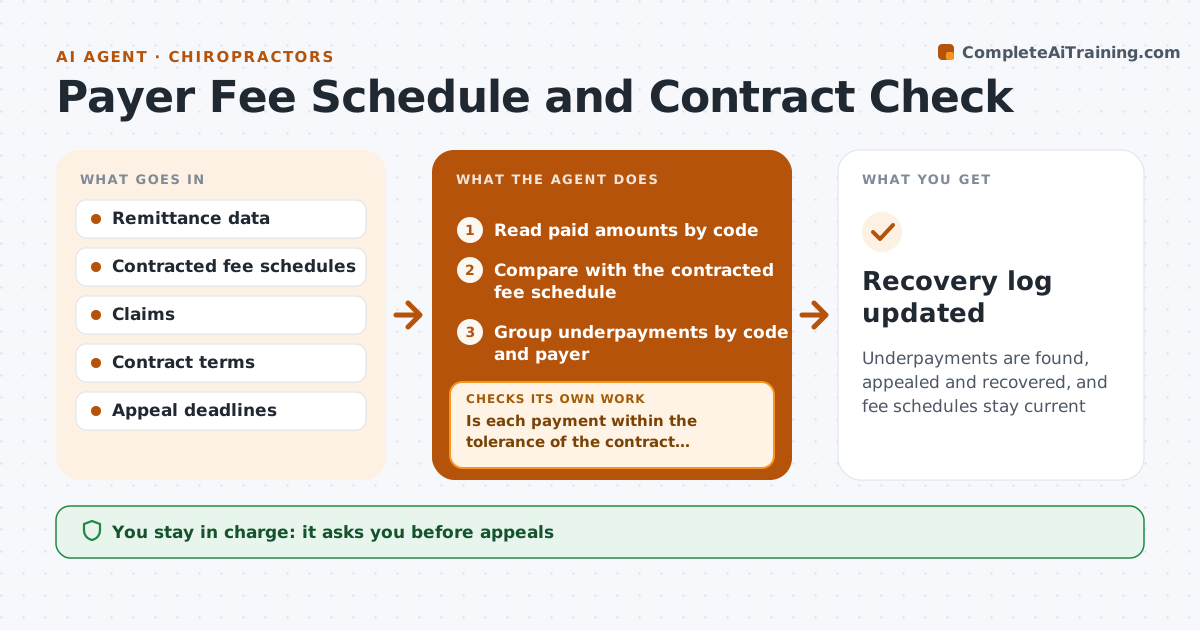
Underpayments are found, appealed and recovered, and fee schedules stay current
What it does
Payer contract changes quietly reduce payments, and nobody notices. This agent compares the paid amounts with the contracted fee schedule for each billing code. It flags underpayments, checks the contract terms for the reason and prepares an appeal with the code, the amounts and the clause. After the payer responds, it rechecks the new payment and the response. Appeals that fail go to a second level or are closed with a reason. The manager approves appeals. Edge case: a new fee schedule took effect on July 1 but the system still has the old one, so the agent flags an update to the schedule table.
How it works
Follow the arrows from top to bottom. The orange dashed arrow is the loop: when a check fails, the agent goes back and tries again.
Read the steps as a list
- New remittances arrive
- Read paid amounts by code
- Compare with the contracted fee schedule
- Is each payment within the tolerance of the contract rate?If not: mark the underpayment and check whether the schedule table is out of date. Back to step 2.
- Group underpayments by code and payer
- Draft appeals with codes, amounts and clauses
- Manager approves appealsThe agent waits here for your OK.
- Track the payer response
- Was the difference paid?If not: prepare a second level appeal or close with a reason. Back to step 6.
- Recovery log updated
How it decides
A payment is an underpayment when it is below the contract rate by more than the tolerance for that code. An appeal needs the contract clause and the amounts.
- Tolerance of $1 or 1 percent per line
- Check the effective date of each schedule
- Appeal within the payer's deadline
- Close an appeal after two levels
Make it yours
Every agent is a starting point. You choose these settings for your own situation.
- Tolerance (default 1 percent)
- Payers covered
- Appeal deadline
- Schedule update cadence
What keeps you in control
It always asks you first
- Appeals
Hard limits
- Never send an appeal itself
- Never alter claims
It stops when
- Done: underpayments paid or closed
- Stop: contract is missing
Set it up
We guide you through the set-up, step by step
Members get the full set-up guide for this agent. No technical skills needed: you copy, paste and upload.
- One set of instructions to paste into your AI, with the clicks for ChatGPT, Claude, Microsoft 365 Copilot, Gemini and Grok
- The agent then walks you through connecting your own data, one source at a time
- A downloadable copy with the flow chart, the rules and the full guide