AI agent for structural engineers
Seismic and Wind Load Parameter Check Agent
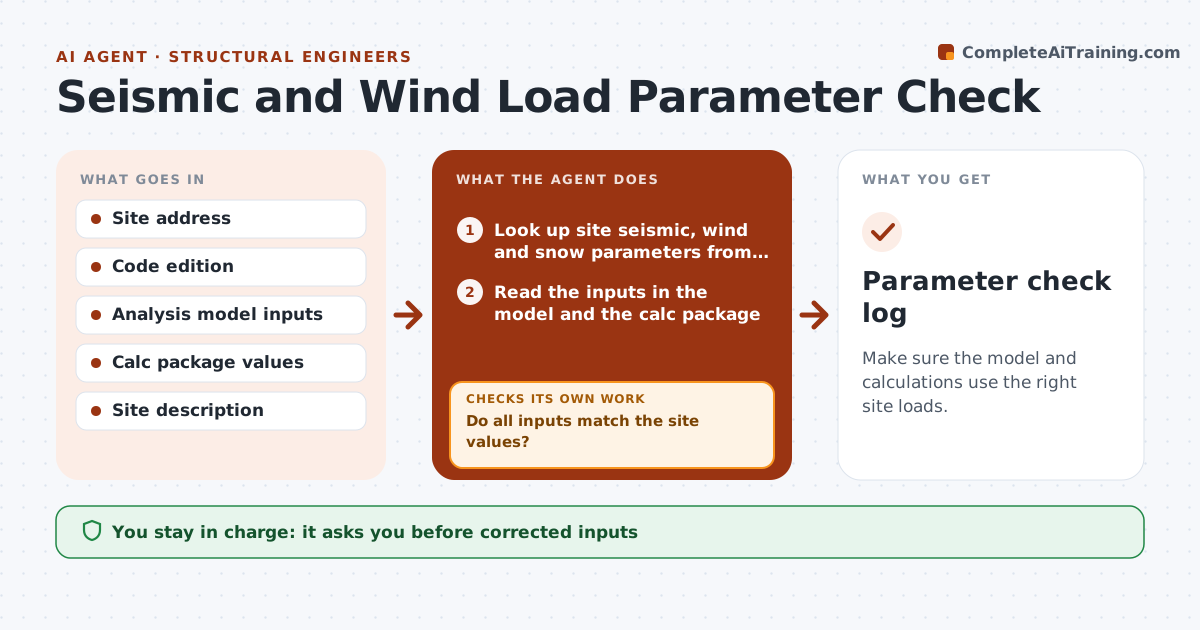
Make sure the model and calculations use the right site loads.
What it does
A wrong site parameter, such as the wrong seismic design category or wind speed, flows through the whole model and the calc package. This agent looks up the site values from the address, such as seismic spectral values, wind speed, exposure and snow load, and compares them with the inputs in the analysis model and in the calculations. It flags any mismatch. After the engineer corrects the inputs, it reruns the summary checks, such as base shear and the governing wind pressure, and checks that the results moved as expected. You approve the corrected inputs. Edge case: the model uses exposure C but the site photos show open terrain, which is exposure D, and the agent raises it.
How it works
Follow the arrows from top to bottom. The orange dashed arrow is the loop: when a check fails, the agent goes back and tries again.
Read the steps as a list
- Project is set up or submittal is near
- Look up site seismic, wind and snow parameters from the address
- Read the inputs in the model and the calc package
- Compare each parameter with the site values
- Do all inputs match the site values?If not: List each mismatch with the model and the calc location. Back to step 4.
- Draft the corrected values and note the likely effect
- Engineer approves the corrected inputsThe agent waits here for your OK.
- Update the working inputs and rerun the summary checks
- Compare the new base shear and pressures with the old ones
- Did the results move as expected and agree between model and calcs?If not: Check the remaining places the old value is used. Back to step 4.
- Parameter check log
How it decides
It looks up the values for the code edition and compares them with all places they are used. It reruns the summary checks after every correction.
- Use the code edition adopted by the jurisdiction
- Exposure category must match the site description
- A change in a parameter must change the results in the right direction
- Check every place the parameter appears
Make it yours
Every agent is a starting point. You choose these settings for your own situation.
- Code edition
- Risk category
- Data source
- Parameters checked
- Tolerance for matching
What keeps you in control
It always asks you first
- Corrected inputs
Hard limits
- Never changes the model itself
- Records the source of each value
- Never overrides the engineer
It stops when
- Done: all parameters match and results consistent
- Stop: site data unavailable; engineer enters values from another source
Set it up
We guide you through the set-up, step by step
Members get the full set-up guide for this agent. No technical skills needed: you copy, paste and upload.
- One set of instructions to paste into your AI, with the clicks for ChatGPT, Claude, Microsoft 365 Copilot, Gemini and Grok
- The agent then walks you through connecting your own data, one source at a time
- A downloadable copy with the flow chart, the rules and the full guide