AI agent for payroll administrators
Unclaimed Wages Escheatment Agent
Every stale payment is either reissued to the employee or reported and remitted to the right state on time
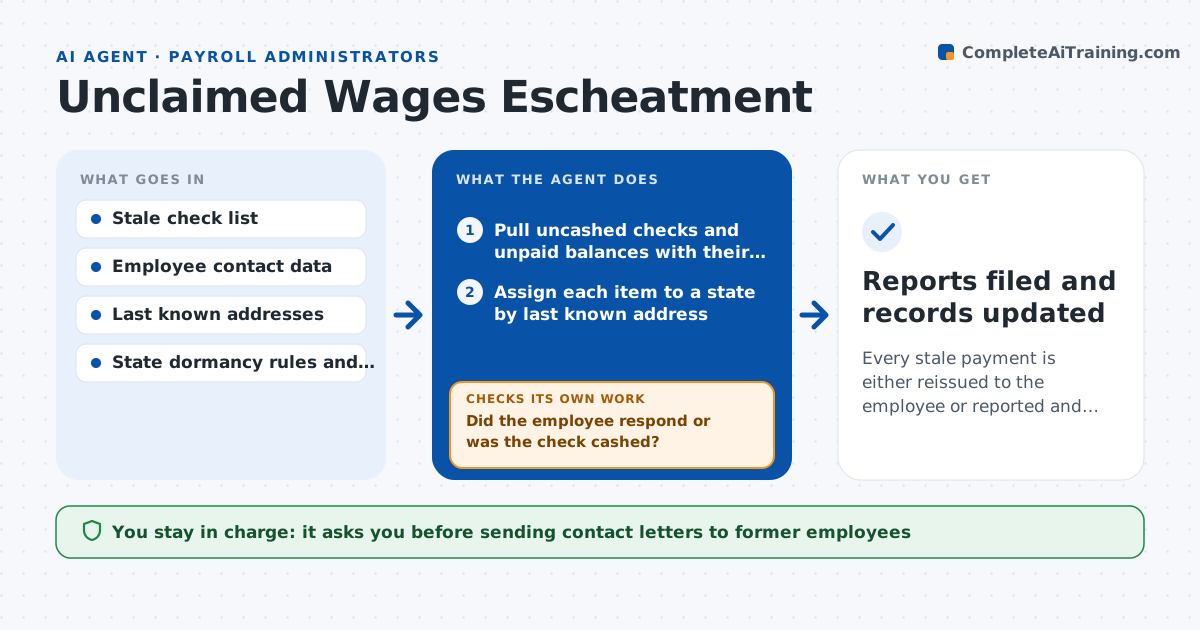
What it does
Wages left uncashed must eventually be reported and turned over to the state as unclaimed property. Dormancy periods differ by state, usually one to three years, and mistakes bring penalties and interest. This agent lists all stale checks and unpaid balances by employee and last known state of residence. It looks up the dormancy period and the due date of the report in each state, and counts how long each item has been unclaimed. Before the reporting deadline, it tries to reach the employee through addresses, email and phone on file, and records the outcome. If the employee responds, it prepares a reissue instead. It rechecks the list after each contact result. For the rest it prepares the state reports and the remittance amount. Payroll approves the filing and payment. Edge case: the employee moved, so the last known state, not the company's state, decides where to report.
How it works
Follow the arrows from top to bottom. The orange dashed arrow is the loop: when a check fails, the agent goes back and tries again.
Read the steps as a list
- Quarterly review or deadline window opens
- Pull uncashed checks and unpaid balances with their dates
- Assign each item to a state by last known address
- Compute age and compare with the state's dormancy period
- Send contact attempts using the details on file
- Did the employee respond or was the check cashed?If not: try a second channel, such as certified mail, then record the result. Back to step 5.
- Prepare reissue requests for found employees
- Prepare the state report and remittance for the remaining items
- Does the report total match the stale check list?If not: find the differences, correct the list and rebuild the report. Back to step 3.
- Payroll approves filing and remittanceThe agent waits here for your OK.
- Reports filed and records updated
How it decides
It reports an item once its age passes the state's dormancy period and due diligence has been tried, and it holds items where contact succeeded.
- Report when age exceeds the state's dormancy period
- Make two contact attempts using different channels
- Skip items under the state's minimum reporting amount
- Use the last known state of residence
Make it yours
Every agent is a starting point. You choose these settings for your own situation.
- States and dormancy periods
- Number and type of contact attempts (default two)
- Minimum amount to report
- Report due date reminders
What keeps you in control
It always asks you first
- Sending contact letters to former employees
- Filing reports and remitting funds
Hard limits
- Never remits funds on its own
- Does not delete records
- Keeps proof of every contact attempt
It stops when
- Done: all items are reissued or reported
- Stop: the check register cannot be read
Set it up
We guide you through the set-up, step by step
Members get the full set-up guide for this agent. No technical skills needed: you copy, paste and upload.
- One set of instructions to paste into your AI, with the clicks for ChatGPT, Claude, Microsoft 365 Copilot, Gemini and Grok
- The agent then walks you through connecting your own data, one source at a time
- A downloadable copy with the flow chart, the rules and the full guide